How to Change a Folder Icon in Finder for Better Mac Organization
Customize your Mac folders by changing their icons in Finder to improve organization and quickly identify important folders.
Customizing your Mac’s folder icons in Finder can transform how you organize and navigate your files. Changing a folder icon in Finder adds a personal touch and helps you quickly identify important folders, reducing clutter and boosting productivity.
Why Change Folder Icons in Finder? The Productivity and Aesthetic Benefits
Assigning unique icons to folders offers practical advantages beyond decoration. When folders stand out visually, you locate them faster without reading folder names, saving time especially when managing many directories.
- Faster folder identification: Distinct icons act as visual shortcuts, allowing you to spot critical folders at a glance.
- Reduction of visual clutter: Meaningful icons help your Finder window appear cleaner and more organized, improving focus.
- Personalized Mac experience: Custom icons make your workspace feel tailored to you, which can increase comfort during work sessions.
Visual cues like icons assist in quicker decision-making and reduce cognitive load compared to uniform folder appearances. For example, projects marked with vibrant, unique icons stand out more clearly than standard yellow folders.
Step-by-Step Guide: Changing a Folder Icon in Finder
Changing a folder icon is straightforward with macOS built-in tools. Follow these steps carefully to avoid common pitfalls.
- Prepare your custom icon image: Use square images in PNG, JPEG, or ICNS formats. A size of 512×512 or 256×256 pixels works well for clarity without being too large.
- Copy the icon image: Open the image in Preview, select all (Cmd + A), then copy (Cmd + C). Note: Some users forget to select the entire image before copying, which prevents the icon from updating.
- Apply the icon to your folder:
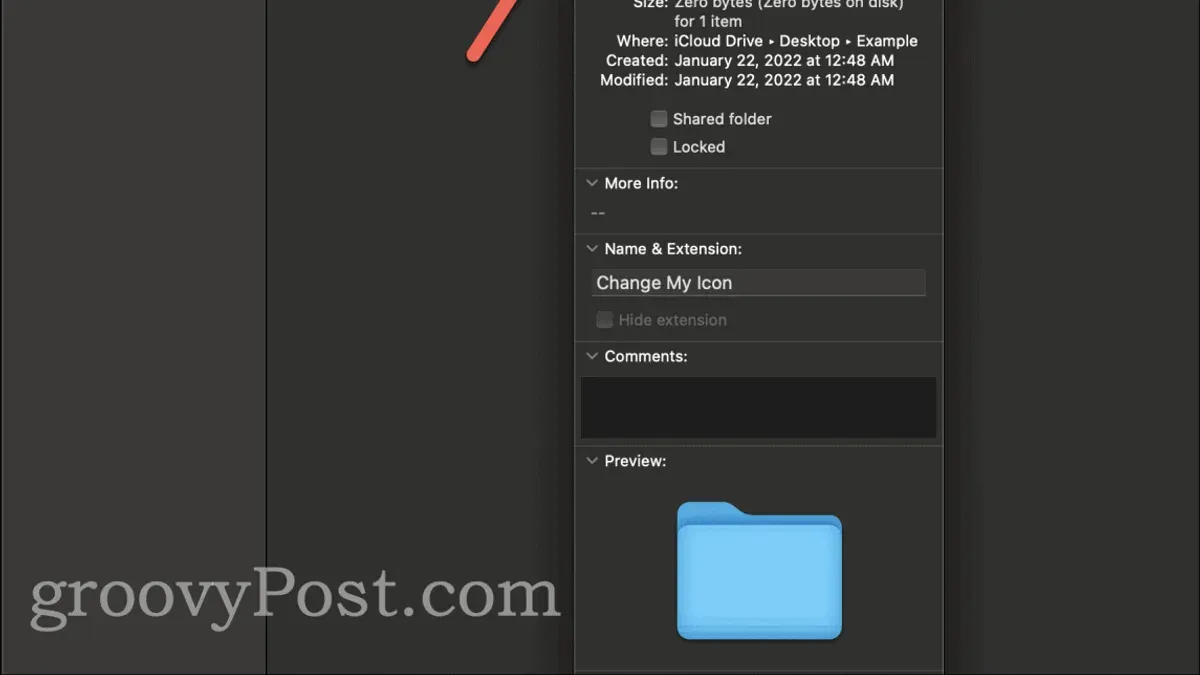
- Right-click the folder and choose Get Info (or select the folder and press Cmd + I).
- Click the small folder icon at the top-left corner of the Info window to highlight it. This step is crucial; if the icon is not highlighted, the paste command will not work.
- Paste the copied image (Cmd + V). The folder icon should update immediately.
- Revert to the original icon if needed: Open the folder's Info window, select the custom icon at the top-left, and press Delete (Backspace) to restore the default folder icon.
This method uses native macOS features and requires no additional software.
Creative Sources for Custom Folder Icons: Beyond Default Options
To find or create icons that fit your organizational style, consider these options:
- Icon libraries and free websites: Sites like icons8.com or flaticon.com offer many free icons in various styles, often downloadable as PNG files.
- Creating custom icons with Preview or apps: You can design icons by editing images in Preview or use dedicated apps like Icon Slate or Image2icon to convert images into icon files.
- Converting images to .icns format: For best quality and full macOS compatibility, convert images to the ICNS format. This ensures crisp rendering at all sizes and supports transparency.
Example conversion can be done using apps like Icon Slate or the command-line tooliconutil.
Choosing the right format and quality affects icon appearance and system integration. PNGs with transparency are good for casual use, but ICNS is preferred for professional and consistent visuals.
Troubleshooting and Common Issues When Changing Folder Icons in Finder
Sometimes folder icons don’t update as expected. Common issues and solutions include:
- Permissions issues: If you cannot paste a new icon, check folder permissions. Right-click the folder, select Get Info, and verify you have Read & Write access. Adjust permissions in the Sharing & Permissions section if needed.
- Icon not updating or reverting: Restart Finder by right-clicking Finder’s dock icon while holding Option, then select Relaunch. This refreshes icon caches.
- Compatibility with macOS updates: Occasionally, macOS updates revert or block custom icons, especially for system folders. Custom icons on user folders usually remain intact but may require reapplying after major updates.
If paste commands fail, try copying the image again or use a different image format. Avoid using icons in folders synced with cloud services that may override local changes.
When Not to Change Folder Icons: Understanding the Limitations
Custom folder icons are not always practical. Consider these limitations:
- Folders synced with cloud services: Services like iCloud Drive or Dropbox may override or ignore custom icons, causing them to reset or not display on other devices.
- Shared folders: Custom icons set locally do not propagate to other users’ Macs. They only appear on your device.
- Performance on older Macs: Extensive use of custom icons might slightly affect Finder responsiveness on very old hardware.
Understanding these factors helps decide when icon customization is effective and when it may cause inconvenience.
Important Caveats
This article does not cover changing system or protected folder icons that require advanced permissions or terminal commands. Those actions can affect system stability and are outside standard customization.
Frequently Asked Questions
Can I use any image file as a folder icon in Finder?
Most common image formats like PNG and JPEG work if copied via Preview. However, for best results and transparency support, the .icns format is recommended.
Will custom folder icons sync across my devices via iCloud?
No. Custom folder icons set locally typically do not sync via iCloud or other cloud services. Each device needs its own customization.
How do I restore the original folder icon if I don’t like the change?
Open the folder’s Info window, select the custom icon in the top-left, and press Delete on your keyboard. The default icon will return immediately.
Are there risks to changing system folder icons?
Yes. System or protected folders may require elevated permissions to modify icons. Incorrect changes can cause system issues. This article advises against altering those.
Related reading
- How to Add Color Tags to Files in Finder for Smarter OrganizationDiscover how to add color tags to files in Finder to visually organize and quickly access your important Mac documents.
- How to Create a Smart Folder in Finder for Efficient File ManagementDiscover how to create a smart folder in Finder to dynamically organize and access your files efficiently on Mac.