How to Create a Smart Folder in Finder for Efficient File Management
Discover how to create a smart folder in Finder to dynamically organize and access your files efficiently on Mac.
Managing large volumes of files on a Mac can become overwhelming without the right tools. One efficient way to organize and quickly access files is by using a smart folder in Finder. This feature dynamically displays files matching your specified criteria, saving time and reducing manual effort.
What Is a Smart Folder in Finder and Why Use It?
A smart folder in Finder is essentially a saved search that automatically updates based on criteria you set. Unlike regular folders, smart folders do not store files physically. Instead, they provide a dynamic view of files scattered across your Mac or specified locations that meet your conditions.
- Dynamic saved search: Smart folders always show current results without needing manual updates.
- No physical storage: Files remain in their original locations; the smart folder only aggregates pointers to them.
- Benefits: Automatic updates save time, reduce the need for manual sorting, and improve file retrieval speed.
For example, if you often search for recent project documents, a smart folder can display all files modified in the last week tagged with your project name. This eliminates repeatedly performing the same search and navigating multiple folders.
Step-by-Step: Creating Your First Smart Folder
Follow these steps to create a basic smart folder:
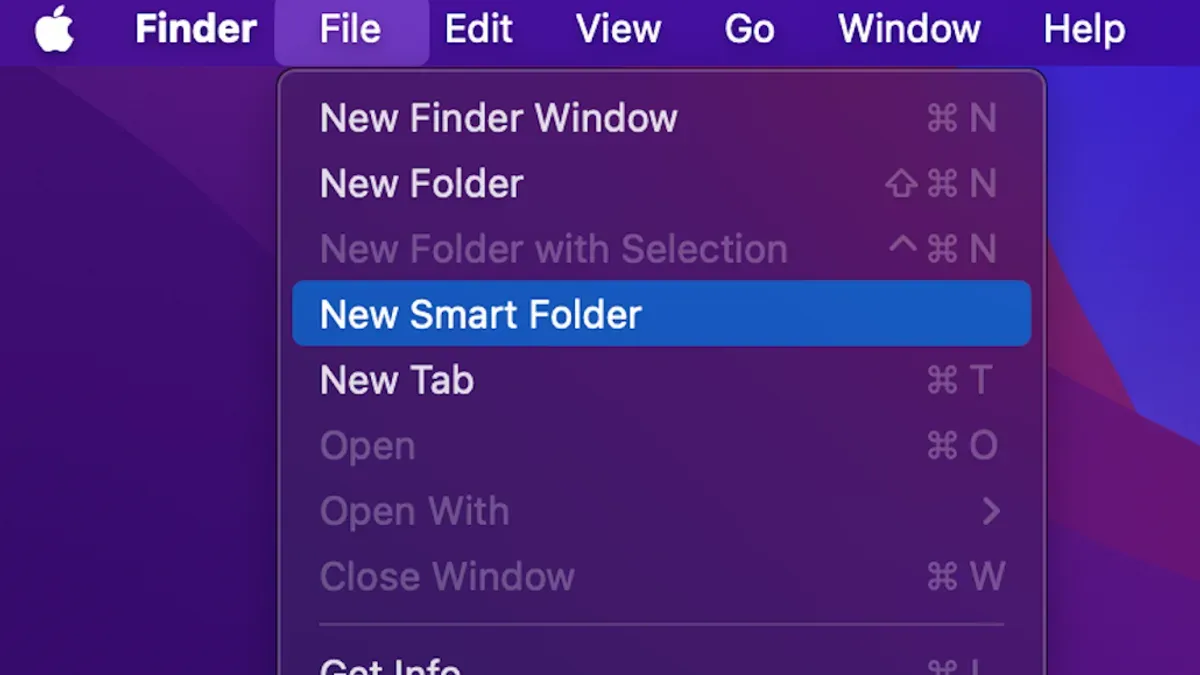
- Open Finder and go to the menu bar. Select File > New Smart Folder.
- At the top right, choose the search location by clicking This Mac or selecting a specific folder to narrow results. Note that limiting the search location can speed up results but may exclude files outside that folder.
- Click the + button below the search bar to add a search criterion.
- Use the dropdown menus to select attributes such as Kind (e.g., Documents, Images), Date Modified, Name, or Tags. A common oversight is neglecting to set the correct attribute type, such as confusing "Name" with "Filename" or missing the "Tags" filter when relying on colored labels.
- After setting your criteria, click Save on the top right.
- Enter a meaningful name for the smart folder and optionally check Add to Sidebar for quick access.
This process creates a smart folder that updates automatically based on your defined rules. You can open it like any other folder to see matching files.
Advanced Criteria and Boolean Logic for Precise Smart Folders
Beyond simple filters, Finder allows combining multiple criteria to refine your smart folder results using Boolean logic.
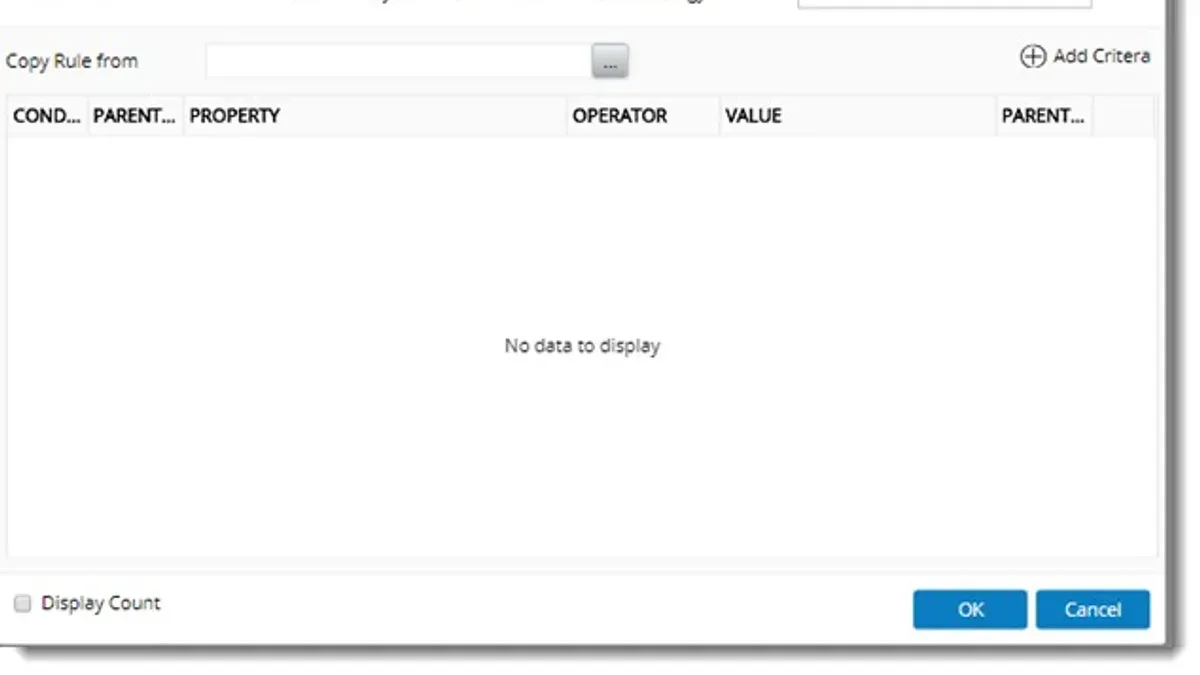
- Multiple filters: Add several criteria using the + button to narrow or broaden the search.
- Any vs. All: Choose between "Any" (OR logic) to include files matching at least one condition, or "All" (AND logic) to require all conditions be met. This choice affects the inclusiveness of your search and is critical when combining diverse criteria.
- Nested criteria: By holding the Option key when clicking the + button, you can create grouped conditions for complex queries. This allows for precise control, such as searching for files that meet one set of conditions OR another.
For example, to find files modified in the last 7 days that are tagged "Project X" and are PDFs, set criteria as follows:
- Date Modified is within last 7 days
- Tag is "Project X"
- Kind is PDF
Set the filter type to "all" to require every condition or "any" to show files matching at least one. This precision helps target exactly the files you need.
Common Pitfalls and How to Troubleshoot Smart Folder Issues
Sometimes files you expect to see don’t appear in smart folders. Common causes include:
- Spotlight indexing: Smart folders rely on Spotlight search. If Spotlight hasn’t indexed a location or file, it won’t appear in the results. A frequent mistake is assuming all connected drives or folders are indexed by default.
- Permissions: Files in folders without read access for your user account won’t show up. Ensure you have appropriate permissions.
- Incorrect criteria: Filters that are too narrow or conflicting can exclude desired files. For example, combining mutually exclusive criteria like "Kind is PDF" and "Kind is Image" with an AND condition will return no results.
If results seem incomplete, rebuilding the Spotlight index can help:
- Open System Settings > Privacy & Security > Spotlight Privacy.
- Add the folder or disk to the Privacy list to exclude it temporarily.
- Remove it from the list to trigger reindexing. This process can take time depending on the amount of data.
After reindexing, smart folder results typically update to include missing files.
Integrating Smart Folders into Your Workflow: Practical Tips
To maximize productivity, consider these practical uses of smart folders:
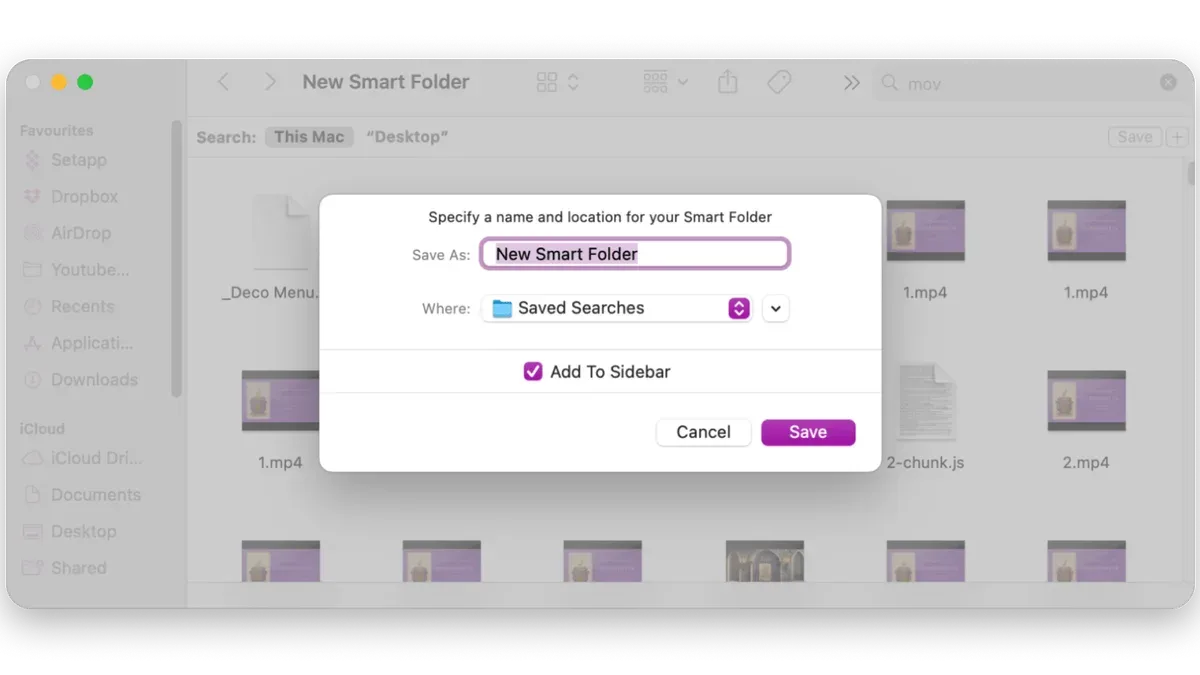
- Pin smart folders to Finder sidebar: Place frequently used smart folders in the sidebar for instant access.
- Combine with tags: Use macOS tags and labels to categorize files, then create smart folders that aggregate tagged files across locations. Remember that tags must be consistently applied for this to work effectively.
- Automate management: Use Automator or AppleScript to trigger actions based on smart folder contents, such as moving old files or sending notifications. Note that smart folders themselves don’t trigger automation; you must script around their contents.
These strategies can reduce clutter, speed up file retrieval, and help maintain project organization.
Limitations to Keep in Mind
Smart folders offer dynamic views but do not physically move or copy files. They only display files matching criteria. Because of this, they should not be used as backups or a replacement for organized file storage. Losing original files will mean losing access in the smart folder.
Frequently Asked Questions
Can I create smart folders that include files from external drives?
Yes, as long as the external drive is connected and indexed by Spotlight, smart folders can include those files in their search results. If the drive is excluded from Spotlight indexing, its files won’t appear.
How do smart folders differ from saved searches in other operating systems?
Smart folders in macOS are integrated with Finder and Spotlight, providing dynamic, real-time file aggregation based on metadata. Other systems may handle saved searches differently or lack the same level of integration and real-time updating.
Can smart folders slow down my Mac or affect performance?
Generally, smart folders have minimal impact on performance since they rely on Spotlight’s index. However, complex or very broad criteria that return thousands of files may cause slight delays when opening the folder.
Is it possible to edit or update the search criteria after creating a smart folder?
Yes. To edit a smart folder’s criteria, open it in Finder, then click the gear icon and select "Show Search Criteria" or reopen the smart folder via File > New Smart Folder and load the saved search to modify filters.
Related reading
- How to Change the Default Folder View in Finder on macOSThis guide explains how to change the default folder view in Finder, helping you tailor views for better file management on macOS.
- How to Show File Extensions in Finder on Your MacDiscover how to show file extensions in Finder on your Mac to improve file identification and security.