How to Add Color Tags to Files in Finder for Smarter Organization
Discover how to add color tags to files in Finder to visually organize and quickly access your important Mac documents.
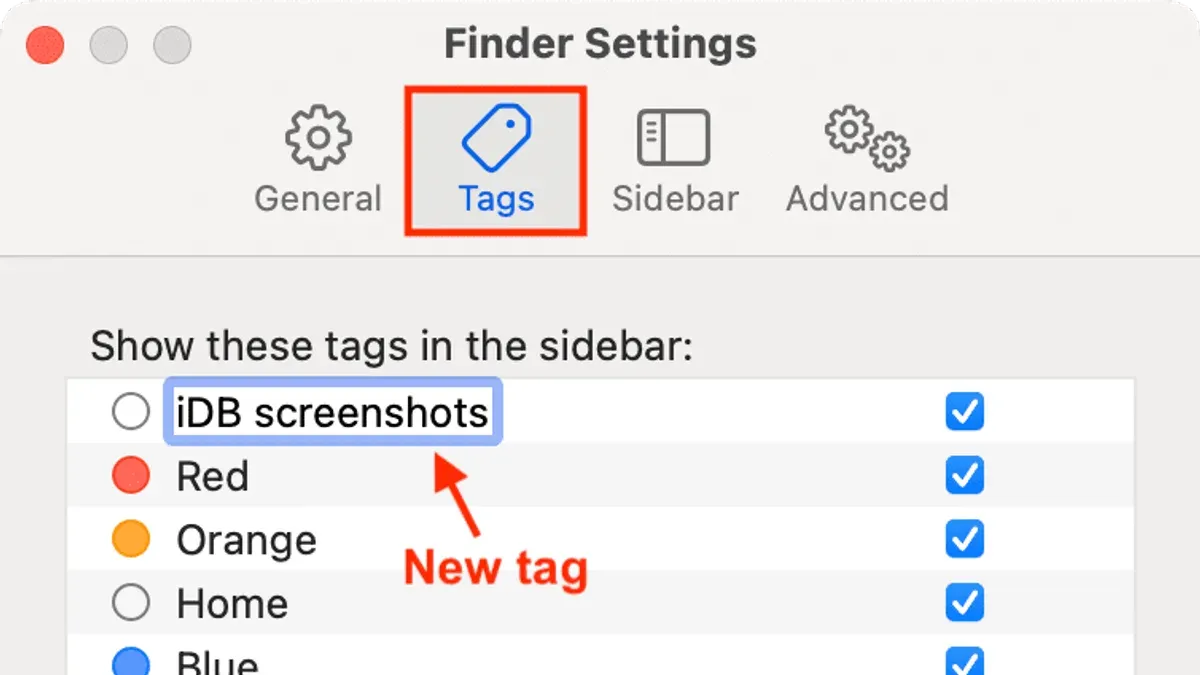
Adding color tags to files in Finder is a practical method for Mac users to visually organize and quickly identify important documents. This guide explains how to add color tags to files in Finder and apply them effectively to improve your workflow.
Understanding Color Tags in Finder: What They Are and How They Work
Color tags in macOS Finder are visual markers that help users categorize and locate files at a glance. Unlike folder icons or labels that alter file appearance or location, color tags add a colored dot or highlight to files and folders without changing their content or place.
Tags integrate directly with Finder's interface. You can sort files by tag color or filter your view to show only items with a specific tag. They also participate in Finder search results, allowing targeted queries based on tags.
| Feature | Color Tags | Folder Icons | Labels |
|---|---|---|---|
| Visual marker | Colored dots/highlights | Icon overlays | Text-based in Finder comments |
| Integration with search | Yes | No | Limited |
| Effect on file location | None | None | None |
Step-by-Step Guide: Adding and Customizing Color Tags to Files
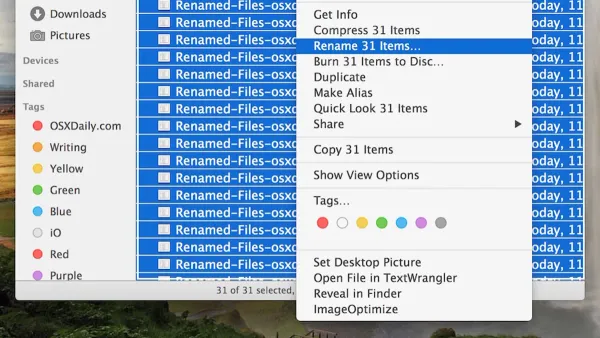
- Add a Tag via Right-Click: Select one or multiple files in Finder. Right-click and choose a color tag from the “Tags” submenu. Note that if the "Tags" submenu does not appear, ensure you have selected a file type that supports tagging.
- Use the Finder Toolbar: Select files and click the tag icon (a colored circle) in the Finder toolbar to pick or add tags. If the tag icon is not visible, customize the toolbar by right-clicking it and selecting "Customize Toolbar..." to add the tag button.
- Keyboard Shortcuts: Press
Control + Number(1–7) to assign a tag corresponding to the number position in the tag list. Be aware that the order of tags in Finder Preferences determines which tag corresponds to each number.
To rename or add custom tag names:
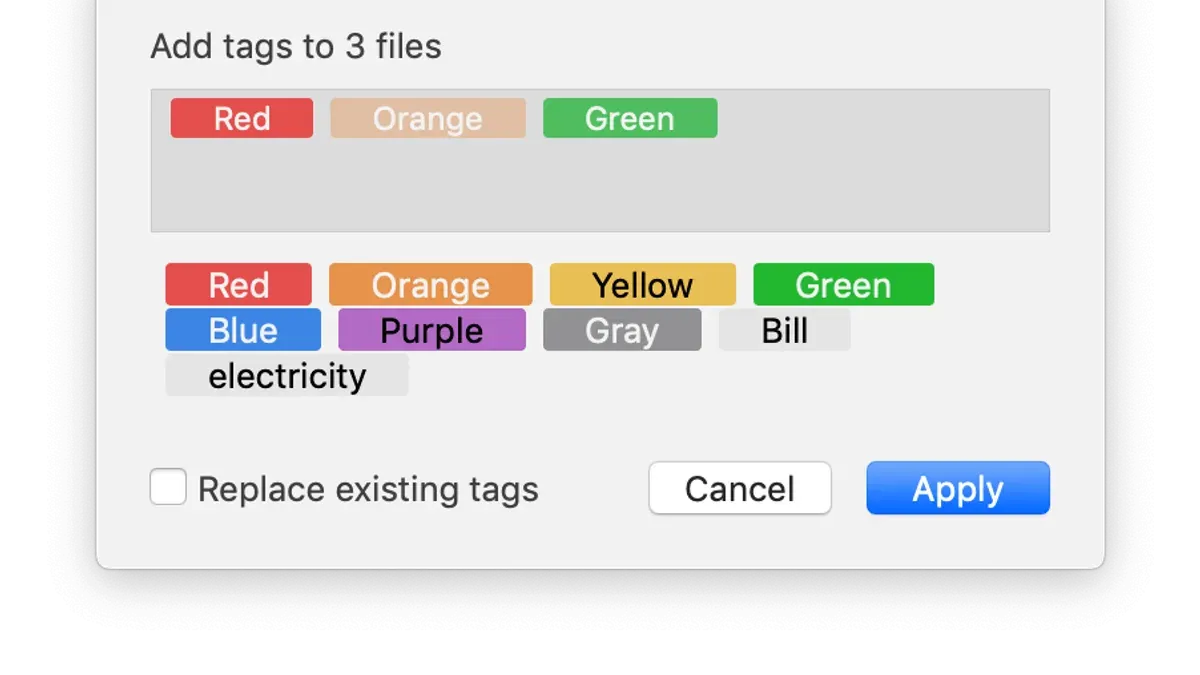
- Open Finder Preferences (Finder > Preferences > Tags tab).
- Double-click an existing tag name to edit it or click the “+” button to add a new tag with a custom name.
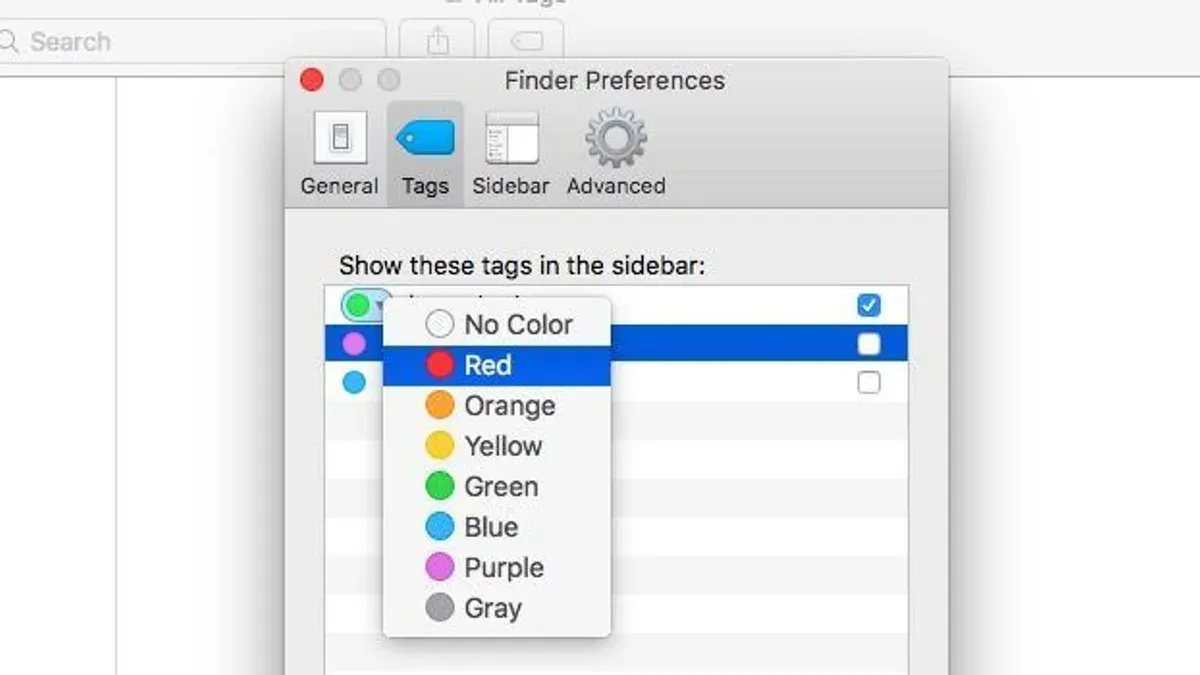
- Change tag colors by right-clicking a tag in the Tags list and selecting a different color. Dragging colors onto tags is not supported in recent macOS versions.
Managing tags here also allows reordering and removing tags from the list. Note that changes to tag names or colors affect all files tagged with them system-wide.
Worked Example
Suppose you have a folder with project files. Select a draft report and assign it the red tag labeled "Draft." Tag final presentations with green "Final" tags. Use yellow for files needing review. This visual system helps you assess project status at a glance. Remember that tags are metadata and do not move or duplicate files.
Effective Tagging Strategies: Organizing Files by Project, Priority, and Status
Color tags become powerful when used with a clear system.
- Project Phases: Mark files with tags like "Draft," "Review," and "Final" to track progress.
- Priority Levels: Assign red for high priority, orange for medium, and green for low priority tasks. Be mindful that color perception varies among users.
- Combining Tags: macOS allows multiple tags per file. For example, tag a client’s urgent file with both "Urgent" (red) and the client's color-coded tag.
- Professional Examples: Creative teams might tag images by usage rights and editing status, while legal teams tag documents by confidentiality and case stage.
Using structured tagging can reduce search time and help prioritize workload visually. However, avoid over-tagging, which can cause confusion and reduce the system's effectiveness.
Searching and Filtering Files by Color Tags in Finder
Finder supports filtering and searching files by their color tags to speed up locating files.
- Filter by Tag Color: In a Finder window, click the sidebar tag color or use the search bar with the tag name to filter files. Note that the sidebar shows only tags you have used or added to the sidebar.
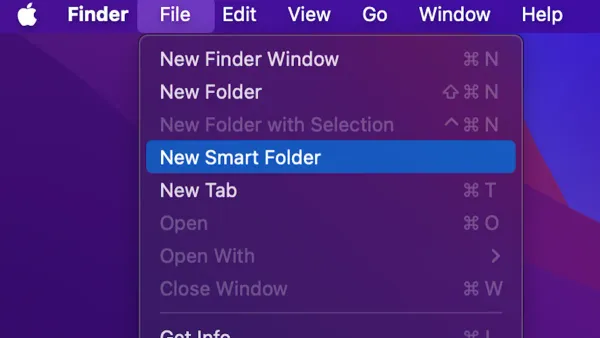
- Create Smart Folders: Choose File > New Smart Folder. Click the “+” button, set the search criteria to "Tags" > "is" > select your color tag, then save it for quick access.
- Spotlight Search: Use Spotlight with the syntax
tag:<tag name>to find files with specific tags quickly. Ensure the tag name matches exactly, including capitalization.
These tools allow you to build dynamic views of files by tags, maintaining organization without moving files physically.
Limitations and Compatibility: What Color Tags Can and Cannot Do
It is important to understand where color tags fall short.
- Tags often do not sync consistently across cloud storage providers such as Dropbox or Google Drive. iCloud Drive supports tags better but syncing may not be instantaneous.
- Cross-platform issues exist; Windows and Linux systems generally do not recognize macOS Finder tags, so tags appear as normal files without color coding.
- Tags are stored as metadata in extended attributes, not as part of the file’s core attributes. This means some backup or transfer methods, especially those that do not preserve metadata, may not retain tags.
- When file organization requires complex metadata or cross-device uniformity, relying solely on color tags might not be sufficient.
Considering these limitations helps decide when to use tags and when other systems are needed.
Frequently asked questions
Can I assign multiple color tags to a single file in Finder?
Yes. Finder allows multiple tags per file, letting you combine colors and labels to represent different attributes simultaneously.
Do color tags sync across my Apple devices via iCloud?
Tags sync across macOS devices using the same iCloud account, but syncing may be delayed or incomplete on iOS devices or third-party apps.
How do I remove or edit color tags from files?
Select the file, right-click the tag dot, and click the tag to deselect it. To edit tag names or colors, use Finder Preferences under the Tags tab.
Are there keyboard shortcuts to quickly add or change color tags?
Yes. Press Control + Number (1-7) to assign the corresponding tag from your tag list quickly. The number corresponds to the tag's position in Finder Preferences.
Caveats
This guide focuses strictly on macOS Finder's native color tagging features. It does not cover third-party file management applications or more advanced metadata tagging systems that offer additional functionality beyond Finder's capabilities.
Related reading
- How to Create a Smart Folder in Finder for Efficient File ManagementDiscover how to create a smart folder in Finder to dynamically organize and access your files efficiently on Mac.
- How to Change the Default Folder View in Finder on macOSThis guide explains how to change the default folder view in Finder, helping you tailor views for better file management on macOS.
- How to Show File Extensions in Finder on Your MacDiscover how to show file extensions in Finder on your Mac to improve file identification and security.