Master Finder’s Batch Rename for Mac Files Like a Pro
Streamline your workflow by learning how to batch rename files in Finder on Mac with easy, practical steps for 2026.
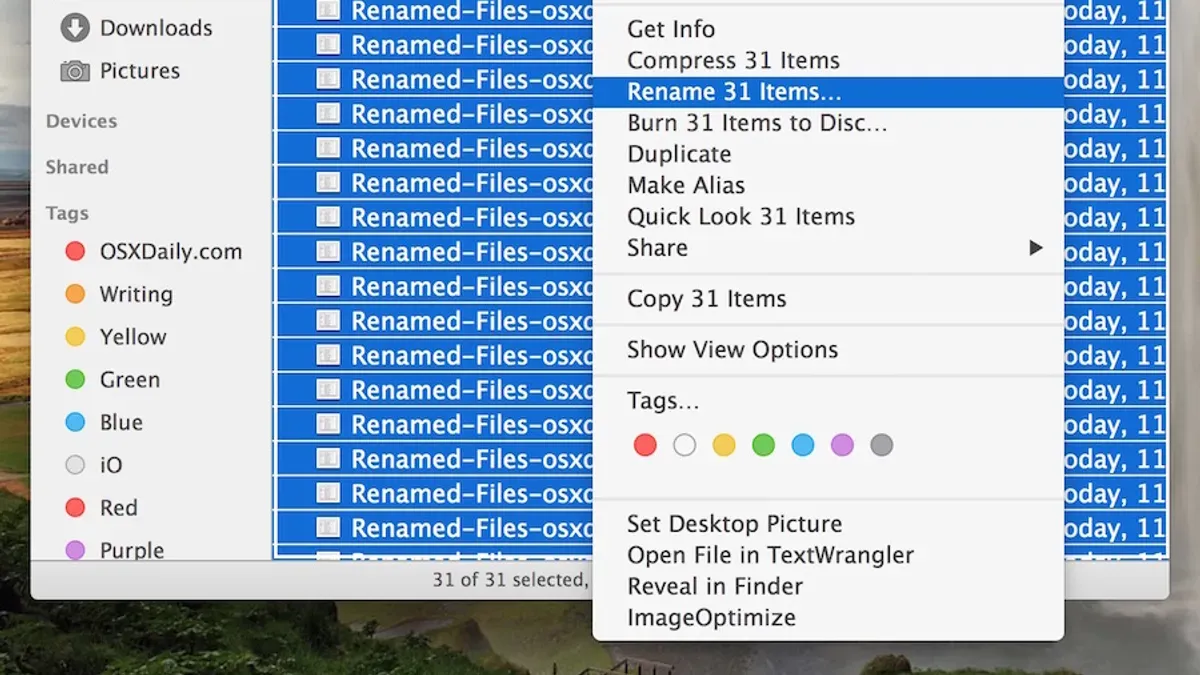
Renaming many files at once can be tedious, but Mac users can streamline this task using Finder’s batch rename feature. This built-in tool offers practical options to rename large sets of files without extra software. Understanding how to use it effectively helps photographers, content creators, and professionals organize files quickly and consistently.
Understanding Finder’s Batch Rename Tool: What It Can and Cannot Do
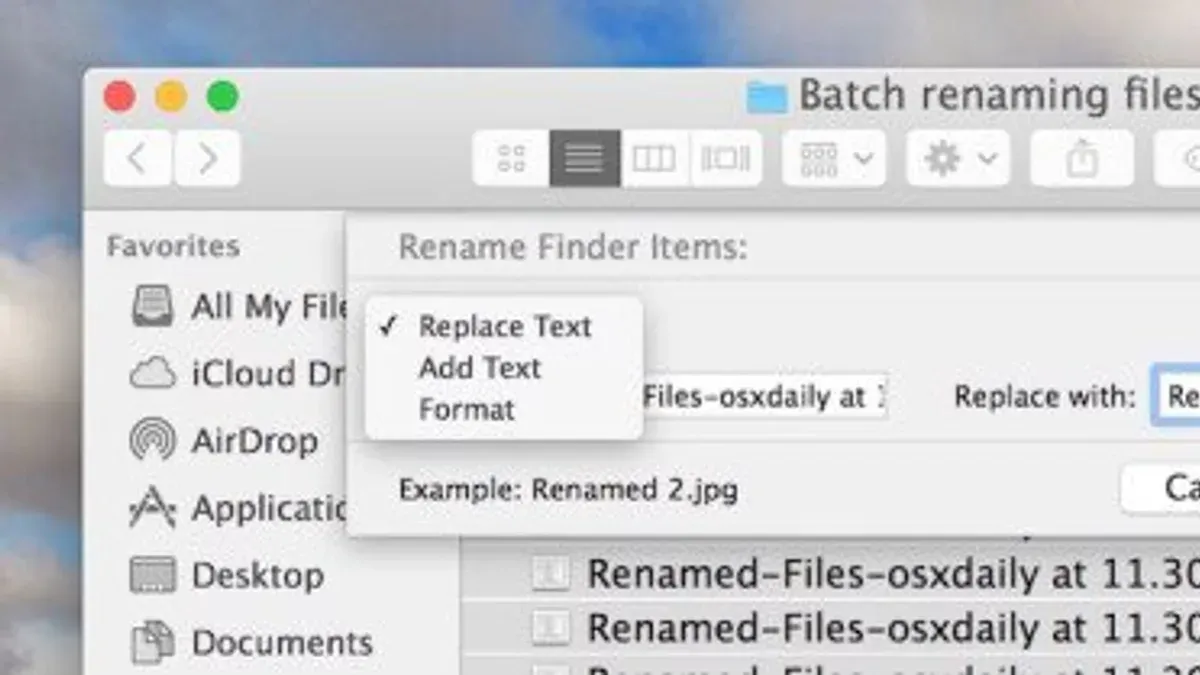
Finder offers three primary batch rename options accessible by selecting multiple files, right-clicking, and choosing “Rename X Items…”. These options are:
- Replace Text: Finds specific text in filenames and replaces it with new text.
- Add Text: Inserts text before or after the existing filename.
- Format: Renames all selected files with a uniform format, adding a base name and a sequential number or date.
These options work on most file types visible in Finder, including images, documents, PDFs, and more. However, Finder does not rename file extensions by default; extensions remain unchanged unless explicitly included in the new name. A common oversight is forgetting that the extension is part of the filename string when using the Format option, which can lead to unintended extension changes if not careful.
Some system or locked files cannot be batch renamed. Also, batch renaming applies only to files within the selected folder; Finder does not support batch renaming across multiple folders simultaneously.
While convenient, Finder’s batch rename tool lacks advanced capabilities such as regular expressions or metadata-based renaming (like reading EXIF data for photos). Users needing these features should consider third-party utilities.
Step-by-Step Guide: How to Batch Rename Files in Finder for Different Use Cases
Here are detailed workflows for common batch renaming scenarios using Finder.
Renaming Photo Files with Date and Sequence Number
- Open the folder containing your photos.
- Select all photos you want to rename.
- Right-click and select Rename X Items…
- Choose Format from the dropdown menu.
- Set Name Format to Name and Index.
- Enter a base name like “Vacation2026”.
- Set the index to start at 1 and choose the number of digits (e.g., 01). Note that the numbering will increment by 1 for each file in the order they were selected.
- Click Rename.
Before: IMG_1234.jpg, IMG_1235.jpg, IMG_1236.jpg
After: Vacation2026 01.jpg, Vacation2026 02.jpg, Vacation2026 03.jpg
Adding Project Codes to Document Names
- Select all project documents.
- Right-click and pick Rename X Items…
- Choose Add Text.
- Enter the project code, e.g., “_PRJ45”, and select whether to add it before or after the filename.
- Click Rename.
Before: Report.docx, Summary.docx
After: Report_PRJ45.docx, Summary_PRJ45.docx
Replacing or Removing Text in Filenames
- Select the target files.
- Right-click and choose Rename X Items…
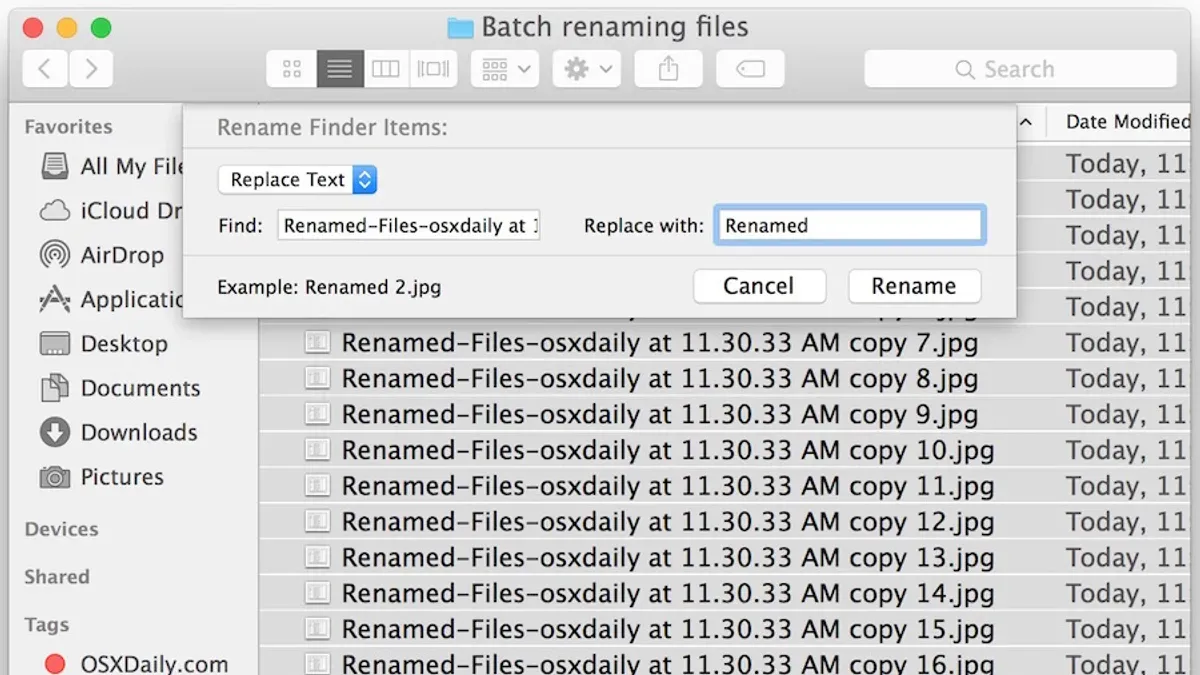
- Choose Replace Text.
- Enter the text to find, e.g., “Draft”, and replace it with blank to remove or new text.
- Confirm with Rename.
Before: Project_Draft1.docx, Project_Draft2.docx
After: Project1.docx, Project2.docx
Using the Format Option for Uniform Naming Conventions
- Select files you want uniformly named.
- Right-click and select Rename X Items…
- Pick Format.
- Choose Name and Date or Name and Counter depending on your needs.
- Set the base name and options for numbering or date format. Note that the date used is the current date, not the file’s creation or modification date.
- Click Rename.
Before: Doc1.pdf, Doc2.pdf, Doc3.pdf
After: ProjectA 2026-09-28.pdf, ProjectA 2026-09-28 2.pdf, ProjectA 2026-09-28 3.pdf
Troubleshooting and Tips: Avoiding Common Mistakes When Batch Renaming
Batch renaming can cause unintended results if not handled carefully. Follow these best practices:
- Preview Changes: Always review the rename preview in the dialog before clicking Rename. This preview shows the exact new filenames, helping catch errors early.
- Duplicate Names: Finder automatically appends a number to avoid duplicate final names. However, if many duplicates occur, it can cause confusion. Adjust your naming pattern to ensure uniqueness.
- Undo Limitations: Finder allows immediate Undo (Command+Z) after renaming. Once you perform other actions, Undo is no longer available. Plan carefully and backup files before large batch renames.
- Backup Files: Before renaming large batches, back up your files to avoid accidental data loss or confusion.
Example of a common error: Attempting to rename files with identical target names without an index can cause conflicts. Ensuring unique suffixes or prefixes avoids this.
When Finder’s Batch Rename Isn’t Enough: Knowing When to Use Third-Party Tools
Finder’s batch rename tool handles many everyday needs but lacks advanced features required in some situations:
- Complex Patterns: Renaming based on regular expressions or metadata such as photo EXIF data is not possible.
- Multiple Folders: Batch renaming across folders requires manual selection or alternative tools.
- Automated Workflows: Integration with scripting or automation apps is limited.
| Feature | Finder | Popular Third-Party Tools |
|---|---|---|
| Regex support | No | Yes |
| Metadata-based renaming | No | Yes |
| Multi-folder batch rename | No | Yes |
| Automation scripting | Limited (via AppleScript or Automator) | Extensive |
If your projects demand these capabilities, tools like Name Mangler, A Better Finder Rename, or Hazel offer robust options.
Limitations of Finder’s Batch Rename Tool
Finder’s batch rename works only within a single folder at a time. It does not support advanced renaming patterns such as regular expressions or metadata-based renaming. Users with complex renaming requirements should consider specialized software to avoid frustration and achieve precise results.
Frequently Asked Questions
Can I undo a batch rename operation in Finder?
Finder provides an immediate Undo option (Command+Z) after renaming. Once other actions occur, Undo is no longer available. It is best to backup files before renaming to recover from mistakes.
Does batch renaming affect file metadata like creation or modification dates?
Batch renaming in Finder changes only the filenames. File creation and modification dates remain unchanged.
Is it possible to batch rename files across multiple folders at once in Finder?
No, Finder limits batch renaming to files within a single folder. To rename files across multiple folders, third-party tools or scripts are required.
How can I include file extensions when batch renaming in Finder?
Finder preserves file extensions by default during renaming. To rename extensions, you must manually edit them or include them in the new filename when using the Format option, which is generally not recommended because it can cause files to become unassociated with their applications.
Related reading
- How to Add Color Tags to Files in Finder for Smarter OrganizationDiscover how to add color tags to files in Finder to visually organize and quickly access your important Mac documents.
- How to Create a Smart Folder in Finder for Efficient File ManagementDiscover how to create a smart folder in Finder to dynamically organize and access your files efficiently on Mac.