
How to Fix the Question Mark Folder on Startup on Mac
Discover effective steps to fix the question mark folder on startup on Mac and restore your system to normal operation without data loss.
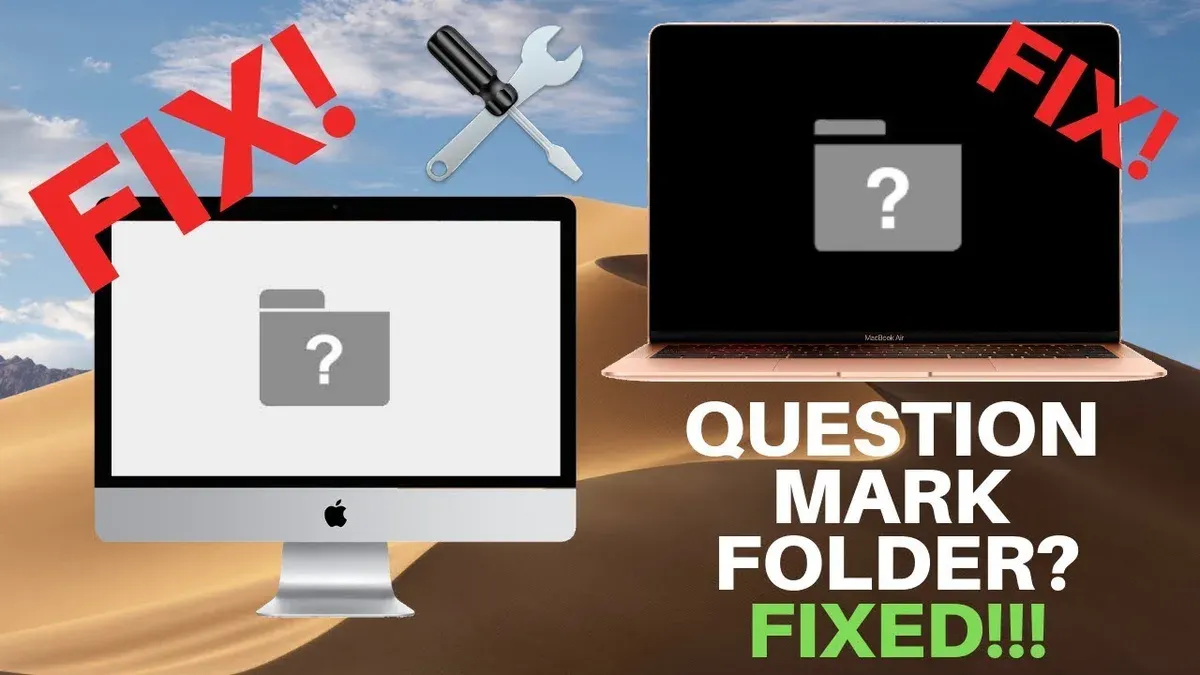
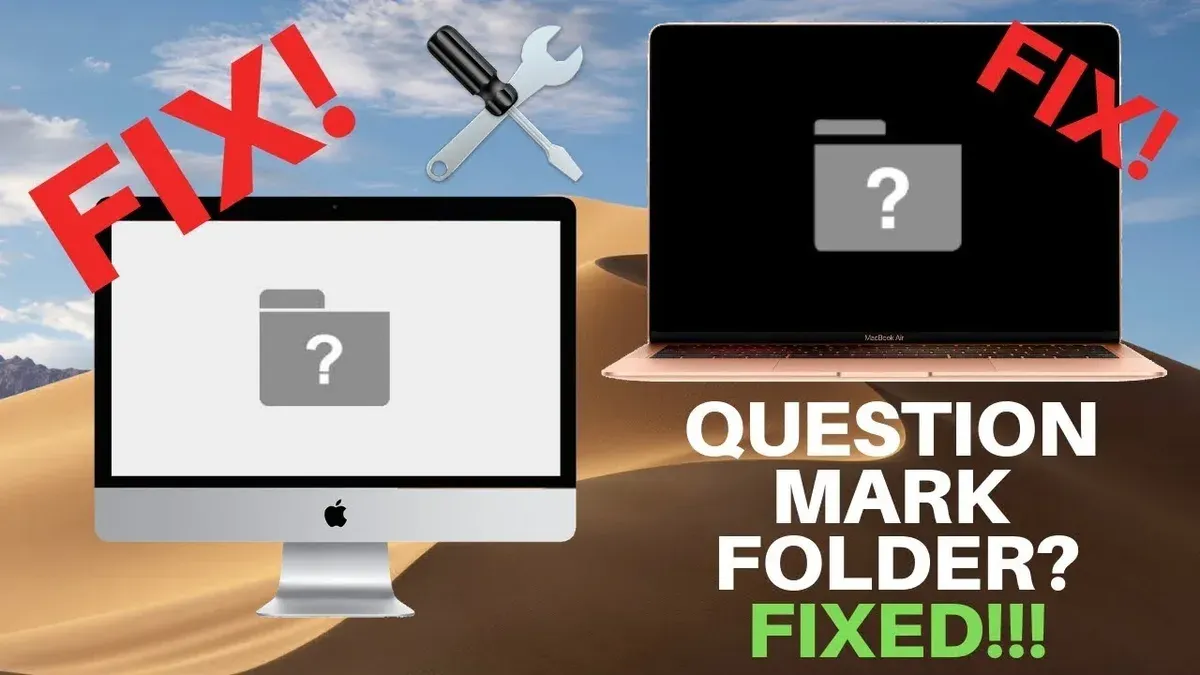
This symbol means your Mac cannot find a valid startup disk with a working macOS.
First, you need to access macOS Recovery Mode: on Intel Macs, restart holding Command + R; on Apple Silicon Macs, hold the power button until options appear, then choose Options > Continue.
If repairs fail, erasing the disk and reinstalling macOS might be necessary, but that erases data. Resetting NVRAM is another useful step on Intel Macs, done by restarting and holding Option + Command + P + R for about 20 seconds; on Apple Silicon Macs, this resets automatically.
Settings, menu paths and limits here were checked against Apple Support, Secure Data Recovery, MDrepairs (full list at the end) in November 2026.
Steps to fix the question mark folder on startup
- Restart your Mac and enter macOS Recovery Mode. On Intel Macs, press and hold Command + R immediately after restarting until the Apple logo or spinning globe appears. On Apple Silicon Macs, hold the power button until startup options appear, then select Options > Continue.
- Once in Recovery Mode, open Disk Utility from the Utilities window. Select your startup disk and run First Aid to detect and repair disk errors. If First Aid reports success, exit Disk Utility and restart normally. Your Mac should boot without the question mark folder.
- If First Aid cannot repair the disk, return to the Utilities window and choose Reinstall macOS. Follow the on-screen instructions to reinstall the operating system without erasing your data. This step addresses system file corruption that may cause the issue.
- If reinstalling macOS does not resolve the problem, back up your data if possible. Then, in Recovery Mode, use Disk Utility to erase the startup disk, which deletes all data, and reinstall macOS from scratch. This is a last resort that fixes severe disk or system corruption.
- On Intel Macs, after completing repairs or reinstallations, reset the NVRAM to clear any incorrect startup disk selections. Shut down the Mac, then power it on while holding Option + Command + P + R for about 20 seconds until the Mac restarts again. This step often resolves lingering startup issues.
Tip: Entering Recovery Mode correctly is critical; skipping to reinstall macOS before running First Aid can lead to unnecessary data risk.
How to select the correct startup disk to fix the question mark folder
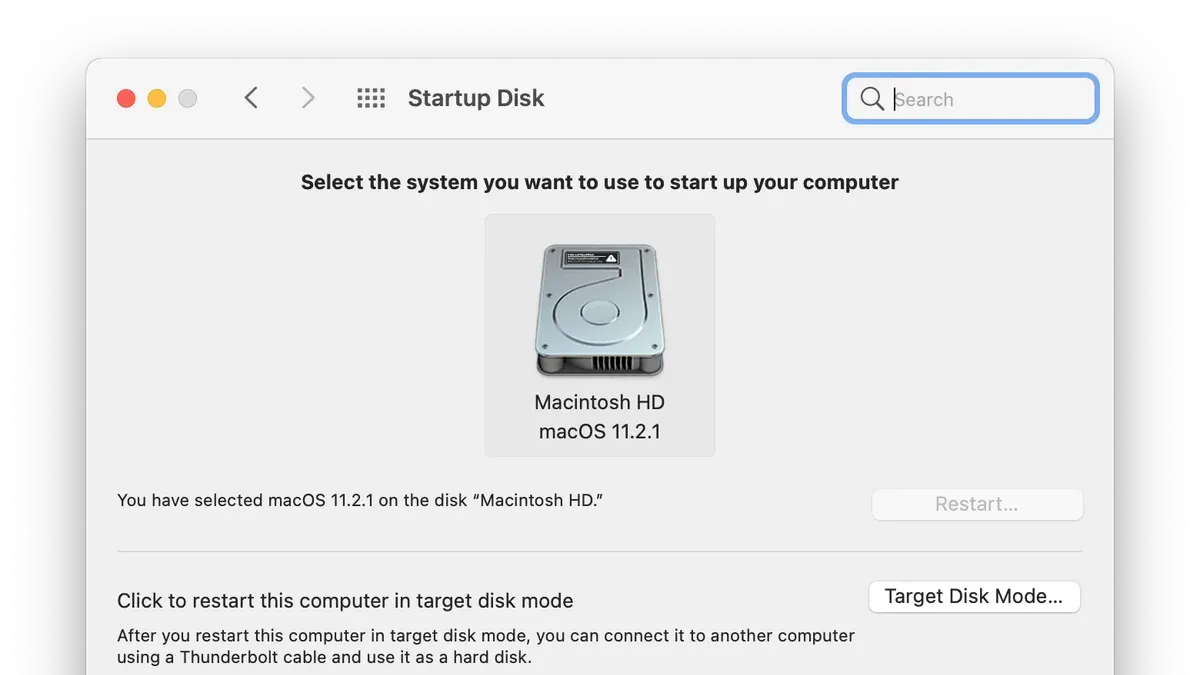
The question mark folder appears when your Mac cannot find a valid startup disk with a working macOS system. Often, this happens because the Mac is trying to boot from the wrong disk. To fix this, you need to manually select the correct startup disk.
- Click the Apple menu and open System Settings.
- Navigate to General and then select Startup Disk.
- In the list of available disks, choose the disk named Macintosh HD or the disk that contains your macOS installation.
- Click Restart to boot your Mac from the selected disk.
If the question mark appears briefly before the system boots, this indicates the disk selection was confused and can often be resolved by this step or by resetting NVRAM on Intel Macs.
Ensuring the right disk is set prevents these boot issues.
What changes when fixing this issue on newer Macs with soldered SSDs
On Macs released from 2016 onward, the SSD is soldered directly to the logic board. This hardware design prevents any user from removing or replacing the storage component. Therefore, if you suspect a hardware failure related to the SSD, do not attempt to open the device or perform any replacements yourself.
Because the storage cannot be separated, any fault in the SSD or logic board usually requires professional diagnostics and repair. Attempting to fix the issue by erasing or reinstalling macOS without first ensuring you have a backup or recovery plan can lead to permanent data loss.
If your Mac shows signs of hardware failure—such as repeated question mark folder appearance despite software troubleshooting—seek professional service immediately. Ignoring these signs risks making your data irretrievable.
Instead, rely on authorized repair providers or data recovery specialists to handle hardware-related problems safely and effectively.
Common failure points when fixing the question mark folder and how to avoid them
- Do not run Disk Utility First Aid before backing up your data. If the startup disk has severe corruption, repair attempts might worsen the damage or cause data loss. Successful completion means Disk Utility shows a verification or repair confirmation without errors.
- Avoid erasing the startup disk unless you have a complete backup or data is unrecoverable. Formatting deletes all files permanently. You should only erase the disk as a last resort after other repair steps fail. When successful, the disk appears empty and ready for a clean macOS install.
- Watch for hardware failure signs, especially on newer Macs with soldered SSDs. Ignoring these can cause permanent data loss because such hardware faults need professional recovery tools. If symptoms persist after software repairs, seek expert assistance promptly.
- Ensure you select the correct startup disk through Apple menu → System Settings → General → Startup Disk. Choosing the wrong disk causes the question mark folder to appear either briefly or continuously, as the Mac attempts to boot from a disk without a valid macOS.
- Never choose a network install image as your startup disk. These images are not valid boot volumes and selecting them can result in erasing your data. Confirm that the selected startup disk is an internal or properly connected external drive with a valid macOS installation.
What to do after fixing the question mark folder on your Mac
This indicates the startup disk is correctly recognized and accessible.
Regular backups are essential to protect your data from future issues. Use Time Machine by navigating to Apple menu → System Settings → General → Time Machine, then select your backup disk. This setup ensures you have recoverable copies of your files if problems reoccur.
Monitor your Mac closely for any signs of hardware failure, especially if it has a soldered SSD. Symptoms like repeated boot errors or disk access delays can signal underlying issues that require professional diagnostics. Ignoring these warnings may result in irreversible data loss due to the inability to replace soldered components yourself.
If you notice recurring question mark folders, persistent disk errors, or system instability, seek professional help promptly. Early diagnostics can prevent escalation of hardware faults and safeguard your data.
- Verify your Mac boots normally without the question mark folder.
- Set up and run regular backups using Time Machine via System Settings.
- Watch for symptoms of hardware failure, especially on Macs with soldered SSDs.
- Contact a professional technician if problems return or disk errors persist.
Choosing the best fix based on your Mac and symptoms
If your Mac is Intel-based and you can access Recovery Mode using Command + R, start by selecting the correct startup disk and resetting NVRAM manually. For Apple Silicon Macs, use the power button to access options and rely on automatic NVRAM management. When the SSD is soldered, software repairs are your primary option, while removable drives allow for hardware swaps if problems persist.
Persistent failure messages despite following repair steps suggest hardware diagnostics or expert service. Otherwise, following the outlined order of operations typically resolves the issue without data loss or unnecessary complexity.
Documentation used
- If your Mac starts up to a question mark - Apple Support — Apple Support
- Fixes for Folder with a Question Mark on Mac — Secure Data Recovery
- Mac Folder with Question Mark on Boot: What It Means — MDrepairs
- MacBook Folder with Question Mark at Startup? Here's How to Fix It — Wondershare Recoverit
- How to fix the Mac question mark folder — Setapp



