How to Find Duplicate Files in Finder on Mac
Discover how to find duplicate files in Finder on your Mac to free up storage and keep your system organized.
Duplicate files consume valuable space on your Mac and complicate file organization. Learning how to find duplicate files in Finder helps reclaim storage and keep your system tidy.
Understanding Duplicate Files and Why They Matter
Duplicate files are exact copies stored in different locations on your Mac. These differ from similar files, which may have different content or versions despite similar names.
- Duplicates often accumulate through repeated downloads, backups, and manual copying.
- They consume disk space unnecessarily and clutter folders, making it harder to locate needed files.
- Excess duplicates can slow backups and reduce storage efficiency.
Common duplicates include photos, documents, and media files. Over time, duplicates may occupy a significant portion of used storage.
Limitations of Finder’s Native Capabilities for Finding Duplicates
Finder provides search filters and Smart Folders but lacks built-in tools to reliably identify duplicates by file content.
| Feature | Finder | Dedicated Duplicate Finder |
|---|---|---|
| Search by file name or metadata | Yes | Yes |
| Content hash scanning | No | Yes |
| Automatic duplicate detection | Limited to manual grouping | Accurate and automated |
| Preview before deletion | Manual via Quick Look | Integrated preview |
Finder’s name or date filters can miss duplicates with different names or falsely suggest duplicates where none exist. It does not compare file content, so relying solely on Finder may leave duplicates undetected.
Step-by-Step Guide: Using Finder to Manually Identify Potential Duplicate Files
You can manually locate potential duplicates in Finder using sorting and Smart Folders.
- Open Finder and select a folder or use the “Recents” view for a broad search.
- Sort files by name, size, or date modified to group similar items. Sorting by size is often overlooked but helps identify exact copies.
- To create a Smart Folder, choose File > New Smart Folder.
- Click the “+” button to add search criteria. For example, set “Name” "matches" and enter common file extensions like “.jpg” or “.pdf”.
- Use the gear icon in the Smart Folder window to select “Show Search Criteria” and adjust multiple filters, such as file size ranges, to narrow results.
- Review the results and use Quick Look (select file and press spacebar) to preview files side by side.
- Manually verify duplicates before deleting, as files with identical names or sizes may differ in content.
For example, creating a Smart Folder searching for files named "IMG_*.jpg" helps locate photos with similar names. Sorting by size highlights files with identical byte counts, a key step often missed.
Leveraging Third-Party Tools for Accurate Duplicate Detection
Apps like Gemini 2 and dupeGuru perform content-based scanning by computing file hashes, identifying exact duplicates Finder cannot detect.
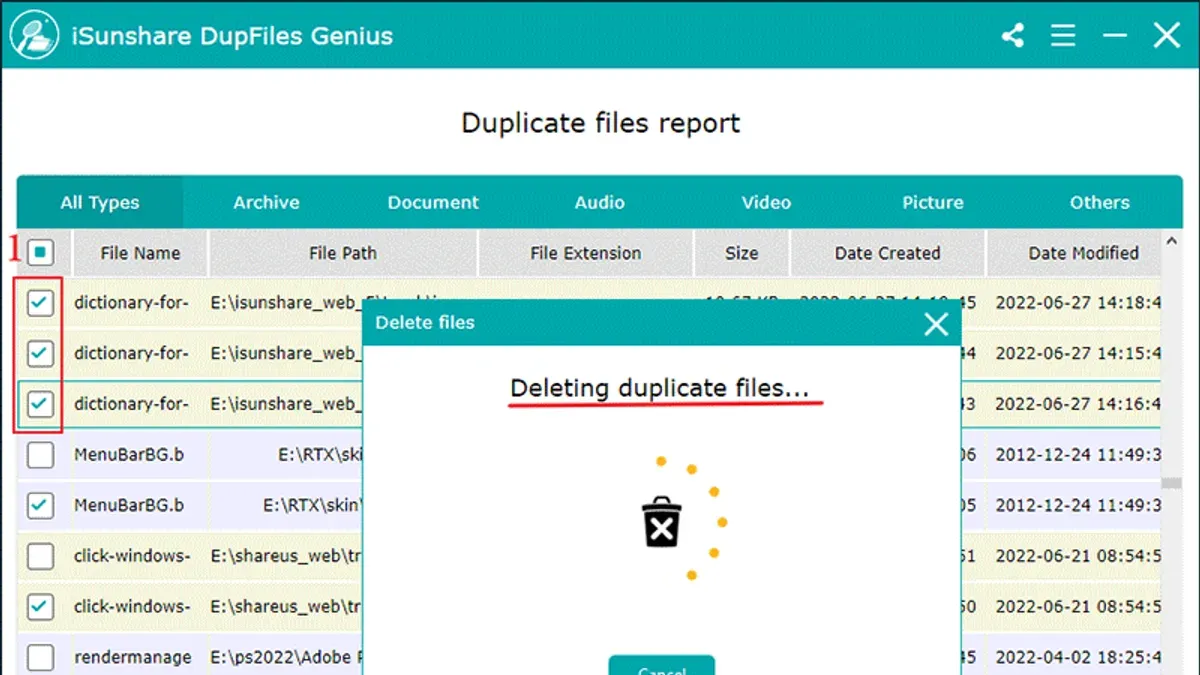
- They scan beyond file names to compare actual file content, reducing false positives.
- These tools offer preview options, backup before deletion, and selective file removal for safety.
- Scan times depend on file quantity and size; large libraries may take longer.
For instance, Gemini 2 can scan thousands of files and reveal duplicates missed during manual Finder searches, improving accuracy and efficiency.
Best Practices for Safely Removing Duplicate Files
Deleting duplicates requires caution to avoid data loss.
- Always back up important files before removing duplicates.
- Verify duplicates carefully, especially system or application files that may appear similar but are required.
- Use app features that allow undoing deletions or restoring from backup.
- Maintain good organization habits to reduce future duplicate creation.
Checklist for safe duplicate removal:
- Create a backup of your files.
- Identify duplicates using Finder and/or trusted apps.
- Preview each duplicate carefully before removal.
- Move duplicates to Trash rather than immediate deletion.
- Empty Trash only after confirming no needed files were removed.
When Not to Use This Guide: Cases Where Duplicate Removal is Risky
Removing duplicates is not always safe or recommended in certain contexts.
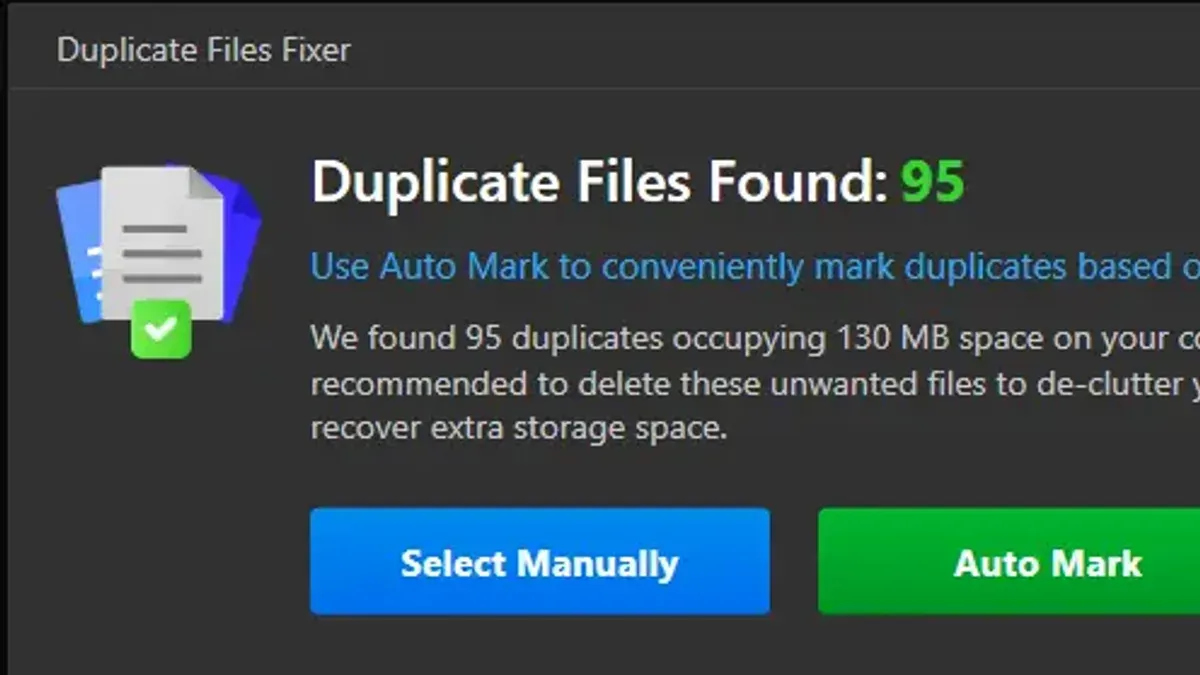
- Duplicates in system folders, Library, or app support directories may be required for software operation.
- Files managed by cloud sync services, such as iCloud or Dropbox, can appear duplicated due to sync artifacts.
- Users without backups or unfamiliar with file management should avoid aggressive deletion.
Apple and software vendors advise against deleting files from critical system locations to prevent instability.
Limitations and Caveats
This article focuses on finding duplicates within your Mac’s local storage using Finder and compatible apps. It does not cover duplicate removal on external drives or network shares, which often require different tools and permissions.
Frequently Asked Questions
Can Finder automatically find and delete duplicate files?
No. Finder lacks automatic duplicate detection and deletion features. It can help locate files by name or metadata, but manual verification is needed.
What are the risks of deleting duplicate files on a Mac?
Accidental removal of important or system files may cause application errors or data loss. Always back up data and verify files before deleting.
Are third-party duplicate finder apps safe to use?
Trusted apps designed for macOS typically include safety features like previews and backups. Download apps from reputable sources and review permissions carefully.
How often should I check for duplicate files on my Mac?
Periodic checks every few months or when storage gets low help maintain organization and free up space.