How to Pin a Folder to the Sidebar in Finder: Quick Access Tips
This guide explains how to pin a folder to the sidebar in Finder on macOS for quick and easy access to your important directories.
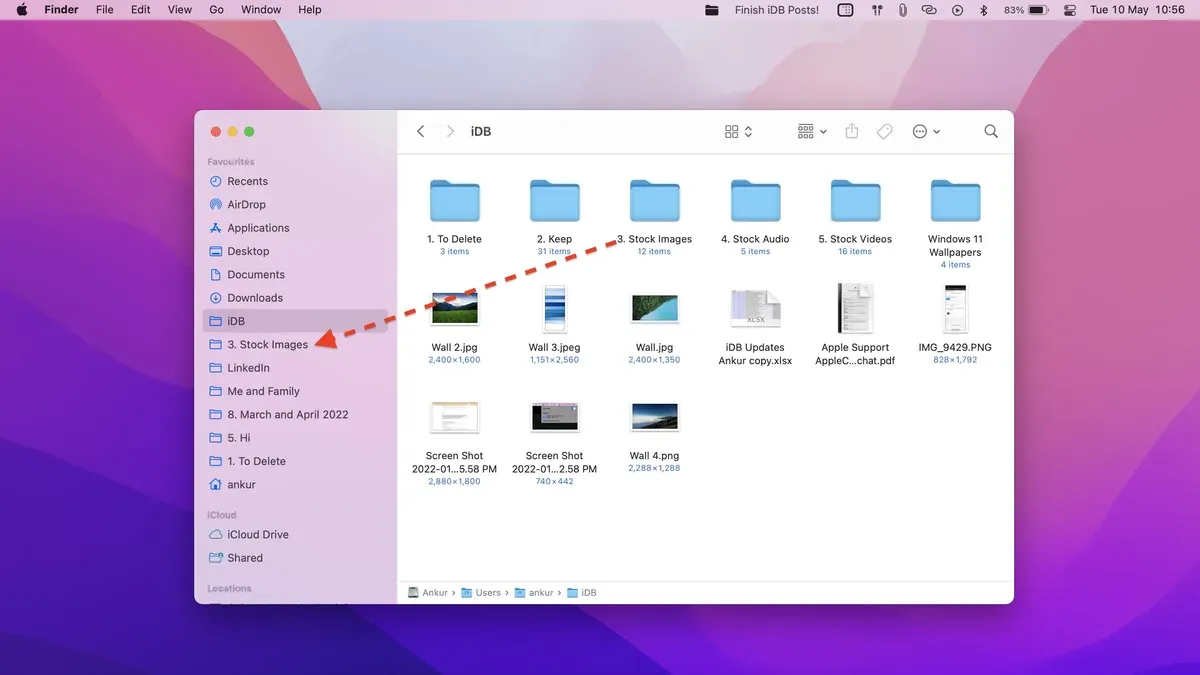
Pinning a folder to the sidebar in Finder provides quick access to frequently used directories on your Mac. This guide details how to pin folders in macOS 2026 and offers tips to customize and troubleshoot the sidebar for better workflow efficiency.
Understanding the Finder Sidebar and Its Benefits
The Finder sidebar is a persistent panel in macOS 2026 that offers quick links to folders, drives, and locations. It serves as a navigation hub, enabling users to jump directly to important folders without opening multiple windows.
- Finder sidebar functionality: Provides immediate access to pinned folders, drives, and shared locations, simplifying file management.
- Benefits of pinning folders: Saves time searching for folders, accelerates workflow, and helps keep the desktop uncluttered.
- Common pinned folder types: Documents, Projects, Downloads, and frequently accessed work directories are typical choices.
Organizing the sidebar reduces navigation time and minimizes distractions, improving productivity without additional software.
Step-by-Step Guide to Pinning a Folder to the Sidebar in Finder
To add folders to your sidebar in macOS 2026, follow these steps carefully:
- Open Finder and locate the folder you want to pin.
- Click and hold the folder icon, then drag it to the sidebar. Release it only when you see a horizontal insertion line appear; dropping it elsewhere will not pin the folder.
- The folder will appear under the "Favorites" section in the sidebar.
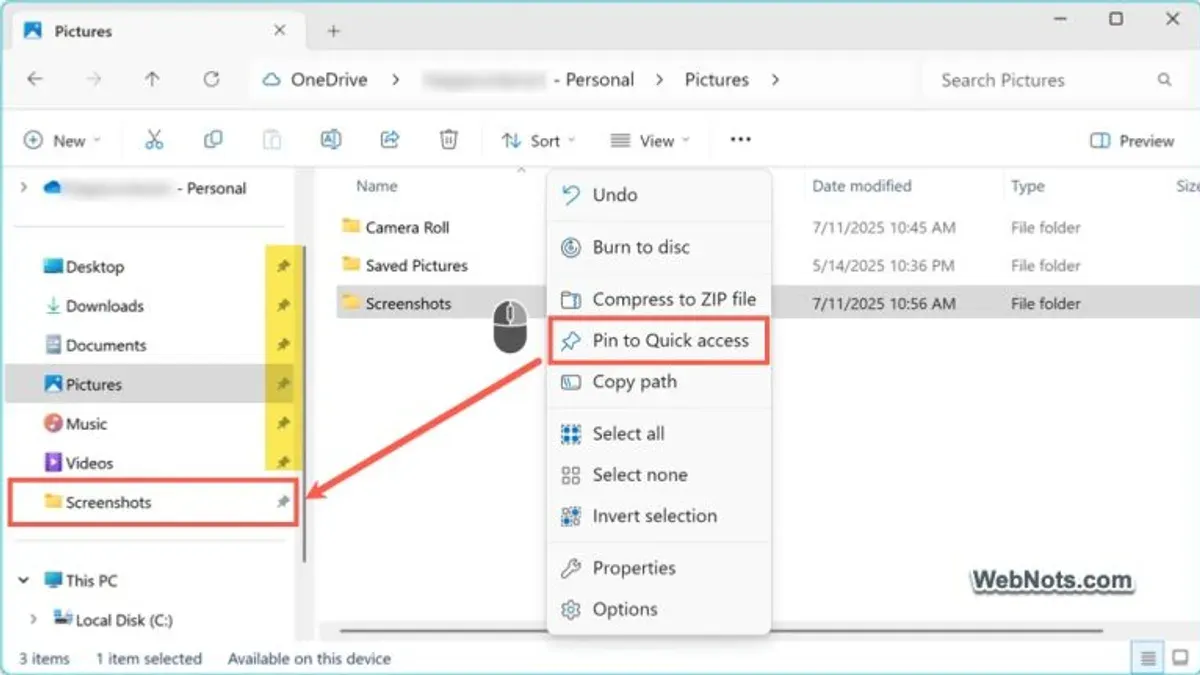
- Alternatively, right-click (or Control-click) the folder and select "Add to Sidebar" from the context menu.
- To remove a pinned folder, right-click it in the sidebar and choose "Remove from Sidebar."
- You can rearrange pinned folders by dragging them up or down within the sidebar.
Note: Network or shared folders require appropriate permissions and may not remain pinned if the connection drops. macOS treats local and network folders differently in sidebar behavior.
| Method | Steps | Pros | Cons |
|---|---|---|---|
| Drag and Drop | Drag folder to sidebar | Fast, visual, intuitive | Requires precise dragging to the insertion line |
| Context Menu | Right-click folder → Add to Sidebar | Simple if dragging is difficult | Only works on folders, not files |
Customizing Your Sidebar: Organizing Pinned Folders for Maximum Efficiency
Beyond pinning, organizing your sidebar boosts productivity:
- Group related folders: Pin folders with similar functions together (e.g., all project folders) to speed navigation.
- Use color tags: Apply macOS tags to folders to visually categorize and prioritize them.
- Create aliases: Add aliases of folders with descriptive names to the sidebar without moving originals; this is useful when you want multiple access points.
- Name folders clearly: Use concise, meaningful names to reduce scanning time when searching the sidebar.
- Avoid clutter: Limit pinned folders to those used regularly to keep the sidebar manageable.
Example layout for a graphic designer:
- Pin main project folders (Client A, Client B)
- Group asset folders (Fonts, Images) nearby
- Use red tags for urgent projects
- Keep Downloads and Documents at the top for easy access
Proper organization helps users find folders faster and reduces distraction from excessive sidebar items.
Troubleshooting Common Issues When Pinning Folders to Finder Sidebar
- Pinned folders disappear after restart: This often indicates corrupted Finder preferences. Resetting sidebar preferences usually resolves this issue (steps below).
- Permission errors on network folders: Verify you have read/write access and that the network share is mounted. Some network shares restrict sidebar pinning due to permissions.
- Limitations on system folders: macOS restricts pinning certain protected system folders for security reasons.
- Reset Finder sidebar preferences safely:
- Close all Finder windows.
- Open Terminal and enter:
defaults delete com.apple.sidebarlists - Restart Finder by typing
killall Finderand pressing Enter. - Re-pin your folders as needed.
Common error messages like "You do not have permission to add this folder" typically indicate insufficient folder permissions or system restrictions. Confirm permissions or choose a different folder.
When Pinning Folders to Finder Sidebar Isn’t Enough: Alternatives and Complements
Sometimes, alternatives or complements to sidebar pinning are more effective:
- Finder Favorites vs. Dock shortcuts: Dock shortcuts provide quick access outside Finder windows but consume Dock space; sidebar favorites are integrated and unobtrusive.
- Smart Folders and Spotlight: Smart Folders dynamically filter content based on criteria; Spotlight offers quick search without modifying the sidebar.
- Third-party apps: Apps like Pathfinder or XtraFinder offer enhanced sidebar management and customization beyond macOS defaults but may require purchase and add complexity.
- Automation: Scripts or macOS Shortcuts can open specific folders or workflows automatically, reducing manual navigation.
| Method | Best for | Limitations |
|---|---|---|
| Dock Shortcuts | Quick access outside Finder windows | Consumes Dock space; less organizational structure |
| Smart Folders | Dynamic content grouping | Less direct than pinned folders |
| Third-party Apps | Advanced sidebar customization | May require purchase; adds complexity |
| Automation | Hands-free folder access | Requires setup knowledge |
Frequently asked questions
Can I pin a folder from an external drive to the Finder sidebar?
Yes, you can pin folders from external drives as long as the drive is connected and mounted. If the drive disconnects, the pinned folder will disappear until the drive reconnects.
How do I reorder folders pinned in the Finder sidebar?
Click and drag the folder up or down within the sidebar to change its position. Ensure you drop it when you see the horizontal insertion line.
Why did my pinned folder disappear from the sidebar after a macOS update?
macOS updates can reset Finder preferences or modify permissions, causing pinned folders to disappear. You can restore them by re-adding folders or resetting sidebar preferences.
Is it possible to pin files instead of folders to the Finder sidebar?
No. The Finder sidebar supports only folders and locations, not individual files.
What should I do if I get a permission error when pinning a folder?
Check the folder's permissions and ensure you have read/write access. System or network restrictions may prevent pinning certain folders.
Important Caveats
- This guide applies to macOS 2026. Earlier versions may differ in Finder features and behavior.
- Managed or restricted Macs may limit folder pinning due to system policies.
- Network or cloud storage folders may behave inconsistently in the sidebar depending on connection stability and permissions.