Open Folders in New Windows Instead of Tabs in Finder
Discover how to open folders in new windows instead of tabs in Finder to better organize your macOS workspace.
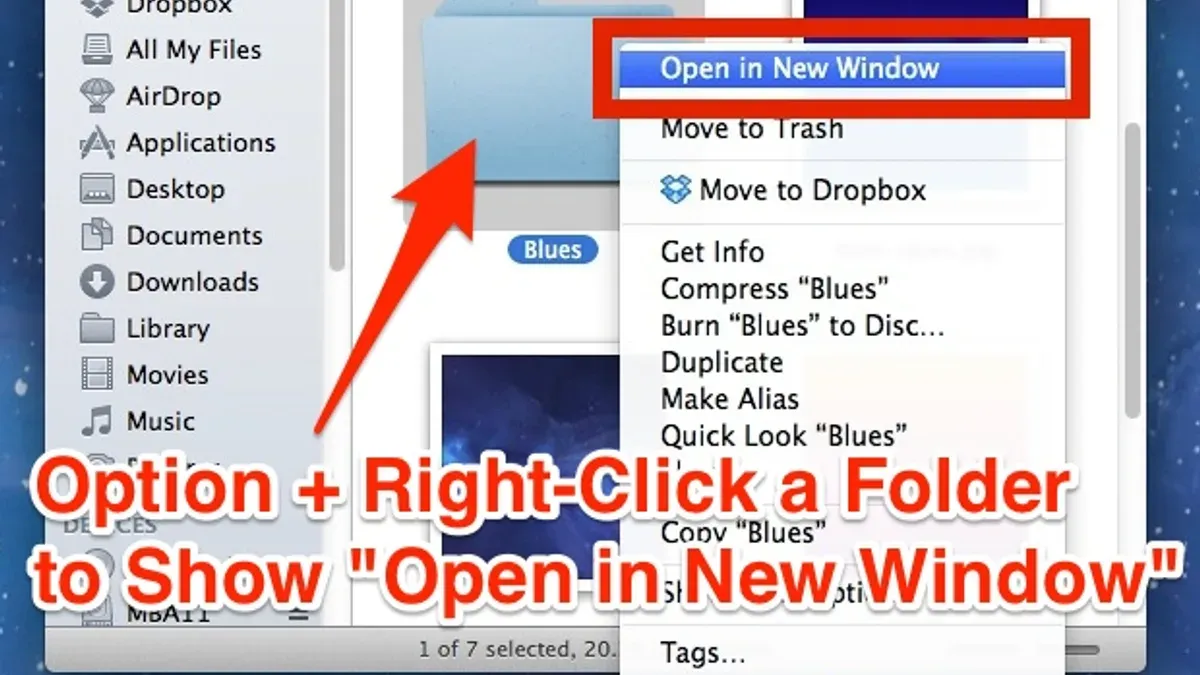
macOS Finder defaults to opening folders in tabs rather than new windows. This behavior affects how you organize and navigate your files. Knowing how to open folders in a new window instead of a tab in Finder gives you more control over your workspace and can improve your workflow.
Why macOS Opens Folders in Tabs by Default in Finder
Finder's tabbed browsing, introduced in macOS Sierra (2016) and refined in later versions, aims to reduce window clutter and streamline navigation.
- Tabbed browsing overview: Allows multiple folders to open within a single window, similar to web browsers.
- Benefits: Tabs keep the desktop tidy by limiting open windows, making it easier to switch between folders without losing context.
- Limitations: Tabs reduce spatial separation, which some users rely on for multitasking or comparing folder contents side by side.
Apple has not published usage data on this feature. The choice between tabs and windows depends on individual workflows and preferences.
How to Set Finder to Open Folders in New Windows Instead of Tabs
To change Finder’s default behavior to open folders in new windows rather than tabs, adjust this setting carefully:
- Open Finder.
- From the menu bar, select Finder > Preferences.
- Click the General tab.
- Find the checkbox labeled "Open folders in tabs instead of new windows".
- Uncheck this box to have folders open in new Finder windows by default.
Note: If this box is checked, double-clicking a folder opens it as a new tab within the active Finder window. When unchecked, double-clicking opens a folder in a separate window.
Important detail: Some users overlook that this setting affects all folders system-wide, including external drives and network shares. Changing it may alter your entire Finder navigation experience, so consider whether you prefer consistent behavior or selective window management.
Using Keyboard and Mouse Shortcuts to Open Folders in New Windows Selectively
You can open folders in new windows without changing global settings by using shortcuts and context menu options:
- Command + Double-click: Hold the Command key while double-clicking a folder to open it in a new Finder window, overriding the default tab behavior.
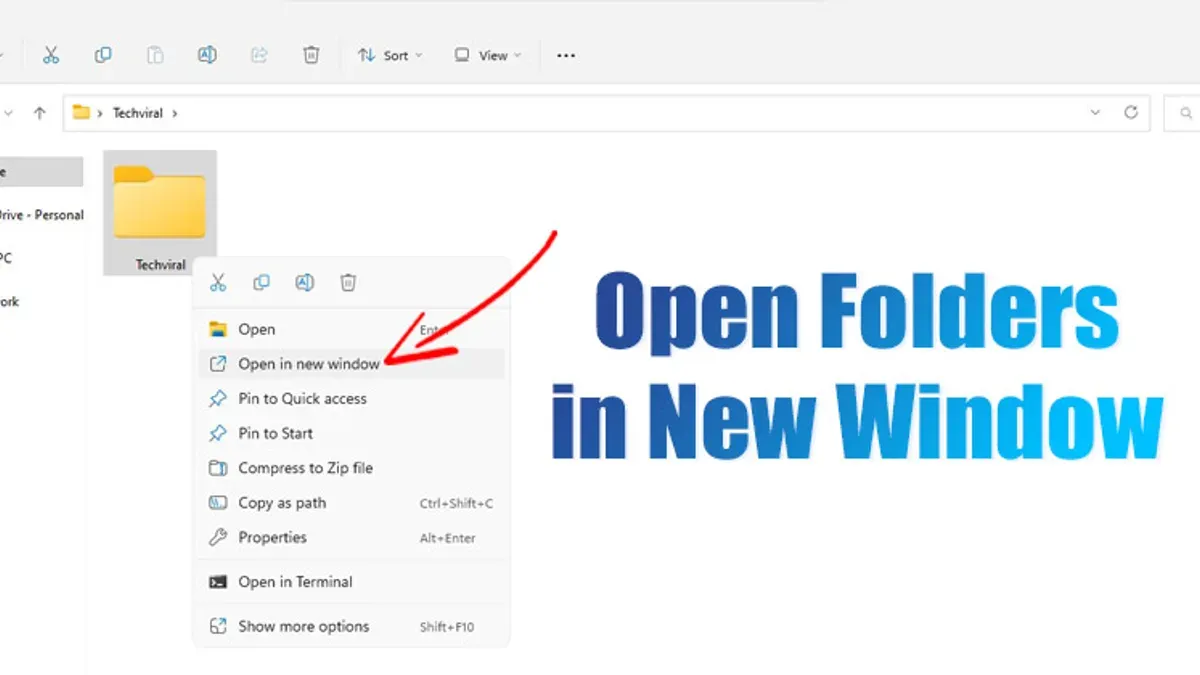
- Right-click context menu: Right-click (or Control-click) a folder and select Open in New Window.
- Click distinctions: Single-click selects a folder; double-click opens it based on your system preference or shortcut use.
This approach lets you keep tabs as default but open windows when spatial separation is needed.
Third-Party Tools and Automations to Enhance Folder Opening Behavior
If you require more customized folder opening behavior, automation tools can help:
- Tools: Automator, AppleScript, and Keyboard Maestro let users create workflows or macros to open folders in new windows automatically or on demand.
- Considerations: These tools offer flexibility but require setup and maintenance. Users should be comfortable with scripting or third-party apps.
Sample AppleScript snippet:
tell application "Finder"
  open folder "Documents" of home
  activate
end tell
This script opens the Documents folder in a new Finder window when run.
When Opening Folders in New Windows is Not Recommended
While multiple windows can improve certain workflows, there are trade-offs:
- Window clutter: Many windows can overcrowd your desktop, complicating navigation.
- System resources: Each Finder window uses memory and CPU, which may affect performance if too many remain open.
- Alternatives: Using tabs or macOS split-view multitasking can organize files efficiently without excessive windows.
Balancing windows and tabs according to task complexity generally yields the best productivity.
Frequently asked questions
Can I customize which folders always open in new windows automatically?
Finder does not provide a built-in option to specify certain folders to always open in new windows. Automation tools or scripts can achieve this but require manual setup and maintenance.
How do I revert to opening folders in tabs after changing the setting?
Go to Finder Preferences > General and check the "Open folders in tabs instead of new windows" box to restore the default tab behavior.
Are there keyboard shortcuts to quickly switch between tabs and windows in Finder?
Use Command + Shift + ] or [ to cycle through tabs within a Finder window. To switch between windows, use Command + `. There is no shortcut to convert a tab into a window directly.
Does this setting affect how external drives or network shares open folders?
The setting applies universally in Finder, including folders on external drives or network shares, controlling whether they open in new windows or tabs by default.
Caveats
This advice covers macOS Finder behavior as of mid-2024. Future macOS updates may change how Finder handles tabs and windows. These instructions do not apply to third-party file managers or significantly older macOS versions.
Related reading
- How to Show the Path Bar in Finder for Precise File NavigationLearn how to enable and use the path bar in Finder for precise file navigation and better folder management on macOS 2026.
- How to Pin a Folder to the Sidebar in Finder: Quick Access TipsThis guide explains how to pin a folder to the sidebar in Finder on macOS 2026 for quick and easy access to your important directories.
- Show Full File Path in Finder Title Bar on macOSThis guide explains how to show the full path in the title bar in Finder on macOS, enhancing navigation clarity and file management efficiency.