Can You Play Fortnite Smoothly on iMac M4? A Practical Guide
Learn if the iMac M4 can run Fortnite smoothly and how to optimize settings for the best gaming experience on your Mac.

You’ve just set up your new iMac M4 and are eager to jump into Fortnite, but you wonder: can iMac M4 run Fortnite smoothly enough for fun gameplay? This is a common question among Mac users who want to balance gaming performance with the iMac’s unique hardware and software environment.
This article will guide you through what to realistically expect from Fortnite on the iMac M4, explain why performance can vary, and share practical optimization steps. You'll also learn about alternative options like cloud gaming if native play isn’t ideal, helping you make an informed decision before installing or diving into the game.
Key takeaways
- The iMac M4 can run Fortnite but may require settings adjustments to maintain smooth gameplay.
- Enabling Low Power Mode can improve thermal management but might reduce frame rates.
- Fortnite’s performance depends heavily on the iMac M4’s integrated GPU and macOS optimizations.
- Cloud gaming services offer a viable alternative if native performance doesn’t meet your expectations.
- Testing Fortnite on your specific iMac M4 model before committing is recommended to gauge real-world playability.
Get a Clear Yes or No: Can iMac M4 Run Fortnite?
Yes, you can run Fortnite on the iMac M4, but expect to make some compromises for smooth gameplay. The iMac M4’s integrated graphics and processor meet the minimum requirements to launch Fortnite via supported platforms like Epic Games' launcher or cloud services. However, native performance at default or high settings will be limited, often resulting in frame rates around 30 FPS or lower depending on resolution and graphical detail.
Benchmarks indicate that setting Fortnite to "Low" or "Medium" graphics quality, with a resolution reduced from the native display, helps maintain more stable frame rates. The iMac M4’s hardware, while capable, doesn’t quite match the recommended specs for consistent high frame rates in Fortnite, especially during intense combat or large-scale builds.
Key limitations include the integrated GPU’s modest power and thermal constraints, which can cause occasional frame drops and longer loading times. So while Fortnite is playable, you should adjust settings and be prepared for performance that favors smoothness over visual fidelity.
Understand the iMac M4 Hardware and Software Landscape
The iMac M4 uses Apple's custom silicon architecture, which integrates the CPU, GPU, and RAM into a unified system on a chip (SoC). This design includes an 8-core CPU and a GPU with up to 10 cores, offering efficient performance but differing significantly from traditional Intel-based Macs or Windows PCs. RAM configurations typically range from 16GB to 32GB, shared between processing units, which can affect gaming performance depending on multitasking demands.
Fortnite runs natively on macOS but does not have a dedicated Apple Silicon-optimized version yet, relying on Rosetta 2, Apple's translation layer that lets Intel-based Mac applications run on the M4 chip. This adds some overhead, which can reduce frame rates compared to running Fortnite on Windows machines with discrete graphics cards. Additionally, macOS has stricter graphics API support, using Metal instead of DirectX, which can further influence game performance and compatibility.
Compared to Windows PCs, which often have dedicated GPUs and DirectX optimization, the iMac M4’s integrated GPU and macOS environment mean you should expect lower base performance. This difference explains why Fortnite on the iMac M4 may require graphics settings adjustments and why cloud gaming alternatives are often considered for smoother play.
Why Fortnite Performance Varies on iMac M4
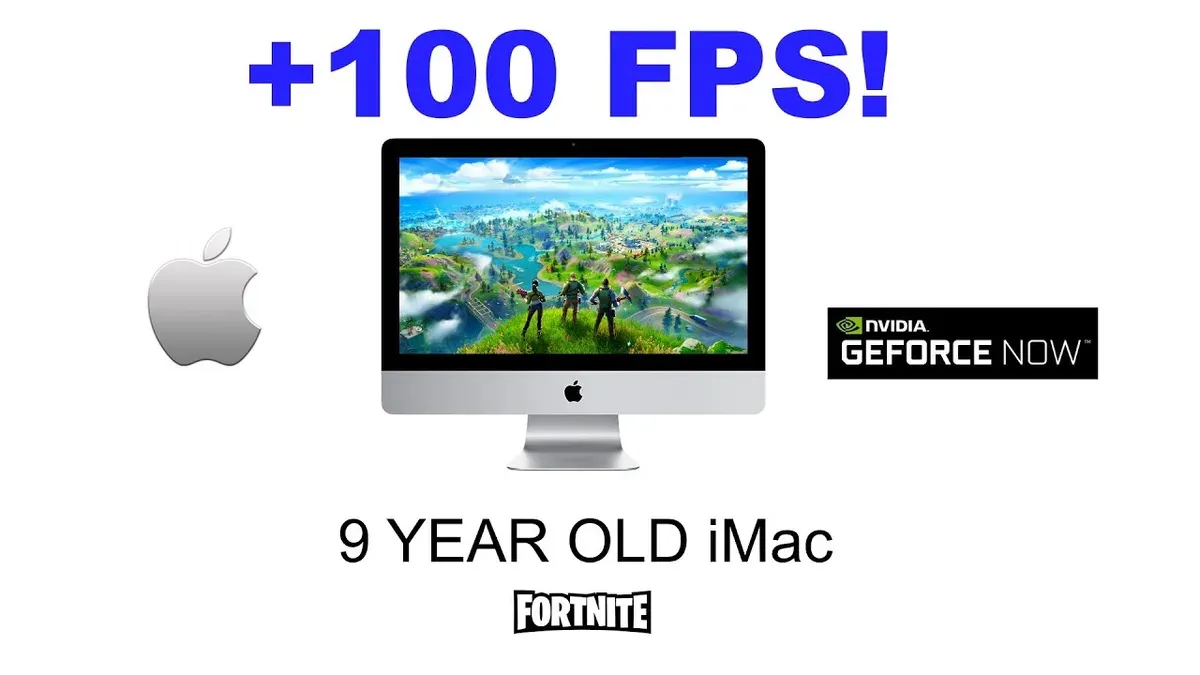
Fortnite performance on the iMac M4 varies primarily due to graphics settings, system resource allocation, and the choice between native and cloud gaming clients. Higher graphics settings and resolutions demand more from the GPU, which can cause frame rates to drop below the smooth 30-60 FPS range. For example, setting textures to "Epic" and resolution above 1080p often results in noticeable frame drops, while lowering them to "Medium" or "Low" and sticking to 1080p or below typically stabilizes gameplay.
Background processes on macOS also impact performance. The iMac M4 runs multiple system services and apps that compete for CPU and memory, sometimes causing CPU load to spike over 50% during gameplay. Closing unnecessary apps and using Activity Monitor to identify resource-heavy processes helps free up system resources, improving frame consistency.
The client you use matters as well. Running Fortnite through Epic Games’ native macOS client relies on the local hardware and is subject to the limitations described. In contrast, cloud gaming services like GeForce Now offload processing to remote servers, offering smoother frame rates and higher settings at the cost of requiring a stable, low-latency internet connection. Each approach has trade-offs between input lag, visual quality, and performance stability.
Turn On Low Power Mode and Other Optimization Tips
Enabling Low Power Mode on your iMac M4 can help improve Fortnite performance by reducing background energy usage and prioritizing gaming processes. To turn it on, open System Settings, navigate to Battery, and toggle on Low Power Mode. This reduces CPU throttling and can lead to smoother frame rates, especially during longer play sessions.
Adjusting Fortnite’s in-game graphics settings is another key step. Lower the resolution scale to around 75%, turn off shadows, and set textures to medium or low. These changes balance visual quality with frame rate, often resulting in steadier gameplay above 30 FPS on the iMac M4. Avoid maxing out settings, as pushing the hardware too hard causes frame dips and stuttering.
Before launching Fortnite, close unnecessary applications such as web browsers, messaging apps, and background utilities. This frees up RAM and CPU cycles for the game. You can verify resource use through Activity Monitor to ensure no rogue processes are limiting performance. Combining these steps typically yields noticeable improvements in smoothness and responsiveness.
Explore Cloud Gaming as an Alternative
Cloud gaming services offer a way to play Fortnite on your iMac M4 without taxing its hardware. Platforms like NVIDIA GeForce Now, Xbox Cloud Gaming, and Amazon Luna stream Fortnite from powerful servers directly to your Mac, letting you enjoy higher graphics settings and smoother frame rates than native play might allow.
The main advantage of cloud gaming is that it bypasses your iMac’s hardware limits, providing near-console-quality visuals and performance. However, this comes with potential downsides: you need a stable, high-speed internet connection to avoid lag, and input latency may be slightly higher compared to playing locally. Additionally, cloud gaming requires a subscription or account setup on these platforms.
To set up cloud gaming for Fortnite on your iMac M4, start by creating an account on your chosen service (for example, GeForce Now). Next, download their Mac-compatible app or use the web client through Safari or Chrome. Then, log in, search for Fortnite, and launch the game. Ensure your internet speed is at least 15 Mbps for a smooth experience, and use an Ethernet connection or a strong Wi-Fi signal to reduce latency.
Know When iMac M4 Might Not Be the Best Choice
The iMac M4 may not be the best choice if you aim to play Fortnite on the highest graphics settings or pursue highly competitive gameplay. Performance benchmarks indicate that pushing graphics to "Epic" or "High" settings often results in frame rates dropping below smooth play thresholds, causing noticeable lag and input delay. This can be frustrating during fast-paced matches where every millisecond counts.
If you frequently play in intense build fights or participate in tournaments requiring ultra-responsive controls and consistent 60+ FPS, the iMac M4’s hardware limitations become apparent. Users experiencing stuttering or frame drops at higher settings might consider alternative gaming setups like a dedicated Windows PC with a discrete GPU or a gaming console optimized for Fortnite.
Additionally, if your workflow involves multitasking heavily alongside gaming—such as running streaming software or voice chat apps—the iMac M4’s resource sharing under macOS may further impact Fortnite’s performance during critical moments. In these cases, opting for a device designed with gaming as a priority can provide a smoother, more reliable experience.
Plan Your Next Steps: Installing, Testing, and Upgrading
The best way to proceed after deciding to play Fortnite on your iMac M4 is to carefully install the game, test its performance in real conditions, and consider upgrades or peripherals if needed. Start by downloading Fortnite directly from the Epic Games website or the Mac App Store to ensure a safe and clean installation. Avoid unofficial sources to prevent malware or corrupted files. During installation, watch for macOS security prompts and grant necessary permissions to allow the game to run smoothly.
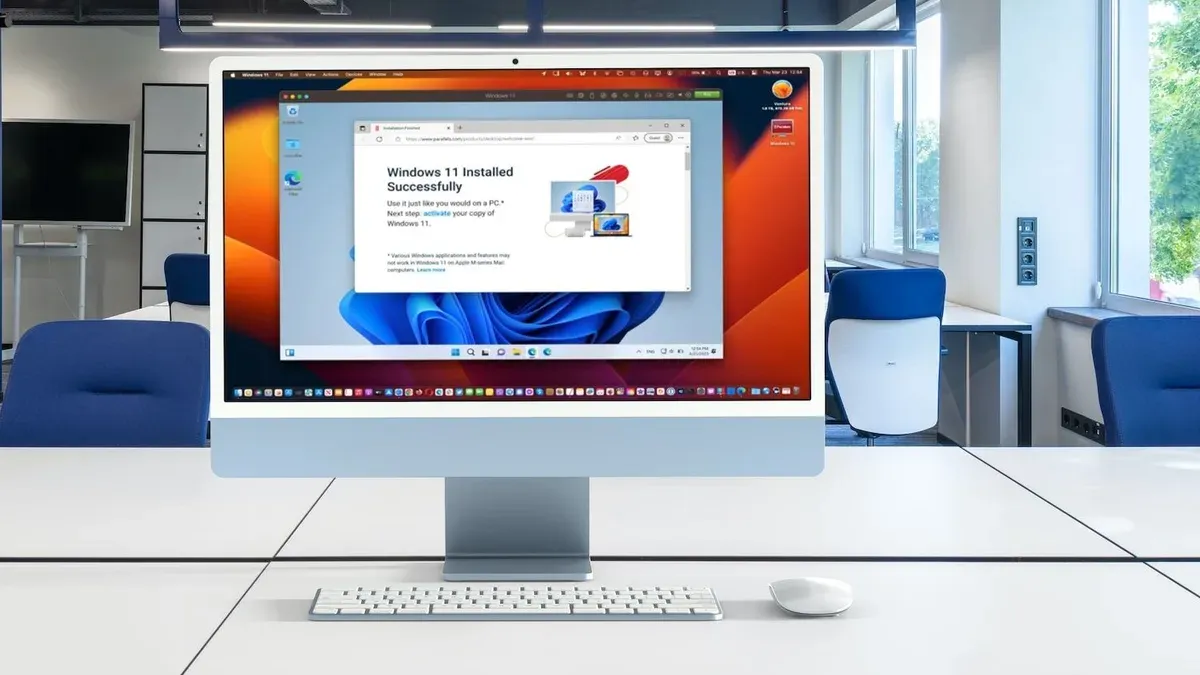
After installation, launch Fortnite and conduct short trial gameplay sessions focusing on different settings and scenarios. Use system monitoring tools like iStat Menus or Activity Monitor to track CPU, GPU, and memory usage in real time. This helps you identify performance bottlenecks and adjust graphics or background app usage accordingly. Remember that initial performance may improve as your system caches game assets and updates.
If you find performance limiting, consider affordable peripherals like a wired gaming mouse or external keyboard with customizable keys to enhance control responsiveness. For hardware, upgrading RAM is generally not possible on iMac M4, but connecting to an external display with a higher refresh rate can improve visual smoothness. These steps combined will help ensure your Fortnite experience on iMac M4 is as enjoyable as possible.
Frequently asked questions
Is Fortnite natively supported on iMac M4’s macOS version?
Fortnite does not have native support for the macOS version running on iMac M4 due to Apple's transition to ARM-based processors and Epic Games' legal disputes affecting Mac availability. This means you cannot download and run the macOS version of Fortnite directly on the iMac M4. However, alternative methods like cloud gaming can provide access.
Can I use controllers with Fortnite on iMac M4?
Yes, you can use controllers with Fortnite on the iMac M4, especially when playing via cloud gaming services or through compatible Bluetooth controllers. The iMac supports popular controllers like the Xbox Wireless Controller and PlayStation DualSense when paired via Bluetooth, offering a familiar and responsive input method.
What graphics settings on iMac M4 give the best balance of quality and performance?
For Fortnite on iMac M4, setting the graphics quality to Medium or Low within the game’s Video Settings helps maintain smoother frame rates while preserving decent visual clarity. Disable shadows and reduce effects like post-processing and anti-aliasing through the settings menu to lessen GPU load and improve responsiveness.
Does cloud gaming introduce noticeable lag when playing Fortnite on iMac M4?
Cloud gaming can introduce some latency, but with a stable and fast internet connection (preferably wired or 5GHz Wi-Fi), the lag is often minimal and manageable for casual play. The experience depends heavily on network quality and server proximity; occasional delays may occur during peak times or with lower bandwidth.
Know the Limits of This Advice
This guidance does not cover using unsupported hacks, unofficial software modifications, or any methods that violate Epic Games’ terms of service. Attempting such approaches can risk your account and device security. Additionally, this advice does not guarantee the iMac M4 will achieve top-tier competitive Fortnite performance, as the hardware and macOS ecosystem impose certain inherent limitations. If you prioritize ultra-smooth, competitive gameplay with the highest frame rates and lowest latency, dedicated gaming PCs or consoles might be more suitable.
The single most useful next step is to install Fortnite and run it with Low Power Mode enabled through System Settings > Battery > Low Power Mode. This simple setting helps balance performance and heat management, often improving your gameplay experience without complex tweaks. Afterward, experiment with the in-game graphics settings, starting from the lowest presets, and adjust gradually to find a comfortable balance that your iMac M4 can sustain consistently. This hands-on approach provides the clearest feedback on how well Fortnite runs on your specific setup.
See also: Can iMac M4 Run Civilization VI? A Straightforward Answer · Can Your iMac M4 Run Rocket League? A Clear and Practical Answer · Can iMac M4 Run Valorant? A Straightforward Performance Check · Can iMac M4 Run Genshin Impact? A Practical and Detailed Guide