Can Your iMac M4 Run Valorant? A Clear and Detailed Explanation
Learn whether the iMac M4 can run Valorant and explore effective workarounds to enjoy the game despite compatibility challenges.
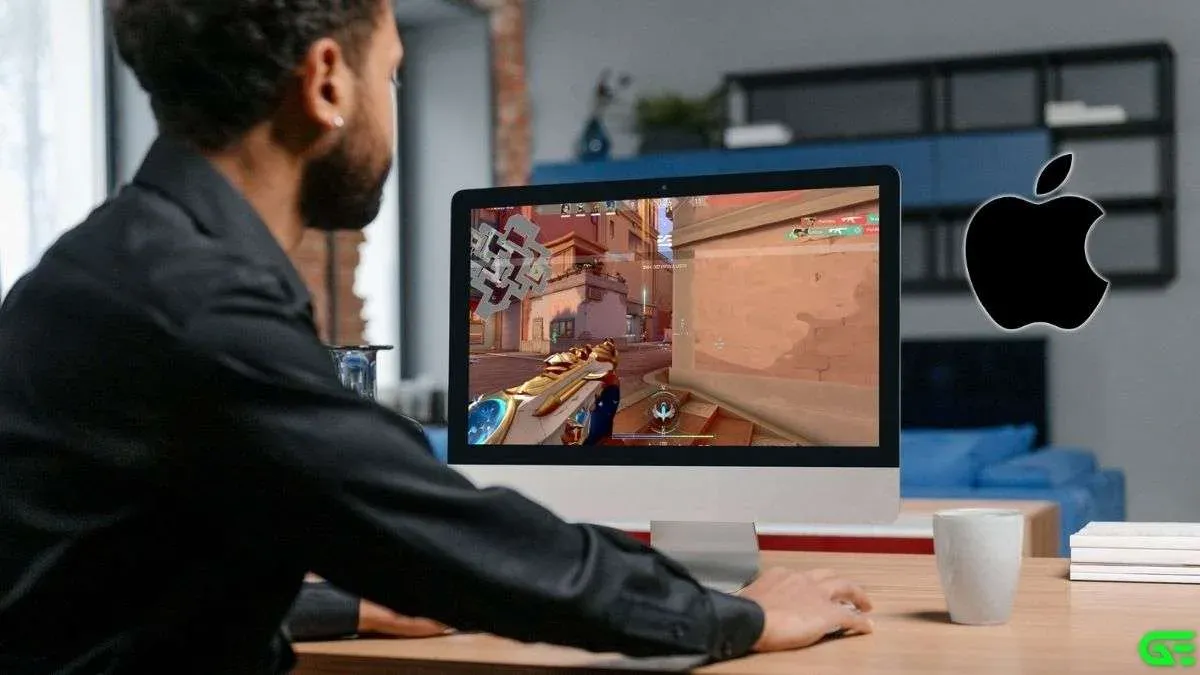
You’ve just got your iMac M4 set up and are curious whether you can jump into Valorant for some competitive gaming. You might be wondering, can iMac M4 run Valorant smoothly and if it’s worth the effort to try?
This article walks you through the challenges related to Valorant’s compatibility with the iMac M4, focusing on its unique ARM-based architecture and macOS environment. You’ll learn why Valorant isn’t natively supported, explore possible workarounds, and get a realistic view of performance expectations. By the end, you’ll have clear guidance on whether to proceed with testing Valorant on your iMac M4 or consider alternative gaming options.
Key takeaways
- Valorant does not have a native version compatible with the iMac M4’s ARM architecture and macOS.
- Workarounds like virtualization or streaming can enable Valorant but often come with performance and input latency issues.
- Expect lower frame rates and potential stability problems when running Valorant through non-native methods on the iMac M4.
- Alternatives include using a Windows PC or cloud gaming services optimized for Valorant.
- Testing workarounds requires careful setup and understanding of your iMac’s capabilities and limitations.
Straight Answer: Can iMac M4 Run Valorant?
You cannot run Valorant directly on an iMac M4 because Valorant officially supports only Windows operating systems, not macOS. While the iMac M4’s Apple Silicon chip offers impressive processing power and graphics capabilities, Valorant has no native macOS version available, which creates a fundamental compatibility issue. The game’s anti-cheat system, Vanguard, also does not support macOS, adding another layer of complexity.
To play Valorant on an iMac M4, you would need to use workarounds like virtualization software (such as Parallels Desktop) or set up a dual-boot environment with Windows via Boot Camp or other methods. These approaches come with trade-offs in performance and stability and require technical setup that may not deliver a smooth gaming experience comparable to native Windows PCs. Therefore, while the hardware of the iMac M4 is capable, the macOS environment restricts direct, native play of Valorant.
Why Valorant Isn’t Natively Supported on iMac M4
Valorant cannot run natively on the iMac M4 because its core components, especially its anti-cheat system, are incompatible with the iMac M4’s hardware and operating system. Valorant uses Riot Games' Vanguard anti-cheat software, which is designed specifically for Windows running on x86 architectures. Vanguard operates at a very low level within the system to prevent cheating, requiring deep integration with Windows kernel drivers that macOS does not support.
The iMac M4 is built on Apple Silicon, an ARM-based architecture that differs fundamentally from the x86 processors Valorant targets. This architectural difference means Valorant’s Windows binaries cannot run directly on the iMac M4’s hardware without translation layers or virtualization, which often introduce performance and security limitations. Additionally, macOS implements a different security model with system integrity protection, sandboxing, and driver frameworks that prevent the installation of Vanguard’s kernel-level drivers.
Because Vanguard’s anti-cheat system must be active and fully compatible to launch Valorant, and since macOS and Apple Silicon do not support the required drivers and system hooks, Valorant cannot be installed or played natively on the iMac M4. The combination of hardware architecture and operating system security layers effectively blocks native Valorant support on this device.
Exploring Workarounds: Can You Run Valorant on iMac M4?
You cannot run Valorant natively on the iMac M4, but there are a few workarounds you can consider, each with trade-offs. Since Boot Camp is not available on M-series Macs, you cannot dual-boot Windows to play Valorant directly. This eliminates one common method used on Intel Macs.
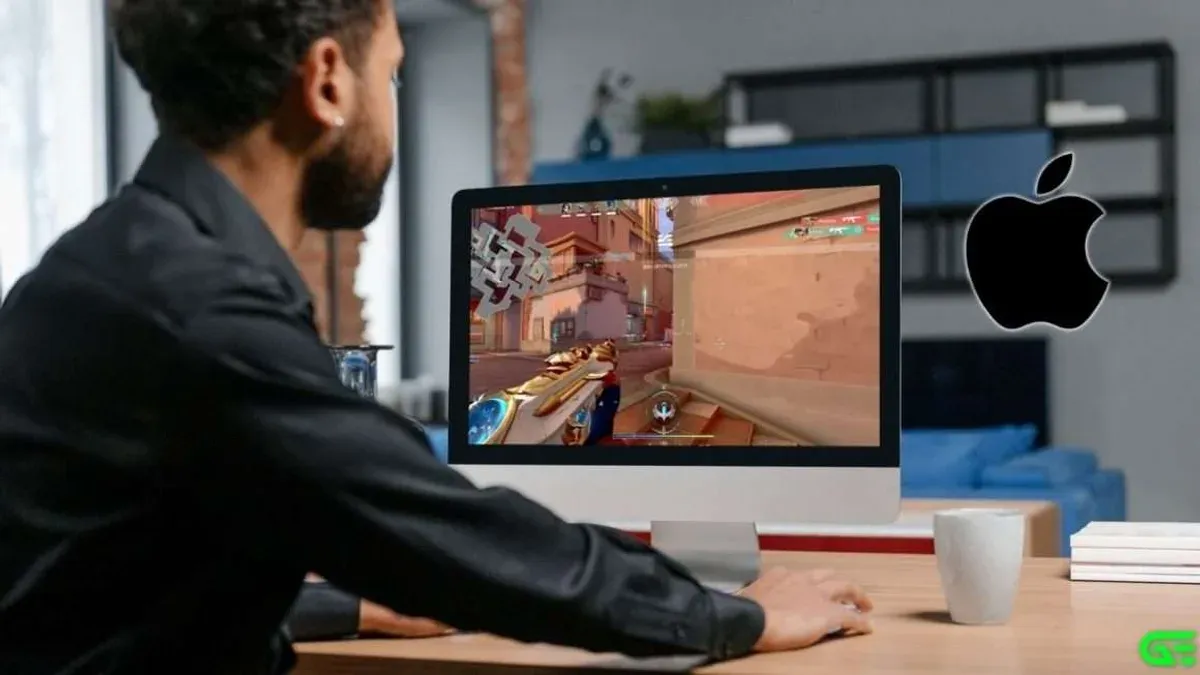
Virtualization software like Parallels Desktop or VMware Fusion can run Windows on the iMac M4, but Valorant’s Vanguard anti-cheat system often blocks these environments, causing crashes or preventing the game from launching. Additionally, virtual machines typically deliver lower frame rates and higher input latency compared to native setups, which is critical for competitive shooters.
Cloud gaming services such as NVIDIA GeForce Now offer a practical alternative, allowing you to play Valorant without local installation. While cloud gaming introduces some latency, many users find it acceptable for casual play. Performance depends on your internet speed and stability rather than your local hardware, which can be a significant advantage on the iMac M4.
What Performance Can You Expect if You Use Workarounds?
When using workarounds to run Valorant on your iMac M4, expect notable compromises in gameplay quality, including frame rate drops and increased input lag. Virtualization solutions often result in frame rates significantly below the native Windows experience, sometimes dropping below 30 FPS, which can hinder smooth aiming and reaction times. Input delay is another common issue, with delays ranging from tens to hundreds of milliseconds, making precise control difficult in fast-paced matches.
Cloud gaming can maintain higher frame rates since the game runs on remote servers, but it heavily depends on your internet connection quality. Latency can become a major obstacle, with even minor network instability causing noticeable delays and occasional stuttering. This delay affects your ability to respond quickly, which is critical in competitive Valorant gameplay.
Overall, while you might achieve playable sessions, these performance constraints typically undermine competitive play. Casual gaming might be possible, but for serious matches, the degraded frame rates and input lag make it challenging to perform at a high level using these non-native methods on the iMac M4.
Alternatives If Valorant on iMac M4 Isn’t Practical
If running Valorant on your iMac M4 isn’t practical, consider playing other FPS games that natively support macOS and Apple Silicon. Titles like Counter-Strike: Global Offensive are accessible via Steam and can run on macOS with reasonable performance, especially using Proton compatibility layers. Other games optimized for macOS include Team Fortress 2 and Borderlands 2, which offer solid FPS experiences without the compatibility headaches.
You might also explore external GPU (eGPU) solutions combined with virtualization software to boost graphics performance. However, this setup is technically complex, can be costly, and may still struggle with anti-cheat systems and latency issues, limiting its usefulness for competitive gaming.
Ultimately, investing in a dedicated Windows gaming PC or laptop is often more reliable and cost-effective if competitive FPS gaming is your priority. Such hardware ensures full compatibility with Valorant’s requirements and provides smoother gameplay, reduced input lag, and better support for peripherals essential to competitive play.
Step-by-Step Guide: Testing Valorant Workarounds on Your iMac M4
You can test Valorant workarounds on your iMac M4 by following a clear process that involves checking your system readiness, setting up virtualization, trying cloud gaming, and monitoring performance metrics. Start by verifying your internet speed using tools like Speedtest.net; aim for at least 50 Mbps download and minimal ping under 30 ms to reduce cloud gaming latency. Also, check your iMac’s available RAM and CPU usage in Activity Monitor to ensure enough resources are free for virtualization or streaming.
Next, if you choose virtualization, install Parallels Desktop or UTM and create a Windows ARM virtual machine. Allocate at least 8 GB RAM and 4 CPU cores for smoother operation. Note that Vanguard anti-cheat may block Valorant from running here, so prepare for possible failures. Launch Valorant inside the VM and observe any errors or crashes.
Alternatively, test cloud gaming services like NVIDIA GeForce Now or Boosteroid. Log in, launch Valorant, and play a match to evaluate responsiveness. Use apps like Fraps or Windows Game Bar to monitor frame rates—expect numbers around 30-60 FPS under good conditions—and note input lag, which may range from 50-100 ms depending on your connection.
Record your observations: frame rate stability, input lag, and any crashes. Compare the local virtualization experience to cloud gaming. If lag or performance issues are too disruptive, reconsider attempting Valorant on your iMac M4. This structured approach helps you make an informed choice based on your unique setup and tolerance for latency and instability.
When Not to Try Running Valorant on iMac M4
You should avoid attempting to run Valorant on your iMac M4 if you are a competitive player who demands low latency and stable frame rates. The workarounds available often introduce input lag and frame drops that hinder quick reactions, crucial for ranked or tournament play. Player feedback commonly points to inconsistent performance that negatively affects aiming precision and timing.
If your internet connection is unstable or slower than a reliable 20 Mbps download speed, cloud gaming solutions become impractical. Even slight fluctuations or increased latency disrupt gameplay, causing delays and disconnections. This makes streaming Valorant remotely a frustrating experience rather than a smooth alternative.
Lastly, if you are not comfortable navigating complex technical setups—including configuring virtualization software, adjusting network settings, and troubleshooting compatibility issues—trying to run Valorant on the iMac M4 is likely to lead to wasted time and frustration. Many users underestimate the patience and technical knowledge required to manage these workarounds effectively.
Frequently asked questions
Is there any official Valorant macOS version planned?
Currently, Riot Games has not announced any plans to release an official macOS version of Valorant. The game is designed specifically for Windows, relying on system-level anti-cheat and graphics features that are not available on macOS. Without official support, running Valorant natively on a Mac, including the iMac M4, remains unsupported.
Can I use Boot Camp to install Windows and run Valorant on iMac M4?
Boot Camp is not available on iMac M4 models because they use Apple Silicon rather than Intel processors. This architecture difference means you cannot natively install Windows via Boot Camp on your iMac M4. Alternatives like virtualization exist but often come with performance and compatibility limitations, making them less ideal for gaming.
Does cloud gaming cause high input lag for Valorant on Macs?
Cloud gaming can introduce some input lag due to internet connection speed and server distance, which may affect the fast-paced gameplay of Valorant. However, with a stable, high-speed connection and low ping, input lag can be minimized to a level acceptable for casual play. Still, competitive players often find local installations preferable due to lower latency.
Are there any macOS games similar to Valorant that I can play on my iMac M4?
You can find macOS games with tactical shooter elements like "Counter-Strike: Global Offensive" or "Team Fortress 2," which are available through platforms like Steam and run on Apple Silicon Macs. While not direct equivalents, these games offer team-based FPS experiences that can be enjoyed on your iMac M4 without compatibility issues. Checking the Mac App Store and Steam for updated native Apple Silicon titles can reveal more options.
Limits of This Advice and When to Look Elsewhere
This article does not cover unofficial hacks or unsupported software that could breach Valorant’s terms of service or compromise your system security. If you’re considering using third-party tools to force Valorant to run on your iMac M4, be aware that this may lead to account suspension or system instability. Additionally, this guidance does not extend to professional-grade virtualization setups or cloud gaming services that require advanced technical skills or paid subscriptions.
If you prioritize seamless gameplay and guaranteed compatibility, a Windows-based gaming PC or a supported gaming laptop will serve you better. Also, if your goal is to play competitively at high frame rates with minimal latency, investing in hardware explicitly designed for Valorant is advisable.
As a practical next step, try running Valorant through a reliable cloud gaming platform that supports macOS browsers. This method avoids OS and architecture limitations while providing near-native performance without altering your iMac M4 setup. Starting with a free trial or demo session can help you evaluate if this approach meets your gaming expectations before committing further.
See also: Can iMac M4 Run Civilization VI? A Straightforward Answer · Can Your iMac M4 Run Cities Skylines 2? A Clear and Practical Answer · Can Your iMac M4 Run Rocket League? A Clear and Practical Answer · Can iMac M4 Run Counter-Strike 2? A Clear and Detailed Answer