How to Change Your Battle.net Password: Step-by-Step Guide
This guide explains how to change your Battle.net password with step-by-step instructions and tips for secure account management.
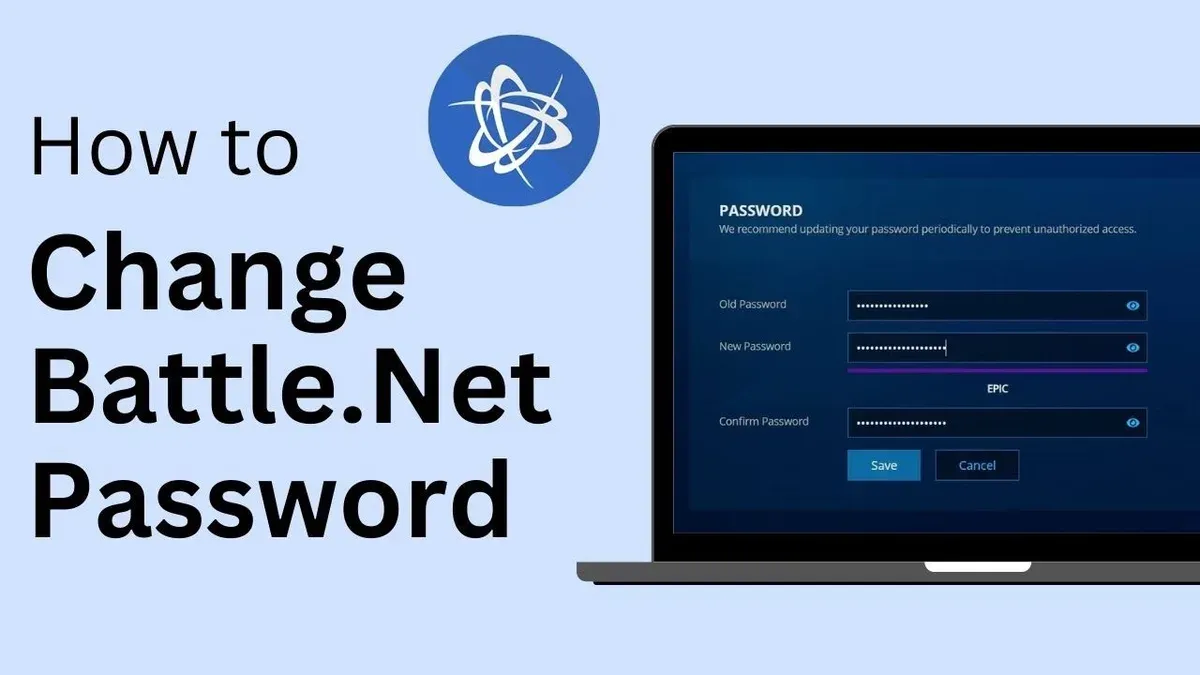
This article explains how to change Battle.net password with clear, step-by-step instructions and covers related account management tasks such as username and server changes.
To change a Battle.net password, access the account settings via the Battle.net desktop app or the official website. Users who know their current password can update it under the "Password & Security" section by entering the current password and then the new one twice for confirmation. For those who forgot their password, the guide includes a detailed process for resetting it through the "Forgot Password?" link and verifying identity via email or phone.
Beyond password changes, the article addresses checking password strength, managing username adjustments, switching servers, and common troubleshooting steps to ensure a secure and smoothly managed Battle.net account.
Before you start: What is needed to change your Battle.net password
Changing or resetting a Battle.net password requires certain preparations to ensure a smooth process. Primarily, access to the email address linked to the Battle.net account is essential, as password reset instructions and verification codes are sent there. When changing the password directly, knowing the current password is necessary; if it has been forgotten, be ready to follow the password reset procedure.
A stable internet connection is crucial to avoid interruptions during the process. Both desktop and mobile devices are compatible with Battle.net’s password management features, but using a secure and private device is recommended to protect account information.
Strong, unique passwords are vital for account security. Blizzard’s official password guidelines typically require passwords to be at least 8 characters long, including a mix of uppercase and lowercase letters, numbers, and special characters. Avoid using easily guessable passwords or reusing passwords from other accounts.
- Confirm access to the email address linked to the Battle.net account. Successful access means the ability to receive verification emails or reset links.
- Verify knowledge of the current password if planning to change it directly. This allows immediate password updates without reset procedures.
- Ensure the device has a stable internet connection. A successful connection leads to uninterrupted access to Battle.net’s account management pages.
- Prepare a strong new password following Blizzard’s requirements: at least 8 characters, with uppercase, lowercase, numbers, and special characters. A password meeting these criteria will be accepted by the system.
Tip: Using a reputable password manager can help generate and store complex passwords securely.
How to change Battle.net password when you know the current one
- Log into the Battle.net account management portal by visiting https://account.battle.net/ and entering the current account email and password. Upon successful login, the account overview page should appear.
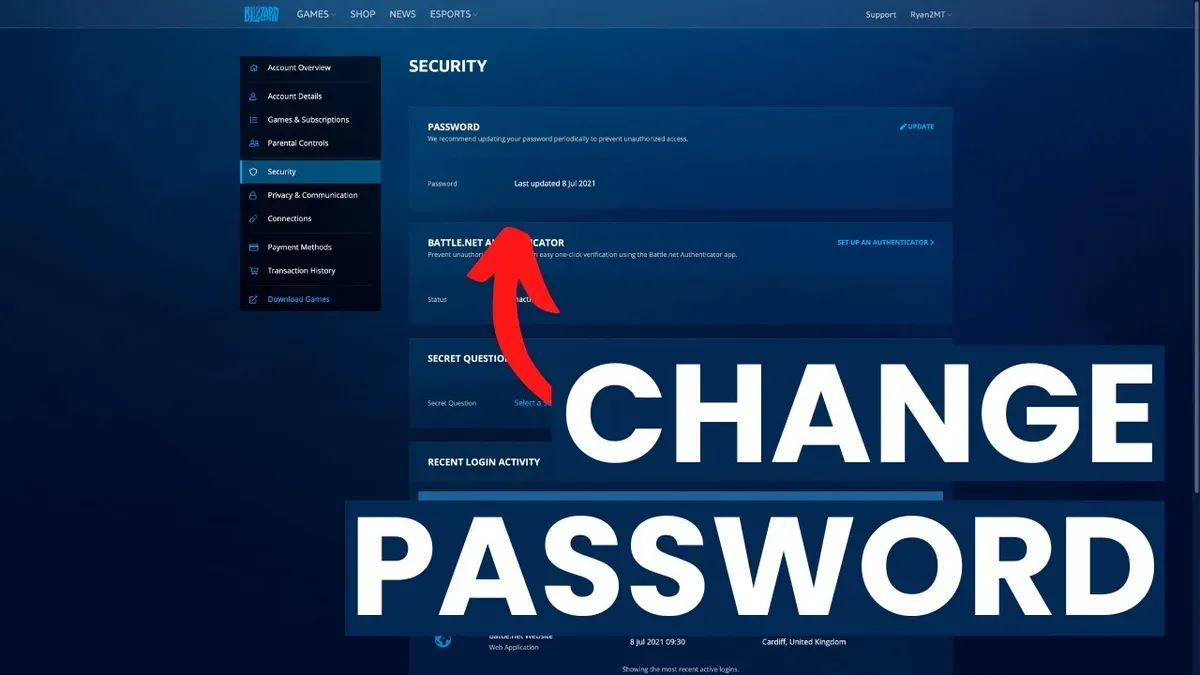
- Navigate to the Security tab found in the left sidebar of the account management dashboard. This section manages password and security settings.
- Locate the Change Password option and click it. A form requesting the current password and new password entries will display.
- Enter the current password in the provided field. Then, type the new password twice—once in the New Password field and once in the Confirm New Password field—to ensure accuracy.
- Click Save or Update Password to submit the change. If the new password meets Blizzard’s security criteria and matches in both entries, a confirmation message such as “Your password has been changed successfully” will appear on-screen.
- Check the email linked to the Battle.net account for a notification confirming the password change. This email serves as verification and a security alert in case the change was unauthorized.
Tip: Use a password manager to generate and store complex passwords to reduce the risk of reuse or weak passwords.
How to reset Battle.net password if you forgot it
When the current password is unknown, resetting the Battle.net password restores account access through a secure email verification process. Follow these steps to reset the password efficiently.
- Navigate to the Battle.net login page and click on the Forgot Password? link. This opens the password recovery interface.
- Enter the registered email address associated with the Battle.net account. Complete the CAPTCHA verification to confirm the request originates from a human user. Upon success, a confirmation message indicates the reset email has been sent.
- Check the inbox of the provided email address for the password reset message. Typical email delivery times range from a few seconds up to several minutes, depending on the email provider. If the email is not received within 10 minutes, check spam or junk folders.
- Click the password reset link included in the email. This directs to a secure Blizzard webpage where a new password can be created.
- Create a new password that meets Blizzard’s security guidelines, including length and character variety. Submit the new password, then log in to the Battle.net account using the updated credentials.
Tip: If the reset email does not arrive, verify the email address entered is correct and consider temporarily disabling email filters that may block Blizzard messages.
How to check if your Battle.net password is secure and update it regularly
Assessing password strength is crucial for maintaining Battle.net account security. Password strength checkers, including Blizzard’s built-in recommendations, evaluate factors like length, character variety, and unpredictability. For example, a secure password such as G7!rX2#vB9qZ uses a mix of uppercase and lowercase letters, numbers, and symbols, making it much stronger than a weak password like password123.
Avoid reusing passwords across different services to prevent cascading security breaches if one account is compromised. Setting reminders to update passwords every three to six months reduces the risk of unauthorized access over time.
Enabling two-factor authentication (2FA) through Battle.net adds a vital layer of protection by requiring a second verification step, typically via a mobile authenticator app or SMS.
- Visit the Battle.net account security page and locate the password section.
Expected result: A summary of password strength or guidelines appears. - Use an external password strength checker or Blizzard’s rating to evaluate the current password.
Expected result: The password is rated as weak, moderate, or strong based on complexity. - If the password is weak or reused, create a new strong password following Blizzard’s guidelines involving at least 8 characters with mixed types.
Expected result: The new password meets the strength criteria. - Set a recurring calendar reminder every 3–6 months to review and update the password.
Expected result: A reminder notification prompts timely password changes. - Enable two-factor authentication in the security settings by linking a mobile authenticator or phone number.
Expected result: 2FA is active and prompts for verification during login.
Tip: Regularly reviewing password strength and enabling 2FA significantly reduces the risk of unauthorized Battle.net account access.
How to change your Battle.net username and what to consider
Battle.net allows users to change their BattleTag, which is the display name visible to friends and other players, but not the email address or login username. The BattleTag is a key element of in-game identification and the friends list, so changes affect how others see the account but do not impact login credentials.
- Log into the Battle.net account management page with the current credentials. Successful login will show the account dashboard.
- Navigate to the "Settings" section, then select "Edit" next to the BattleTag display. This opens the BattleTag customization options.
- Enter the desired new BattleTag. The system will check availability and notify if the name is already taken or violates Blizzard’s naming policies.
- Confirm the change by clicking "Save" or "Change BattleTag." A confirmation message should appear indicating the update was successful.
Be aware that Blizzard’s official policy states BattleTag changes may incur a fee after the first free change, and users are limited in how frequently they can update it. The email login username remains fixed and cannot be changed, requiring a new account if alteration is necessary.
Tip: Consider the impact on your friends list and in-game recognition before changing the BattleTag, as it may cause confusion among contacts.
How to change Battle.net server and what it means for your account
Battle.net accounts are global, but many Blizzard games allow players to select from multiple servers or regions. Changing the server affects gameplay but does not alter account login details or require a password change.
To switch servers in popular Blizzard games like World of Warcraft or Overwatch, follow these steps:
- Open the Battle.net app and select the game.
- Click on the region dropdown menu near the Play button (e.g., "Americas," "Europe," "Asia").
- Select the desired server region.
- Launch the game; it will connect to the selected server, indicated by server-specific login screens or region tags.
Server changes impact several aspects. Game progress such as character levels, items, and achievements generally do not transfer between regions. Friends lists are often region-specific, so connections may not appear after switching. Some games implement region-locking, restricting cross-server play or communication.
Choosing a server also influences latency and population. Players in North America may experience lower latency on American servers compared to European or Asian ones, which can affect gameplay responsiveness. Server population affects matchmaking and in-game economy dynamics.
Tip: Consider selecting a server close to your geographic location for better latency and a more active player base.
Troubleshooting common issues when changing or resetting Battle.net password
Several common problems can arise during password changes or resets on Battle.net. One frequent issue is not receiving the password reset email. It is advisable to check the spam or junk folder, confirm the email address entered matches the registered account, and allow up to 10 minutes for server delays. Blizzard support notes occasional delays during high traffic periods.
If the password reset link appears expired or invalid, requesting a new link through the password reset page is necessary. Links typically expire after a short time for security reasons.
After successfully changing the password, some users may be unable to log in due to cached credentials or device issues. Clearing the browser cache, restarting the device, or trying a different browser or app version can resolve this. Logging out of all devices through the account management page also helps synchronize credentials.
In cases where the account appears compromised—such as unauthorized password changes or login attempts—immediate action involves contacting Blizzard Support via their official website. Users should provide all requested identity verification details. Blizzard support response times vary but generally respond within a few business days.
- Check email spam or junk folder if password reset email is not received; success is indicated by locating the reset email.
- Verify the email address entered matches the registered Battle.net account; success means no typo errors found.
- Request a new password reset link if the previous one is invalid or expired; success is receiving a fresh reset email.
- Clear browser cache or restart device if login fails post-password change; success is being able to log in with the new password.
- Use account management to log out of all devices to refresh session credentials; success means all devices require re-login.
- Contact Blizzard Support immediately if unauthorized activity is suspected; success is receiving a support ticket confirmation.
Enhancing Battle.net account security beyond password changes
Securing a Battle.net account involves more than just a strong password. Enabling the Blizzard Authenticator provides an additional layer of protection through two-factor authentication (2FA), which significantly reduces the risk of unauthorized access. Accounts with 2FA are far less likely to be breached, as attackers need access to both the password and the authenticator device.
- Download the Blizzard Authenticator app from your mobile device’s app store and log in with your Battle.net credentials. When successful, you will see a six-digit code that refreshes every 30 seconds.
- Link the authenticator to your Battle.net account by entering the code on the Battle.net website under Security settings. Successful linkage shows a confirmation message and the account status as "Authenticator enabled."
Managing trusted devices and enabling login alerts helps monitor account activity. Trusted devices allow easier login without repeated 2FA prompts, while login alerts notify of any access attempts from new devices or locations.
Phishing attempts targeting Battle.net users often come as fake emails or websites asking for login details. Recognizing suspicious URLs, unsolicited requests for credentials, and verifying sender addresses can prevent credential theft.
Regularly reviewing account activity and permissions on the Battle.net security page reveals recent logins and connected apps. Unrecognized activity should prompt immediate password changes and a security review.
Tip: Combining the Blizzard Authenticator with login alerts and vigilance against phishing creates a multi-layered defense that greatly enhances account safety.
Further reading
- How to Change Your AOL Mail Password Across All Devices
- How to Change Your Adobe Password and Manage Digital ID Security
- How to Recognize, Respond to, and Prevent a Google Drive Account Hack
- How to Recognize, Prevent, and Recover from a Fortnite Account Hack
Frequently asked questions
How to reset battle net password?
To reset a Battle.net password, visit the Battle.net login page and click on the "Can't log in?" link. Enter the email address associated with the account to receive a password reset email. Follow the link in the email to create a new password, ensuring it meets Blizzard's security requirements.
How to reset password on battle.net?
Resetting the password on Battle.net involves accessing the account recovery page through the login screen. Provide the registered email address or phone number to verify identity. After receiving the reset instructions via email, set a new password by following the provided link.
How to check your battle net password?
Battle.net does not display saved passwords for security reasons. To check if a password is correct, attempt to log in to the account. If uncertain about the password, it is safer to reset it rather than attempt to retrieve it through third-party tools or browsers.
How to change battle net password?
Changing a Battle.net password when logged in requires navigating to the Account Settings page, selecting the Security tab, and choosing the option to change the password. Enter the current password, then the new password twice to confirm, before saving the changes.
How do i change my battlenet password?
To change a Battle.net password, log in to the account and access the Security settings. Use the "Change Password" option, input the existing password followed by the new one, and confirm the update. Ensure the new password complies with the platform's strength criteria.
What this guide does not cover
This guide does not cover account recovery in cases of lost email access or hacked accounts that require Blizzard Support intervention. Users facing these issues should contact Blizzard Support directly for specialized assistance.
Changing the BattleTag is distinct from changing the login email or password and may involve Blizzard’s policies or fees. This article focuses on password and basic account setting changes only.
Server changes apply exclusively to in-game settings and do not affect account login credentials or security.
For the most secure and smooth account management, the single most useful next step is to enable two-factor authentication through Blizzard’s Authenticator app. This adds an essential layer of protection beyond passwords and helps prevent unauthorized access even if login details are compromised.