How to Change Your Call of Duty Password and Account Details Safely
This guide explains how to change your Call of Duty password and update account details securely across platforms to keep your account safe.
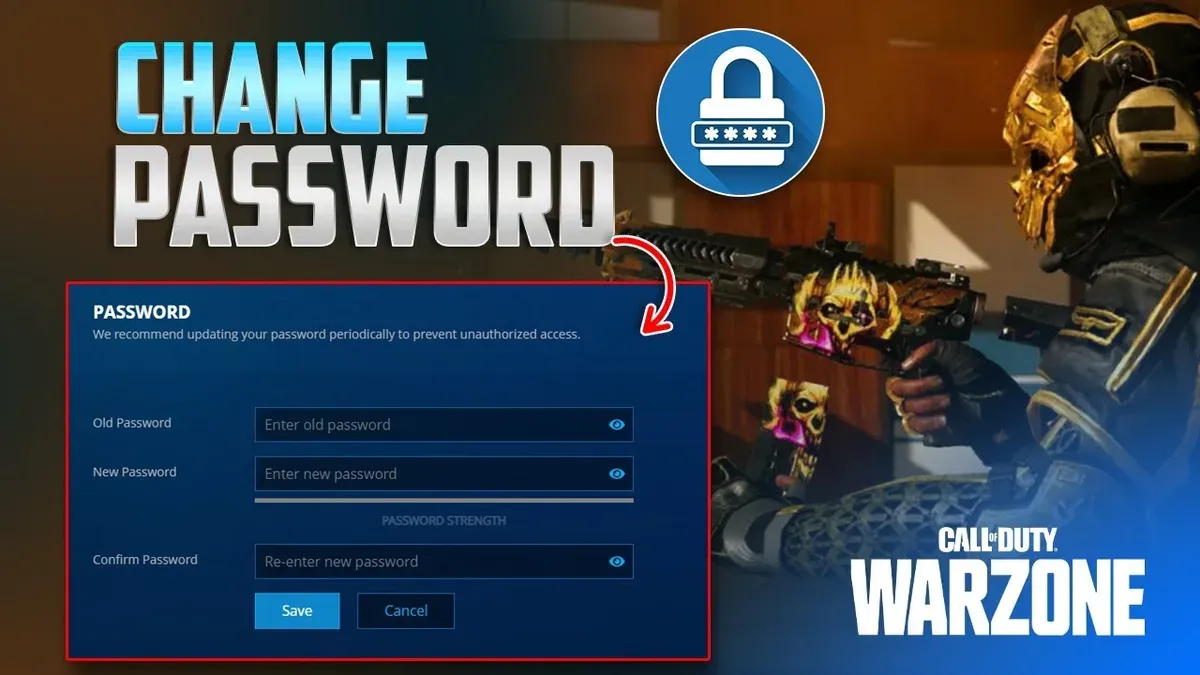
This article guides readers through how to change Call of Duty password and manage account details securely across different platforms. Securing the Call of Duty account is essential to prevent unauthorized access and ensure uninterrupted gameplay.
Changing the password or updating account information involves navigating the Activision website or the mobile app, each with platform-specific steps. Users must have access to their registered email or linked social accounts to verify identity during the process.
Additionally, the article covers resetting a forgotten password, modifying usernames and display names, switching server regions, and troubleshooting common errors encountered during these tasks. Clear instructions help maintain account security while addressing practical issues that may arise.
Before You Start: What Is Needed to Change Call of Duty Password
Changing a Call of Duty password or updating account details requires certain preparatory steps to ensure a smooth process. Access to the email address or phone number linked to the Call of Duty account is essential, as verification codes or reset links are typically sent to these contacts. If the current password is known, this will facilitate direct password changes without resetting.
Understanding the platform and account type used for login is crucial. Call of Duty accounts may be managed through an Activision account, a console-linked account (PlayStation Network, Xbox Live, or Battle.net), or a mobile-specific login. For example, players using an Activision account need their Activision credentials, while those logging in solely through a console must use that console’s account management system to update details.
A stable internet connection and access to the device intended for making changes—whether PC, mobile, or console—are necessary. Some platforms may require two-factor authentication (2FA), so having the relevant authenticator app or phone nearby is advisable. If the email or password is forgotten, backup recovery options such as linked phone numbers or security questions should be prepared to regain account access.
- Confirm access to the email or phone number linked to the Call of Duty or platform account. Successful access allows receipt of verification codes or reset links.
- Identify the login platform—Activision, PlayStation Network, Xbox Live, or Battle.net—and ensure current credentials or recovery options are available for that platform.
- Prepare the device (PC, console, or mobile) with a reliable internet connection to perform account changes without interruptions.
- If applicable, have two-factor authentication devices or apps ready to receive authentication prompts during the process.
- Verify backup recovery methods such as alternate emails or phone numbers are up to date to assist in case of forgotten credentials.
Tip: Checking account email and recovery options before starting can prevent delays or lockouts during password or detail changes.
Steps to Change Call of Duty Account Password on Activision Website
- Navigate to the Activision website and select the "Sign In" option at the top right corner. Upon successful login, the account dashboard will be displayed.
- Access the "Account" section from the dropdown menu under the profile icon, then choose the "Security & Privacy" tab to open security settings.
- Locate the "Change Password" area within the security settings. Enter the current password to authenticate the change process.
- Input a new password that meets Activision’s requirements: a minimum of eight characters, including at least one uppercase letter, one lowercase letter, one number, and one special character. Confirm the new password by re-entering it in the designated field.
- Click the "Save" button to apply the changes. A confirmation message will appear on-screen indicating the password was successfully updated.
- Check the registered email inbox for a notification from Activision confirming the password change. This acts as a security measure to verify the update and alert the user to any unauthorized activity.
Tip: If the new password is rejected, double-check that it does not match previous passwords and adheres strictly to the complexity rules.
How to Reset Call of Duty Password When Forgotten
- Navigate to the Activision login page and click on the Forgot Password? link below the sign-in fields. A password reset form should appear.
- Enter the registered email address or username associated with the Call of Duty account, then submit the form. A confirmation message will indicate that a reset email has been sent if the information matches an existing account.
- Check the inbox of the provided email for the password reset message. This can typically arrive within a few minutes but may take longer depending on email provider delays.
- If the reset email does not arrive within 10-15 minutes, check the spam or junk folder, as automated emails often get filtered. Ensure the email address entered is the one verified with the account, since unverified email addresses will prevent delivery.
- Open the reset email and click the included link. This should direct to a secure Activision page prompting to create a new password.
- Set a new, strong password following the site’s requirements, such as minimum length and character variety. Submit the new password to complete the reset.
- If two-factor authentication (2FA) is enabled for the account, an additional verification step will appear after password reset. This may require entering a code sent to the linked phone or authentication app to confirm identity.
- After successful password reset and verification, the account can be accessed with the new password across all linked platforms.
Tip: To avoid reset email issues, always add @activision.com to the email provider's safe sender list before requesting a password reset.
Changing Call of Duty Mobile Password and Account Details
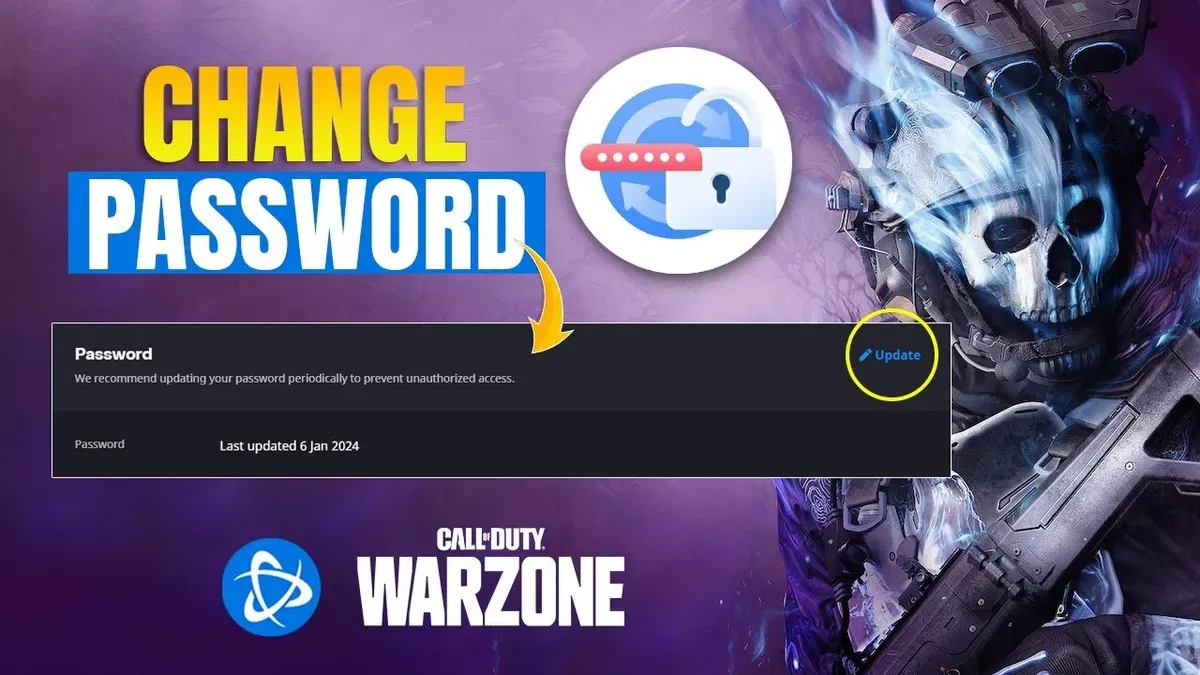
Call of Duty Mobile players have two primary pathways to update their password and account details: through the Activision website or directly within the mobile app. While the Activision website provides comprehensive account management, including password resets and email updates, the mobile app offers limited but convenient access to some settings.
Within Call of Duty Mobile, account settings can be accessed by tapping the profile icon in the top-left corner, then selecting 'Settings' and navigating to the 'Account' tab. Here, players can view linked accounts such as Google, Facebook, or Activision, and adjust some connection preferences.
To change the password specifically, the Activision website remains the primary and most secure channel. The mobile app does not allow direct password changes; instead, it prompts users to visit the Activision account management page. However, players can link or update their email addresses associated with the Activision account through the website. For email updates, players should sign in at the Activision site, select 'Account Security,' then 'Email Address' to make changes.
| Feature | Mobile App | Activision Website |
|---|---|---|
| Password Change | Not supported; redirects to website | Fully supported with verification and confirmation |
| Email Update | Not supported | Supported with verification |
| Account Linking | Supported for social accounts | Supported with additional security options |
Security tips: When changing account details, users should enable two-factor authentication via the Activision website, use strong unique passwords, and ensure linked emails are secure. Because the mobile app redirects password changes to the website, it is advisable to perform sensitive updates on a trusted device with a secure internet connection.
User feedback indicates that while the mobile app streamlines access to basic account settings and social account linking, most security-sensitive actions, including password updates, are more reliably handled on the Activision website.
How to Change Call of Duty Username and Display Name
Call of Duty usernames (Activision IDs) and in-game display names are distinct and managed separately. The Activision ID is the main account username visible across Call of Duty games and online services, while display names on consoles like PlayStation Network or Xbox Live appear during gameplay but are controlled by the respective platform.
- Sign in to the Activision account management page. The dashboard displays the current Activision ID and profile details.
- Locate the "Basic Info" section, then click the "Edit" button next to your Activision ID. An editable field appears allowing a new username input.
- Enter the desired new Activision ID. The system will check availability and notify if the name is taken or invalid.
- Confirm the change by entering your password if prompted. A confirmation message appears indicating a successful update.
- Note that Activision allows username changes only once every 30 days, so choose carefully.
- For console display names, access the PlayStation Network or Xbox Live settings directly on the console or through their web portals. These names sync automatically with Call of Duty but must be changed within the console ecosystem.
- Be aware that changing the Activision ID may temporarily affect your friends list visibility and requires a sign-out/sign-in to update across devices, but it does not impact game progress or stats.
Tip: Before submitting a username change, ensure the new ID complies with Activision’s guidelines to avoid rejection.
How to Change Call of Duty Server Region
In Call of Duty, the server region determines the geographic location of the game servers that handle matchmaking and gameplay. Choosing the right server region can significantly impact latency, matchmaking times, and overall connection quality.
- Launch the Call of Duty game and navigate to the main menu. Select the "Options" or "Settings" tab, depending on the platform.Look for a section labeled "Account" or "Network" settings.
- Within the network settings, locate the "Server Region" or "Region Selection" option.A list of available regions (such as North America, Europe, Asia-Pacific) should appear.
- Select the preferred server region based on the lowest latency and best connection quality. The game may display ping times to each region.Confirm the selection to save the changes.
- Restart the game if prompted to apply the new server settings.Verify that matchmaking now occurs in the chosen region by checking the server information during a match.
Changing the server region affects matchmaking pools and can influence game performance, but it does not alter account credentials, passwords, or progress linked to the Activision account. Progress and unlocks remain consistent across regions since they are stored server-side.
Tip: Selecting a server region with the lowest latency reduces lag and improves gameplay responsiveness. Players should choose a region closest to their physical location or with the best ping times shown in the game settings.
Developer support notes that frequent region switching may temporarily affect matchmaking times as the system adapts to the new region's player pool. Latency differences can be substantial; for example, players in Europe generally experience higher ping on North American servers, which can degrade gameplay experience.
Troubleshooting Common Issues When Changing Call of Duty Password or Account Details
Users may encounter several obstacles when updating Call of Duty passwords or account details, including missing reset emails, error messages, account locks, and two-factor authentication (2FA) blocks. Addressing these issues promptly helps maintain account security and uninterrupted access.
Password Reset Emails Not Received
If a password reset email does not appear, first check the spam or junk folder. Some email providers may filter Activision messages. Ensure the registered email address is correctly entered. If emails remain undelivered after 15 minutes, verify that the email provider is not blocking Activision's domain.
Fixing 'Password Reset Failed' Errors
This error often arises from expired reset links or incorrect input. Use the most recent password reset link sent by Activision and complete the process within the given validity period, usually one hour. Clearing browser cache or switching to a different browser can also resolve the issue.
Dealing with Account Lockouts and Suspicious Activity Notifications
Accounts may be temporarily locked after multiple failed login attempts or detected suspicious activity. Wait for the specified lockout duration, often 30 minutes to an hour, before trying again. If the lockout persists, use the account recovery options on the Activision website to verify identity and regain access.
Two-Factor Authentication Blocking Password Changes
2FA can prevent password changes if the authentication code is not correctly entered or if the device is unavailable. Ensure the authentication app or device is accessible and codes are current. If 2FA devices are lost, follow Activision's recovery process to disable 2FA securely before changing account details.
Contacting Activision Support for Unresolved Issues
When self-service troubleshooting does not resolve problems, contacting Activision Support is recommended. Support response times vary, but most common issues receive assistance within 24 to 72 hours. Prepare relevant account information and descriptions of the issue to facilitate efficient support.
- Verify the email inbox and spam folder for the reset email; the reset link should be visible within 15 minutes.
- Use the latest reset link and complete the password change promptly; a confirmation message should appear.
- If locked out, wait the lockout period, then attempt login again; successful login confirms unlock.
- Confirm 2FA code validity via the authentication app; entering the correct code should allow password updates.
- If issues persist, submit a support ticket via the Activision Support website; expect an acknowledgment within a few hours.
Further reading
- How to Change Your Battle.net Password: Step-by-Step Guide
- How to Respond When an EA App Account Is Hacked
Frequently asked questions
How to change username call of duty?
To change the Call of Duty username, log into the Activision account on the official website. Navigate to the "Profile" section, then select "Edit" next to the Activision ID. Enter a new username and confirm the change. Note that usernames can only be changed once every 30 days, and some platforms may require additional steps to sync the new name.
How to change call of duty mobile password?
Changing the Call of Duty Mobile password requires accessing the Activision account linked to the game. Visit the Activision website, sign in, and go to "Account Security." From there, select "Change Password," enter the current password followed by the new one, and save the changes. If the password is forgotten, use the "Forgot Password" option on the login page.
How to change call of duty account password?
To change the Call of Duty account password, log into the Activision account on the official website, then access the "Account Security" tab. Choose the "Change Password" option, input the current password, and then the new password twice to confirm. Confirming the change via email or two-factor authentication might be required depending on the account settings.
How to change call of duty name?
Changing the Call of Duty name is done through the Activision account management page by updating the Activision ID. This name serves as the primary display across Call of Duty titles. Keep in mind that the name can only be changed once every 30 days, and some platforms like consoles may show a different gamertag linked to that platform.
How to reset call of duty account?
Resetting the Call of Duty account usually refers to recovering access when login credentials are lost. Use the "Forgot Password" feature on the Activision login page to receive a password reset link via the registered email. For account recovery issues beyond password reset, contacting Activision Support directly is recommended.
Limits of This Advice
This article does not cover hacking attempts or unauthorized account recoveries; users facing suspected account compromises should contact official Activision support directly for assistance. Changing Call of Duty passwords does not automatically secure linked console accounts if credentials are shared across platforms; managing passwords and security settings on PlayStation Network, Xbox Live, or Battle.net accounts requires separate attention through their respective official channels.
For the most secure and uninterrupted gameplay experience, the single most useful next step is to enable two-factor authentication (2FA) on the Activision account. This adds a critical layer of security beyond just the password and helps prevent unauthorized access even if login details are compromised.