How to Change Gmail Password Across Devices: Complete Step-by-Step Guide
Step-by-step guide to changing your Gmail password securely across iPhone, Android, iPad, and desktop devices to avoid syncing and access issues.
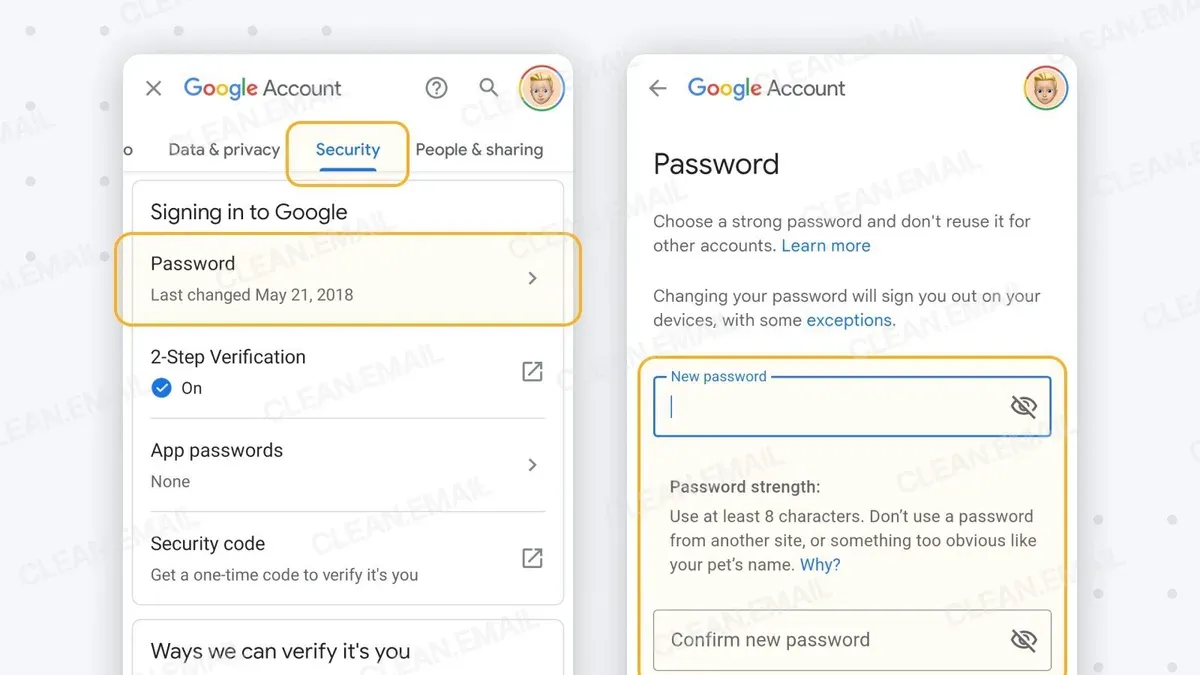
This article provides detailed, device-specific instructions on how to change Gmail password, covering iPhone, Android, iPad, and desktop computers. Changing a Gmail password securely across devices involves accessing Google's account settings, but the steps vary depending on the device and app used.
For iPhone users, the process differs when using the Gmail app, the iPhone Mail app, or when no Gmail app is installed. Android and iPad devices require slightly different navigation through settings menus, while desktop users will primarily use the Google Account web interface.
Understanding the nuances of these methods helps avoid common pitfalls such as syncing issues or security lapses. This guide also addresses troubleshooting and password recovery to ensure a smooth update of login credentials across all platforms.
Before you start: What is needed to change a Gmail password
Changing a Gmail password requires preparation to ensure smooth access across all connected devices and services. First, having the current Google Account login credentials is essential. If the password is forgotten, recovery options such as a linked phone number or recovery email must be accessible for verification.
A stable internet connection and a compatible device—a smartphone, tablet, or computer—are necessary to complete the process without interruptions. Google accounts are often connected to multiple devices and apps; the average user typically has several devices linked simultaneously, including phones, tablets, and desktops.
Changing the password immediately affects all these connected devices by signing them out or requiring the new password for access. Therefore, it is important to update saved passwords on other devices and apps promptly to avoid lockouts and service disruptions.
- Confirm access to the current Google Account credentials or recovery options. Successful access leads to the ability to sign in or initiate password recovery.
- Ensure the device intended for the password change is connected to a reliable internet network. A working connection allows the Google Account settings page to load without errors.
- Prepare to update passwords on all other devices and apps where the Google Account is used. This prevents access issues after the password change.
Tip: Account lockouts due to forgotten passwords are common; having recovery options set up in advance can save time and prevent frustration.
How to change Gmail password on iPhone
- Open the Gmail app on the iPhone. Once opened, tap the profile icon in the top right corner to access account options.
- Select Manage your Google Account. This opens the Google Account settings page within the app or browser.
- Swipe through the tabs and tap Security to locate security-related settings.
- Under the Signing in to Google section, tap Password. The app may prompt for the current password or require two-step verification to confirm identity.
- Enter the current password or complete the verification step when prompted. This ensures account security before allowing changes.
- Type the new password following Google's requirements (at least 8 characters, a mix of letters, numbers, and symbols). Confirm the new password by typing it again.
- Tap Change Password to finalize the update. A confirmation screen will indicate the password has been successfully changed.
- After changing the password, sign out and sign back in on all devices and apps using the Gmail account to maintain uninterrupted access.
Tip: If the Gmail app is not installed, the same steps can be followed using Safari by visiting myaccount.google.com.
Common interface elements include the profile picture icon for account access and clearly labeled sections like Security and Password within Google Account settings.
How to change Gmail password on iPhone without app
It is possible to change the Gmail password on an iPhone without using the Gmail app by accessing Google Account settings through the Safari browser or any other web browser installed on the device. Alternatively, the iOS Mail app does not support changing the Gmail password directly but requires updating after the password is changed online.
- Open Safari or another web browser on the iPhone.
- Go to myaccount.google.com and sign in with the current Gmail credentials if prompted; this will open the Google Account management page.
- Tap on the Security tab from the menu options on the left or by scrolling down.
- Locate the Signing in to Google section and select Password.
- Enter the current password for verification and then input the new password twice following Google's requirements.
- Submit the change and wait for confirmation that the password has been updated.
- After changing the password, open the iPhone Settings app, then navigate to Mail > Accounts.
- Find the Gmail account, tap it, then select Account again to edit the password field; enter the new password to maintain mail sync.
- Save the changes and confirm the account syncs properly with the updated password.
When comparing workflows, the Gmail app offers a streamlined password change process integrated with app notifications and automatic updates to stored credentials. Using a browser like Safari requires manual navigation to Google Account settings and updating passwords across apps. The iOS Mail app does not provide a direct password change option and depends on manual password updates after making changes online.
| Method | Steps to Change Password | Automatic Password Update | Limitations |
|---|---|---|---|
| Gmail App | In-app password change via settings | Yes | Requires Gmail app installed |
| Browser (Safari) | Manual navigation to Google Account > Security > Password | No, must update other apps manually | More steps, no automatic sync |
| iOS Mail App | No password change option inside app | N/A | Password must be changed online; manual update required in settings |
Tip: After changing the password via browser, promptly update it in the iOS Mail app settings to avoid sync errors or account lockouts.
How to change Gmail password on Android
Android users can change their Gmail password either through the Gmail app or the Chrome browser by accessing Google Account settings. The process involves navigating to the password change interface, verifying identity, and updating stored passwords on the device.
- Open the Gmail app on the Android device. Tap the profile picture or initial in the top right corner to open the account menu. Select Manage your Google Account. A new settings window opens.
- In the Google Account settings, swipe to the Security tab. Scroll down and tap Password under the "Signing in to Google" section. This directs to the password change screen.
- Enter the current password or use identity verification methods such as two-factor authentication or a prompt on a connected device. Successful verification leads to the new password entry screen.
- Type the new password twice, adhering to Google's password requirements, then tap Change Password. A confirmation message appears indicating the password has been updated.
- If the Gmail app is used, it will prompt to update the saved password automatically. If not, manually update the saved login information in the device’s Settings > Google > Manage your Google Account > Security or clear saved credentials to avoid login errors.
- Alternatively, open Chrome and go to myaccount.google.com/security. Follow the same steps under the "Signing in to Google" section to change the password. Chrome may prompt to update the saved password after the change.
Note: Common error messages include "Incorrect password" during verification or "Unable to update password" if there is an unstable internet connection. Ensuring a stable connection and correct current password entry is essential.
How to change Gmail password on iPad
iPad users can update their Gmail password through either the Gmail app or the Safari browser. Both methods require accessing the Google Account security settings, verifying identity, and then updating the password across all linked apps for uninterrupted access.
Using the Gmail app on iPad
- Open the Gmail app on the iPad. The inbox should appear with the familiar interface.
- Tap the profile icon at the top right corner to open the account menu.
- Select Manage your Google Account. This opens a new settings screen within the app.
- Navigate to the Security tab by swiping left or tapping the tab label.
- Scroll down to find the Password section and tap it.
- Verify identity by entering the current password or using two-factor authentication. Successful verification leads to the password change screen.
- Enter the new password twice and tap Change Password. A confirmation message indicates success.
- Return to the Gmail app main screen; the new password is now active.
Using Safari browser on iPad
- Open Safari and go to myaccount.google.com/security.
- Sign in with the current Gmail credentials if not already signed in.
- Scroll to the Password section and tap it.
- Complete identity verification via password entry or two-step verification.
- Enter the new password twice and submit.
- After confirmation, close the browser and open the Gmail app or any other linked app on the iPad.
- Update the password in these apps if prompted to avoid sync or login errors.
Tip: After changing the password, ensure all other devices using this Google Account update their login credentials promptly to prevent access issues.
How to change Gmail password on computer
- Open a web browser and go to Google Account. The Google Account dashboard should appear.
- Click on the Security tab in the left-hand menu. This will display security settings related to the account.
- Scroll down to the Signing in to Google section and select Password. A prompt will appear asking to verify identity.
- Enter the current Gmail password to verify identity. Once confirmed, the password change interface will be displayed.
- Type the new password twice as requested. Choose a strong password combining letters, numbers, and symbols, ideally with at least 12 characters. Avoid common words or easily guessed patterns.
- Click Change Password. A confirmation message will appear indicating the password has been updated.
- Update saved passwords in browsers and apps where the Gmail account is used. Most browsers prompt to update stored credentials automatically, but manual updates may be necessary in some password managers or third-party apps.
Tip: Using a password manager integrated with the browser can simplify updating and storing strong passwords securely across devices.
How to change Gmail password if forgotten
When the current Gmail password is forgotten, Google’s account recovery process provides a structured way to reset it securely. Starting with the “Forgot Password” feature, users can choose various verification methods to confirm their identity before setting a new password.
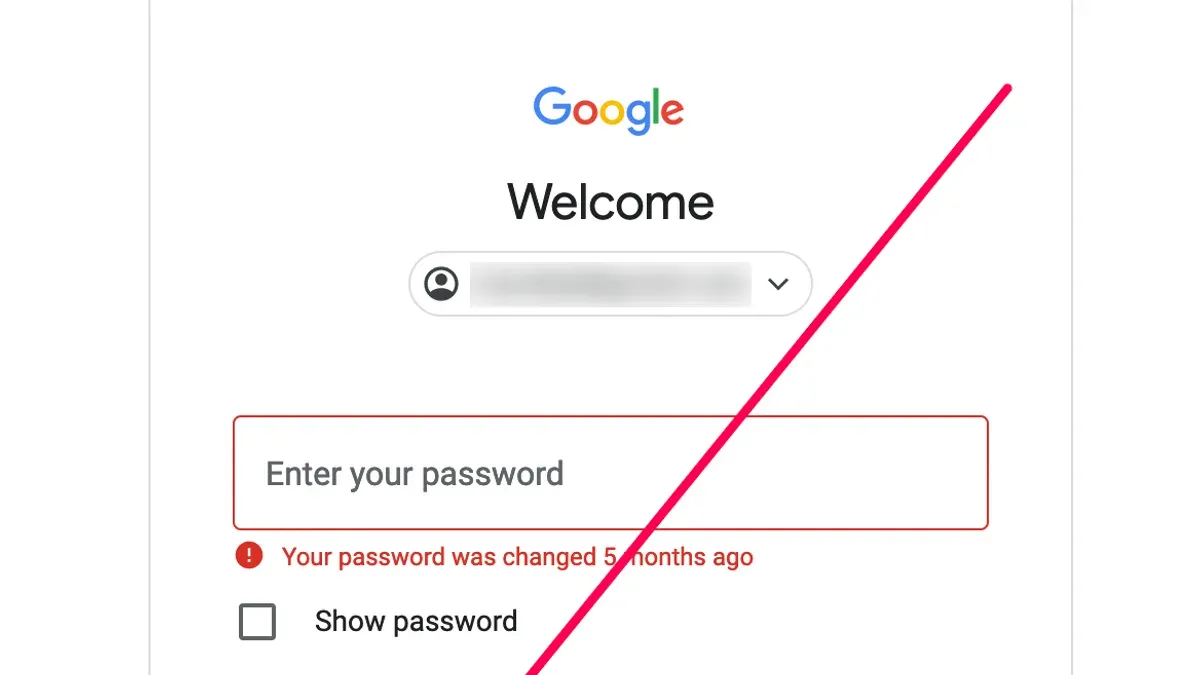
- Go to the Gmail sign-in page and click on the “Forgot password?” link. A prompt to enter the last remembered password may appear; if unknown, select “Try another way.” Successful navigation leads to verification options.
- Choose a verification method, typically starting with a recovery email address. Google sends a verification code to this email; entering the code correctly grants access to reset the password.
- If the recovery email is inaccessible, opt for phone verification. Google sends a code via SMS or call to the registered phone number. Entering this code verifies identity.
- If neither recovery email nor phone is available, answer security questions or provide details about the account usage. These methods have lower success rates but can help in some cases.
- After successful verification, create a new password that is strong and unique. Confirm the new password to complete the reset.
Tip: Regularly update recovery options in Google Account settings to improve the likelihood of successful account recovery and reduce the risk of lockout.
Common mistakes include skipping recovery option updates and providing vague or outdated information during verification, which can hinder resetting the password.
Troubleshooting common issues when changing Gmail password
Users may face verification challenges such as not receiving codes or failing identity checks. This can result from incorrect recovery details or delayed code delivery. Checking spam folders and ensuring recovery options are up to date can help. If an error message like "Couldn't verify your identity" appears, retrying after confirming recovery info is recommended.
Sometimes, changed passwords fail to update across all devices immediately, causing sync errors or repeated login prompts. To resolve this, users should manually sign out and back in on each device or clear saved credentials in account settings.
If locked out after a password change, use Google's Account Recovery page to regain access. Follow prompts carefully, providing accurate recovery information. Persistent lockout issues may require waiting 24-48 hours before attempting recovery again.
Contact Google Support when encountering persistent errors such as "Account temporarily disabled" or unresolved access problems. Official help is accessible via support.google.com/accounts, offering chat and email options depending on region and account type.
Further reading
- How to Change Your Dropbox Password Across Devices: A Clear Guide
- How to Change Your AOL Mail Password Across All Devices
- How to Change Your Adobe Password and Manage Digital ID Security
Frequently asked questions
How to change gmail password on phone
To change a Gmail password on a phone, open the Google app or a mobile browser and go to the Google Account settings. Navigate to the 'Security' tab, select 'Password', and verify identity with the current password or 2-step verification. Then enter a new password and save the changes. This process applies similarly on both Android and iOS devices.
How to change gmail password on ipad
Changing a Gmail password on an iPad involves accessing the Google Account via Safari or the Gmail app. After signing in, go to 'Manage your Google Account', tap 'Security', then 'Password'. Verify the current password and set a new one. If the Gmail app isn’t installed, the browser method works effectively.
How to change gmail password on iphone 16
On an iPhone 16, open Safari or the Gmail app and sign into the Google Account. Tap the profile icon, select 'Manage your Google Account', then 'Security'. Choose 'Password', confirm identity, and enter a new password. The steps mirror those on other recent iPhone models, with no significant interface changes.
How to change gmail password on iphone mail app
The iPhone Mail app itself does not allow changing the Gmail password directly. Instead, update the password by visiting the Google Account settings in a browser or Gmail app. After changing the password, update the saved password in the iPhone Mail app under Settings > Mail > Accounts > Gmail to maintain email access.
Limitations of this guide and when to seek further help
This guide does not cover recovering accounts without access to recovery options or accounts compromised by hacking. Users in these scenarios should consult Google's official account recovery support and consider professional assistance to protect personal information and regain control securely. Additionally, this article does not address advanced security measures such as setting up two-factor authentication in detail or managing Google Workspace accounts, which may have different administrative controls.
For the safest outcome, the single most useful next step after changing a Gmail password is to review and update recovery information in the Google Account settings. This includes verifying the recovery email, phone number, and security questions to ensure the ability to regain access if needed. Keeping these details current helps prevent lockouts and supports account security across all devices.