Chromebooks Implementation Timeline: From Concept to Classroom Success
Explore the Chromebooks implementation timeline to ensure smooth rollout, training, and ongoing support for successful classroom integration.
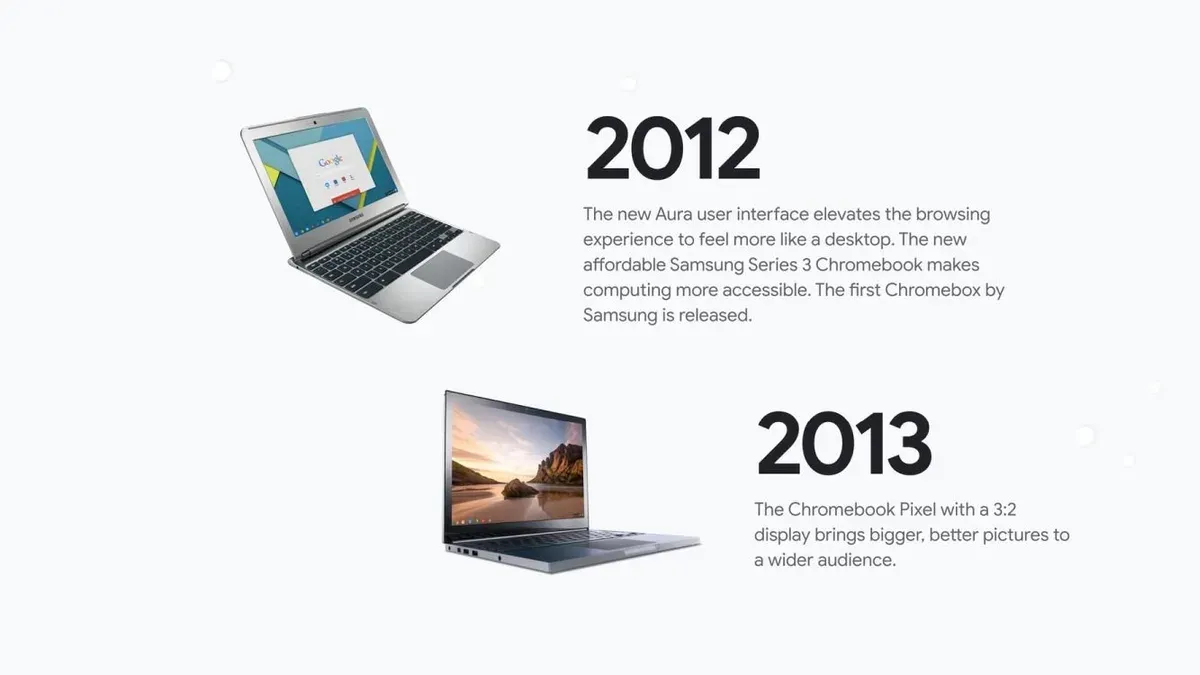
Short answer: The Chromebooks implementation timeline begins with their launch and spans from initial adoption stages to full integration in classrooms, including ongoing support and maintenance phases. Understanding this timeline helps you plan device rollout, user training, and lifecycle management effectively.
This article covers the historical development of Chromebooks, key milestones in their educational adoption, and the duration of Google's support for these devices. You will find practical guidance on setting up Chromebooks specifically for school environments, maximizing built-in tools, and avoiding pitfalls that can disrupt deployment. By following this guide, you can ensure a smooth Chromebook implementation that aligns with your school's technology goals and support capabilities.
Understand what Chromebooks are and why they matter in education
Chromebooks are laptops that run Chrome OS, a lightweight operating system centered around the Chrome browser and cloud-based applications. Unlike traditional laptops that rely heavily on local software and storage, Chromebooks primarily operate through web apps and cloud storage, reducing the need for powerful hardware.
For schools, this difference translates into significant advantages. Chromebooks typically cost less than traditional laptops, making large-scale deployment more budget-friendly. Their simplified management through Google's Admin Console allows IT administrators to push updates, enforce policies, and manage apps remotely with minimal effort. Security is built in, with automatic updates and sandboxing that protect against malware without requiring extensive antivirus software.
Consider a school district comparing device options: opting for Chromebooks means investing in lower-cost hardware and spending less time on device management. Instead of dedicating IT resources to installing or troubleshooting software on each machine, administrators can centrally manage hundreds or thousands of devices, freeing up time and reducing overhead.
These factors have driven Chromebooks' popularity in education sectors worldwide. Schools value the balance of cost, security, and ease of use, enabling educators to focus on teaching rather than technical issues. The cloud-centric design aligns well with collaborative learning environments and the increasing use of online educational resources.
Trace the invention and launch of the first Chromebook
The Chromebook concept originated from Google's vision to create a lightweight, cloud-centric device that would simplify computing by relying primarily on web applications rather than traditional software. This idea was spearheaded by Google engineers who recognized the potential for a device optimized for internet use, aiming to reduce complexity and improve security.
The initial announcement of the Chromebook came in mid-2011. Google collaborated with hardware partners such as Samsung and Acer to develop the first models. The first Chromebook model, the Samsung Series 5, was officially released in June 2011, marking the commercial debut of this new category of laptops.
Early Chromebooks featured solid-state drives for faster boot times, modest processors sufficient for web browsing, and a customized version of Chrome OS designed to operate almost entirely online. A key milestone was the integration of automatic updates, ensuring that devices stayed current without user intervention, a feature that remains central to Chromebook management today.
For example, the Samsung Series 5 Chromebook allowed users to power on and reach a ready-to-use desktop in under 10 seconds, showcasing the streamlined experience Google aimed for. Its hardware design was minimalist, focusing on durability and long battery life to suit educational environments.
Explore when and how schools began adopting Chromebooks
Chromebooks entered educational settings initially through pilot programs in select school districts, testing their viability as classroom tools. Early adopters included districts like the Los Angeles Unified School District, which launched pilot initiatives in the early 2010s, providing a concrete proof of concept for scalable Chromebook deployments.
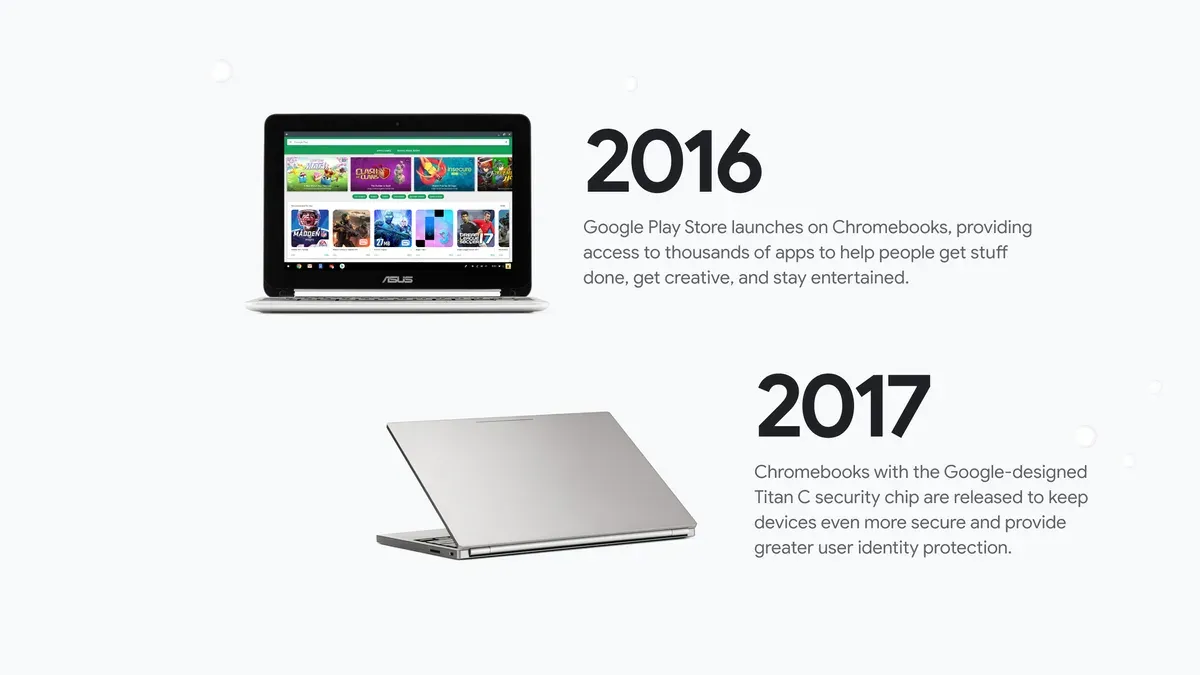
The rapid adoption across schools was driven primarily by cost-effectiveness compared to traditional laptops, seamless integration with cloud services, and the growing use of Google Workspace for Education. These factors aligned with school budgets and digital learning strategies, making Chromebooks particularly attractive for large-scale rollouts.
As adoption spread, districts in different regions began implementing Chromebooks at varying scales—from small pilot classrooms to entire schools or districts—reflecting local needs and infrastructure readiness. For example, some districts started with a one-to-one device program in middle schools, then expanded to elementary and high schools based on early successes and feedback.
By the mid-2010s, Chromebooks accounted for a significant share of devices in K-12 education, with adoption rates increasing steadily. This growth was supported by Google’s continuous improvements in device management tools and educational software integration, which streamlined deployment and support for IT administrators like you.
- Identify early pilot programs in similar districts to learn from their deployment strategies
- Evaluate cost comparisons including device price and management overhead
- Assess your school’s current use of cloud-based tools to gauge Chromebook compatibility
- Plan phased rollouts aligned with infrastructure upgrades and teacher training
Learn how long Google supports Chromebooks and what that means for schools
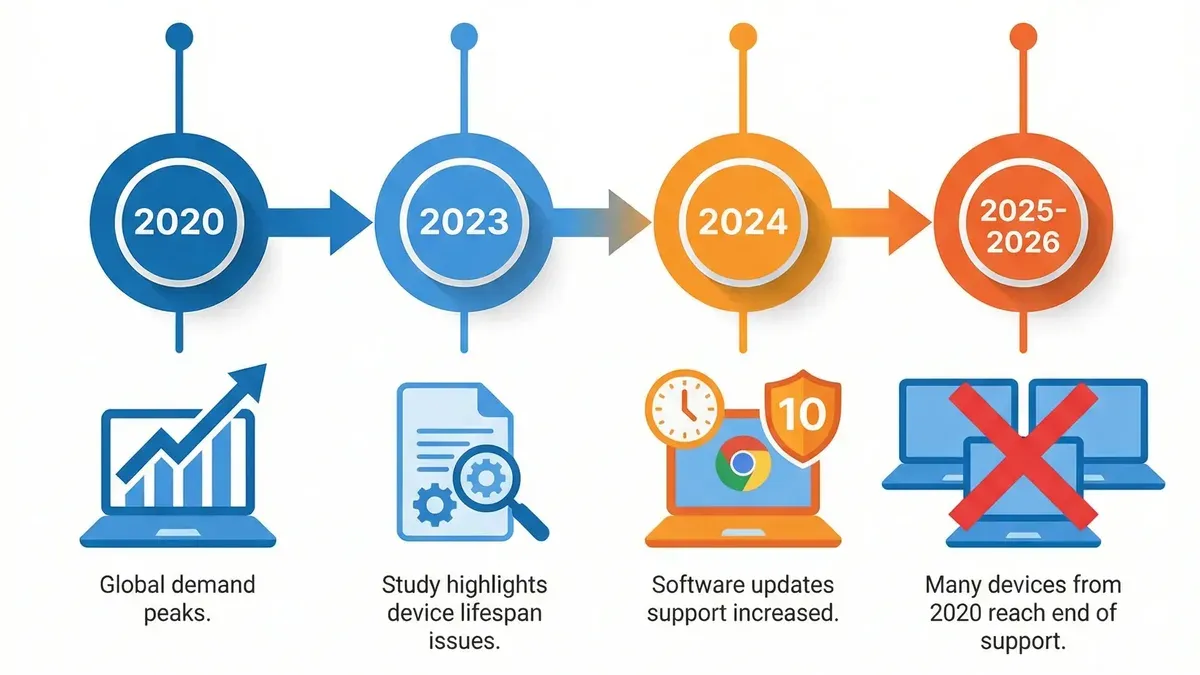
Google enforces a Chrome OS Auto Update Expiration (AUE) policy that defines the support lifecycle for each Chromebook model. This policy guarantees automatic updates and security patches for a fixed number of years from the device’s initial release date.
Typically, Chromebooks receive updates for about 6 to 8 years, depending on the model. Once a device reaches its AUE date, it no longer gets software updates, including critical security patches, which can impact device security and compatibility with new applications.
For schools, understanding this timeline is crucial to maintain a secure and functional fleet. For example, a district deploying Chromebooks purchased in 2018 would expect support to end around 2024 to 2026. Post-AUE devices may still function but pose increasing risks and limitations.
Many schools manage this by aligning their device refresh cycles with the AUE dates, ensuring that devices are replaced before support ends. Some districts stagger purchases to avoid simultaneous expirations and leverage trade-in or recycling programs to maximize budget efficiency.
Consider a school with a 5-year refresh cycle. If their Chromebook model has a 6-year AUE, they have a buffer year to plan replacements without rushing, reducing disruption. Conversely, buying older stock with fewer years of support left can force premature refreshes, increasing costs.
- Check each Chromebook model’s AUE date on Google’s official Auto Update Expiration page
- Plan device refresh cycles that align with AUE to maintain security and usability
- Stagger Chromebook purchases to avoid bulk expirations in the same year
- Utilize trade-in or recycling programs to offset replacement costs
- Communicate AUE implications to stakeholders to set realistic expectations
Set up your Chromebook for first-time use in an educational environment
To ensure a smooth deployment, start by enrolling each Chromebook into your school's management console, typically Google Admin Console. This step is critical as it allows you to enforce policies, manage apps, and control user access centrally.
Begin the enrollment by powering on the Chromebook and connecting it to a secure Wi-Fi network. At the login screen, press Ctrl + Alt + E to open the enrollment prompt. Enter your school's administrator credentials to link the device with your domain. This enrollment locks the device to your organization, preventing unauthorized use.
Next, configure user accounts and access restrictions through the Admin Console. Define user groups such as students, teachers, and staff to apply tailored restrictions—like blocking access to certain websites or disabling guest mode. For example, you might restrict students to approved educational apps only, while allowing teachers broader access.
Then, install necessary applications using the Managed Google Play Store or by pushing Chrome extensions. Include essential apps like Google Classroom, Docs, and any district-specific tools. Set security policies such as mandatory screen locks after inactivity, enforced safe browsing, and automatic updates to maintain device integrity.
Consider a concrete scenario: a middle school enrolling 300 Chromebooks assigns devices by grade level, applying stricter web filters for younger students and enabling more collaboration tools for older grades. This segmentation ensures each group has appropriate resources and safeguards.
- Power on Chromebook and connect to Wi-Fi
- Press Ctrl + Alt + E to start enrollment
- Sign in with administrator credentials to enroll device
- Organize users into groups within Admin Console
- Configure access restrictions and policies per group
- Install required apps and extensions remotely
- Set security policies: screen locks, safe browsing, updates
Access and use Chromebook history and developer tools effectively
Viewing browsing history on a Chromebook is straightforward and essential for monitoring student activity or troubleshooting web access issues. To access it, open Chrome, click the three-dot menu in the top-right corner, select History, then choose History again from the submenu. This displays a chronological list of visited sites, searchable by keyword or date. For example, if a student reports trouble accessing a learning platform, you can quickly verify their recent activity to identify potential access errors.
Chrome DevTools provide deeper insights, especially useful for IT staff and teachers supporting web-based educational apps. Access Developer Tools by pressing Ctrl + Shift + I (or Cmd + Option + I on a Mac keyboard) or right-clicking a webpage element and selecting Inspect. Within DevTools, the Performance tab (previously known as the Timeline) records page load times, script execution, and rendering processes. This helps diagnose slow or unresponsive educational web apps by pinpointing resource-heavy scripts or network delays.
Best practices include using browsing history for quick checks on user activity without invading privacy, and reserving DevTools for troubleshooting with user consent or during supervised sessions. For instance, a teacher troubleshooting a slow-loading online quiz can use the Performance tab to identify if images or scripts are causing delays and adjust content accordingly.
- Open browsing history via Chrome menu > History > History
- Search history by date or keyword to track access issues
- Launch DevTools with Ctrl+Shift+I or right-click > Inspect
- Use Performance tab to analyze webpage loading and script execution
- Apply these tools with respect to student privacy and supervision policies
Avoid common mistakes when implementing Chromebooks in schools
Overlooking device support expiration can lead to unexpected security vulnerabilities and costly mid-cycle device replacements. For example, a district that deployed Chromebooks without tracking Automatic Update Expiration (AUE) dates faced sudden unsupported devices, exposing sensitive student data and forcing an unplanned procurement.
Insufficient training for staff and students often results in underutilized features and increased tech support requests. Rolling out Chromebooks without dedicated sessions on device management, Google Admin Console navigation, and best usage practices can create frustration and slow adoption.
Network infrastructure readiness is frequently underestimated. A school that deployed hundreds of Chromebooks without upgrading Wi-Fi access points experienced frequent disconnects and slow performance, disrupting lessons. Ensuring robust bandwidth, reliable access points, and proper network segmentation is essential.
Address these pitfalls by maintaining a Chromebook inventory with AUE tracking, scheduling comprehensive training tailored to roles, and auditing network capacity before rollout.
- Monitor Chromebook AUE dates via Google Admin Console reports
- Conduct training workshops covering device features and management tools
- Assess and upgrade Wi-Fi infrastructure to handle anticipated device load
Read next
- Moving from Android Tablets to Chromebooks: Your Complete Checklist
- Mastering Android Tablets Implementation Timeline for Seamless Use
- Create an Effective Remind Implementation Timeline That Meets Your Deadlines
- Android Tablets Rollout Plan for Special Education Teachers: A Clear Guide
Frequently asked questions
When did schools start using chromebooks?
Schools began adopting Chromebooks shortly after their market launch, with significant uptake starting around the early 2010s. The devices quickly gained popularity due to their affordability, ease of management, and integration with Google Workspace for Education, making them a practical choice for classrooms.
When were chromebooks invented?
Chromebooks were introduced to the market in 2011 as a new category of laptops running Google's Chrome OS. The concept was driven by the need for fast, cloud-centric devices that simplified maintenance and enhanced collaboration for users, especially in education and business sectors.
How long does google support chromebooks?
Google provides Automatic Update Expiration (AUE) dates for each Chromebook model, generally supporting devices with software updates for about 6 to 8 years after their initial release. This support includes security patches, feature updates, and stability improvements essential for safe and effective use in schools.
When were chromebooks introduced to schools?
Chromebooks were introduced to schools soon after their launch, with early adopters integrating them around 2012. Their cloud-based management and low cost made them especially attractive for educational institutions seeking scalable technology solutions.
How long are chromebooks supported?
Chromebooks receive official support from Google up until their Automatic Update Expiration date, typically spanning 6 to 8 years from release. After this period, devices no longer receive updates, which can affect security and compatibility, so planning for device replacement is critical in school environments.
Quick checklist
- Confirm Chromebook models meet your school's hardware and software needs.
- Review the Auto Update Expiration (AUE) date for each device before deployment.
- Configure user settings in the Google Admin console for educational policies and restrictions.
- Train staff and students on basic Chromebook navigation and Google Workspace for Education tools.
- Use Chrome Management to enforce security and restrict access where necessary.
- Schedule regular updates and maintenance checks to stay within support timelines.
- Document deployment steps and create a troubleshooting guide for your IT team.
What this advice does not cover
This article does not cover detailed technical troubleshooting or advanced developer use cases beyond general education IT needs. If you require in-depth network configuration, custom firmware modifications, or software development for Chromebooks, consult specialized resources or certified professionals.
For schools planning large-scale rollouts involving multiple device types or integration with complex existing infrastructure, partnering with experienced vendors or consultants is recommended.
Ensuring compliance with local data privacy laws and student safety regulations may also require custom policy adjustments outside the scope of this guide.
Start by verifying your chosen Chromebook models’ Auto Update Expiration dates and set up your Google Admin console accordingly—these steps prevent surprises down the line and keep your deployment aligned with Google's support lifecycle.