Moving from Android Tablets to Windows Laptops: Your Complete Checklist
This checklist guides you through transferring data and adjusting your workflow when moving from Android tablets to Windows laptops for seamless productivity.
Short answer: Moving from Android tablets to Windows laptops involves more than just transferring files—it requires adapting to different operating systems, input methods, and software ecosystems. This moving from Android tablets to Windows laptops checklist guides you through preparing your data, setting up your Windows environment, and adjusting your workflow to maintain productivity with minimal disruption.
This article covers the key differences between the two platforms, practical steps to prepare and migrate your data, configuring your Windows laptop for optimal use, common challenges you’ll face during the switch, and strategies to sustain your workflow efficiency after the transition. You’ll get precise, actionable advice focused on compatibility and workflow shifts unique to this move, not generic device migration tips.
Understand Key Differences Between Android Tablets and Windows Laptops
Transitioning from an Android tablet to a Windows laptop involves adapting to fundamental differences in operating system architecture and hardware capabilities. Android OS is built on a Linux-based kernel optimized for touch-driven apps with a focus on mobile efficiency, while Windows OS supports a broad ecosystem of desktop-class software designed for keyboard and mouse input.
For example, popular Android apps like Google Keep or Samsung Notes have touch-centric interfaces that don’t directly translate to Windows versions, which often offer more advanced features but require keyboard shortcuts or mouse interactions. This shift means you will rely less on gestures and more on traditional input devices.
Hardware differences are significant: Windows laptops typically provide robust multitasking through native windowed apps and support peripherals such as external monitors, printers, and multiple USB devices. Storage options are usually larger and expandable, contrasting with fixed, often limited tablet storage.
| Feature | Android Tablet | Windows Laptop |
|---|---|---|
| OS Architecture | Linux-based, mobile-optimized | Desktop-class, supports legacy software |
| Input Methods | Touchscreen, limited keyboard | Keyboard, mouse, touchpad, touchscreen (optional) |
| Multitasking | Split-screen, limited app instances | Multiple resizable windows, taskbar management |
| Peripherals | Limited USB/BT devices | Wide peripheral support (USB, HDMI, printers) |
| Storage | Fixed internal storage, cloud integration | Expandable internal and external storage |
Consider a scenario where you want to run multiple document editors, a browser, and a spreadsheet simultaneously: on an Android tablet, this often involves switching between full-screen or split-screen apps, while on Windows, you can arrange all windows side-by-side, resizing at will. This flexibility boosts productivity but requires learning new navigation and window management techniques.
Understanding these distinctions will help set realistic expectations and guide your setup decisions as you switch platforms.
Prepare Your Data for Migration
Start by identifying the critical data you need to move: documents, photos, videos, and app data stored on your Android tablet. Open your file manager or Google Files app to locate these files efficiently. Don’t overlook app-specific data; some apps allow exporting data via their settings—for example, WhatsApp lets you back up chats to Google Drive through Settings > Chats > Chat backup.
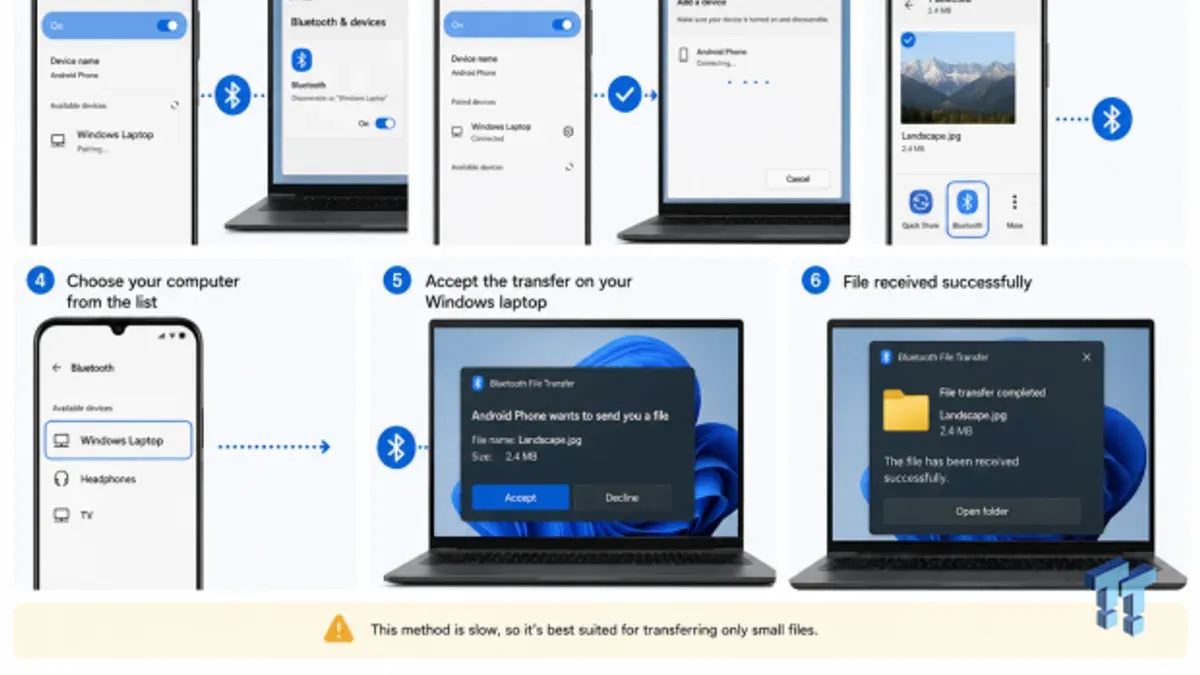
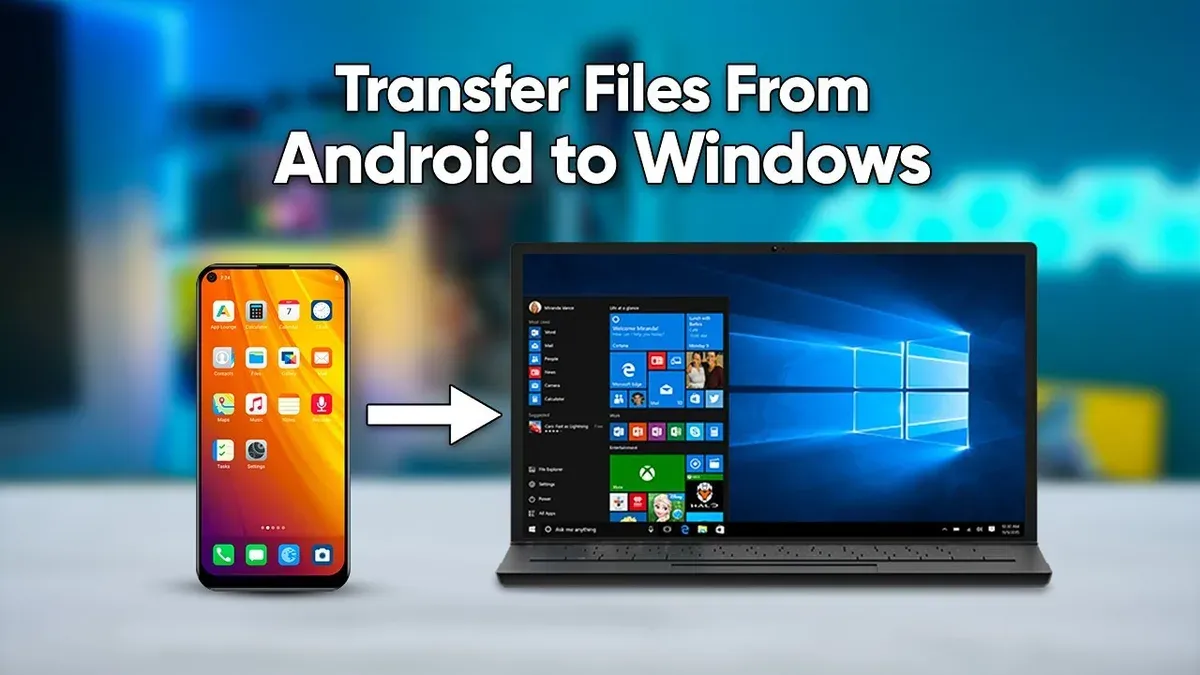
Choose a backup method that fits your workflow. Cloud services like Google Drive, Microsoft OneDrive, or Dropbox provide seamless syncing and easy access on Windows laptops. Alternatively, use an external USB-C drive or microSD card if your tablet supports it. When backing up to cloud storage, confirm that your files uploaded completely by checking the service’s app or web interface.
Plan to re-sync your email, contacts, and calendars by linking your accounts (Google, Outlook, etc.) on your Windows laptop after setup. This avoids manual data entry and keeps your workflow intact.
Backup checklist:
- Identify and gather important files in your tablet’s file manager.
- Export app data where possible (e.g., WhatsApp chat backup).
- Upload files to a chosen cloud service like Google Drive or OneDrive.
- Alternatively, copy files to an external storage device.
- Confirm full upload or transfer of files.
- Prepare account credentials for syncing email, contacts, and calendar on Windows.
Set Up Your Windows Laptop for Productivity
Once you power on your Windows laptop, begin by installing essential software to replace your Android apps. For example, if you used Google Keep for notes, install Microsoft OneNote or Evernote; instead of Google Docs, consider Microsoft Word or LibreOffice. Visit the Microsoft Store or trusted websites to download these apps safely.
Next, configure user accounts by navigating to Settings > Accounts > Your info. Set up a Microsoft account for seamless cloud integration and security features like BitLocker and Windows Hello facial recognition or PIN. Adjust privacy settings under Privacy > General to control app permissions.
Connect peripherals such as external monitors, keyboards, or mice via USB or Bluetooth. Use Settings > Devices to manage Bluetooth devices and printers. Customize the UI by right-clicking the desktop and selecting Personalize to modify themes, fonts, and taskbar options.
Enable accessibility features under Settings > Ease of Access to make the transition smoother—turn on Narrator, adjust text size, or activate high contrast modes as needed.
- Install Windows equivalents for key Android apps.
- Create a Microsoft account and configure security settings.
- Connect and verify all external devices.
- Customize UI and accessibility under Personalize and Ease of Access.
Migrate Your Workflow and Files Step-by-Step
Start by transferring your project folders from your Android tablet’s storage or cloud backup to your Windows laptop. For example, if you have a project folder named “MarketingCampaign” saved in Google Drive, download it via the Google Drive app on Windows or sync it directly using the Backup and Sync tool. This ensures you retain the folder structure and files exactly as before.
Next, reinstall your essential productivity apps like Microsoft Office or Slack from the Microsoft Store or their official websites. Configure each app using your previous account credentials to restore access to your documents, chats, and settings.
Set up cloud storage solutions such as OneDrive or Google Drive for seamless file synchronization. Open OneDrive settings via the taskbar icon, select folders to sync, and enable automatic startup to keep your files up to date across devices.
Adjust to Windows file management by familiarizing yourself with File Explorer’s features, such as the Quick Access panel and the Ribbon interface. Unlike Android’s simpler file browsers, Windows supports advanced multitasking—use Snap Assist to arrange windows side by side for better workflow.
- Download project folders from your cloud or transfer via USB.
- Install and sign in to productivity and communication apps.
- Configure cloud sync settings (OneDrive, Google Drive).
- Learn File Explorer navigation and multitasking tools like Snap Assist.
Avoid Common Pitfalls When Switching from Android to Windows
One frequent mistake is expecting all your favorite Android apps to be available or function identically on Windows. Many Android-exclusive apps do not have Windows versions, and even when alternatives exist, features and interfaces can differ significantly. For example, a user switching from an Android tablet’s note-taking app found the Windows equivalent lacked handwriting recognition, disrupting their workflow.
Neglecting to back up data before migration can lead to irreversible loss. Imagine losing months of unsynced notes or photos because the backup process was skipped or incomplete.
Underestimating the learning curve for Windows can cause frustration. Windows keyboard shortcuts, file explorer navigation, and multitasking gestures differ widely from Android. Users who skipped familiarizing themselves with Windows basics reported slowed productivity and frequent mistakes.
Overlooking hardware compatibility also causes issues. Peripherals like styluses, external keyboards, or SD cards might need specific drivers or may not work as seamlessly. One user’s external keyboard failed to function until the correct driver was manually installed from the manufacturer’s website.
- Research app availability and test alternatives before switching
- Perform a thorough data backup including cloud and local files
- Invest time in learning Windows shortcuts and interface basics
- Check hardware compatibility and install necessary drivers in advance
Maintain Productivity After the Switch
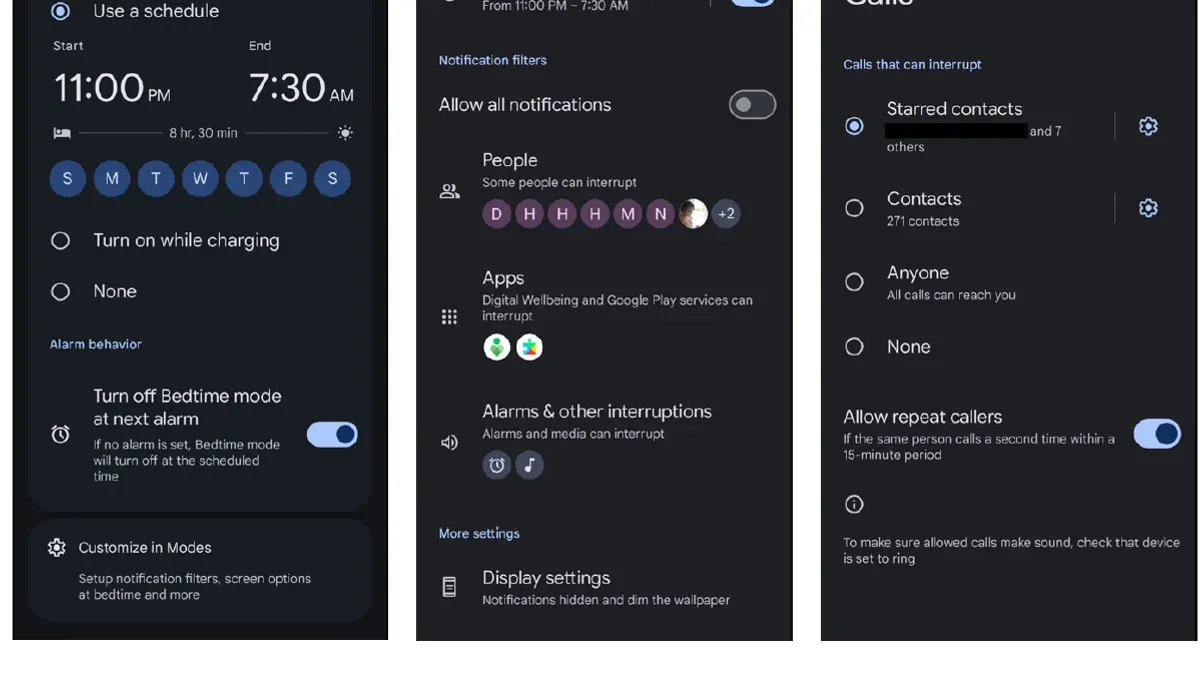
To stay efficient on your Windows laptop, leverage built-in features like Snap Layouts for multitasking—access this by hovering over the maximize button—and Virtual Desktops via Task View (Win + Tab) to separate workspaces. Enable Focus Assist (Settings > System > Focus Assist) to limit notifications during deep work sessions.
Regularly back up your data using File History (Control Panel > File History) or OneDrive’s automatic sync to prevent loss. Keep your system secure by keeping Windows Defender active, enabling Firewall, and setting up BitLocker encryption if available. Run Windows Update regularly (Settings > Update & Security > Windows Update) to patch vulnerabilities and improve system stability.
Utilize Microsoft’s official support site and community forums like Microsoft Answers for troubleshooting advice. For instance, if your touchpad feels unresponsive, checking device manager for driver updates or consulting forums can quickly resolve the issue.
- Use Snap Layouts and Virtual Desktops for better multitasking
- Enable Focus Assist to minimize distractions
- Set up File History or OneDrive for continuous backups
- Keep Windows Defender and Firewall active
- Regularly install Windows updates
- Consult Microsoft Answers and trusted tech forums for support
Read next
- Moving from Android Tablets to MacBooks: Your Essential Checklist
- Moving from Android Tablets to Chromebooks: Your Complete Checklist
- Android Tablets Rollout Plan for Special Education Teachers: A Clear Guide
- Mastering Android Tablets Implementation Timeline for Seamless Use
Frequently asked questions
What are the biggest challenges when moving from an Android tablet to a Windows laptop?
The primary challenges include adapting to a fundamentally different operating system interface, managing file systems that are more complex than Android’s, and ensuring compatibility with software designed for Windows. Additionally, workflow adjustments are necessary because Windows laptops support multitasking and peripheral connectivity differently than Android tablets.
How can I transfer my app data from Android to Windows?
Transferring app data directly is often limited due to platform differences. Instead, export your app data on Android using built-in backup or export functions, then import or access those files on Windows applications. For apps like notes or documents, save files in common formats (e.g.,.docx,.txt,.pdf) and transfer via OneDrive, USB, or cloud services.
Are there free Windows apps that match popular Android tablet apps?
Yes, many free Windows alternatives exist for popular Android apps. For instance, Microsoft OneNote replaces note-taking apps, LibreOffice covers office productivity, and VLC Media Player handles media playback. Checking the Microsoft Store or reputable websites ensures you find reliable free software that fits your needs.
What should I do if my files don’t open properly on Windows?
First, verify the file type and ensure you have the appropriate program installed to open it. If the default app doesn’t work, try alternative programs known to support the format. You can also convert files online or with dedicated software to a Windows-friendly format to resolve compatibility issues.
What this advice does not cover
This guide does not cover specialized enterprise device management or corporate IT policies that may affect migration. If your device is managed by an organization with strict security protocols, custom software, or network configurations, consult your IT department first. Similarly, this checklist does not address migrating complex app ecosystems tied to Google Play Store or services that lack direct Windows counterparts.
Quick checklist
- Review app alternatives or Windows versions for your essential Android apps
- Back up all important files using Google Drive, OneDrive, or external storage
- Configure Windows privacy and update settings immediately after setup
- Install and configure Microsoft Office or preferred productivity suites
- Set up email accounts through Windows Mail or Outlook with correct protocols
- Transfer media files and documents using USB or cloud sync
- Test peripherals like stylus, keyboard, and external monitors for compatibility
- Adjust workflow habits to accommodate Windows multitasking and file management
Your next step is to explore the Windows Settings app, focusing on System > Notifications & actions and Privacy sections; tailoring these ensures your new environment respects your preferences and maximizes productivity from day one.