
Android Tablets Rollout Plan for Special Education Teachers: A Clear Guide
Learn how to tailor an Android tablets rollout plan for special education teachers to support diverse learning needs and improve student engagement.

Short answer: An effective Android tablets rollout plan for special education teachers requires more than just distributing devices. You must tailor the deployment to meet diverse learning and accessibility needs, ensuring the technology supports individualized education programs (IEPs) and enhances student engagement.
This guide covers how to assess your classroom’s unique requirements, select appropriate devices and software, and develop a clear, step-by-step plan focused on special education. You will learn how to integrate tablets seamlessly into daily instruction and avoid common challenges, so the rollout genuinely benefits your students’ learning outcomes.
Understand Why Android Tablets Matter for Special Education
Android tablets offer a robust set of accessibility features tailored to support diverse learning needs. Features like TalkBack screen reader, Select to Speak, and Switch Access enable students with visual, auditory, or motor impairments to interact with content effectively. These tools are built into the system and can be customized via Settings > Accessibility, allowing teachers to adapt devices to individual IEP goals.
The platform’s open nature supports a wide range of apps designed for special education, accommodating varied learning styles including visual, kinesthetic, and auditory learners. Android’s flexibility allows schools to install specialized software from the Google Play Store or deploy custom apps, enhancing personalized instruction beyond standard device offerings.
Cost-effectiveness is another key advantage. Compared to other tablet platforms, Android devices cover a broad price range, making it feasible to equip classrooms without compromising quality. This enables technology coordinators to allocate budgets towards needed accessories or software licenses. A special education teacher might equip a student with a mid-range Android tablet running a speech-to-text app and a custom communication aid, illustrating how customization and affordability combine to meet unique educational needs.
Assess Your Classroom’s Needs Before Rolling Out
Begin by conducting a thorough needs assessment centered on your students' disabilities and individualized learning goals. Review each student's IEP or 504 plan to identify specific accessibility requirements such as speech-to-text, screen readers, or switch access. This ensures the chosen Android tablets and apps align with their instructional needs.
Next, evaluate your classroom’s infrastructure. Test the existing Wi-Fi network for speed and coverage, particularly in areas where students will use tablets. Assess charging facilities; determine if there are enough power outlets or if you need charging carts. Check current device management tools for compatibility with Android tablets, including app deployment and security settings.
Finally, assess teacher and staff readiness. Determine their familiarity with Android OS and accessibility features. Plan targeted training sessions to build confidence in device management and instructional integration.
For example, a mid-sized special education classroom discovered through assessment that their Wi-Fi signal was weak in the back of the room and teachers needed basic Android training. They installed an additional access point and scheduled hands-on workshops before starting the rollout, increasing overall success.
Needs Assessment Checklist
- Review student IEPs/504 plans for accessibility needs
- Identify required apps and features per student
- Test Wi-Fi speed and coverage in all classroom areas
- Inventory charging options and plan for additional equipment
- Evaluate current device management tools for Android compatibility
- Survey teacher familiarity with Android tablets and accessibility features
- Schedule training based on staff skill gaps
Choose the Right Devices and Software for Your Students
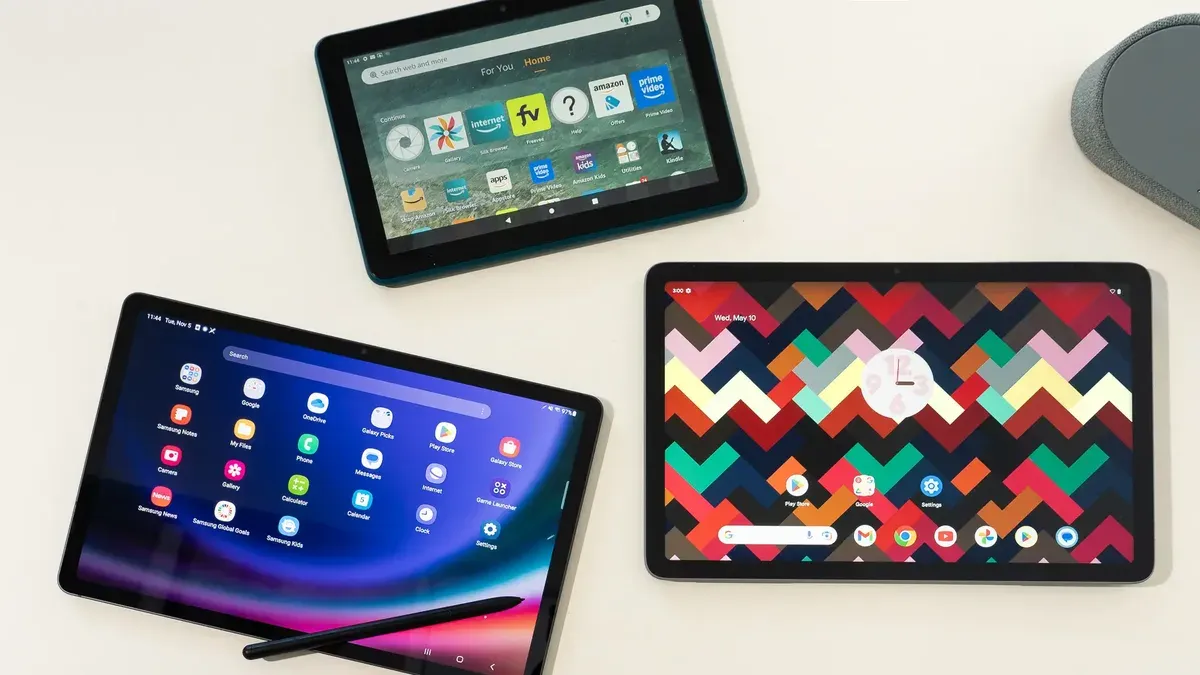
Selecting Android tablets that match your students’ needs involves prioritizing key hardware features. Aim for devices with at least a 10-inch screen for clear visuals and easier touch interaction, robust build quality to withstand daily use, and stylus support for students who benefit from handwriting or drawing input. For example, the Samsung Galaxy Tab Active series offers durable designs with stylus options, while the Lenovo Tab M10 combines affordability with adequate screen size.
On the software side, focus on apps providing customizable accessibility features like text-to-speech, symbol-supported communication, and adaptable learning modules. Apps such as "Google Read Along" support reading skills with visual and auditory feedback, while "Avaz AAC" offers symbol-based communication. An app feature matrix can help you compare, highlighting essentials like offline functionality, user interface simplicity, and integration with Android’s built-in accessibility settings.
Device management and security are critical. Use Android Enterprise or similar platforms to enforce app restrictions, remote updates, and data protection. Trial runs show that balancing security policies with ease of access—such as pre-installing approved apps and enabling kiosk mode for focused use—minimizes distractions and technical issues during lessons.
- Choose tablets with large, durable screens and stylus support
- Select apps tailored for varied accessibility and educational needs
- Implement device management tools for secure, controlled use
- Test device and app setup in a controlled environment before full rollout
Develop a Step-by-Step Rollout Plan Tailored to Special Education
Start with a phased rollout beginning in one or two classrooms to pilot test device deployment and software use. For example, deploy 10 tablets in a self-contained special education classroom for six weeks, monitoring device functionality and student engagement. Gather detailed feedback from teachers on workflow integration and accessibility challenges during this phase.
Next, create a training plan that reflects special education teachers’ unique workflows. Focus on hands-on sessions covering accessibility settings, app customization, and managing student profiles. Incorporate follow-up Q&A webinars to address emerging questions. Summaries of past training highlight that teachers benefit most from scenario-based practice and peer discussions.
Engage parents and caregivers early by hosting demonstration sessions and providing easy-to-understand guides on tablet use at home. Tracking parent participation through sign-in sheets and surveys helps measure engagement and identify families needing extra support.
For example, a district rolled out tablets to 3 pilot classrooms over 8 weeks, held 3 tailored teacher trainings, and organized 2 parent workshops. This approach revealed software bugs early and resulted in over 85% parent attendance in workshops.
- Define pilot classrooms and duration
- Schedule practical, scenario-driven teacher trainings
- Organize parent/caregiver informational sessions
- Collect feedback and adjust rollout accordingly
Integrate Tablets into Daily Teaching and IEP Goals
Embedding Android tablets into daily instruction requires aligning device use with individualized education program (IEP) objectives. For example, during a language therapy session, you might use the app Speech Blubs to target specific speech sounds. Integrate tablet activities into lesson plans by scheduling 15-minute focused sessions where students practice skills identified in their IEPs.
Tracking progress is simplified with tablet-based tools like Google Forms or Seesaw where you can record student responses and monitor growth over time. For instance, a reading fluency chart generated weekly helps adapt tablet tasks to match evolving student needs, increasing or decreasing difficulty accordingly.
Collaboration with therapists and specialists is enhanced through shared platforms such as Google Classroom or Microsoft Teams. These tools enable you to exchange notes, update goals, and review student work remotely, ensuring consistency across services. A typical workflow includes uploading session recordings or student work samples for specialist review within 24 hours.
- Schedule tablet use focused on IEP goals within lesson plans
- Use apps that support specific therapy objectives (e.g., speech, motor skills)
- Track and document progress with digital forms or journals
- Adjust tablet-based activities based on progress data
- Maintain regular communication with therapists via collaborative tools
Avoid Common Pitfalls in Special Education Tablet Rollouts
One frequent mistake is underestimating the amount of training and ongoing technical support needed. For example, a district rollout stalled when teachers lacked guidance on configuring TalkBack and Select to Speak features, leaving students unable to use critical accessibility tools. Experts emphasize establishing dedicated support channels and scheduling follow-up training sessions.
Ignoring the customization of device accessibility settings for individual students also hampers success. Each student’s needs vary, and default settings rarely suffice. A special education teacher once deployed tablets without adjusting font sizes or enabling switch access, resulting in frustration and underuse of devices.
Neglecting data privacy and security concerns unique to special education is another common pitfall. Student data such as IEP details and behavioral records are highly sensitive. Without proper management—like enforcing secure user profiles and restricting app permissions—districts risk breaches that can erode trust and violate regulations.
To avoid these issues, ensure you plan for comprehensive training and support, tailor accessibility features to each student, and implement stringent data privacy measures before rollout.
- Schedule and budget for ongoing teacher training and tech support.
- Customize accessibility settings per student’s needs prior to deployment.
- Enforce strict data privacy protocols including secure profiles and controlled app permissions.
Read next
- Mastering Android Tablets Implementation Timeline for Seamless Use
- Seesaw Rollout Plan for Substitute Teachers: A Clear Guide
- Mastering Your Seesaw Implementation Timeline: A Step-by-Step Guide
Frequently asked questions
How do I select Android tablets that best support different disabilities?
Choose tablets with robust accessibility settings such as TalkBack for visual impairments and Switch Access for motor challenges. Prioritize devices with durable hardware, long battery life, and compatibility with specialized apps. Consider screen size and weight to match student needs, and verify multi-user support for shared use.
What training do special education teachers need for effective tablet use?
Teachers should be trained on device setup, managing Android accessibility features (Settings > Accessibility), and integrating apps into instructional goals. Training on troubleshooting common issues and understanding data privacy settings (Settings > Privacy) is also essential. Hands-on practice with assistive technologies and collaboration with IT staff improves confidence and effectiveness.
How can I ensure student data privacy with tablet deployments?
Implement strong user authentication like PINs or biometric locks and configure restricted profiles for students. Use Android’s built-in privacy controls (Settings > Privacy > Permission Manager) to limit app access to sensitive data. Ensure all apps comply with FERPA and relevant regulations, and regularly update devices to patch security vulnerabilities.
What are the best accessibility apps available on Android for special education?
Effective apps include Google’s Live Transcribe for real-time captioning, CBoard for communication via symbols, and Speechify for text-to-speech needs. Look for apps that support customization, like adjusting voice speed or symbol sets. Confirm apps are compatible with Android Accessibility Suite features and have regular updates for reliability.
Quick checklist
- Evaluate each student’s specific accessibility and instructional needs.
- Select Android tablets with appropriate screen size, durability, and accessibility features like TalkBack and Switch Access.
- Choose software apps aligned with IEP goals and compatible with Android accessibility tools.
- Create a rollout timeline that includes training sessions for teachers and support staff.
- Plan for ongoing technical support and routine device maintenance.
- Integrate tablet use into daily lessons and track progress toward IEP objectives.
- Monitor and adjust the plan based on feedback and student outcomes.
What this advice does not cover
This guide does not cover budgeting or procurement processes that vary widely by district and region; consult your local policies before purchasing. It also does not address legal compliance with privacy regulations such as FERPA or IDEA, which should be reviewed with your school’s legal advisors. For large-scale IT infrastructure setup or network security concerns, collaborate with your school's IT department or external specialists.
Start by conducting a thorough needs assessment for your specific classroom environment and student requirements. This step ensures that every decision you make—from device selection to software choice—directly supports your students’ unique learning goals and accessibility needs, setting a strong foundation for a successful tablet rollout.



