
Seesaw Rollout Plan for Substitute Teachers: A Clear Guide
Learn how to implement a Seesaw rollout plan for substitute teachers to improve classroom continuity and engagement efficiently.
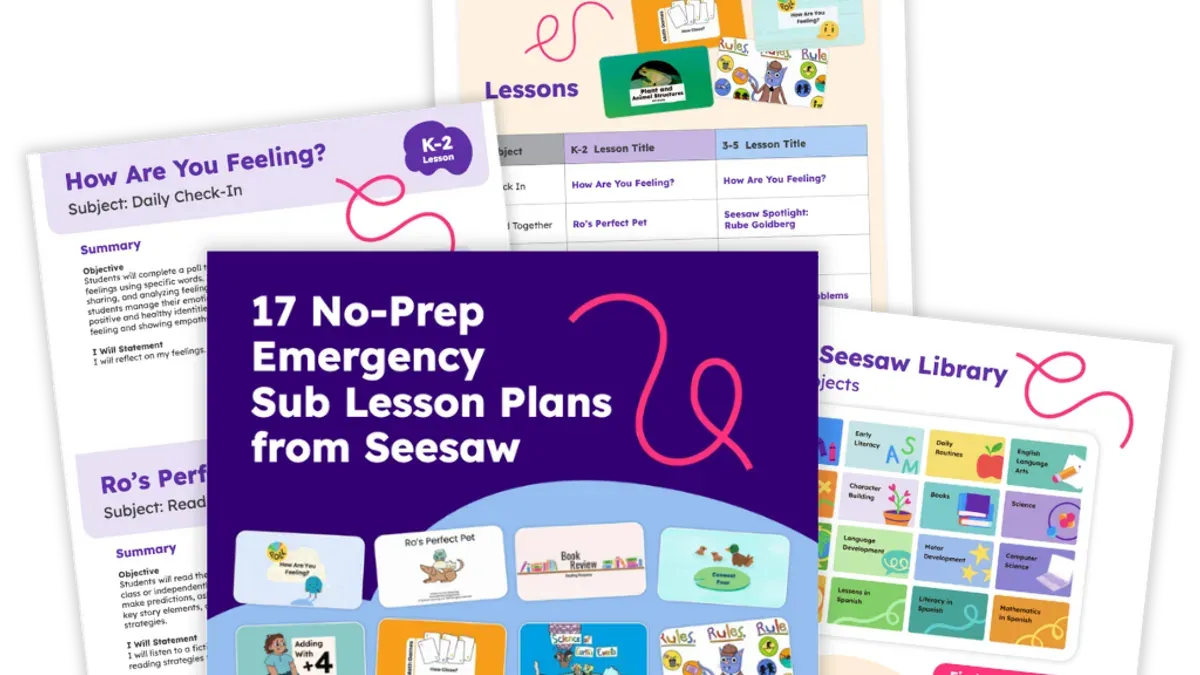
Short answer: A successful Seesaw rollout plan for substitute teachers ensures substitutes can quickly navigate the platform to access lesson plans, student work, and class communications. This approach focuses on streamlined training tailored to the limited time substitutes have, enabling them to maintain classroom continuity with confidence.
This article guides you through adapting Seesaw specifically for substitute teachers’ unique needs and constraints. You'll learn how to introduce Seesaw effectively during orientation, practical training strategies that prioritize essential features, how to integrate Seesaw into your existing substitute onboarding process, and common pitfalls to avoid. The goal is to equip substitutes with enough platform familiarity to support seamless classroom management without overwhelming them with unnecessary details.
Explain what Seesaw is and why it matters for substitute teachers
Seesaw is a digital platform designed to enhance student engagement and streamline communication between teachers, students, and parents. It provides a centralized space where students can complete assignments, share work, and receive feedback, all within an intuitive interface. For substitute teachers, Seesaw offers immediate access to lesson plans, student portfolios, and real-time updates, which are crucial for maintaining instructional consistency.
Unlike regular teachers who often have established routines and familiarity with their classrooms, substitutes face the challenge of stepping into unfamiliar environments. Seesaw’s ease of use allows substitutes to quickly understand ongoing lessons and student progress without spending excessive time on preparation. For example, a substitute stepping into a third-grade classroom can open the Seesaw app, review the day’s assignments shared by the regular teacher, and monitor student submissions directly. This reduces downtime and keeps students actively engaged.
Tailoring the rollout of Seesaw for substitutes differs from standard teacher onboarding because substitutes require focused training on rapid navigation, accessing shared lesson plans under the "Activities" tab, and communicating efficiently with parents through the "Inbox" feature. Schools report that when substitutes use Seesaw effectively, classroom disruptions decrease and student engagement improves, as substitutes can respond promptly to student needs using accessible digital tools.
Show how to use Seesaw for teachers stepping in as substitutes
When you log into Seesaw as a substitute, start by selecting the correct class from the "Classes" tab on the left menu. This ensures you access the specific assignments and student work for the day. If the class is not immediately visible, use the search bar at the top to find it by grade or teacher name.
Once inside the class, navigate to the "Activities" tab to review assigned tasks. You can assign activities by clicking "Assign" next to each task, then selecting the students or the entire class. This step is crucial to keep the workflow consistent with the regular teacher’s plan.
To monitor student work, go to the "Student Portfolios" section. Here, you can see submissions in real time. If a student’s work needs feedback, click on their submission and use the "Add Comment" feature to provide constructive notes. Comments appear immediately to students and the regular teacher.
Communication tools are found under the "Inbox" icon. Use this to send updates to parents and school staff about class progress or any issues encountered. For example, you might notify parents if an activity was skipped or if a student excelled at a particular task.
Imagine a substitute arriving mid-morning: after logging in, they select the 3rd-grade math class, assign the day’s multiplication activity to all students, review two early submissions, and send a quick message to the main teacher noting that one student needed extra help. This workflow keeps the classroom running smoothly and keeps everyone informed.
- Log in and select the correct class via "Classes" tab or search
- Assign activities from the "Activities" tab to students or entire class
- Review student work in "Student Portfolios" and add feedback comments
- Use "Inbox" to communicate updates to parents and school staff
- Note any issues or highlights for the regular teacher
Set up Seesaw training for substitute teachers
Effective Seesaw training for substitutes must respect their limited prep time and diverse technical backgrounds. Start by developing concise, focused modules or short videos covering essential tasks like logging in, selecting classes, and assigning activities. Keep each module under 10 minutes to maintain engagement.
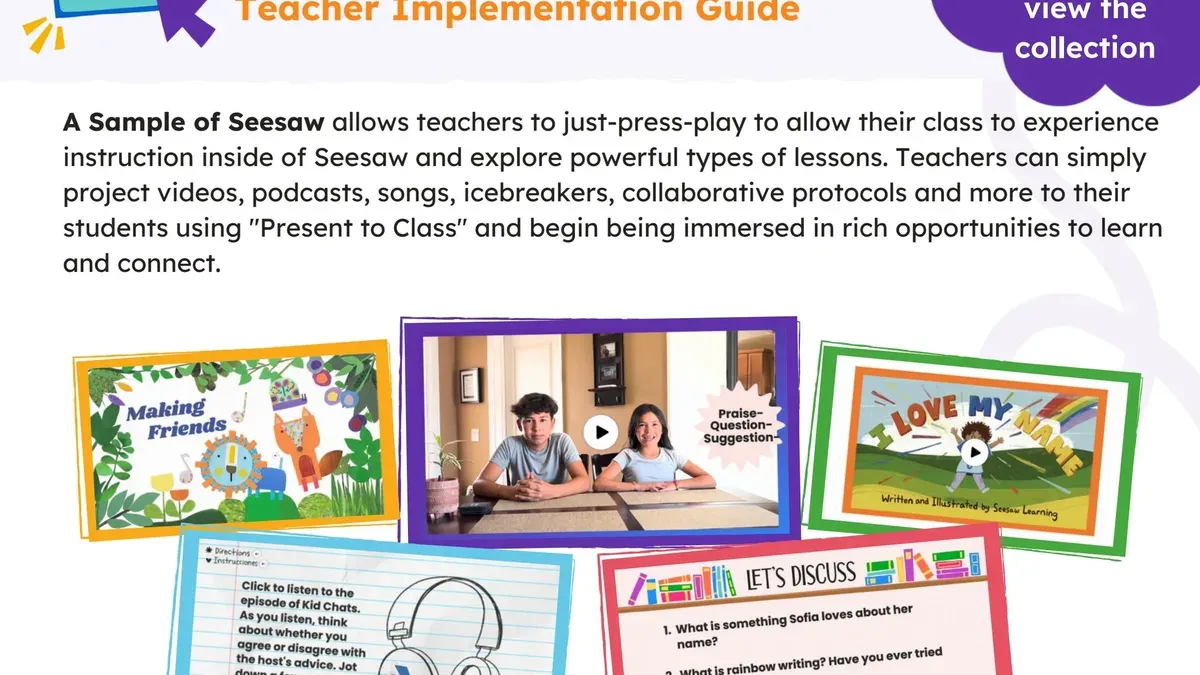
Schedule hands-on practice sessions where substitutes can navigate the Seesaw interface in real time, ideally in small groups or one-on-one. Follow these with Q&A segments to address specific challenges. For example, a district found that after implementing a 15-minute video plus a 30-minute live practice session, substitutes reported greater confidence and fewer login issues.
Provide quick reference guides or cheat sheets summarizing key steps such as “How to find your class” and “Where to upload feedback.” These should be easy to print and carry or access on a mobile device. Incorporate feedback loops by surveying substitutes after training to identify confusing points or missing content, then refine materials accordingly.
- Create concise training videos under 10 minutes each
- Offer live practice sessions with Q&A
- Distribute handy quick reference guides
- Collect and act on substitute feedback to improve training
Integrate Seesaw into your substitute teacher rollout plan
To embed Seesaw adoption smoothly within your substitute onboarding, coordinate platform access with your substitute scheduling system. For example, if you use Frontline or AESOP, link Seesaw account creation or activation to the scheduling confirmation step. This ensures substitutes have login credentials and class codes before their assignment begins.
Provide substitutes with class codes and passwords at least 24 hours in advance via automated emails or your personnel portal. This gives them time to familiarize themselves with the necessary Seesaw classes and resources. Align Seesaw usage with school policies by integrating it into daily lesson plans and substitute instructions, ideally through a shared folder or LMS where both lesson plans and Seesaw activities are accessible.
Monitor substitute usage through Seesaw’s teacher dashboard, which tracks activity and student engagement. Assign an instructional coordinator or tech liaison to review this data weekly, offering support or targeted refresher training as needed. For instance, a rollout timeline might start with scheduling confirmation triggering automated Seesaw access emails, followed by a brief pre-assignment check-in call, and conclude with weekly usage reviews during the first month.
- Link Seesaw access setup to substitute scheduling confirmations
- Send class codes and passwords at least one day before assignment
- Include Seesaw activities in official substitute lesson plans
- Use Seesaw dashboards to monitor usage and provide ongoing support
- Schedule regular check-ins during initial rollout phases
Avoid common mistakes when rolling out Seesaw to substitutes
One frequent pitfall is overwhelming substitutes with excessive information during onboarding. For example, trying to cover every Seesaw feature in a single session often leads to confusion and low retention. Instead, prioritize essential tasks substitutes must perform and offer supplementary resources separately.
Another common error is assuming all substitutes have uniform tech skills. Some may struggle with navigation or settings, causing delays or errors in class management. Segment your training by proficiency levels or provide quick reference cards that address basic and advanced functions.
Ongoing support is often neglected. Without access to timely troubleshooting, substitutes can become frustrated, reducing platform usage. Establish a clear help channel, such as a dedicated email or chat group, and assign a tech liaison to respond promptly.
Failing to customize Seesaw permissions for substitutes can lead to unintended access or restrictions. For instance, granting full teacher rights may expose sensitive data, while overly limited permissions might prevent necessary actions like posting assignments. Configure roles under Seesaw’s "Manage Staff" settings carefully to balance access with security.
Consider a case where a substitute received a full-featured Seesaw account but lacked training on assignment posting. This mismatch caused delays in student engagement and required additional administrative intervention to correct permissions and provide targeted instruction.
- Break training into manageable segments focused on key substitute tasks
- Assess and accommodate varying tech proficiency levels
- Provide accessible ongoing support and clear troubleshooting paths
- Customize substitute permissions precisely via "Manage Staff" to fit their role
Read next
- How to Create a Remind Rollout Plan for Substitute Teachers
- ParentSquare Rollout Plan for Substitute Teachers: A Practical Guide
- ClassDojo Rollout Plan for Substitute Teachers: A Practical Guide
- Switching from ClassDojo to Seesaw: A Practical Guide for Teachers
Frequently asked questions
How do I create a Seesaw account as a substitute teacher?
To create a Seesaw account as a substitute teacher, go to app.seesaw.me and select "I'm a Teacher." Use your school email address if allowed by your district, or create an account with a personal email if necessary. After registering, request access to the specific class from the main teacher or administrator to ensure you have the correct student roster and permissions.
What are the best practices for using Seesaw with students I haven't met before?
Introduce yourself briefly in the first activity to establish rapport. Use Seesaw’s class announcements feature to communicate expectations clearly. Stick to pre-assigned activities and avoid creating new assignments unless explicitly authorized to maintain consistency and avoid confusion with unfamiliar students.
Can substitutes assign and grade activities on Seesaw?
Substitutes can assign activities only if the main teacher or administrator grants them editing permissions. Grading or providing feedback is usually limited to commenting on student work unless elevated rights are given. Confirm these permissions during your orientation or training to understand your role fully.
How can I get quick help if I run into problems using Seesaw during a substitute day?
First, consult the Seesaw Help Center accessible via the app’s sidebar under "Help." If immediate assistance is needed, contact your school’s instructional technology coordinator or a designated Seesaw support contact. Having a printed quick-reference guide with common troubleshooting steps can also save valuable time.
Quick checklist
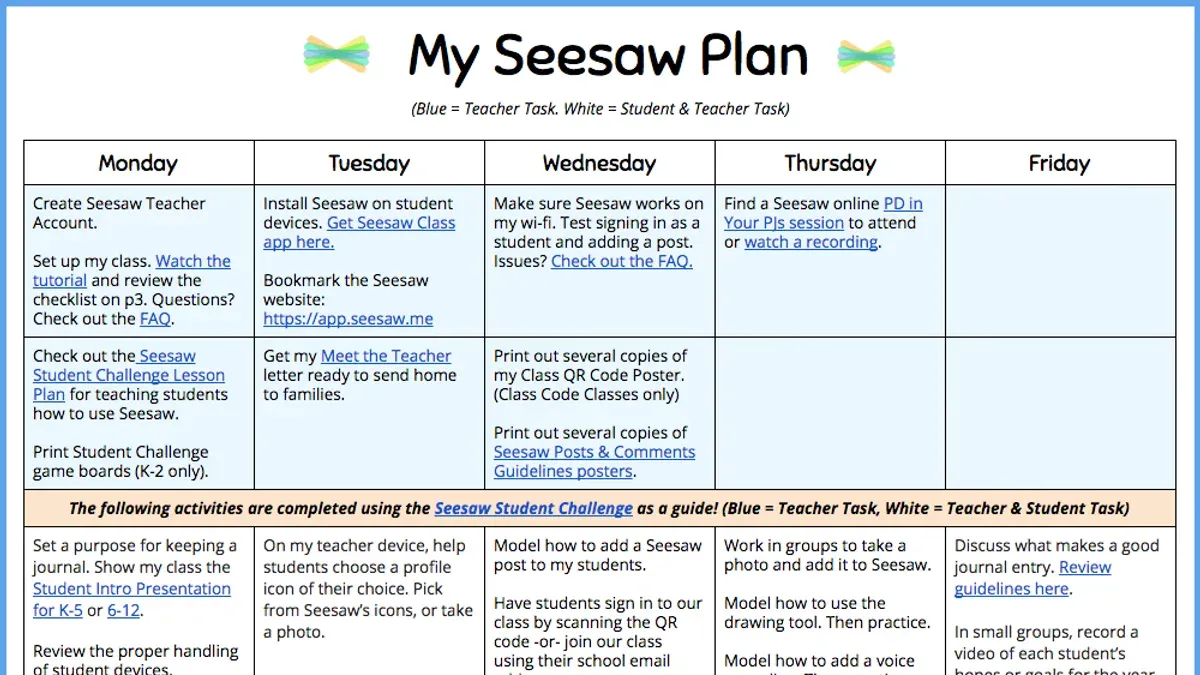
- Verify each substitute teacher has an active Seesaw account linked to your school’s roster.
- Schedule a brief, focused training session covering login, assignment review, and student interaction.
- Provide substitutes with a simple, step-by-step quick reference guide tailored to their typical daily tasks.
- Ensure classroom teachers leave clear notes within Seesaw about ongoing activities and expectations.
- Set up a support contact specifically for substitutes to resolve platform issues swiftly.
Limits of this guide
This guide does not cover full Seesaw implementation for permanent teachers or district-wide IT setup, focusing instead on the unique needs of substitute teachers. For comprehensive rollout plans involving all staff or advanced technical integrations, consult your district’s instructional technology specialists or Seesaw’s enterprise support resources.
To move forward effectively, prioritize organizing a concise, hands-on training session for substitute teachers before their first day using Seesaw. This focused preparation ensures substitutes feel confident managing digital classroom interactions and maintaining continuity without overwhelming them with full platform complexity.



