
Dropbox Rollout Plan for Teachers with Low Tech Confidence
Learn a simple Dropbox rollout plan designed to help teachers with low tech confidence adopt cloud storage and streamline file sharing.
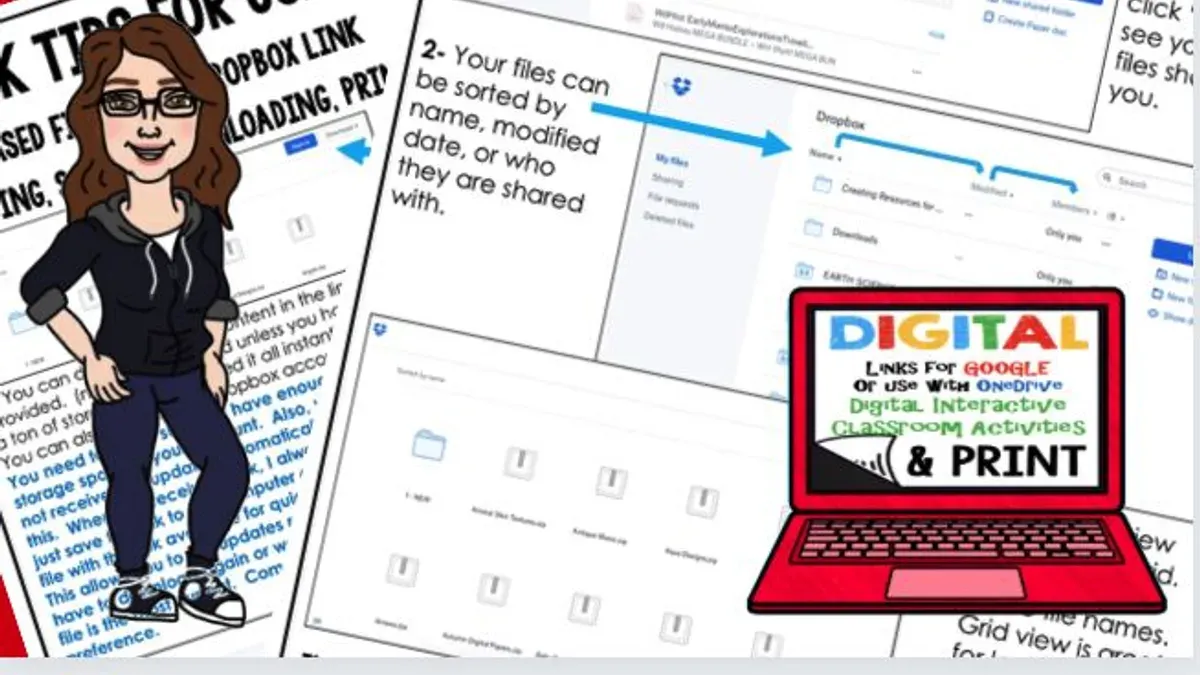
Short answer: A Dropbox rollout plan for teachers with low tech confidence focuses on simple, clear steps that reduce overwhelm and build trust in the tool. It starts with understanding why Dropbox is useful, then moves through easy setup, daily use integration, and confidence-building practices tailored to your pace and comfort level.
This article covers a straightforward approach to help you adopt Dropbox without frustration. You'll learn how to overcome emotional barriers, avoid common mistakes, and access support resources. The goal is to empower you to use Dropbox confidently, making file sharing and collaboration an accessible part of your teaching workflow.
Understand Why Dropbox Matters for Your Teaching
Dropbox simplifies how you store and share your teaching materials. Instead of juggling USB drives or searching through countless email attachments, you keep everything in one secure cloud location accessible anytime. This reduces the stress of misplaced files and streamlines managing lesson plans and student work.
Cloud storage like Dropbox saves you significant time. Educators report spending less time organizing documents and more time focusing on teaching. For example, instead of emailing updated assignments to students individually, you can share a single Dropbox folder that updates automatically for everyone.
Many teachers worry that learning new technology will be overwhelming. Dropbox’s straightforward interface minimizes this barrier. With drag-and-drop file uploads and automatic syncing, you don’t need advanced tech skills to benefit.
Imagine preparing a science project handout: You upload it once to your Dropbox “Class Materials” folder; students can access the latest version instantly without you sending separate emails. This simple step cuts down repeated questions and lost files, giving you more control and less hassle.
Get Started: Setting Up Dropbox with Ease
Begin by creating your Dropbox account at www.dropbox.com. Click "Sign up," enter your email and a strong password, then verify your email address. Next, download the Dropbox app on your computer or mobile device from the official site or app store. Installation is straightforward: open the downloaded file and follow prompts to complete setup.
Once installed, familiarize yourself with key features: the Dropbox folder on your device syncs files automatically to the cloud, and the web interface allows access anywhere. For organizing, consider a simple folder structure such as Lesson Plans, Student Submissions, and Resources. Inside Student Submissions, create subfolders by class or assignment to keep files tidy.
Link Dropbox with your email by enabling "Save to Dropbox" in email settings or installing Dropbox extensions for browsers. This lets you save attachments directly, reducing steps. For example, after teaching a lesson, you can save all related materials into the appropriate folder with one click.
- Create account at www.dropbox.com
- Download and install the app on your devices
- Set up folders: Lesson Plans, Student Submissions, Resources
- Link Dropbox to your email or browser for easy saving
Integrate Dropbox into Your Daily Teaching Routine
Dropbox can transform how you manage daily tasks by fitting seamlessly into your existing workflow. Use the "File requests" feature to collect student assignments in one organized folder without manual email follow-ups. For example, a middle school teacher reduced assignment collection time from over an hour to about 15 minutes each week.
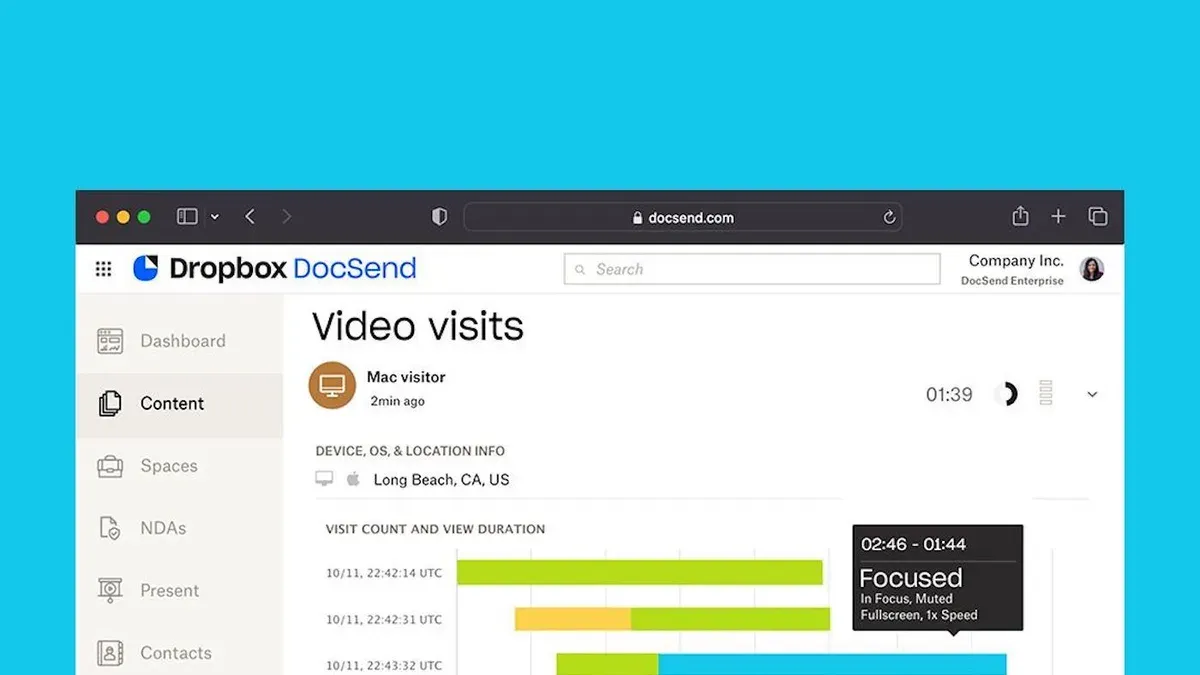
Securely share lesson resources and personalized feedback by creating shared folders with students and parents, controlling access through permissions. Collaborate with colleagues on lesson plans by using shared Dropbox folders, allowing real-time updates and comments without endless email chains.
Set Dropbox to automatically back up your critical files by enabling the "Backup" option in the desktop app settings, ensuring you never lose important documents. This automation saves time otherwise spent searching for misplaced files or recreating lost work.
- Create a "Student Assignments" folder and enable "File requests" to collect work efficiently
- Set shared folders with controlled permissions for resource distribution and feedback
- Collaborate on lesson plans via shared folders to streamline teamwork
- Turn on automatic backup in Dropbox desktop app to safeguard files without extra effort
Build Confidence with Simple Dropbox Training Techniques
Start by mastering basic tasks such as uploading files and creating shared folders before exploring advanced features like Dropbox Paper or file version history. Breaking learning into manageable steps prevents overwhelm and builds a strong foundation.
Use video tutorials from Dropbox’s official Help Center to see exactly where to click and what to expect. Pair this with peer support groups—either at your school or online—where you can ask questions and share tips. Hearing how others have succeeded lessens anxiety and fosters a collaborative learning environment.
Set small, achievable goals each week. For example, Week 1: upload five lesson plans; Week 2: share a folder with a colleague; Week 3: use Dropbox Paper to draft a lesson outline. Each milestone boosts your competence and confidence.
Shift your mindset from fear to curiosity by focusing on what you can explore rather than what you might get wrong. One teacher started with just uploading files and gradually felt comfortable enough to use Dropbox on multiple devices, improving her workflow and reducing stress.
- Begin with simple tasks like uploading and sharing files
- Watch official Dropbox video tutorials
- Join peer support groups for shared learning
- Set weekly small goals for steady progress
- Focus on curiosity and gradual mastery
Avoid Common Pitfalls When Rolling Out Dropbox in Your Classroom
One common mistake is trying to implement too many Dropbox features at once, which can quickly lead to overwhelm and frustration. For example, attempting to set up complex shared folders, automate assignment submissions, and coordinate group collaborations on day one may cause you or your students to struggle, reducing adoption success.
Ignoring privacy and permission settings is another frequent error. Not adjusting folder sharing options—such as leaving "Anyone with the link can edit" enabled—can expose sensitive student work or personal data unintentionally, compromising confidentiality.
Neglecting to back up important files outside Dropbox is risky. If syncing issues or accidental deletions occur, you might lose critical lesson plans or student submissions. A simple external backup on a USB drive or local computer folder adds a safety net.
Finally, skipping regular practice or review causes skills to fade. Dropbox proficiency grows with consistent use; without it, even basic tasks feel unfamiliar, slowing workflow and confidence.
- Introduce new Dropbox features gradually to avoid overwhelm.
- Regularly review and customize sharing permissions under "Share" settings.
- Keep separate backups of essential files outside Dropbox.
- Schedule weekly use or short refresher sessions to maintain skills.
Leverage Support Resources to Stay on Track
To maintain your confidence and efficiency with Dropbox, ongoing support plays a crucial role. Start by exploring the Dropbox Help Center available at help.dropbox.com, where you can find step-by-step guides, troubleshooting tips, and feature updates. The Dropbox Community Forums offer a space to ask questions and learn from other users’ experiences.
Connecting with tech-savvy colleagues or joining local training sessions can provide personalized assistance and practical advice tailored to your teaching environment. For example, a teacher might schedule weekly check-ins with a colleague familiar with Dropbox to review challenges and share solutions.
Implement a simple feedback loop: after a week of using Dropbox for assignment submissions, gather student feedback on ease of access and adjust folder organization accordingly. This iterative approach helps you refine your setup based on real classroom needs.
If you encounter persistent technical issues beyond your scope, seek professional IT support to ensure smooth operation without frustration.
- Visit help.dropbox.com for official guides
- Participate in Dropbox Community Forums
- Connect with knowledgeable colleagues or attend training
- Use feedback from students and peers to improve Dropbox usage
- Consult IT support when technical problems persist
Read next
- Dropbox Implementation Timeline: From Inception to Everyday Use
- Moving from Brightspace to Canvas: Your Complete Checklist
- Google Sites Rollout Plan for Teachers with Low Tech Confidence
Frequently asked questions
What if I don’t have a lot of time to learn Dropbox?
Start with basic features like uploading and sharing files to build familiarity without overwhelming yourself. Use Dropbox’s tutorial videos and focus on one task at a time. Scheduling short, consistent practice sessions can help you learn steadily without taking large blocks of time.
How can I ensure student privacy when sharing files?
Use Dropbox’s sharing settings to control access precisely. Share files with specific email addresses instead of public links, and set permissions to "Can view" rather than "Can edit" where appropriate. Regularly review shared folders and remove access for students who no longer need it.
Can I use Dropbox on my phone or tablet?
Yes, Dropbox has apps for both Android and iOS devices, allowing you to upload, view, and share files on the go. The mobile app includes most essential features, like offline access and file scanning, making it convenient for classroom use outside a computer.
What should I do if I accidentally delete an important file?
Dropbox keeps deleted files in the "Deleted files" section for 30 days (or longer for paid plans). You can restore files by going to the web interface, clicking "Deleted files" in the sidebar, selecting the file, and choosing "Restore." Acting quickly is important to avoid permanent loss.
Quick checklist
- Set up your Dropbox account and install the desktop or mobile app.
- Create a dedicated folder for your teaching materials to keep everything organized.
- Practice uploading, sharing, and syncing files with a small test document.
- Use Dropbox’s simple sharing links instead of email attachments for smoother communication.
- Schedule a weekly time slot to review and organize your Dropbox content.
- Access Dropbox Help Center tutorials or videos when you encounter issues.
- Ask a tech-savvy colleague or school IT staff for assistance if you get stuck.
This guide’s limits and who should consider other options
This guide assumes basic internet access and that you have a reliable device such as a laptop, tablet, or smartphone. If you frequently face connectivity problems or lack a dependable device, alternative offline or low-bandwidth file management tools might better suit your needs.
Additionally, this plan does not cover advanced Dropbox features like team management or integration with complex third-party apps. If your teaching requires those, consult specialized training or IT support.
Focus here is on building your comfort with everyday Dropbox tasks that directly impact your teaching workflow.
The most effective next step is to open your Dropbox app and create a dedicated folder for your teaching resources. This simple action helps you practice navigation and organization, setting a foundation for smoother file management as you grow more confident.



