How to Find Weak Passwords in the Passwords App: Step-by-Step Guide
Discover how to identify and improve weak passwords stored in your Passwords app with this simple step-by-step guide.
You might have noticed a prompt or notification about weak passwords saved in your device’s Passwords app, or perhaps you want to proactively check your saved credentials. Ensuring your passwords are strong helps protect your accounts from unauthorized access. This article explains how to find weak passwords in Passwords app, guiding you through the process step by step.
We’ll start by explaining how to access and review your stored passwords, then explore what makes a password weak and how to identify those weaknesses using the app’s features. Finally, you’ll learn practical steps to improve your passwords and maintain strong security habits going forward.
Key takeaways
- Access your saved passwords via Settings > Passwords with Face ID or Touch ID authentication.
- Weak passwords are often short, reused, or easily guessable combinations.
- The Passwords app highlights weak or compromised passwords under the Security Recommendations section.
- Update weak passwords promptly by visiting the corresponding websites or apps.
- Use strong, unique passwords and consider enabling two-factor authentication for better protection.
Before you start: What you need to check weak passwords
To begin checking for weak passwords in the Passwords app, you first need access to a compatible device where the app is installed and unlocked. This includes a Mac running macOS or an iPhone or iPad with the latest iOS or iPadOS versions. Make sure you can authenticate using your device’s security features, such as Face ID, Touch ID, or your device passcode, as these are required to access stored passwords.
The Passwords app uses iCloud Keychain to sync your passwords securely across all your Apple devices. This means any changes you make on one device will reflect on others connected to the same Apple ID with iCloud Keychain enabled. To prevent accidental data loss, it’s advisable to back up your device or export passwords securely before making any edits or deletions.
- Ensure your device is updated and the Passwords app is accessible. You should see your saved passwords listed once unlocked.
- Confirm that iCloud Keychain is enabled by going to Settings > [your name] > iCloud > Keychain, where the toggle should be on.
- Verify you can authenticate with Face ID, Touch ID, or passcode to access password details, indicated by a prompt when opening a password entry.
- Consider backing up your passwords by exporting them securely or creating a device backup to avoid losing any information during changes.
How to find app passwords stored in the Passwords app
To locate your saved app passwords, start by opening the Settings app on your device. Scroll down and tap on Passwords, which will take you to the password management section. Here, you will be prompted to authenticate using Face ID, Touch ID, or your device passcode to access your saved credentials.
- After authentication, you will see a list of saved passwords organized by website or app name.
- To specifically find app passwords, use the search bar at the top and type the app’s name. For example, entering "Spotify" will filter the list to show only credentials related to that app.
- Tapping on a specific entry reveals details such as the username, password, and the app or website associated with it.
- If you want to browse manually, scroll through the alphabetical list to find app names, which are typically displayed with the app icon or the developer’s name.
- Note that app passwords are listed alongside website passwords but can be distinguished by their associated app icons and names.
For example, locating the password for your email app might show the app name "Mail" with the corresponding login details. This interface layout helps you quickly identify and manage app-specific credentials.
What is considered a weak password and what makes a password weak
A weak password is one that is easy for attackers to guess or crack using common methods. Typically, weak passwords are short, use common words or sequences, and follow predictable patterns. Examples include simple numeric sequences like 123456, generic terms such as password, or keyboard patterns like qwerty. These passwords lack the complexity that makes them difficult to break.
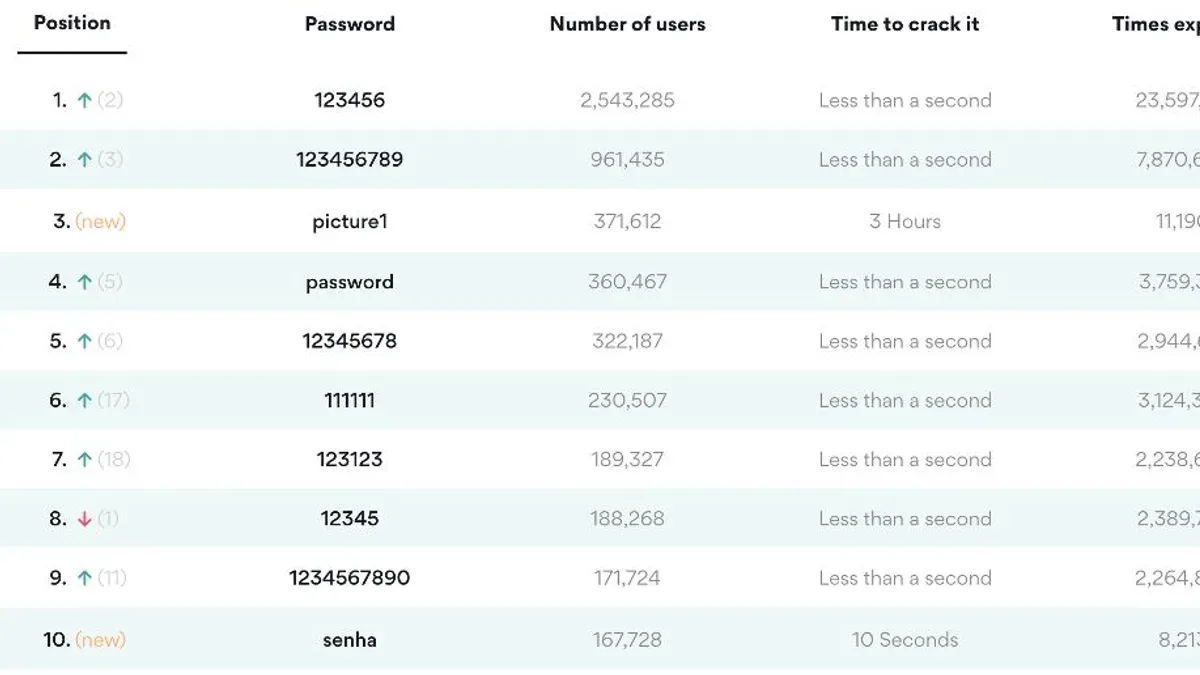
Reusing passwords across multiple accounts further weakens your security because if one account is compromised, others become vulnerable. Passwords that lack a mix of uppercase letters, lowercase letters, numbers, and special characters are also easier targets. According to reputable security reports, the most frequently used weak passwords consistently include these simple examples, showing how common this issue is.
Weak passwords expose you to risks such as hacking and credential stuffing attacks where automated tools try common passwords or leaked credential combinations to gain unauthorized access. Understanding these weaknesses helps you recognize why stronger, unique passwords are essential to protect your accounts.
How to check passwords in the Passwords app for weakness
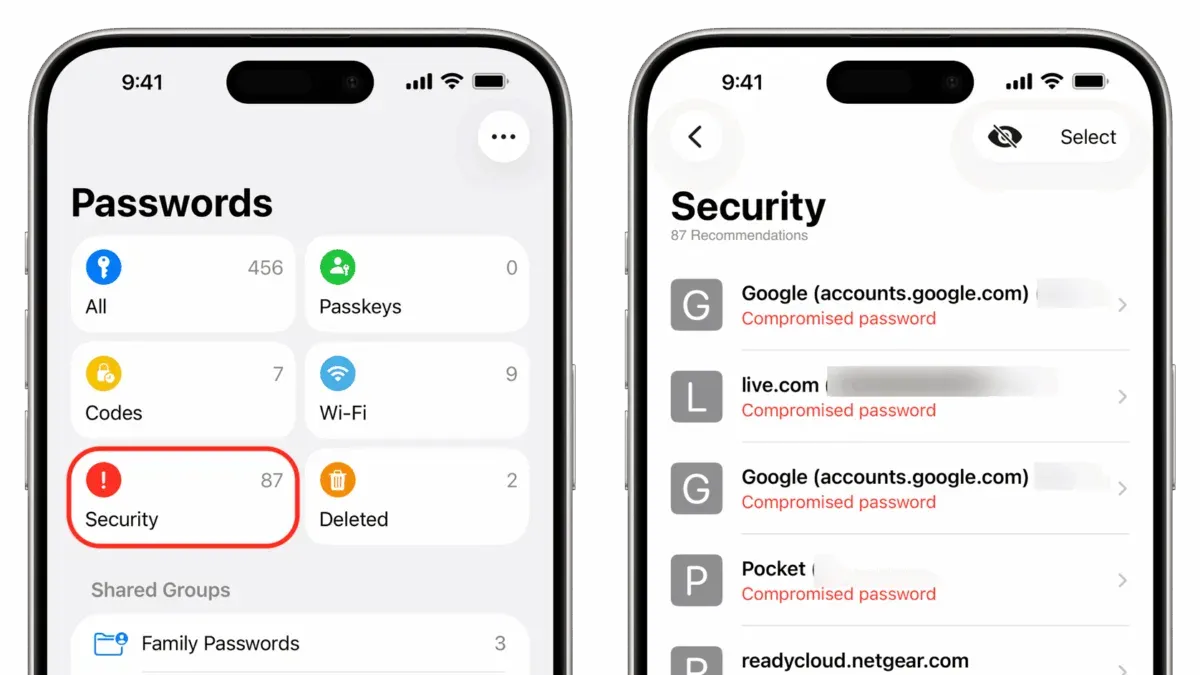
The Passwords app includes a built-in tool called Security Recommendations that scans your saved passwords for potential issues. This tool highlights passwords that are weak, reused, or found in data breaches. To access it, open the Settings app, tap Passwords, and authenticate using Face ID, Touch ID, or your device passcode. Then, select Security Recommendations near the top of the list.
- Open Settings and go to Passwords.
- Authenticate to view your saved passwords.
- Tap Security Recommendations to see flagged passwords.
- Review the list; weak or compromised passwords are marked with a yellow or red warning icon and a brief explanation.
- Tap any password entry to view details, including the reason it is flagged and suggestions for improvement.
The Passwords app uses color-coded indicators: yellow for reused or weak passwords, and red for passwords involved in known breaches. Strong passwords have no flags and are displayed without warnings. Prioritize updating red-flagged passwords first, as they pose the highest security risk. The app’s audit results provide clear, actionable advice, helping you focus on the most critical password updates to enhance your account security effectively.
How to find weak passwords in the Passwords app and improve them
- Open the Passwords app and navigate to the Security Recommendations section. Here, you will see a list of passwords flagged as weak or compromised, often highlighted with color-coded warnings indicating their risk level.
- Use the filter or sort options to organize passwords by strength or risk level. This helps you focus on the weakest credentials first, making it easier to prioritize updates.
- Select a weak password entry to view its details. You should see an option like "Change Password on Website" or "Edit Password". Tap this to start the updating process.
- When updating the password, use the built-in password generator if available, or create a strong, unique password manually. A strong password typically includes a mix of uppercase and lowercase letters, numbers, and symbols, and is at least 12 characters long. Alternatively, use a passphrase combining unrelated words for easier memorization.
- After generating or choosing your new password, update it on the corresponding website or app. Then, return to the Passwords app and save the new password information. You should see the warning disappear, indicating the password is now strong.
- Ensure your device and other devices using the same account synchronize password changes automatically. This keeps your credentials consistent and secure across all platforms.
For example, if your old password was "password123" (flagged as weak), replacing it with "G7$rP9vLq#2m" or a passphrase like "BlueTiger!Sun7" will significantly improve strength. The app will update the status to show the password is secure, helping you stay protected.
How to prevent weak passwords in the future
Using the Passwords app’s built-in password generator is a reliable way to create strong, unique passwords for every new account. This tool creates complex combinations of letters, numbers, and symbols that are difficult to guess. For example, a generated password might look like V7#rXp2!qZ9m, which is much stronger than simple words or repeated sequences.
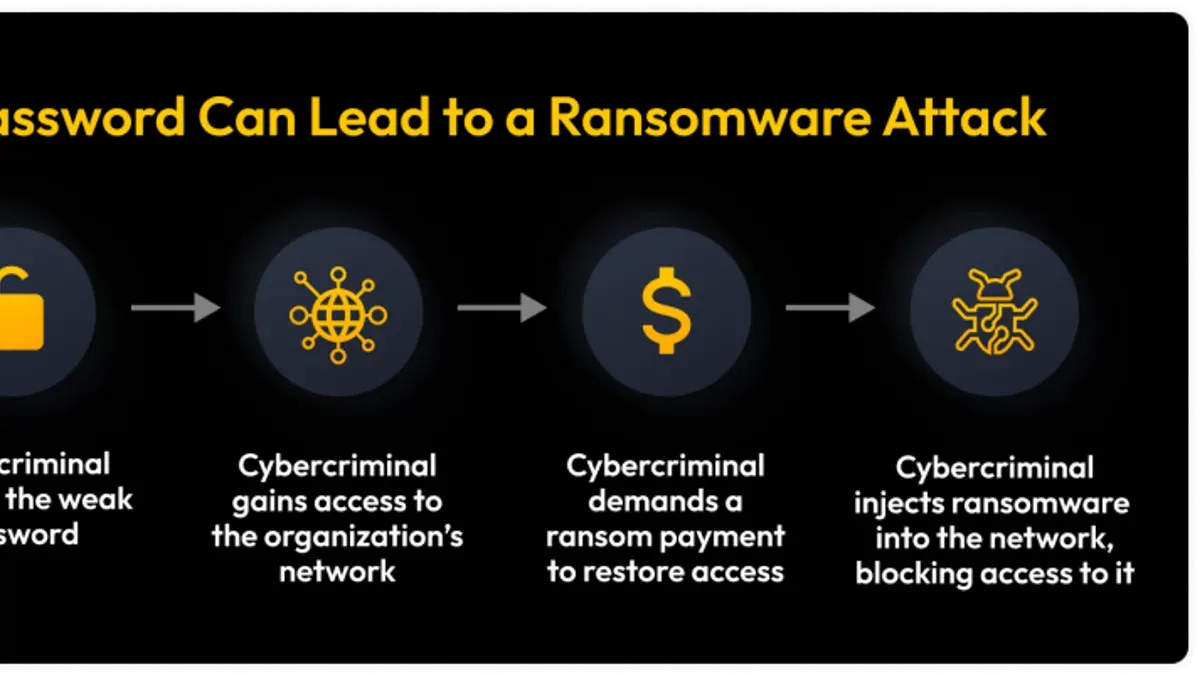
Enabling two-factor authentication (2FA) wherever possible adds an extra layer of security beyond just passwords. When you turn on 2FA, you’ll be asked to verify your identity with a second method, like a code sent to your phone, after entering your password. This helps protect your accounts even if someone gets hold of your password.
Regularly reviewing your password health reports in the Passwords app will keep you informed about any vulnerabilities. The app highlights reused or weak passwords, allowing you to update them promptly. Avoid password reuse by creating unique passphrases—combinations of unrelated words that are easy to remember but hard to crack, such as BlueCarrot!Moon7Tree.
- Open the Passwords app and select “Add Password” or when creating a new account, tap the password field to use the built-in generator. You should see a strong password suggestion appear automatically.
- Go to the account settings of your online services and look for “Two-Factor Authentication” or “Security” options. Enable 2FA by following the setup prompts, usually involving scanning a QR code or entering a phone number. Once enabled, you will receive verification codes after logging in.
- In the Passwords app, access the Security Recommendations or Password Health section. Review the flagged passwords and update any weak or reused ones with the password generator or passphrases. After updating, the app should no longer mark those passwords as weak.
Troubleshooting common issues finding or checking passwords
If the Passwords app doesn’t display the expected passwords or app credentials, first ensure you are signed into the correct Apple ID and that iCloud Keychain is enabled under Settings > [your name] > iCloud > Keychain. Sometimes, passwords may not appear due to synchronization delays across devices; give it a few minutes and check your internet connection.
When you encounter authentication errors accessing the Passwords app, verify your device’s passcode or biometric settings, as the app uses these for identity confirmation. If you see messages like “Unable to Authenticate” or “Passwords Could Not Be Loaded,” restart your device and try again.
To address sync issues or missing data, you can try toggling iCloud Keychain off and on. Go to Settings > [your name] > iCloud > Keychain, turn it off, wait briefly, and then turn it back on. After this, check if your passwords appear correctly.
If problems persist, consider resetting your iCloud Keychain by turning it off and choosing to delete passwords from your device (only do this if you have a secure backup elsewhere). For continued difficulties, contact Apple Support or use alternative password management tools temporarily to maintain security.
Frequently asked questions
What are weak passwords?
Weak passwords are those that are easy to guess or crack due to their simplicity or common patterns. Examples include short passwords, common words, sequences like "123456", or reused passwords across multiple accounts. Such passwords increase the risk of unauthorized access.
How to find password on app?
To find a password stored in the Passwords app, open the app and use the search feature to locate the account or website. Tap on the entry to view the saved password, which may require authentication like Face ID, Touch ID, or your device passcode.
What is the weakness of the password?
The weakness of a password lies in its predictability, length, and complexity. Passwords that are too short, use only letters or numbers, or include easily guessable information like birthdays are weak. Such weaknesses make them vulnerable to brute force attacks or guessing.
How to find app passwords?
You can find app passwords by opening the Passwords app or the password management section in your device settings. There, browse or search for the app's name to see any saved passwords, which will require authentication before revealing.
How to prevent weak passwords?
Prevent weak passwords by using longer, unique combinations of letters, numbers, and symbols. Enable password suggestions or generators offered by the Passwords app and avoid reusing passwords across different accounts. Regularly review and update your passwords to maintain security.
What This Guide Does Not Cover
This guide focuses exclusively on passwords stored within the Passwords app and does not address passwords saved in web browsers outside this ecosystem or managed by third-party password managers. If you use multiple password management tools, you will need to review each separately to ensure comprehensive coverage. Additionally, users with high-security requirements—such as those handling sensitive business data or personal financial information—should consider implementing multi-factor authentication, hardware security keys, or biometric safeguards alongside password improvements.
For your next step, open the Passwords app, navigate to the Passwords section, and use the built-in password auditing feature to identify any weak or reused passwords. Prioritize updating those passwords with strong, unique alternatives to immediately reduce your risk of unauthorized access. Taking this targeted action will strengthen your overall digital security more effectively than simply reviewing passwords without making changes.
See also: How to Import Passwords from Chrome to Apple Passwords App