How to Import Passwords from Chrome to Apple Passwords App
Step-by-step guide to import passwords from Chrome in Passwords app for seamless and secure password management across Mac and iPhone.
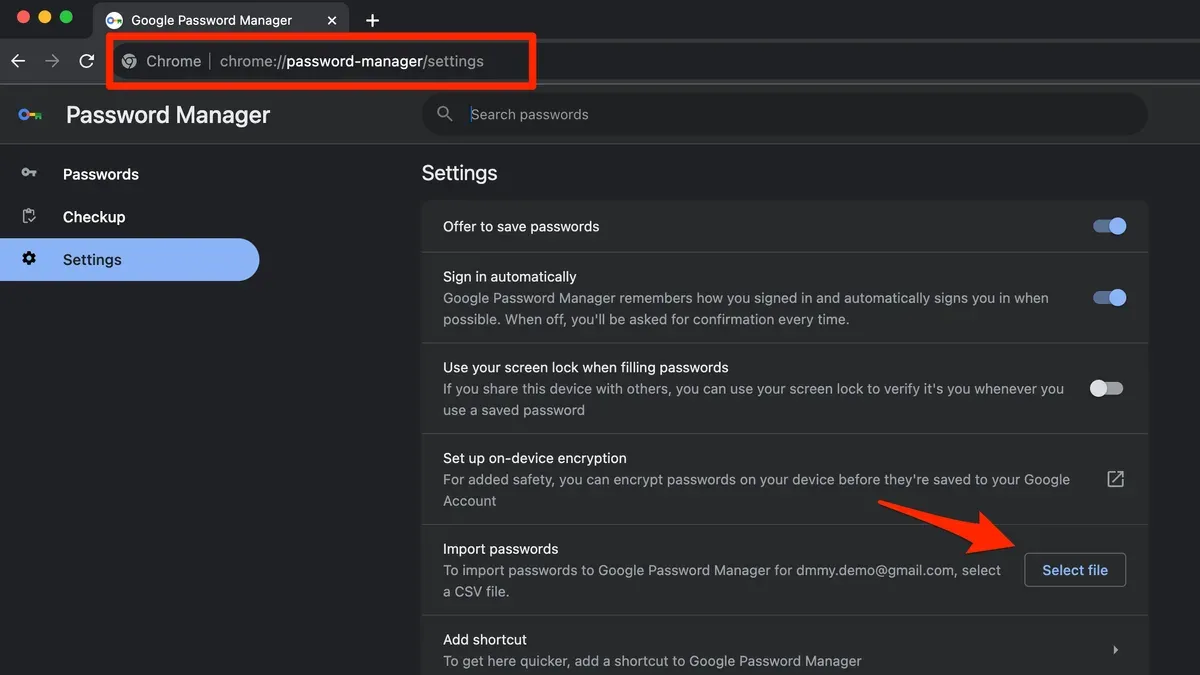
You’ve been using Google Chrome to save your passwords, but now you want to bring all those credentials into Apple’s Passwords app to better manage them across your Mac and iPhone. Moving passwords from Chrome to Apple’s ecosystem might seem tricky at first, especially if you aren’t sure how to handle export and import securely. This guide will walk you through how to import passwords from Chrome in Passwords app, with clear, step-by-step instructions tailored for both Mac and iPhone users.
We’ll cover everything from exporting your passwords safely out of Chrome, importing them into the Apple Passwords app on your Mac, syncing them to your iPhone with iCloud Keychain, and even how to import passwords directly on your iPhone. Along the way, you’ll find helpful tips to verify your passwords and troubleshoot common issues so you can confidently consolidate your login credentials.
Key takeaways
- Export passwords from Chrome using the built-in password manager export feature under chrome://settings/passwords.
- Import passwords into the Apple Passwords app via System Settings > Passwords on your Mac with the CSV file from Chrome.
- Enable iCloud Keychain to sync imported passwords securely to your iPhone and other Apple devices.
- Use the Passwords section in iOS Settings to import passwords directly on iPhone when available.
- Check imported passwords for duplicates and update any outdated entries for smooth login experiences.
Before you start: What you need to know and prepare
Before importing your passwords from Google Chrome to the Apple Passwords app, it is essential to ensure your devices and accounts are ready for the process. First, confirm that you have access to the Chrome browser on a Mac or Windows PC where your passwords are saved. You will need to export passwords from Chrome, so having Chrome readily accessible is necessary.
Next, check that your Mac or iPhone is running an operating system version that supports password import into the Apple Passwords app. On Mac, macOS Ventura (13) or later is required. For iPhone, iOS 16 or later supports this feature. Without these minimum OS versions, the import option will not be available.
Make sure you are signed in to your Apple ID on your Apple devices and that iCloud Keychain is enabled. This setting ensures your imported passwords sync securely across your Apple devices. To verify, on Mac go to System Settings > Apple ID > iCloud and confirm that Keychain is toggled on. On iPhone, open Settings > [your name] > iCloud > Keychain.
Understand that importing passwords involves exporting sensitive data from Chrome and then importing it into Apple Passwords. Handle the exported password file with care and avoid sharing it or leaving it exposed on your computer. Delete the file immediately after the import to maintain security.
Export passwords from Google Chrome securely
To begin exporting your passwords from Google Chrome, first open Chrome on your Mac or Windows PC. Click the three-dot menu icon in the top-right corner and select Settings. In the Settings menu, go to the Autofill section and then click on Passwords. This opens Chrome’s password manager, where all your saved credentials are listed.
Next, locate the Saved Passwords section. On the right side, you will see an icon with three dots; click this and select Export passwords. Chrome will display a warning about exporting passwords in plain text, reminding you to keep the file secure. Click Export passwords again to proceed.
Before the export begins, Chrome will prompt you to re-authenticate using your computer’s login credentials or biometric authentication, such as Touch ID or Windows Hello. This step ensures only you can access the password data.
Once authenticated, Chrome will prompt you to save a CSV file containing your passwords. Choose a secure location, such as an encrypted folder, for temporary storage. Remember, this CSV file contains sensitive data in plain text, so delete it immediately after importing into the Apple Passwords app to avoid any security risks.
Import passwords into Apple Passwords app on Mac
To import your exported Chrome passwords into the Apple Passwords app on your Mac, start by opening the Passwords app. You can find this by going to System Settings and selecting Passwords. You may need to authenticate with your Mac password or Touch ID to access your saved credentials.
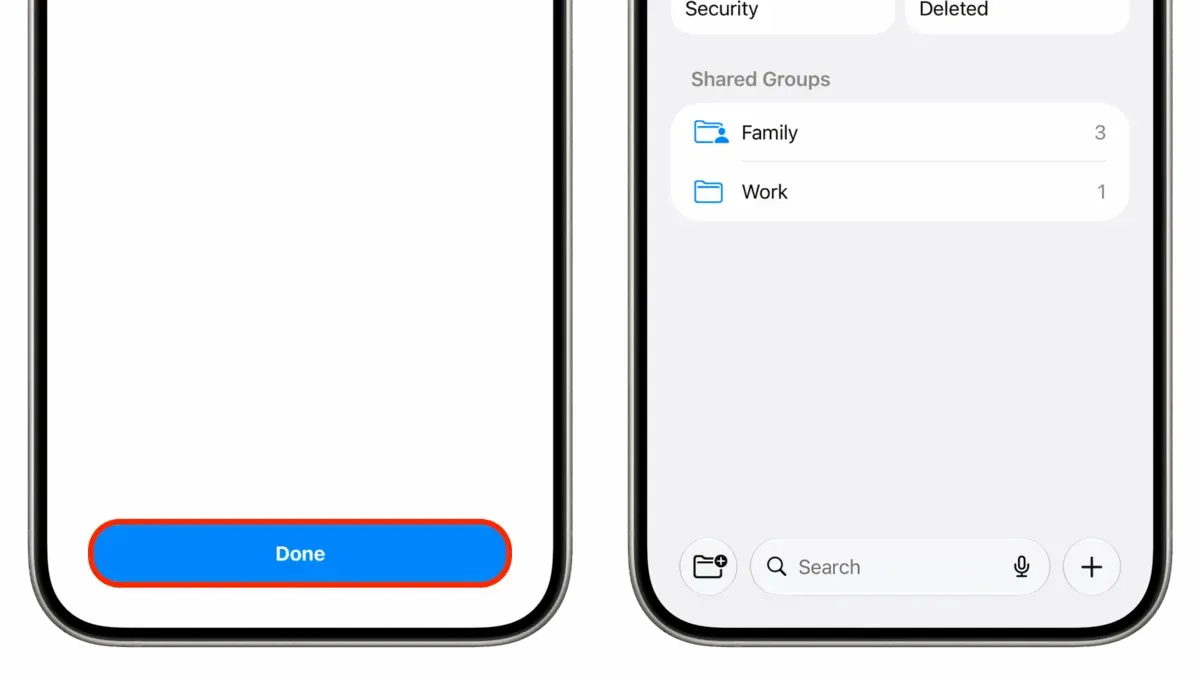
Once inside the Passwords app, look for the ellipsis icon (…) or a similar menu button, usually located near the bottom or top of the sidebar. Click it and select Import Passwords. This will prompt you to choose your exported CSV file containing the Chrome passwords.
After selecting the CSV file, the app will begin importing. You should see a progress indicator or a summary dialog once the import completes. The app verifies the data format and checks for any corrupted entries. If the file is incompatible or damaged, you'll receive an error message.
Imported passwords will be added to your existing list of credentials. If there are duplicates—passwords for sites already stored—the app typically asks whether to keep both entries or overwrite the existing ones. Confirm your preference to proceed.
Before import, you might have a certain count of saved passwords, for example, 150 entries. After importing, this number should increase by the number of unique passwords in the CSV, showing your new total, such as 220. Keep in mind, the Passwords app does not import metadata like password creation dates or notes.
Sync imported passwords to iPhone via iCloud Keychain
After importing your Chrome passwords into the Apple Passwords app on your Mac, the next step is to ensure these passwords sync correctly to your iPhone. This synchronization relies on iCloud Keychain, so you need to confirm that it is enabled on both your Mac and iPhone to keep your passwords consistent across devices.
- On your Mac, open System Settings (or System Preferences) and go to Apple ID > iCloud. Make sure Keychain is turned on. You should see a checkmark next to it indicating it is active.
- On your iPhone, open Settings, tap your name at the top, then tap iCloud > Keychain. Toggle iCloud Keychain on if it isn’t already.
- Understand that syncing isn’t always instantaneous. Typically, passwords appear on your iPhone within a few minutes but can sometimes take up to 15 minutes depending on your internet connection and Apple’s servers.
- To verify the sync, on your iPhone open Settings > Passwords. Use Face ID, Touch ID, or your passcode to access this section. Scroll through to find one of the passwords you recently imported on your Mac. If it appears here, syncing has worked.
- If passwords do not appear after waiting, try toggling iCloud Keychain off and back on on your iPhone, then restart the device. On your Mac, ensure you are signed into the same Apple ID and have a stable internet connection.
Sync status can sometimes be confirmed by looking for the iCloud Keychain icon in your Mac’s menu bar or iPhone’s settings indicating active syncing. Remember, any changes you make to passwords on either device will update automatically across all devices signed into the same iCloud account with Keychain enabled.
How to import passwords from Chrome directly on iPhone
Currently, iOS does not support direct importing of password CSV files into the Apple Passwords app on iPhone. This means you cannot simply export your Chrome passwords as a file and upload them directly on your iPhone as you might on a Mac. Apple’s Passwords app relies on iCloud Keychain syncing for password management rather than manual file imports on iOS devices.
However, you can still access your Chrome passwords on your iPhone by syncing them through your Google account. If you use Chrome on your iPhone and are signed into the same Google account where your passwords are saved, Chrome’s built-in autofill can fill passwords for websites and apps. To enable this, go to Settings > Passwords > AutoFill Passwords and make sure Chrome is selected under the list of autofill providers.
If you want your Chrome passwords available in Apple’s Passwords app specifically, the most reliable method is to import them on a Mac and let iCloud Keychain sync them to your iPhone. Alternatively, for a small number of passwords, you can manually add or edit entries in the Passwords app on your iPhone by navigating to Settings > Passwords and tapping the + button to add credentials.
Some third-party password manager apps offer importing from Chrome directly on iPhone, but these are separate from Apple’s Passwords app and may involve additional subscription costs or privacy considerations. Overall, direct CSV import on iPhone is not feasible at this time, so syncing via Mac or using Chrome’s autofill remains the best practice.
How to manage and verify your passwords after import
After importing your passwords into the Apple Passwords app, it’s essential to review and organize them to maintain security and ease of use. Start by opening the Passwords app on your Mac or iPhone, where you can use the search bar to locate specific entries quickly. This helps confirm that all important accounts have been imported correctly.
To handle duplicates or outdated passwords, scroll through the list or search for repeating entries. The app allows you to edit or delete any password by selecting it and choosing the appropriate option. Removing duplicates reduces confusion and potential security risks from old or unused credentials.
Enable the Security Recommendations feature within the Passwords app settings. This feature scans your stored passwords and flags common issues such as reused passwords, weak passwords, or passwords involved in known data breaches. Apple typically highlights these problems with clear warnings, making it easier to take action.
Finally, enhance your account security by setting up two-factor authentication (2FA) wherever possible. The Passwords app often provides direct links to account security settings, allowing you to activate 2FA easily. This additional layer of protection is especially important for sensitive or frequently used accounts.
- Open the Passwords app and use the search bar to verify that all important accounts appear; you should see matching entries listed.
- Review your passwords for duplicates or outdated entries; select any entry and tap “Edit” or “Delete” to update your list.
- Go to the Passwords app settings and enable Security Recommendations; the app will display alerts for any weak or compromised passwords.
- Follow the app’s suggestions to change weak passwords or update reused passwords on their respective websites.
- Identify accounts without two-factor authentication enabled by visiting their login settings directly from the Passwords app and set up 2FA where available.
Troubleshoot common issues when importing passwords from Chrome
Encountering problems when importing passwords from Chrome into the Apple Passwords app is not uncommon. One frequent issue is the Apple Passwords app not accepting your CSV file or the import option being missing. This often happens if the macOS version is outdated or the CSV file format does not meet Apple's requirements. Ensure your Mac is updated to the latest macOS version and that the CSV file is properly formatted, typically exported directly from Chrome without manual edits.
If passwords are not syncing to your iPhone or other Apple devices after import, first verify that iCloud Keychain is enabled on all devices under Settings > [your name] > iCloud > Keychain. Sync delays can occur, so allow up to 15 minutes. If syncing still fails, signing out and back into iCloud or restarting devices can resolve common glitches.
Security warnings when handling exported password files are normal because these files contain sensitive information in plain text. Always delete the CSV file immediately after importing and avoid storing it on shared or cloud folders without encryption. Use FileVault on your Mac to protect your data overall.
If imported passwords appear incomplete or corrupted, check the CSV file for missing columns or formatting errors. Sometimes passwords with special characters can cause import errors. Re-exporting from Chrome and avoiding manual edits often fixes this. Refer to Apple’s official support documentation for specific CSV formatting guidance and error message explanations.
- Verify macOS is updated to the latest version. You should see the import option in the Passwords app under File > Import Passwords.
- Confirm iCloud Keychain is enabled on all Apple devices. Passwords should sync across devices within minutes.
- Delete the CSV file securely after import to prevent security risks. The file should no longer be accessible.
- Re-export the CSV from Chrome without editing if passwords are missing or corrupted. The import should then complete without errors.
Can you import passwords into Chrome from other sources?
Yes, Google Chrome supports importing passwords from other browsers and some password managers, allowing you to consolidate your login credentials within Chrome. This process typically involves importing a CSV file formatted according to Chrome’s requirements or using built-in browser import tools.
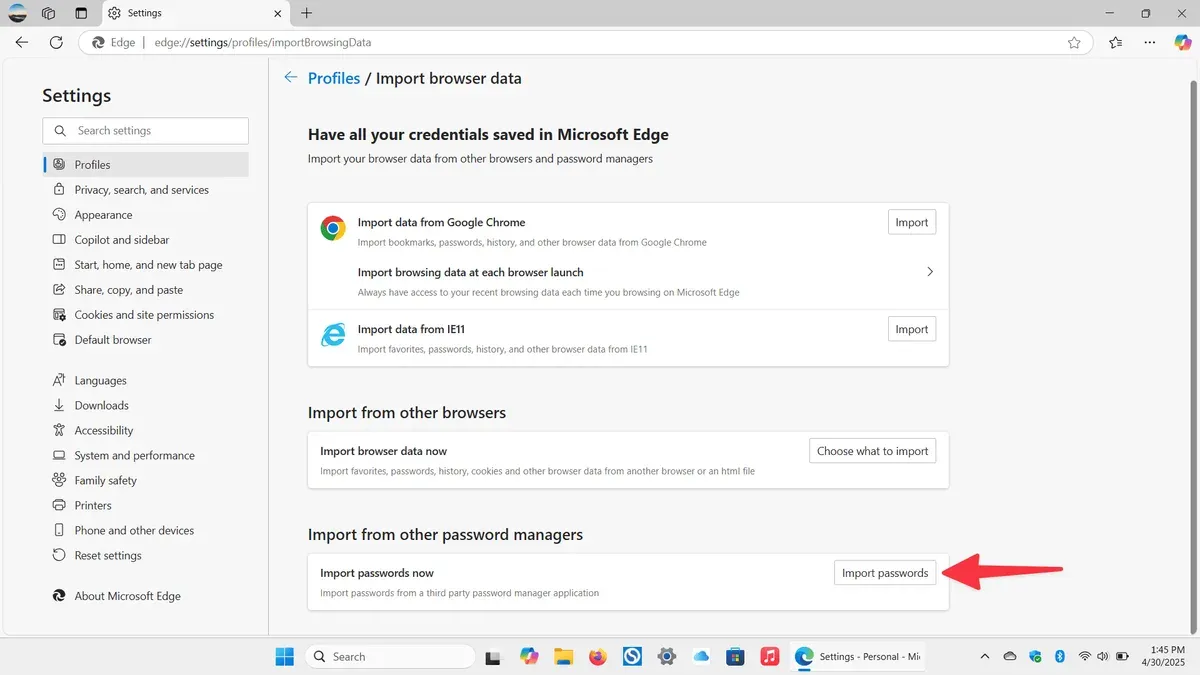
To import passwords into Chrome, you usually start by enabling the import feature, as it may be hidden by default in some versions. Chrome supports importing CSV files that contain passwords exported from other browsers or password managers, provided the file follows the correct format.
- Open Chrome and go to chrome://flags/#PasswordImport.
- Enable the Password Import flag and relaunch Chrome.
- Go to Settings > Passwords.
- Click the three-dot menu next to Saved Passwords and select Import.
- Choose your CSV file with passwords and confirm the import.
Imported passwords will then be saved to Chrome’s password manager and available across devices signed into the same Google account with sync enabled.
Unlike Apple’s Passwords app, which integrates tightly with iCloud Keychain and supports importing only on Mac via specific workflows, Chrome offers a more flexible but less integrated import method. Apple’s ecosystem emphasizes security and seamless syncing, while Chrome focuses on cross-platform convenience.
Frequently asked questions
How to import passwords from google chrome?
To import passwords from Google Chrome, you first need to export your saved passwords from Chrome as a CSV file. Open Chrome, go to Settings > Passwords, then click the three dots next to "Saved Passwords" and select "Export passwords." After saving the CSV file securely, you can import it into your desired password manager that supports CSV import.
How to transfer passwords from chrome to apple passwords?
Transferring passwords from Chrome to Apple Passwords involves exporting your Chrome passwords to a CSV file and then importing them into the Apple Passwords app on your Mac. The Apple Passwords app allows importing from CSV through its settings. After import, ensure iCloud Keychain is enabled to sync passwords across your Apple devices.
How to move passwords from chrome to apple passwords?
Moving passwords from Chrome to Apple Passwords requires exporting your passwords from Chrome and then importing them into Apple Passwords on Mac. You can’t import directly on iPhone, so use a Mac for the import. Once imported, iCloud Keychain can sync your passwords to your iPhone and other Apple devices.
How to import passwords from google chrome to apple passwords?
Start by exporting your Google Chrome passwords as a CSV file via Chrome's password settings. Then, open the Apple Passwords app on your Mac, go to the app’s menu, choose "Import Passwords," and select the CSV file you exported. After the import completes, verify your passwords and enable iCloud Keychain for syncing.
How to import passwords into chrome?
To import passwords into Chrome, you need to enable the password import feature in Chrome’s flags by navigating to chrome://flags and enabling "Password import." Restart Chrome, then go to Settings > Passwords, click the three dots next to "Saved Passwords," and select "Import." Choose the CSV file containing your passwords to complete the import.
What This Guide Does Not Cover
This article does not cover importing passwords from Chrome on mobile Android devices directly into the Apple Passwords app, as this functionality is not currently supported. If you primarily use an iPhone without access to a Mac, you may encounter limitations since iOS does not allow importing password CSV files directly into the Apple Passwords app. Additionally, handling exported password CSV files carries inherent security risks; it is crucial to delete these files immediately after completing the import process and to avoid storing them unencrypted anywhere on your devices or cloud storage.
The single most useful next step after importing your passwords is to ensure that iCloud Keychain is enabled on all your Apple devices. This setting keeps your passwords securely synchronized and accessible across your Mac, iPhone, and iPad. You can verify this by going to Settings > [your name] > iCloud > Keychain on iPhone or System Settings > Apple ID > iCloud > Keychain on Mac. Confirming this ensures your imported passwords stay up to date and available whenever you need them.
See also: How to Export Chat History in Messages on Mac: Step-by-Step Guide · How to Turn Off iMessage on Mac in Messages App · How to Use Reactions in FaceTime on Mac: A Step-by-Step Guide