How to Change Your Fortnite Password: Device-Specific Steps and Security Tips
This article guides Fortnite users through device-specific steps and security tips to change their Fortnite password safely and easily.
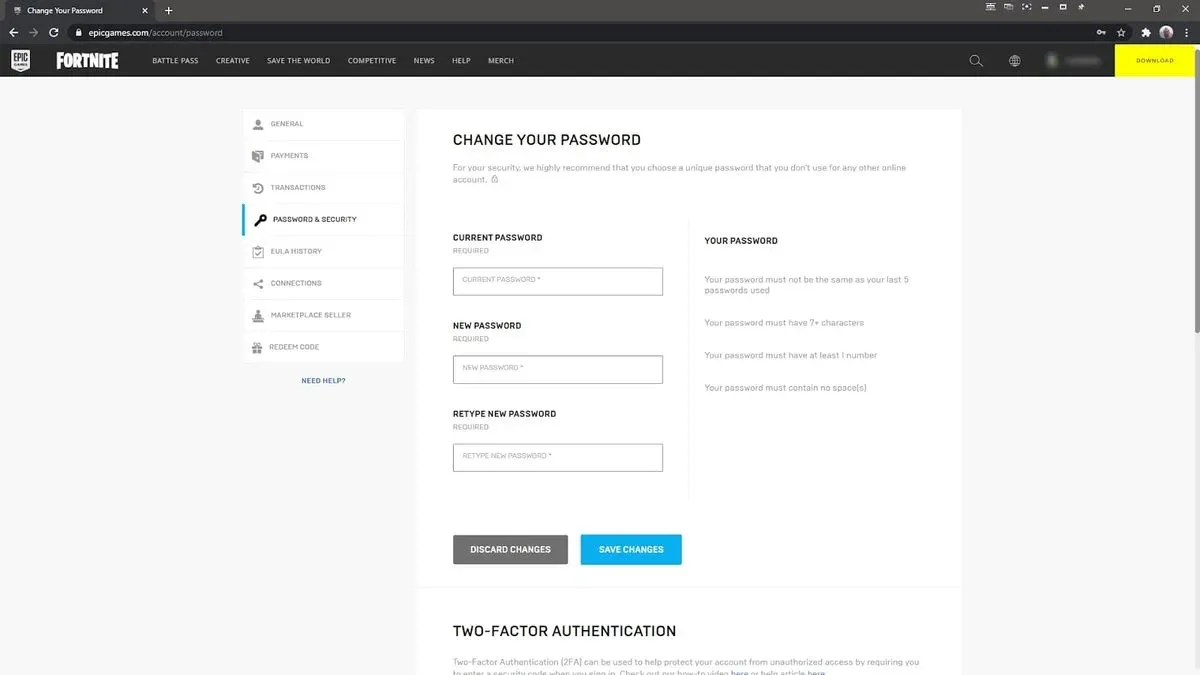
This article explains how to change Fortnite password with detailed, device-specific instructions and essential security tips. Fortnite account holders can update their passwords on various platforms including PC, consoles, and mobile devices through the Epic Games ecosystem. Understanding the exact steps for each device helps avoid common pitfalls and ensures account security.
Changing a Fortnite password typically requires access to the Epic Games website or the account settings on the relevant platform. For those who have forgotten their password, the reset process is straightforward but must be followed carefully to protect account information. Parental controls offer additional layers of security, allowing parents to manage account access and ensure safe gameplay for children.
Tip: Always use a strong, unique password and enable two-factor authentication to enhance Fortnite account security.
Before you start: What is needed to change a Fortnite password
Changing or resetting a Fortnite password requires preparation to ensure a smooth process. The primary requirement is access to the email address associated with the Epic Games account, as password resets and confirmations are managed through this email. If the current password is known, the change can be made directly; otherwise, a password reset via email is necessary.
Different devices such as Nintendo Switch, PlayStation 5, Xbox, PC, and mobile phones have varying interfaces for managing Fortnite passwords. Familiarity with the device-specific steps will prevent confusion during the process. Additionally, if managing a child’s Fortnite account, the parental control password must be known to modify account security settings.
A stable internet connection and a web browser are essential, as the Epic Games website is central to account management, including password changes and resets.
- Confirm access to the email linked to the Epic Games account. Successful access allows receiving password reset links or confirmation emails.
- Verify knowledge of the current Fortnite password if planning a direct change. This enables immediate password updates without email confirmation.
- Prepare to reset the password via email if the current password is forgotten. Expect to receive a reset link in the account’s email inbox.
- Identify the device used for Fortnite (Switch, PS5, Xbox, PC, or phone) to follow the appropriate password change steps.
- If managing a child's account, ensure the parental control password is available to access and modify security settings.
- Ensure a stable internet connection and open a web browser to access the Epic Games website for account management tasks.
Tip: Having the Epic Games account email and password ready before starting reduces the risk of interruptions during the password change process.
How to change your Fortnite password on PC via Epic Games website
Changing the Fortnite password on PC involves accessing the Epic Games official website and updating credentials through account settings. This method ensures direct control over the Fortnite account and is the recommended process for PC users.
- Open a web browser and go to the Epic Games account page. A login screen should appear.
- Enter the current Epic Games email and password to log in. Successful login will redirect to the Account Settings dashboard.
- From the left-hand menu, select Password & Security. The password change section will be visible.
- Under the Password heading, input the current password in the first field. This confirms the user’s identity.
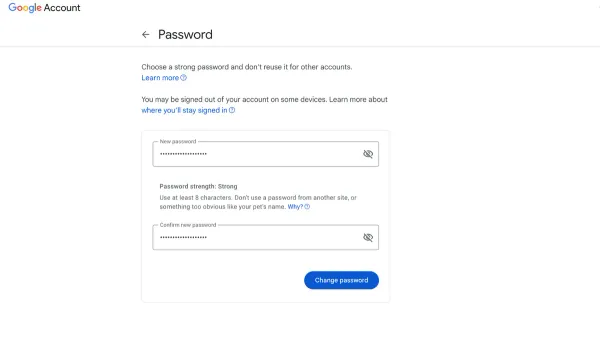
- Enter the new password in the next two fields to confirm accuracy. Password requirements typically include a minimum of 8 characters, with at least one uppercase letter, one number, and one special character.
- Click the Save Changes button. A confirmation message should appear indicating the password was successfully updated.
- Log out and then log back in using the new password to verify the change was applied correctly.
- For enhanced account protection, enable Two-Factor Authentication (2FA) in the same Password & Security section. Options include authenticator apps or email verification codes.
Common issues resolved: Forgotten to enter the current password or mismatched new password entries are the most frequent errors preventing changes. The interface clearly highlights these mistakes.
Tip: Use a password manager to generate and store complex passwords, reducing the risk of errors during entry.
While screenshots are not included here, the Epic Games password change page is straightforward, with clearly labeled fields and prompts guiding the process step-by-step.
How to reset your Fortnite password if forgotten
If the current Fortnite password is unknown, a reset can be performed using the Epic Games website. This process applies across all devices, though console users generally need access to a PC or phone to complete it.
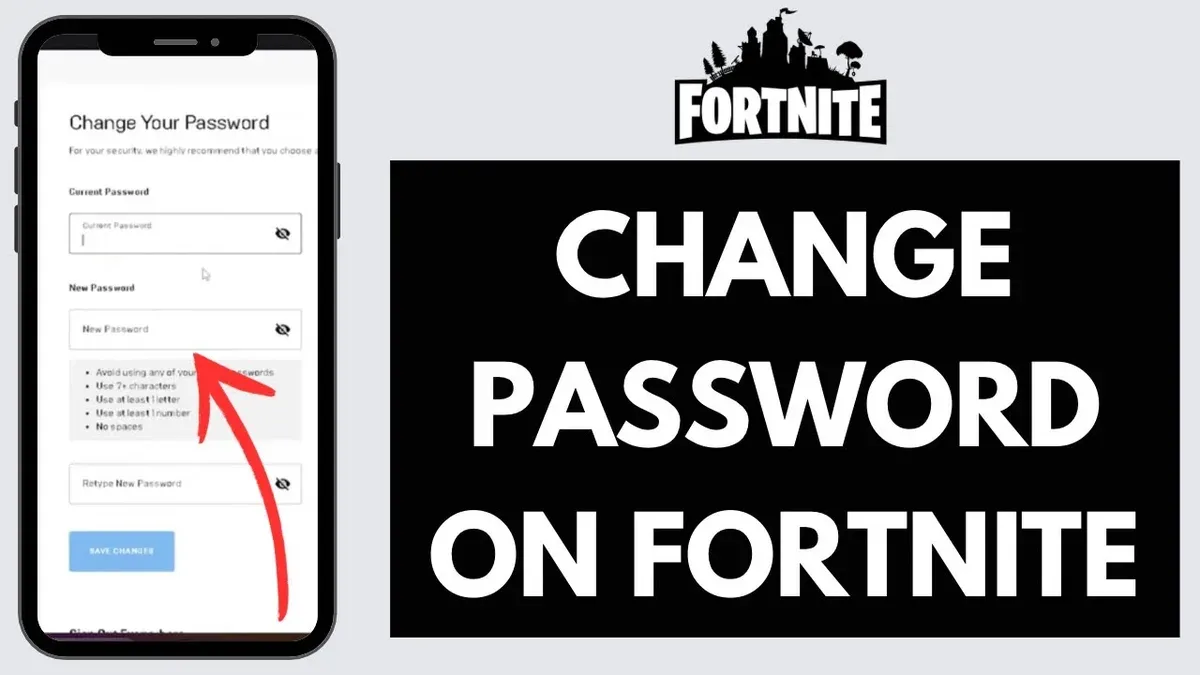
- Navigate to the Epic Games sign-in page and select the Forgot Your Password? link below the password field. A password reset prompt should appear.
- Enter the email address linked to the Fortnite account and submit the form. A confirmation message indicating that a reset email has been sent should appear.
- Check the email inbox for a message from Epic Games containing a password reset link. This email typically arrives within a few minutes but may take longer depending on the email provider's processing times.
- If no email is received within 10 minutes, check the spam or junk folder, as automated emails sometimes get filtered incorrectly.
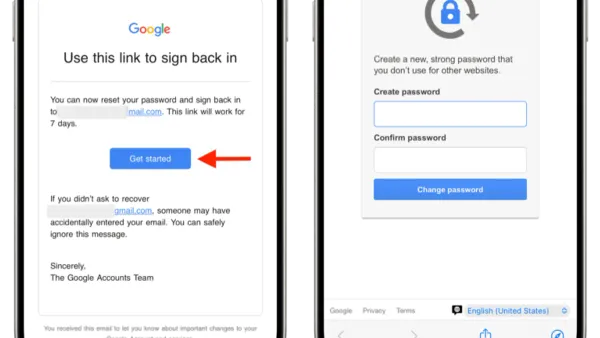
- Click the link in the email, which directs to a secure Epic Games page to create a new password. After entering and confirming the new password, a confirmation screen will verify the change.
- Return to the Fortnite login page and sign in using the new password to verify the reset was successful.
Note for console users: Since consoles do not provide direct access to Epic Games account management, resetting the password requires using a web browser on a PC or mobile device. After resetting, the new password should be used to sign in on the console.
Tip: If password reset emails repeatedly fail to arrive, verify that the correct email address is used and consider temporarily disabling email filters that block automated messages.
How to change Fortnite password on Nintendo Switch, PS5, Xbox, and phone
Changing a Fortnite password on these platforms requires different approaches due to interface and browser limitations. Direct password changes are not supported within the Fortnite app on Nintendo Switch, so the Epic Games website must be used.
Nintendo Switch
- Open the Nintendo Switch internet browser by navigating to the News section and tapping the globe icon to access the web.
- Enter the URL for the Epic Games website and sign in to the Fortnite account.
- Go to the 'Account Settings' page, then select 'Password' to initiate the password change.
- Follow the prompts to enter the current password and set a new one; a confirmation message will appear once successful.
Note: The Switch browser interface is limited and may require patience with text input and navigation.
PS5 and Xbox
- Use the console’s built-in web browser or a mobile device to visit the Epic Games website.
- Log in to the Fortnite account and access 'Account Settings'.
- Select the 'Password' section and enter the current password followed by the new password.
- Confirm the change and look for a confirmation alert on screen.
Tip: Console browsers often have limited keyboard functionality; using a phone or PC can simplify the process.
Phone
- Open a mobile browser or the Epic Games app if installed.
- Sign in to the Fortnite account and navigate to 'Account Settings'.
- Select the option to change the password.
- Enter the current password, then enter and confirm the new password.
- Wait for the confirmation that the password has been successfully updated.
Mobile devices typically offer the most streamlined experience for managing Fortnite account settings.
Security advice: Linking or unlinking accounts through the Epic Games website can enhance security by controlling which platforms have access. This is especially useful if a console or device is no longer used.
How to check Fortnite password: Understanding account security and password management
Fortnite passwords are securely encrypted and cannot be viewed or retrieved directly from Epic Games’ systems. This design protects accounts but means users cannot simply check their current password on the platform. Instead, effective password management relies on external tools and best practices.
Use password managers to track credentials safely. Applications like LastPass, 1Password, and Bitwarden offer encrypted storage and autofill features for Fortnite passwords. They help prevent password reuse and make it easier to generate and store strong, unique passwords for different accounts.
It is important to distinguish between the account email and password. The email serves as the login identifier, while the password grants access. Keeping the email secure and up to date is critical but does not replace the need for a strong, regularly updated password.
To assess password strength, users can manually check their password complexity or use reputable password strength checkers. Strong passwords typically include a mix of uppercase and lowercase letters, numbers, and symbols. Regularly updating passwords reduces vulnerability to breaches.
Risks of password sharing or reuse should be avoided. Sharing passwords increases exposure to unauthorized access, while reusing passwords across multiple platforms can amplify the impact of a single data breach.
Epic Games’ official security guidelines emphasize enabling two-factor authentication alongside strong password practices to enhance account security.
Changing parental control passwords and managing Fortnite account security for children
Parental controls play a crucial role in restricting access to Fortnite features and securing accounts for minors. These controls operate independently from the Fortnite account password, focusing on console-level restrictions and ensuring children cannot alter key settings.
Changing parental control PINs on consoles
- On Nintendo Switch, open System Settings from the Home menu, select Parental Controls, then Change PIN. Enter the current PIN followed by the new 4-digit PIN. A confirmation message will appear once the PIN is updated.
- On PS5, navigate to Settings > Family and Parental Controls > PS5 Console Restrictions, then select Change Passcode. Enter the current 4-digit passcode, input the new one, and confirm. The system will notify when the change is successful.
Linking parental controls with Fortnite account settings
Parental controls restrict access to in-game purchases, chat features, and playtime limits, but Fortnite account passwords control login and account changes. Parents should ensure that the Fortnite account is linked to an email they manage and use Epic Games' parental control tools to set play restrictions and monitor activity.
Preventing children from bypassing controls
To minimize the risk of children changing passwords or bypassing restrictions, parents should use strong, unique parental control PINs different from common numbers. Regularly reviewing console and Epic Games account settings can prevent unauthorized changes.
Tip: Enable two-factor authentication on the Fortnite account alongside parental controls to add an extra security layer.
Recommended practices for monitoring account activity
Parents can review purchase history, gameplay time, and communication settings via both console parental controls and Epic Games account management tools. These insights help maintain a safe gaming environment and detect any suspicious activity early.
Troubleshooting common issues with Fortnite password changes and logins
Reset emails sometimes do not arrive promptly or may be filtered into spam or junk folders. Checking these folders and adding "@epicgames.com" to the email whitelist can improve delivery.
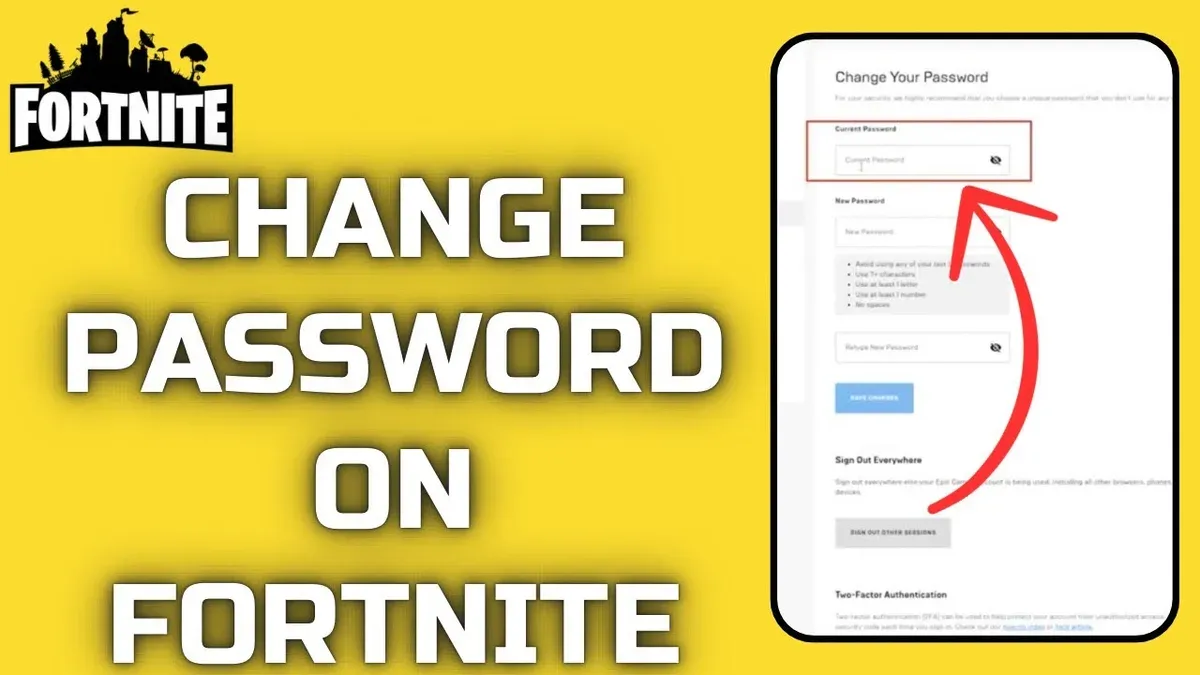
Error messages such as "Incorrect current password" often occur when the entered password does not match the active Fortnite password. Double-checking for typos or keyboard layout issues helps, and if uncertain, a password reset should be performed.
Account lockouts can happen after multiple failed login or password attempts to protect security. These lockouts typically last a short period but can be resolved by waiting or contacting Epic Games support if prolonged.
Console browsers may have limited compatibility with the Epic Games website, causing difficulties in accessing password change pages. Using a PC or mobile browser is recommended for smoother navigation.
In cases of suspected hacking or compromised accounts, users should immediately initiate the account recovery process on the Epic Games website. This involves verifying account ownership through linked email or phone, changing passwords, and enabling two-factor authentication for enhanced security. Success rates for recovery improve when all requested verification details are accurately provided.
- Check spam and junk folders if reset emails do not arrive; ensure "@epicgames.com" is whitelisted. Successful step: reset email appears in inbox.
- Verify the current password for accuracy when changing passwords; if errors persist, reset the password using the "Forgot Your Password?" option. Successful step: password change confirmation message.
- Wait for temporary account lockout duration or contact Epic Games support for assistance if locked out longer than expected. Successful step: ability to log in without lockout error.
- Use a PC or mobile browser instead of console browser to access Epic Games site for password changes. Successful step: password change form loads correctly.
- For hacked accounts, complete the recovery form on Epic Games site with accurate verification information and reset the password; enable two-factor authentication afterward. Successful step: regained access with new password and 2FA enabled.
Further reading
- How to Change Your Call of Duty Password and Account Details Safely
- How to Change Your Battle.net Password: Step-by-Step Guide
- How to Change Your Dropbox Password Across Devices: A Clear Guide
Frequently asked questions
How to reset fortnite password on switch?
Resetting the Fortnite password on a Nintendo Switch requires visiting the Epic Games website. Use the 'Forgot Your Password?' link on the login page, enter the email associated with the Epic account, and follow the instructions sent via email to create a new password. The password reset process cannot be completed directly through the Switch interface.
How to check your password on fortnite?
Fortnite and Epic Games do not display the current password for security reasons. To verify or manage account security, users should check their email for password reset options or use a password manager if one was used when creating the password. If unsure about the password, resetting is the safest method.
How to change Fortnite password on Switch?
Changing the Fortnite password on a Switch involves accessing the Epic Games account through a web browser, not through the console itself. After logging into the Epic Games website, navigate to the password settings under the 'Password & Security' section to update the password. This change will apply across all devices linked to the account.
How to change Fortnite password on PS5?
On PS5, changing the Fortnite password requires logging into the Epic Games website via a browser or another device. Once logged in, access the 'Password & Security' settings to update the password. The PS5 does not support password changes directly within the Fortnite game or the console settings.
How to reset Fortnite password on Switch?
To reset a Fortnite password for a Nintendo Switch account, use the Epic Games website's password reset feature. Enter the registered email address under 'Forgot Your Password?' to receive a reset link. This process must be done outside the Switch, as the console itself does not offer a password reset option.
What this advice does not cover
This guide does not cover account recovery in cases of lost email access or hacked accounts requiring Epic Games support intervention. Users facing such issues should contact Epic Games customer service directly through the official support channels. Additionally, this article does not address broader cybersecurity measures beyond Fortnite-specific password management.
For the most effective next step, regularly updating the Fortnite password via the Epic Games website remains the best practice. This ensures the account stays secure across all devices and platforms. Combining this with enabling two-factor authentication on the Epic Games account adds an essential layer of protection against unauthorized access.