How to Adjust Keyboard Key Repeat Speed on Mac: Step-by-Step Guide
Adjust your Mac's keyboard key repeat speed with easy steps using System Settings and Terminal commands for a smoother typing experience.
You’re typing quickly on your Mac, but the characters either repeat too slowly or flood the screen too fast, disrupting your flow. Adjusting the keyboard key repeat speed to suit your typing style can make a significant difference.
This article explains how to change keyboard key repeat speed on Mac, offering clear, step-by-step instructions. You’ll first learn to adjust the speed using System Settings, then explore advanced Terminal commands for precise control beyond the default options. Additionally, we cover hardware and software checks to ensure your keyboard performs optimally, common troubleshooting tips, and considerations for when adjusting speed might not be the best approach.
Key takeaways
- Adjust key repeat speed via System Settings under Keyboard preferences for basic customization.
- Use Terminal commands like defaults write -g KeyRepeat and InitialKeyRepeat for finer tuning.
- Check keyboard hardware and software factors such as debris or outdated drivers that affect repeat behavior.
- Be aware that setting repeat speed too fast may cause unintentional repeated characters.
- Consider alternatives like Sticky Keys or slow keys for accessibility instead of key repeat adjustments.
Before you start: what you need to know and prepare
Key repeat speed on a Mac is controlled primarily through macOS System Settings, with additional fine-tuning possible via Terminal commands. The options and interface available to you depend on your macOS version; for example, macOS Ventura and later use the "Keyboard" pane in System Settings, while earlier versions like Monterey or Big Sur have a slightly different layout.
Your Mac keyboard's hardware also affects how key repeat functions. Apple’s built-in Magic Keyboard, MacBook keyboards, and some third-party USB or Bluetooth keyboards are supported, but hardware issues can prevent changes from taking effect properly.
Before adjusting settings, confirm your keyboard is functioning well—no stuck keys or connectivity problems. For advanced tweaks using Terminal, you should have basic knowledge of how to open Terminal and run simple commands, as incorrect inputs may cause unexpected behavior.
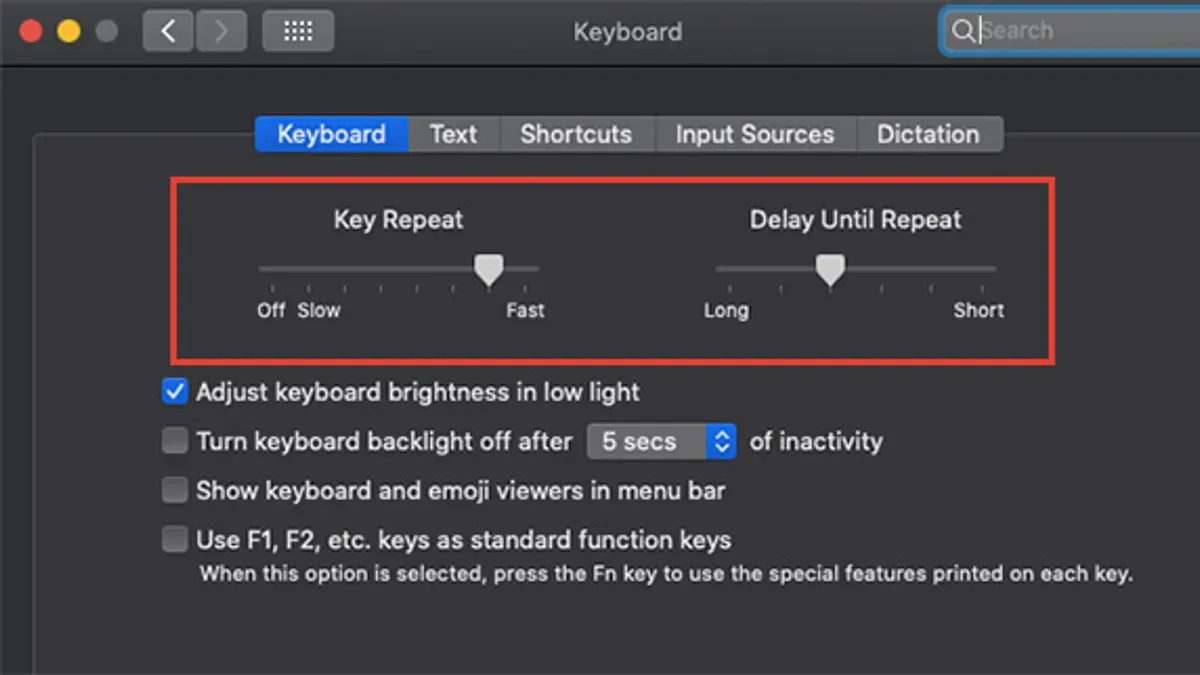
- Open System Settings and locate the "Keyboard" section. You should see sliders for "Key Repeat" and "Delay Until Repeat"—this confirms your system supports basic adjustments.
- Check your macOS version by clicking the Apple menu > About This Mac. Knowing your version helps in following version-specific instructions.
- Test your keyboard input to ensure keys register properly without sticking. If keys are unresponsive, hardware troubleshooting is recommended before changing repeat settings.
- If you plan to use Terminal for fine-tuning, open the Terminal app from Applications > Utilities to verify you can access and run commands without permission issues.
Adjusting key repeat speed using System Settings
To customize your keyboard's key repeat speed through the official macOS interface, follow these steps to find the controls within System Settings.
- Open System Settings from the Apple menu or Dock. You should see a window with various categories.
- Scroll down and select Keyboard. This opens keyboard-related options.
- Locate the Key Repeat slider. Moving it to the right speeds up how fast a key repeats when held.
- Find the Delay Until Repeat slider just below. Moving it left decreases the delay before repeating starts; moving right increases it.
- After adjusting these sliders, open a text editor such as Notes or TextEdit.
- Press and hold a letter key, observing how quickly characters repeat. Compare before and after adjustments to find your preferred speed.
Changes take effect immediately. If the repeat speed feels too fast or slow, return to System Settings and fine-tune the sliders. Keep in mind that setting the repeat speed too fast can cause unintended multiple characters, while too slow might hinder typing efficiency.
Using Terminal to fine-tune key repeat speed beyond System Settings
If you find the System Settings options limiting, you can use Terminal commands to gain more precise control over key repeat speed. macOS uses two main values: KeyRepeat controls the speed of repeated key presses, and InitialKeyRepeat adjusts the delay before repetition starts.
Typical values for KeyRepeat range from 2 (very fast) to 120 (slow), with the default often around 30. For InitialKeyRepeat, lower numbers mean shorter delay; safe values commonly range between 15 and 68.
- Open Terminal (found in Applications > Utilities).
- Type
defaults write -g KeyRepeat -int 2and press Enter. This sets a very fast repeat rate. - Type
defaults write -g InitialKeyRepeat -int 15and press Enter, reducing the delay before repeat starts. - Restart the keyboard service by logging out and back in, or reboot your Mac for changes to take effect.
- Test typing in any text field; you should notice the keys repeat almost instantly and very rapidly.
Using Terminal commands allows customization beyond the GUI limits and can enhance typing speed or accessibility. However, extremely low values might cause unintended repeated characters and strain on your fingers. Adjust values incrementally and test to find your optimal balance.
Checking and optimizing keyboard hardware and software factors
Key repeat behavior can be influenced by both hardware condition and software running on your Mac. Start by ensuring your keyboard is physically clean; dust or debris under keys can cause irregular repeat signals. Testing the keyboard on another device helps determine if the hardware is functioning properly.
Review any third-party keyboard utilities or accessibility software you have installed. Some apps, like key remappers or text expansion tools, can override macOS key repeat settings, causing unexpected behavior. Temporarily disabling these can reveal if they affect repeat speed.
Bluetooth keyboards often experience slightly longer key repeat latency compared to wired models because of wireless transmission delay. This difference is usually subtle but can be noticeable for fast typists. macOS manages key repeat differently for Bluetooth and wired devices, sometimes limiting how fast repeats register on wireless keyboards.
- Clean your keyboard keys by gently removing debris; confirm keys respond smoothly without sticking.
- Connect your keyboard to a different Mac or device; observe if key repeat behaves normally.
- Open System Settings, navigate to Accessibility > Keyboard or any third-party keyboard software preferences; disable or quit these temporarily.
- Test key repeat again to check for changes in speed or consistency.
- If using a Bluetooth keyboard, try switching to a wired connection or a different Bluetooth device to compare repeat responsiveness.
These steps help isolate whether hardware or software factors are limiting your ability to customize key repeat speed effectively.
Troubleshooting common issues with key repeat speed changes
If your key repeat speed does not change after adjusting settings, start by confirming that you applied changes correctly and tested with a text editor. If no effect appears, a corrupted keyboard preferences file might be the cause.
To reset keyboard preferences, follow these steps:
- Open Finder and press Shift + Command + G to open the Go to Folder window.
- Enter
~/Library/Preferences/and click Go. - Find the file named
com.apple.keyboardtype.plistand move it to the Trash. - Restart your Mac. After reboot, macOS will recreate this file with default settings, potentially resolving corruption issues.
Check for conflicting accessibility settings by navigating to System Settings > Accessibility > Keyboard. Features like Sticky Keys or Slow Keys can disable or alter key repeat behavior. Ensure these are off or configured appropriately.
If problems persist, verify your macOS is up to date, as past versions have had bugs affecting keyboard responsiveness. Visit System Settings > General > Software Update to check.
Finally, if hardware issues are suspected—especially with external or Bluetooth keyboards—test with another keyboard or contact Apple Support for diagnostics.
When to avoid adjusting key repeat speed and alternatives
Adjusting key repeat speed is not suitable for everyone. Users with certain motor disabilities may find changing this setting counterproductive, as specialized accessibility configurations like Sticky Keys or Slow Keys often provide better control. Accessibility guidelines recommend using these dedicated features rather than modifying key repeat speed, to accommodate individual needs more effectively.
Additionally, some software environments, such as typing tests or games that require precise timing, can be negatively affected by altered key repeat speeds. Increasing repeat speed might cause unintended repeated inputs, while slowing it down could hinder responsiveness.
Instead of adjusting key repeat speed, consider alternatives like key remapping through System Settings > Keyboard > Keyboard Shortcuts, or using external macro software to customize input behavior without affecting global repeat rates. These options can offer more precise control tailored to your specific use case.
- How to Turn Off Auto Brightness on Mac: A Clear Step-by-Step Guide
- How to Change the Display Refresh Rate on Mac in 2026
- How to Change the Mouse Scroll Direction on Mac: A Clear Step-by-Step Guide
Frequently asked questions
Why won’t my key repeat speed change even after adjusting settings?
If your key repeat speed doesn’t change, first ensure you’ve adjusted both “Key Repeat” and “Delay Until Repeat” sliders in System Settings > Keyboard. Changes may require a logout or restart to take effect. Additionally, some apps or accessibility settings can override these preferences, so check for conflicting software or profiles.
What are the safest Terminal command values for key repeat speed?
Safe Terminal values for key repeat speed typically range from 15 (fast) to 120 (slow) for the key repeat rate, and 10 to 120 for the initial delay. For example, using defaults write -g KeyRepeat -int 20 and defaults write -g InitialKeyRepeat -int 25 offers responsiveness without risking erratic behavior. Avoid extremely low values below 10, which may cause keys to repeat unintentionally.
Can I customize key repeat speed differently for individual keys?
macOS does not natively support per-key repeat speed customization. Key repeat settings apply system-wide, affecting all keys uniformly. To achieve per-key behavior, third-party software or custom keyboard firmware would be necessary, but these solutions can be complex and may introduce compatibility issues.
Does Bluetooth keyboard connection affect key repeat behavior?
Bluetooth keyboards can exhibit slightly different key repeat behavior due to wireless latency and connection quality. Interference or low battery levels may cause delayed or inconsistent repeats. To minimize issues, ensure your Bluetooth keyboard has a strong connection, fresh batteries, and is within optimal range.
What this guide does not cover and who should seek other solutions
This guide does not cover third-party keyboard driver software or hardware repairs beyond basic troubleshooting steps such as checking cables and battery levels. If your keyboard exhibits physical issues like stuck keys, inconsistent input, or hardware malfunctions, consider consulting Apple Support or a certified technician. Additionally, users requiring extremely specific accessibility configurations may benefit from dedicated accessibility software or custom hardware solutions rather than key repeat speed adjustments alone.
The single most useful next step after adjusting your key repeat speed is to test your settings in a real typing scenario, such as composing an email or writing a document. This hands-on approach helps you gauge whether the speed matches your typing style and productivity needs. If you find the response too fast or slow, revisit System Settings or Terminal tweaks incrementally to fine-tune until you reach the ideal balance between speed and control.