How to Change the Mouse Scroll Direction on Mac: A Clear Step-by-Step Guide
This guide shows how to change the mouse scroll direction on Mac for both built-in trackpads and external mice with simple, clear instructions.
When you switch between a MacBook’s built-in trackpad and an external mouse, you might notice the scroll direction feels opposite or unintuitive. This difference can disrupt your workflow or cause frustration, especially if you frequently use devices with varying scroll behaviors.
This article explains how to change the mouse scroll direction on Mac across different devices and mouse types. You'll find clear, step-by-step instructions for MacBook, Mac Mini, MacBook Pro, and both wired and wireless mice. Additionally, the guide covers macOS’s natural scrolling concept and common troubleshooting tips to help you customize scrolling to your preference.
Key takeaways
- Adjust scroll direction in System Settings under Trackpad or Mouse preferences depending on your device.
- Natural scrolling mimics touchscreen behavior but can be reversed to traditional scrolling.
- Separate settings apply for built-in trackpads and external mice, so check both if needed.
- Wireless and wired mice may require different adjustment steps within System Settings.
- Troubleshoot by disconnecting and reconnecting devices or resetting scrolling preferences if changes don’t apply.
Before you start: what you need to change mouse scroll direction on Mac
To change the mouse scroll direction on your Mac, first confirm that your device is running macOS. This guide applies to macOS versions from macOS Sierra onward, where natural scrolling is the default setting. You must have a mouse connected, whether wired or wireless. Also, determine if you are using the built-in MacBook trackpad or an external mouse, as the settings menu differs slightly between these devices.
Ensure you have administrative access on your Mac, as changing system preferences requires it. Without this, the settings may not save or apply correctly. macOS’s “natural scrolling” mimics touchscreen behavior, meaning scrolling down moves content up and vice versa, which some users may prefer to reverse.
Before proceeding, locate the System Preferences app where scrolling settings are managed. For external mice, the settings are under System Preferences > Mouse. For trackpads, use System Preferences > Trackpad. Wireless and wired mice are both supported, including Apple Magic Mouse and most third-party USB or Bluetooth mice.
- Open System Preferences from the Apple menu. You should see a window with various settings categories.
- Identify if you are adjusting settings for a Trackpad or Mouse. The corresponding icon will be labeled clearly.
- Make sure your mouse or trackpad is connected and recognized. The system preference pane will display connection status.
- Check that you have administrator privileges by ensuring the lock icon at the bottom left is unlocked or you can click it and enter an admin password.
- Confirm your macOS version by clicking the Apple menu and selecting About This Mac, verifying it is macOS Sierra or later.
How to change the mouse scroll direction on MacBook
To adjust the scroll direction on your MacBook, you need to access the settings for the built-in trackpad or any connected mouse. The scroll direction setting controls how content moves when you swipe or scroll, affecting both trackpad gestures and mouse wheel behavior.
- Open System Preferences from the Apple menu.
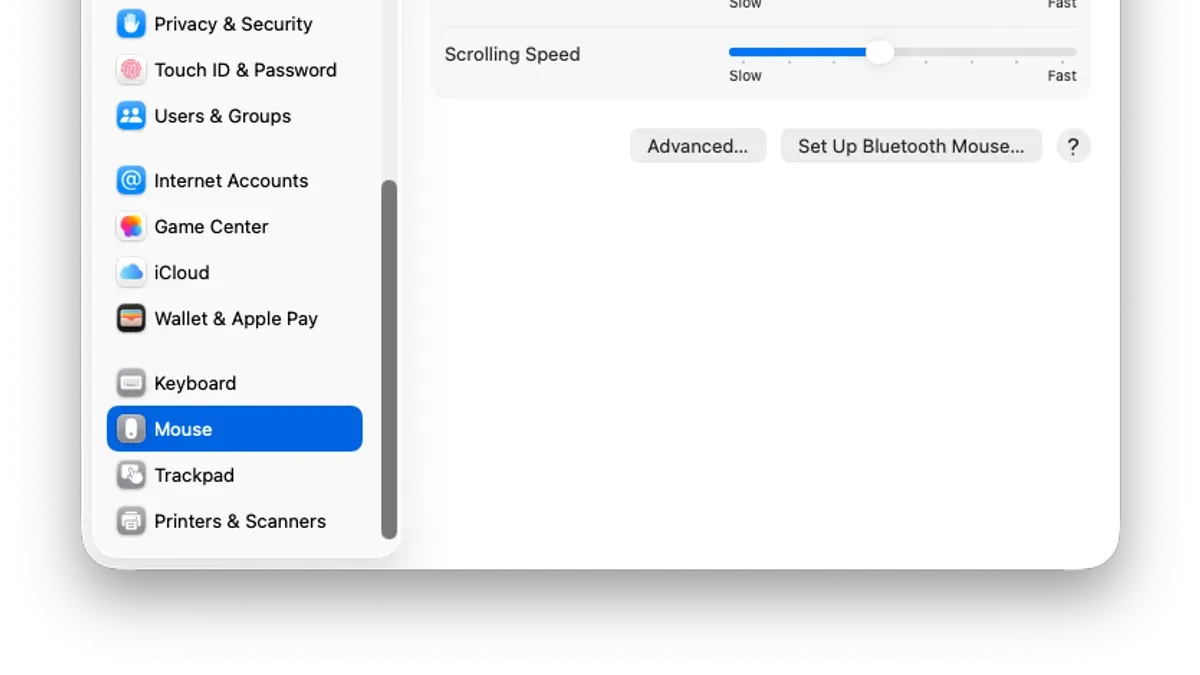
- If using the built-in trackpad, click on Trackpad. For an external mouse, select Mouse.
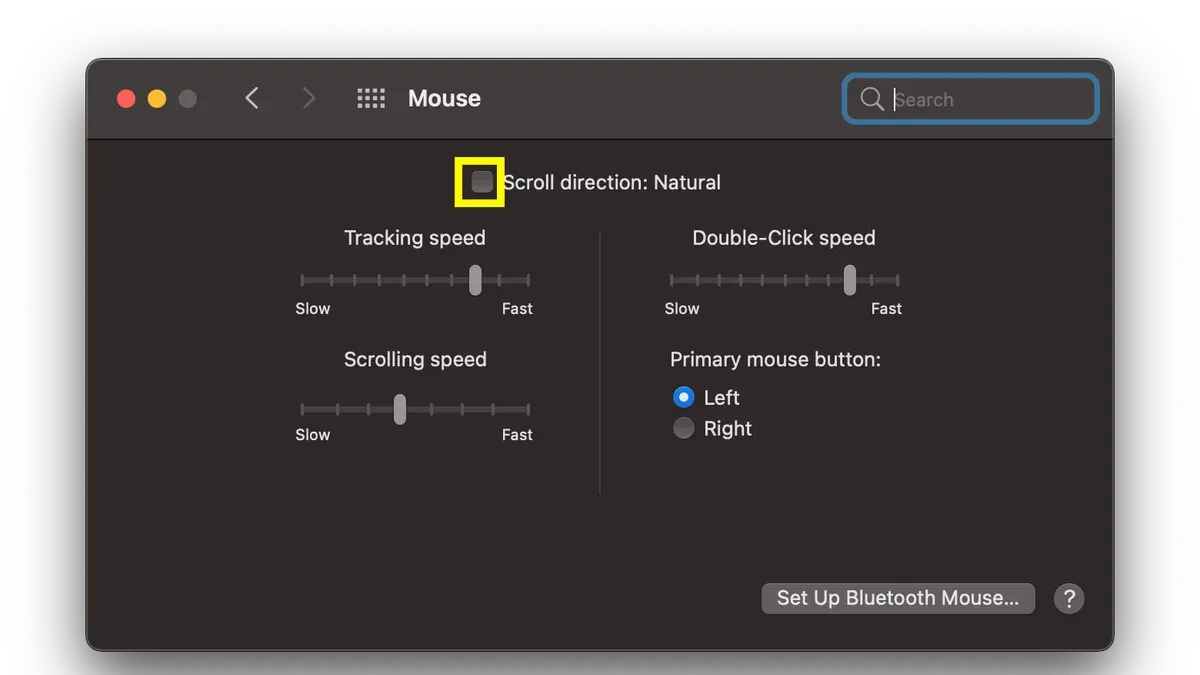
- In the Trackpad or Mouse settings window, find the checkbox labeled Scroll direction: Natural.
- Toggle the checkbox to change the scroll direction: if enabled, scrolling mimics the motion of content on a touchscreen (swiping up moves content up); if disabled, scrolling behaves like traditional mouse wheels (scrolling down moves content down).
- Close System Preferences to save the setting.
If you have an external mouse connected, the scroll direction setting in the Mouse panel will apply to that device, while the Trackpad panel controls the built-in trackpad independently. Changing the setting in one does not automatically change the other, so adjust both if you want consistent behavior across devices.
For example, if you prefer the natural scroll direction on the trackpad but want the traditional scroll direction on your external mouse, enable the checkbox in Trackpad and disable it in Mouse.
How to change the mouse wheel direction on Mac for external mice
To adjust the scroll direction for an external mouse on your Mac, start by opening System Preferences and selecting Mouse. Here, you will find the option labeled “Scroll direction: Natural”. Toggling this checkbox changes how your mouse wheel scrolls: when enabled, scrolling down on the wheel moves content down (matching touchscreen gestures), and when disabled, scrolling down moves content up, which is the traditional scroll behavior.
Many popular external mice, such as the Apple Magic Mouse, Logitech MX series, or Microsoft’s Bluetooth mice, follow this macOS setting by default. However, some third-party mice come with dedicated drivers or software that override the system's scroll direction setting. For example, Logitech’s Options software allows you to customize scroll behavior independently of macOS preferences.
To check if your mouse has such software, visit the manufacturer’s website or check the Applications folder for installed utilities. Using this software, you can enable or disable natural scrolling, adjust scroll speed, or reverse scroll direction on a per-device basis.
- Open System Preferences and click on Mouse. You should see the scroll direction checkbox.
- Toggle “Scroll direction: Natural” on or off. Test scrolling in an application to confirm the direction has changed.
- If the scroll direction does not change, check for manufacturer software like Logitech Options or Microsoft Mouse and Keyboard Center.
- Open the manufacturer’s software and locate the scroll direction or wheel settings.
- Adjust the scroll direction within the software, then test scrolling again.
Using macOS settings ensures uniform behavior across devices, but manufacturer software can provide more granular control or restore traditional scrolling if needed.
How to change mouse scroll direction on MacBook Air, MacBook Pro, and Mac Mini
MacBook Air and MacBook Pro share similar settings for changing scroll direction due to their built-in trackpads. To adjust this, open System Preferences and go to Trackpad or Mouse depending on your input device. Look for the checkbox labeled “Scroll direction: Natural” and toggle it to reverse the scroll direction.
On the Mac Mini, which typically relies on external mice, you manage scroll direction via System Preferences > Mouse. Both USB and Bluetooth mice appear here and are handled identically by the system. Changing the scroll direction affects all connected mice consistently.
- Open System Preferences from the Apple menu.
- Select Mouse if you use an external mouse or Trackpad for built-in input devices.
- Locate the “Scroll direction: Natural” checkbox.
- Check or uncheck this box to enable or disable natural scrolling.
- Test scrolling in any application to verify the direction has changed.
Note that some older Mac Mini models might have slightly different user interface layouts in System Preferences, but the option to reverse scroll direction remains under the Mouse settings. If you do not see the option, ensure your mouse is properly connected and recognized by the Mac. For multi-device setups, the setting applies globally to all mice connected to the Mac Mini.
How to change wireless mouse scroll direction on Mac
If you use a wireless mouse, the first step is to confirm your mouse is properly connected via Bluetooth and recognized by your Mac. Without a stable connection, changing scroll direction settings may not take effect.
- Open System Preferences and select Bluetooth. Ensure your wireless mouse appears in the list with a status of "Connected." If not, pair or reconnect it by following the on-screen instructions. When connected, your mouse is ready for customization.
- Go back to System Preferences and open Mouse. Here, locate the checkbox labeled “Scroll direction: Natural”. Checking this box sets the scroll to the default macOS natural direction, while unchecking it reverses the scroll direction.
- Toggle the checkbox to your preference. Test the scroll immediately by scrolling on a webpage or document. The movement should reflect your chosen setting.
- Be aware that wireless mice can sometimes exhibit slight lag or delayed response compared to wired mice, which might affect how smoothly the scroll direction feels. If you notice a delay, try reconnecting the mouse or replacing batteries if applicable.
- If your wireless mouse came with dedicated manufacturer software, open it to check for additional scroll customization options. Some brands allow more granular control beyond macOS settings, including separate adjustments for horizontal and vertical scrolling.
For example, a Bluetooth Logitech MX Master mouse connected to a Mac will appear in the Bluetooth menu as "Connected." Using the Mouse preferences, toggling the natural scroll direction checkbox immediately reverses the scroll. However, some users note that the scroll responsiveness on wireless devices can be less immediate compared to a wired mouse, especially in high-latency environments. Manufacturer software like Logitech Options can offer enhanced scroll direction settings and sensitivity adjustments.
How to change cursor scroll direction on Mac
Cursor movement direction is controlled separately from scroll direction on a Mac. While scroll direction affects how content moves when you use the scroll wheel or trackpad, cursor movement refers to how the pointer moves across the screen in response to your physical mouse or trackpad motion.
To adjust cursor speed and tracking direction, go to System Preferences and navigate to either the Mouse or Accessibility > Pointer Control panels. Here, you can modify settings like tracking speed, double-click speed, and scrolling speed, but the option to invert cursor movement direction is not natively offered in macOS.
Changing the scroll direction in the Scroll direction: Natural checkbox does not affect how your cursor moves. These are distinct settings, so adjusting one will not impact the other.
If you want to customize cursor movement beyond speed, third-party utilities might be necessary to invert or remap cursor behavior, as macOS does not provide built-in options to reverse cursor direction.
- Open System Preferences from the Apple menu.
- Click on Mouse or Accessibility > Pointer Control depending on your macOS version.
- Adjust the Tracking Speed slider to increase or decrease cursor movement speed. You should see the cursor move faster or slower immediately.
- Check other settings like Double-Click Speed or Scrolling Speed if available, to fine-tune responsiveness.
- Note that there is no built-in option to invert the cursor movement direction; scroll direction changes do not affect cursor behavior.
Troubleshooting common issues when changing mouse scroll direction on Mac
If the scroll direction change does not take effect, first verify that you have selected the correct device in System Preferences. Navigate to System Preferences > Mouse or Trackpad, and ensure the device you want to adjust is connected and active. Misidentifying the device is a frequent cause for settings not applying.
Third-party mouse software can override macOS settings, preventing your changes from working. To resolve this, disable or configure the software to avoid conflicts. Check apps like Logitech Options or Razer Synapse for scroll direction settings, or quit these apps temporarily to test if macOS controls take effect.
If your scroll direction resets after rebooting, conflicting apps or recent system updates may be responsible. Review login items in System Preferences > Users & Groups > Login Items, and remove any mouse-related utilities that might override settings. Also, consider whether a macOS update installed recently could have reset preferences.
Wireless mouse users may experience scroll lag or inconsistent behavior caused by Bluetooth connectivity issues. To improve this, try reconnecting the mouse, moving closer to the Mac, or turning Bluetooth off and on again. Additionally, make sure no other wireless devices are causing interference.
Note that some applications handle scroll direction independently and may not respect the system-wide setting. For example, graphic design or specialized software might invert scroll behavior internally, requiring separate configuration within the app.
- How to Change Screen Resolution on Mac: Clear Step-by-Step Guide
- How to Fix Discord Mic Not Working on Mac: A Clear Troubleshooting Guide
- How to Share Screen with Audio on Discord for Mac: A Clear Step-by-Step Guide
- How to Use Chrome Profiles in Google Chrome on Mac: A Step-by-Step Guide
Frequently asked questions
How to change my mouse scroll direction on macbook?
To change the mouse scroll direction on your MacBook, open System Settings and navigate to Mouse. There, you can toggle the option labeled Scroll direction: Natural on or off to reverse how scrolling behaves. Turning it off will make scrolling feel like traditional mice, where moving fingers down scrolls down.
Can i change the mouse scroll direction on mac?
Yes, macOS allows you to customize the mouse scroll direction. In System Settings under Mouse or Trackpad, you will find a setting called Scroll direction: Natural. Enabling or disabling this changes the scroll behavior for most mouse types connected to your Mac.
how to change the mouse scroll direction on macbook
On a MacBook, you can adjust scroll direction by going to System Settings > Trackpad. Here, the Scroll direction: Natural checkbox controls whether scrolling mimics touchscreen behavior. Unchecking it reverses the scroll direction to match traditional mice.
how to change the mouse wheel direction on mac
For external mice with a scroll wheel, open System Settings and select Mouse. The Scroll direction: Natural option applies to the scroll wheel as well. Toggle it according to your preference to reverse the wheel’s scrolling direction.
can i change the mouse scroll direction on mac
Absolutely. macOS provides a straightforward way to change the scroll direction for both built-in trackpads and external mice. Simply access System Settings and find the Scroll direction: Natural setting under Mouse or Trackpad to adjust it.
What this advice does not cover
This article does not cover advanced customization through third-party utilities beyond basic macOS settings. If you use specialized mice with dedicated software or require programmable button mapping and detailed scroll behavior adjustments, consult your device manufacturer’s instructions or software documentation.
For users seeking to change scroll direction on non-Apple operating systems or who want to configure multi-device synchronization, this guide will not address those needs.
The most useful next step is to revisit the System Preferences under Mouse or Trackpad to ensure the “Scroll direction: Natural” checkbox is set exactly as you prefer. This simple toggle often resolves confusion and aligns your scrolling experience across all Mac devices and connected mice.