How to Turn Off Auto Brightness on Mac: A Clear Step-by-Step Guide
Discover how to disable auto brightness on your Mac and manually control your screen brightness for better comfort and workflow.
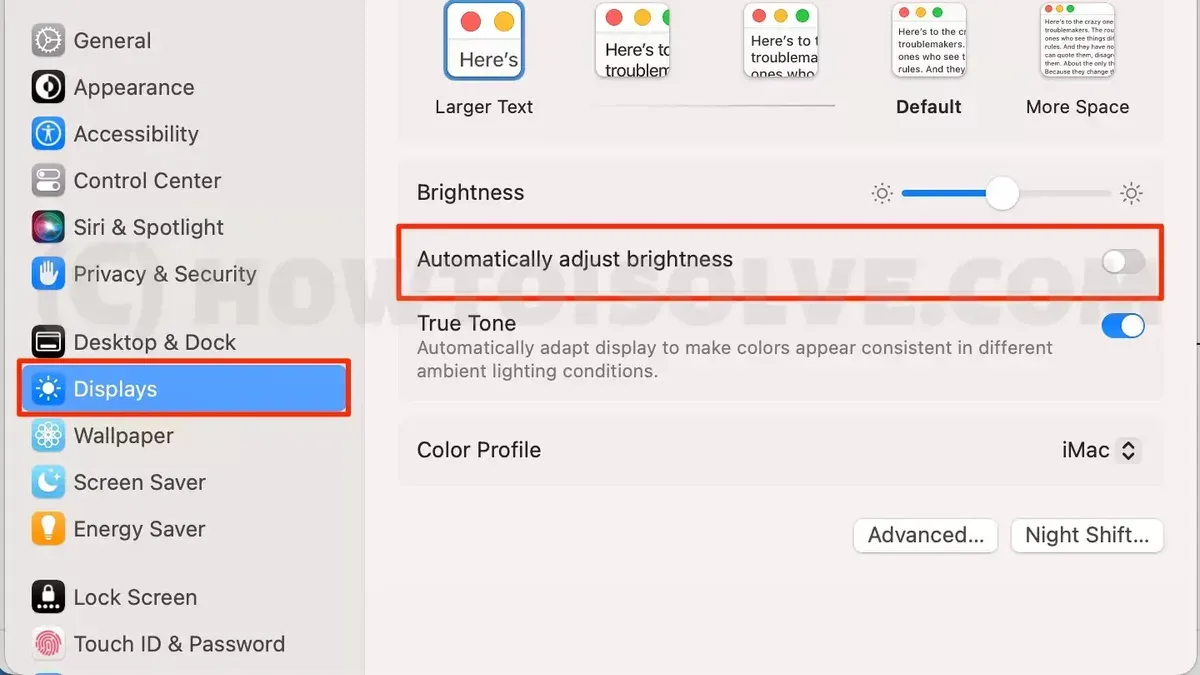
Your Mac’s screen brightness adjusts automatically throughout the day, but this can be frustrating when it changes unexpectedly or doesn’t match your preferences. You may notice the display dimming in a bright room or brightening in a dark space, interrupting your workflow or viewing comfort.
This article explains how to turn off auto brightness on Mac, detailing the system settings involved and the role of ambient light sensors. You’ll learn a clear, step-by-step method to disable the feature and regain manual control over your Mac’s display brightness.
Key takeaways
- Auto brightness uses ambient light sensors to adjust your screen based on surrounding light conditions.
- Disable auto brightness via System Settings > Displays by turning off “Automatically adjust brightness.”
- Manual brightness control is available through the menu bar or keyboard brightness keys once auto adjustment is off.
- Disabling auto brightness may impact battery life and screen visibility in changing lighting environments.
- Troubleshooting steps include resetting SMC or checking for software updates if brightness controls don’t respond properly.
Before you start: what you need to know
Not all Mac models support the auto brightness feature. Generally, MacBook Air and MacBook Pro models with built-in ambient light sensors have this capability. Desktop Macs like the iMac may also include sensors, but this depends on the specific model. To access and manage brightness settings, your Mac should be running macOS Sierra (10.12) or later, as earlier versions have limited controls over display brightness and sensor integration.
Auto brightness works by using an ambient light sensor located near the Mac’s display. This sensor measures the lighting conditions of your environment and adjusts the screen brightness accordingly to optimize visibility and battery life. When enabled, the system automatically increases brightness in bright surroundings and dims it in darker settings.
It’s important to distinguish auto brightness on your Mac from similar features on your iPhone. While both use ambient light sensors, the implementation and system settings are separate. For example, auto brightness on iPhone is managed through the Display & Brightness settings in iOS, whereas on Mac it is controlled through System Settings or System Preferences under Displays.
Before disabling auto brightness, ensure your Mac model supports this feature and that you are familiar with where to find the relevant settings. Understanding how the ambient light sensor influences brightness can help you decide if turning off auto brightness suits your usage and environment.
How to turn off automatic brightness on Mac
- Click the Apple menu in the top-left corner of your screen and select System Settings. You will see the main settings window open.
- In the sidebar, scroll down and click on Displays. This opens the display settings panel.
- Look for the option labeled Automatically adjust brightness. It is usually near the top under the Display tab.
- Toggle off the switch next to Automatically adjust brightness. When disabled, the switch will appear gray instead of blue.
- Verify that the toggle is off by observing the brightness slider above. Without auto brightness, the slider remains stable and no longer adjusts automatically based on ambient light.
- Manually adjust the brightness using the slider or the brightness keys on your keyboard to set your preferred screen brightness level.
Disabling auto brightness stops your Mac from changing the screen brightness based on surrounding light conditions. This allows you full manual control but can lead to a less optimized viewing experience in varying environments. Screenshots of System Settings show the toggle switch located directly beneath the resolution and refresh rate options, making it straightforward to find.
How to change brightness on Mac manually
Once you have disabled auto brightness, you can adjust the screen brightness manually using several methods depending on your preference and situation.
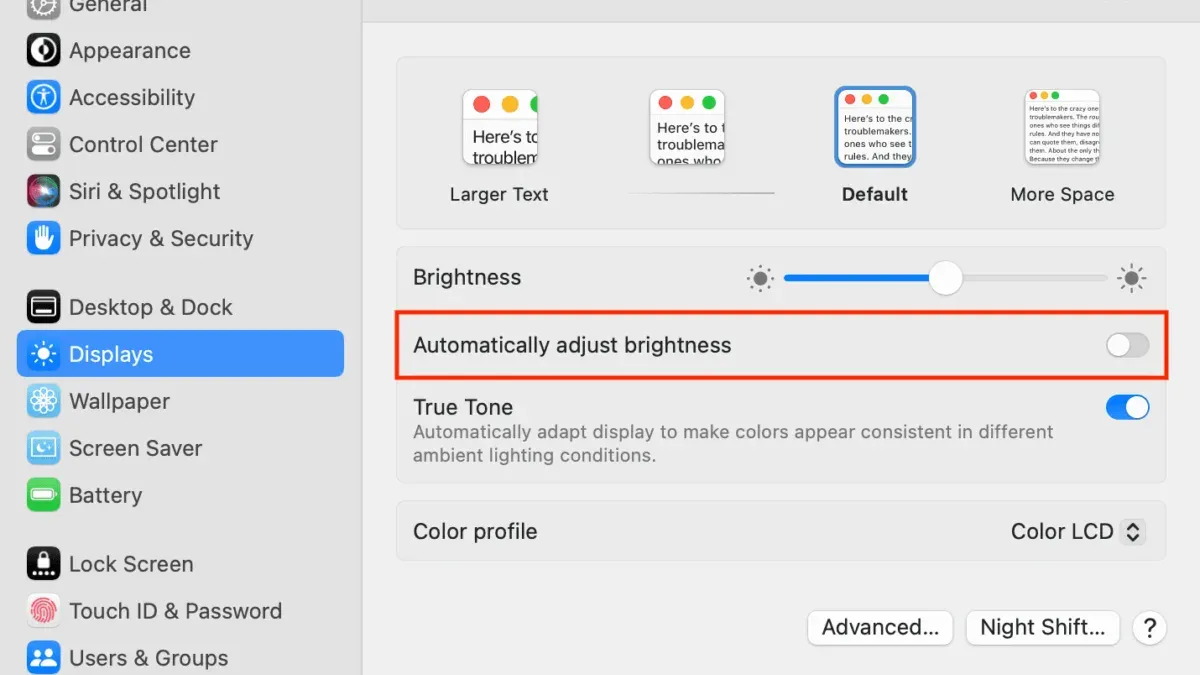
- Use the keyboard brightness keys. These are typically the F1 and F2 keys on your Mac keyboard. Pressing F1 decreases brightness, and pressing F2 increases it. You should see the screen brightness change immediately with each press.
- Adjust brightness in System Settings. Open the Apple menu, select System Settings, then go to Displays. Use the brightness slider to set the desired level. Moving the slider to the left dims the screen, while moving it to the right brightens it. The screen will update in real time as you slide.
- Use the Control Center brightness slider. Click the Control Center icon in the menu bar, then drag the Brightness slider up or down. This method provides quick access without leaving your current app. The display will adjust instantly as you move the slider.
For different environments, adjust brightness accordingly: in bright daylight, a higher brightness setting improves visibility, while in dim or dark rooms, a lower brightness reduces eye strain. For example, setting brightness near maximum is helpful outdoors, but indoors a moderate to low level often suffices.
Keyboard keys offer quick changes during tasks, while System Settings and Control Center allow fine-tuning. Using these methods gives you full control over your Mac’s display to suit your comfort and environment.
How to troubleshoot when Mac brightness is not working properly
If your Mac's brightness controls are unresponsive or inconsistent, several common issues could be the cause. Start by checking for macOS software updates, as bugs affecting brightness controls are sometimes resolved in updates.
Resetting the System Management Controller (SMC) often fixes power and hardware-related display issues. The process varies by Mac model but typically involves shutting down your Mac, then pressing a specific combination of keys during startup. For example, on MacBooks with non-removable batteries, press and hold Shift + Control + Option on the left side and the power button simultaneously for 10 seconds, then release and turn on your Mac. Successful reset often restores proper brightness control.
Resetting NVRAM/PRAM can also resolve display-related glitches. To do this, shut down your Mac, then power it on and immediately hold Option + Command + P + R keys for about 20 seconds until the Mac restarts. After this, brightness settings usually return to normal.
Check accessibility settings as well; features like 'Invert colors' or 'Increase contrast' can affect display appearance and brightness perception. Ensure these are configured as you intend in System Settings under Accessibility.
If none of these steps work, hardware issues such as a faulty ambient light sensor or display component might be responsible. In such cases, contacting Apple Support or an authorized service provider is recommended for diagnosis and repair.
How to handle MacBook brightness that keeps changing unexpectedly
Even after disabling automatic brightness, your MacBook's screen may still adjust brightness unexpectedly due to other features or system behaviors.
Background apps and system processes affecting brightness
Some applications or system processes can alter brightness settings dynamically, especially video players or graphics-intensive apps. These adjustments may override manual settings temporarily.
To identify if an app is causing brightness shifts, quit open applications one by one and observe if the issue stops.
True Tone and Night Shift impact
True Tone uses sensors to adjust color temperature and brightness to match ambient light. When enabled, brightness can subtly change even if auto brightness is off.
Disabling True Tone often stabilizes brightness levels:
- Open System Settings and go to Displays.
- Find and toggle off True Tone.
- The screen should maintain consistent brightness without subtle shifts caused by ambient light correction.
Night Shift adjusts display colors and brightness based on time of day, which can cause perceived brightness changes. To disable Night Shift:
- Go to System Settings > Displays > Night Shift.
- Turn off Schedule and manually toggle Night Shift off.
- Brightness changes related to Night Shift will stop.
External display and clamshell mode considerations
When using an external monitor or clamshell mode (MacBook closed), brightness control can behave differently. The external display may have its own brightness controls or auto adjustments independent of your MacBook.
Check the external monitor’s settings and disable any auto-brightness or dynamic contrast features there.
Also, some MacBooks manage brightness differently when closed; try opening the lid to see if brightness stabilizes.
Summary
Unexpected brightness changes after disabling auto brightness often stem from True Tone, Night Shift, background apps, or external display settings. Disabling True Tone and Night Shift while monitoring app behavior and external device settings helps maintain consistent brightness.
How to turn off auto brightness on iPhone for comparison
The iPhone also uses an ambient light sensor to adjust screen brightness automatically. If you want to control brightness manually like on your Mac, you can disable auto brightness in iOS settings.
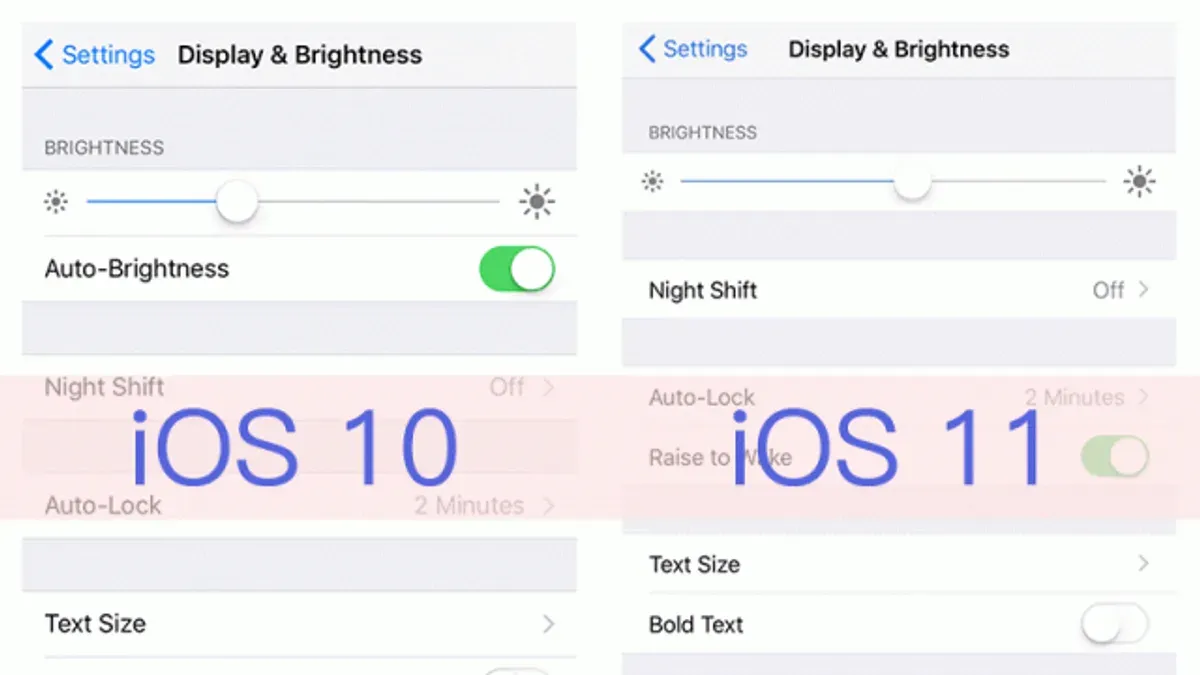
- Open the Settings app on your iPhone. You should see a list of system preferences.
- Scroll down and tap Accessibility. This section contains options to customize your device’s display and interaction.
- Tap Display & Text Size. Here, you manage visual settings affecting screen appearance.
- Scroll to find the Auto-Brightness toggle near the bottom of the list.
- Turn off Auto-Brightness. When disabled, your iPhone will no longer adjust brightness based on ambient light, giving you full manual control.
Once disabled, you can adjust brightness manually via the Control Center or Settings > Display & Brightness. You will notice the screen stays at your chosen brightness regardless of lighting conditions.
The iPhone’s auto brightness sensor functions similarly to that of a Mac, but the control location differs: macOS places it under Displays in System Settings, while iOS nests it within Accessibility. This reflects different system design philosophies but offers a comparable user experience.
Disabling auto brightness on your iPhone can help if you experience unwanted screen dimming or brightening, just as on your Mac. However, keep in mind this may affect battery life and viewing comfort in variable lighting.
Why you might want to keep auto brightness enabled
Auto brightness helps conserve battery life by adjusting your Mac's screen brightness to the ambient light, which can reduce power consumption especially on MacBooks. Users often experience longer battery durations when auto brightness is enabled compared to keeping the screen at a constant high brightness. This feature also supports eye comfort by subtly dimming or brightening the screen as your environment changes, reducing strain caused by overly bright or dim displays.
However, manual brightness control can be preferable in situations where consistent screen lighting is required, such as color-sensitive work or when ambient light sensors misinterpret your surroundings. Some users report that auto brightness adjustments feel distracting or inconsistent, particularly in rapidly changing lighting conditions.
Balancing manual and automatic adjustments can improve your experience. For example, you might keep auto brightness on for general use but temporarily adjust brightness manually when performing tasks needing precise control. This approach leverages energy savings and eye comfort benefits while allowing flexibility.
Surveys indicate a range of preferences; some users prioritize battery life and comfort, while others value stable brightness levels. Considering your typical usage environment and priorities will guide whether keeping auto brightness enabled is the best choice for you.
- How to Set and Customize a Screen Saver on Your Mac
- How to Set Up Hot Corners on Mac: A Complete Step-by-Step Guide
Frequently asked questions
How to turn down brightness on mac?
You can lower your Mac's brightness by pressing the F1 key on your keyboard, which typically has a small sun icon with a downward arrow. Alternatively, go to System Settings > Displays, then drag the Brightness slider to the left to reduce screen brightness manually.
How to lower brightness on mac?
To lower the brightness on your Mac, use the keyboard brightness controls or open System Settings > Displays and adjust the Brightness slider toward the minimum. Disabling auto brightness first ensures the slider changes the brightness without the system readjusting it automatically.
How to turn auto brightness off?
Turn off auto brightness by opening System Settings, selecting Displays, and then toggling off “Automatically adjust brightness.” This stops macOS from using the ambient light sensor to change your screen brightness.
How to turn up brightness on macbook?
Press the F2 key on your MacBook keyboard, marked with a sun icon and an upward arrow, to increase brightness. Or, navigate to System Settings > Displays and move the Brightness slider to the right for more light.
How to adjust brightness on mac?
Brightness adjustment is available via keyboard keys (F1 and F2) or through System Settings > Displays where you can move the Brightness slider. If auto brightness is enabled, macOS may override manual adjustments based on ambient light readings.
What this guide does not cover
This guide focuses on adjusting and disabling automatic brightness settings through macOS system preferences and does not address hardware repairs or detailed screen calibration beyond brightness control. Users who require automatic brightness for accessibility reasons, such as those with specific visual impairments, should consider consulting Apple’s accessibility resources or a specialist before disabling auto brightness.
For the best experience after turning off auto brightness, the next step is to familiarize yourself with manual brightness controls via the Touch Bar, keyboard keys, or System Settings > Displays. This hands-on approach allows you to tailor your screen brightness precisely to your environment and preferences, balancing visibility with battery life effectively.