How to Change the Default App for a File Type on Mac
This guide explains how to change the default app for a file type on Mac, including system-wide and per-file settings for smoother file management.
You have a PDF that opens with Preview, but you prefer to use Adobe Acrobat instead. Or maybe you want your JPEG images to open with Photoshop rather than the default Photos app. Changing how files open on your Mac can save time and avoid frustration.
This article explains how to change the default app for a file type on Mac, covering both system-wide changes and per-file settings. You’ll learn exactly where to go in Finder and System Settings, what to watch out for, and how to fix common issues that can arise when adjusting default applications.
Key takeaways
- Use Finder's 'Get Info' window to set default apps for all files of a type.
- Change a single file’s default app without affecting others via Finder's context menu.
- System Settings offers alternative ways to manage default apps, but with some limitations.
- Be aware that some apps reset defaults after updates or when opening files.
- Restart your Mac or the Finder if changes don’t apply immediately.
Before you start: what you need to know
Changing the default app for a file type on your Mac requires access to Finder and the appropriate permissions to modify file settings. Without these, you won’t be able to make or save changes.
Default apps are assigned based on the file’s extension, such as .pdf, .jpg, or .docx. When you double-click a file, macOS uses the default app associated with that extension to open it. For example, a PDF file typically opens with Preview unless you’ve changed its default app.
Not all apps will appear as options when changing defaults. Only applications registered to handle the specific file type will be shown. If an app doesn’t appear, it may not support opening that file type or is not properly registered with macOS.
There is a key distinction between changing the default app for a single file and for all files of the same type. Modifying one file’s default affects only that file, while changing the default for the file type applies system-wide to all files with that extension.
How to set default app for file type Mac using Finder
- Locate a file of the type you want to change the default app for. For example, if you want to change the default PDF reader, find any PDF file on your Mac. Once selected, right-click the file and choose Get Info from the context menu. This opens the file's information window.
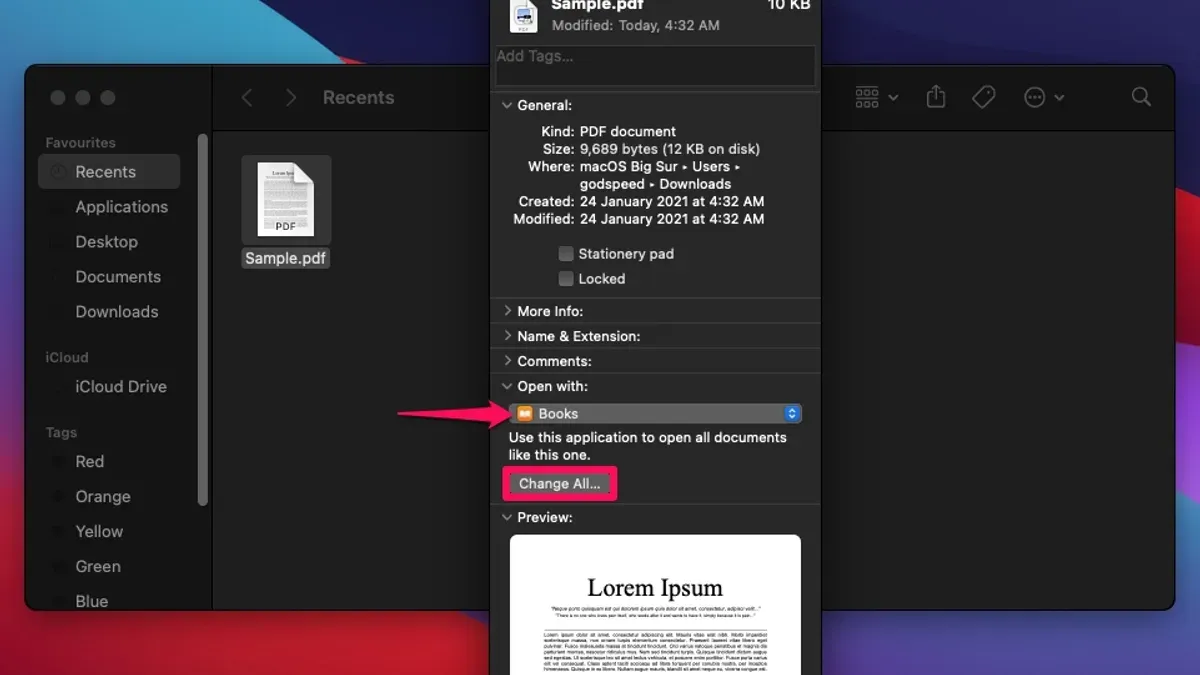
- In the Get Info window, find the Open with: section. Click the dropdown menu to see a list of available apps registered to open this file type. Select the app you want to use as the new default. For instance, choose a third-party PDF reader instead of Preview.
- After selecting the desired app, click the Change All... button below the dropdown. This prompts a confirmation dialog asking if you want to apply this change to all files of this type.
- Confirm the change by clicking Continue in the dialog. macOS will now open all files of this type with the selected app by default.
This method changes the default app system-wide for the chosen file type. The Get Info window clearly shows the current default app and lets you switch it easily. Keep in mind that if the app you want does not appear in the dropdown, it may not be registered to handle that file type.
How to change the default app to open a file in Mac without affecting others
Sometimes you want to open a single file with a different application without changing the default for all files of that type. This is useful if you want to try out a new app or handle an unusual file without disrupting your usual workflow.
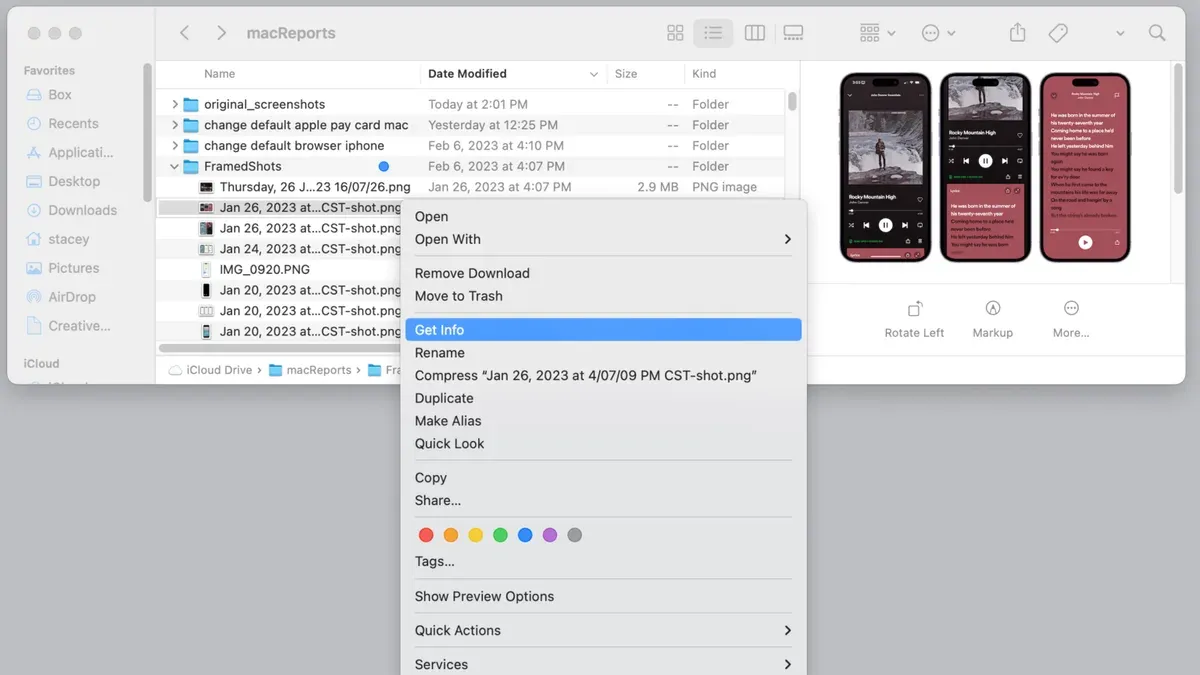
- Right-click (or Control-click) the file you want to open. A context menu will appear.
- Hover over or click Open With in the menu. A list of compatible apps installed on your Mac will show up.
- Select the app you want to use just this once. For example, choose Adobe Photoshop to open one image file.
- The file will open in the chosen app, but the default app for that file type remains unchanged. So, if your default image viewer is Preview, other images will still open in Preview by default.
This method lets you open individual files with alternative apps temporarily, which avoids affecting system-wide settings or other files. It’s a quick way to handle exceptions without making permanent changes.
How to change default app for a file type using System Settings and alternatives
On newer macOS versions, you may find default app settings within System Settings under sections like Files and Folders or a dedicated Default Apps pane. This interface allows you to assign default applications to certain file types without using Finder.
- Open System Settings from the Apple menu.
- Navigate to Files and Folders or Default Apps.
- Locate the file type you want to change the default app for.
- Select your preferred app from the list; the change applies system-wide for that file type.
For users seeking more granular control or managing file associations beyond what macOS offers, third-party utilities like RCDefaultApp or Default Folder X provide advanced options. These apps can display detailed file type mappings and let you adjust defaults per user or system level.
Be cautious when using third-party tools: always download from reputable sources to avoid security risks and ensure compatibility with your macOS version.
| Feature | macOS System Settings | Third-Party Apps (e.g., RCDefaultApp) |
|---|---|---|
| Ease of Use | Simple, integrated interface | More complex, requires installation |
| Granularity | Limited to common file types | Extensive control over many file types |
| System Impact | System-wide changes only | Can apply per user or system |
| Availability | Built-in on newer macOS versions | Requires separate download |
Troubleshooting common issues when changing default apps on Mac
If your default app change does not persist after reboot, the issue often relates to app permissions or incomplete app registration with macOS. Ensure the app is properly installed and granted necessary permissions in System Settings > Privacy & Security. Restarting your Mac can also help apply changes.
If the app you want does not appear in the Open With dropdown, you can manually add it by right-clicking the file, selecting Open With > Other…, and checking Always Open With before selecting the app. Sometimes, refreshing the Launch Services database clears outdated entries and recognizes new apps.
Files with multiple extensions or those handled by complex apps might not behave as expected, because macOS prioritizes certain extensions or app handlers. Verify you are changing the default for the correct file extension and consider whether the app supports all variants.
Resetting the Launch Services database
Corrupted associations can be fixed by resetting the Launch Services database using Terminal. Follow these steps:
- Open Terminal from Applications > Utilities.
- Enter the command:
/System/Library/Frameworks/CoreServices.framework/Frameworks/LaunchServices.framework/Support/lsregister -kill -r -domain local -domain system -domain user - Press Return. This command refreshes the database of app-to-file associations.
- Restart your Mac to apply changes.
- After reboot, try changing the default app again; the new settings should now stick.
Worked examples show that after running the command and restarting, previously missing apps appear in the Open With menu, and default app changes persist across restarts.
- How to Change the Login Screen Wallpaper on Your Mac: A Practical Guide
- How to Set Up Hot Corners on Mac: A Complete Step-by-Step Guide
- How to Turn Off Auto Brightness on Mac: A Clear Step-by-Step Guide
- How to Change Screen Resolution on Mac: Clear Step-by-Step Guide
Frequently asked questions
How do I make a file open with a different app on Mac temporarily?
To open a file with a different app just once, right-click the file and choose Open With. Select the app you want to use, and the file will open with that app without changing the default for future openings.
Why can’t I see my app in the list when changing default apps on Mac?
If your app doesn’t appear in the Open With list, it may not support the file type or isn’t registered with macOS. You can select Other… from the menu, then locate the app manually. Make sure to check Always Open With if you want it as the default.
Can I change default apps for multiple file types at once on Mac?
macOS does not provide a built-in way to change default apps for multiple file types simultaneously. You must change the default app on a per file type basis using the Get Info window for each file extension.
How do I reset all default app associations on Mac?
There’s no simple system setting to reset all default app associations at once. You can manually reset associations by selecting files, opening Get Info, and choosing the default app individually. For advanced users, resetting Launch Services via Terminal commands can help but involves risk and is not recommended for casual users.
What this guide does not cover
This guide does not cover changing default apps for files within sandboxed or system-protected environments, such as some apps downloaded from the Mac App Store, which have limited file association capabilities. If you need to adjust file associations for specialized software or system files, those changes often require developer tools or terminal commands beyond standard user settings. Additionally, some apps handle their own file opening preferences internally, which may override system defaults.
The single most useful next step is to verify your changes by double-clicking a file of the targeted type after updating its default app. This simple test confirms that your settings apply as expected and helps avoid confusion if multiple apps support the same file type. If your preferred app does not appear in the “Open With” menu, check that it is installed correctly and compatible with the file format before proceeding with further troubleshooting.