Step-by-Step Guide to Changing a Google Account Password Safely
This guide explains how to change your Google account password safely across different devices and recover access if needed.
This article provides a detailed, step-by-step guide on how to change Google account password across different devices and scenarios.
Changing a Google account password is a fundamental security task that can be done through various platforms such as PC, Android, iPhone, and even specific browsers like Chrome. The process requires access to the Google Account settings, typically found by clicking the profile icon and selecting "Manage your Google Account." Being aware of security features like two-step verification and recovery options helps ensure the password change is both effective and secure.
For users who have forgotten their password or lack access to a phone number, alternative recovery methods are available. This guide also addresses common troubleshooting issues to help navigate Google’s multi-platform environment without confusion.
Before you start: What is needed to change a Google account password
Changing a Google account password requires preparation to ensure a smooth process and avoid losing access. The first essential element is access to the device on which the password change will be performed, such as a PC, smartphone, or tablet. This device must be connected to the internet and have a supported browser like Chrome, Firefox, Edge, or the official Google app installed.
Next, the current Google account credentials are necessary to authorize the password change. Users must know their existing password or have access to recovery methods if the password is forgotten. Recovery options include a linked recovery email address or phone number, which Google may use to verify identity during the process.
Many users face difficulties due to missing or outdated recovery details. Google handles millions of account recovery requests annually, with a significant portion stemming from users lacking updated recovery email or phone information, which can complicate regaining access.
Before beginning, verify that the recovery email and phone number on the account are current to facilitate verification steps, especially if the password is forgotten. If recovery options are not set, consider updating them beforehand to prevent potential lockouts.
- Confirm device access: Open the device intended for the password change; ensure it connects to the internet. Successful connection typically shows the ability to load web pages or open apps.
- Verify current credentials: Sign into the Google account using the known password to confirm access. A successful sign-in indicates readiness to proceed.
- Check recovery options: Navigate to Google Account settings under Security > Ways we can verify it's you to view registered recovery email and phone. Presence of valid recovery information is confirmed by displayed contact details.
- Prepare a supported browser or app: Ensure the latest version of a compatible browser or the Google app is installed and updated. Opening the app or browser without errors confirms readiness.
How to change Google account password on PC
- Open a web browser such as Chrome, Firefox, or Edge and go to google.com/account. The Google Account homepage should load, displaying various account settings.
- Click the Security tab on the left sidebar. This opens security-related options including password management.
- Scroll to find the Password section and click it. A prompt will appear asking to verify the current password for security.
- Enter the current Google account password and submit. Once verified, a form to create a new password will appear.
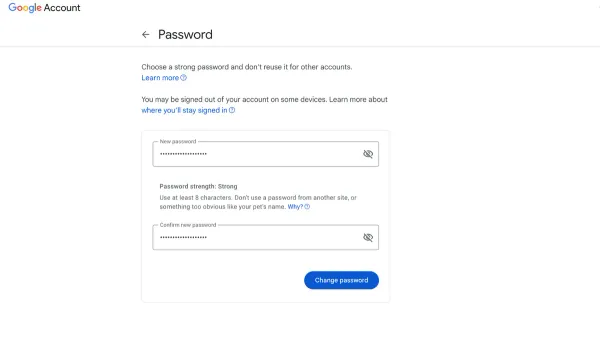
- Type a new strong password that is unique and difficult to guess. Confirm it by retyping in the second field. The interface usually indicates if the password meets strength requirements.
- Click Change Password or Save to finalize the update. A confirmation message will appear indicating the password has been updated successfully.
Tip: Using a password manager can help generate and store strong unique passwords to enhance security.
How to change Google account password on mobile devices (iPhone and Android)
Changing a Google account password on mobile devices can be done via the Google app or a mobile browser, with slight interface differences between iOS and Android platforms.
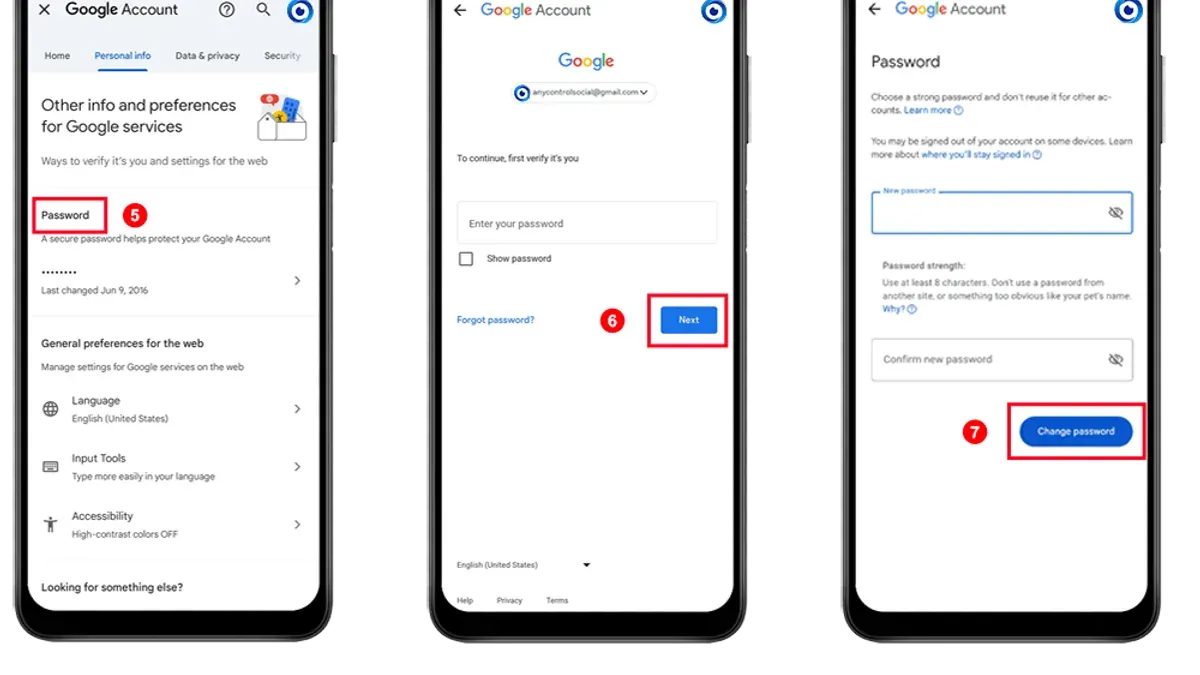
- Open the Google app on the iPhone or Android device. On iOS, tap the profile icon in the top right corner; on Android, this icon is usually in the same position. This opens the account menu.
- Select Manage your Google Account. This leads to the account settings page within the app.
- Navigate to the Security tab. On iPhone, this tab appears as a horizontal menu below the profile information; on Android, it may be a vertical list or tabs at the top.
- Scroll to find Password under the “Signing in to Google” section and tap it. The interface prompts for current password verification.
- Enter the current password to verify identity. After verification, the device displays fields to enter and confirm the new password.
- Input the new password twice and confirm. A confirmation screen will appear indicating the password has been changed successfully.
- Alternatively, if the Google app is not available, open a mobile browser (Safari on iPhone, Chrome on Android), go to myaccount.google.com/security, and follow the same navigation steps as in the app.
- Samsung device users may notice slight variations in app appearance or settings arrangement but follow the same general steps. The Google app on Samsung phones functions similarly to stock Android devices.
- Ensure the device remains connected to the internet during the process to sync the password change across all signed-in devices promptly.
Tip: After changing the password, manually sync apps like Gmail or Google Drive to confirm they recognize the updated credentials.
How to change Google account password if forgotten
When the current Google account password is forgotten, the recovery process begins on the Google sign-in page, which guides users through steps to verify identity and reset the password securely.
- Navigate to the Google sign-in page and enter the email address of the account.
- Click on the "Forgot password?" link below the password entry field. This action opens the account recovery flow.
- Attempt to enter the last remembered password if prompted. If unsure, select the option indicating the password is unknown or skip this step to proceed.
- Choose a verification method, typically via a recovery email address or phone number previously set up. Google sends a verification code to the selected contact.
- Enter the received verification code on the recovery page. If the code is incorrect or not received, users can request a new code or try a different verification method such as answering security questions or using backup codes.
- If two-factor authentication is enabled, Google may prompt for confirmation through the authentication app, a prompt on a trusted device, or a hardware security key.
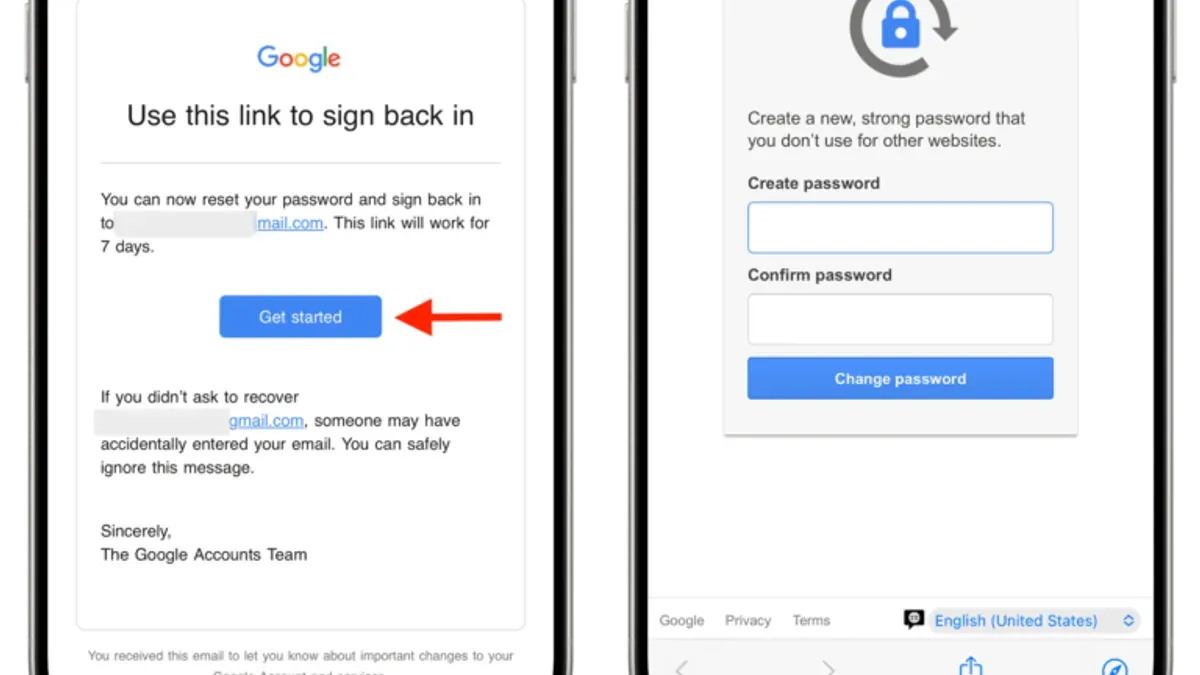
- Once identity is confirmed, a page to create a new password appears. Enter a strong, unique password twice and submit to finalize the reset.
- If verification fails multiple times, Google may temporarily lock the account recovery process or suggest waiting before trying again to protect against unauthorized access.
Tip: Keeping recovery options updated reduces friction during this process and helps avoid common verification errors.
How to change Google account password without phone number
When the registered phone number is unavailable for verification, Google offers alternative methods to change or recover a password. These options rely on prior account setup and device access.
Using a recovery email
If a recovery email address is linked to the Google account, it can be used instead of phone verification. Google sends a password reset link or security code to this email. Access to the recovery email inbox is essential to proceed.
- Go to the Google Account recovery page and enter the account email.
- Select the option to receive a verification code via recovery email instead of phone.
- Check the recovery email inbox for the code and enter it on the Google page.
- Create and confirm a new password when prompted.
Answering security questions
Some accounts may have security questions previously set up. Answering these correctly can allow password changes without phone verification, though this method is less commonly supported and depends on account history.
Using trusted devices
Accessing a device already logged into the Google account can facilitate password changes. Google may prompt for password confirmation or send alerts on these devices, bypassing phone number verification.
- On a trusted device, open the Google Account settings.
- Navigate to the Security section and select Password.
- Verify identity using existing login status or alternate methods.
- Set a new password following the prompts.
Tip: Keeping recovery email addresses and trusted devices updated increases the chances of successful password changes without phone verification.
Contacting Google support
Contacting Google support is generally a last resort due to limited direct assistance options for password recovery. Google prioritizes automated recovery processes to protect user privacy and security.
While many users can successfully recover accounts without phone verification using these alternatives, some may face limitations if recovery options are not properly configured.
How to change Google account password specifically on Chrome and Samsung devices
Google Chrome offers seamless integration with Google Account settings, allowing users to change their passwords directly through the browser interface. Samsung devices, on the other hand, provide multiple access points depending on whether the user employs the Samsung Internet browser or the device’s native Google account management.
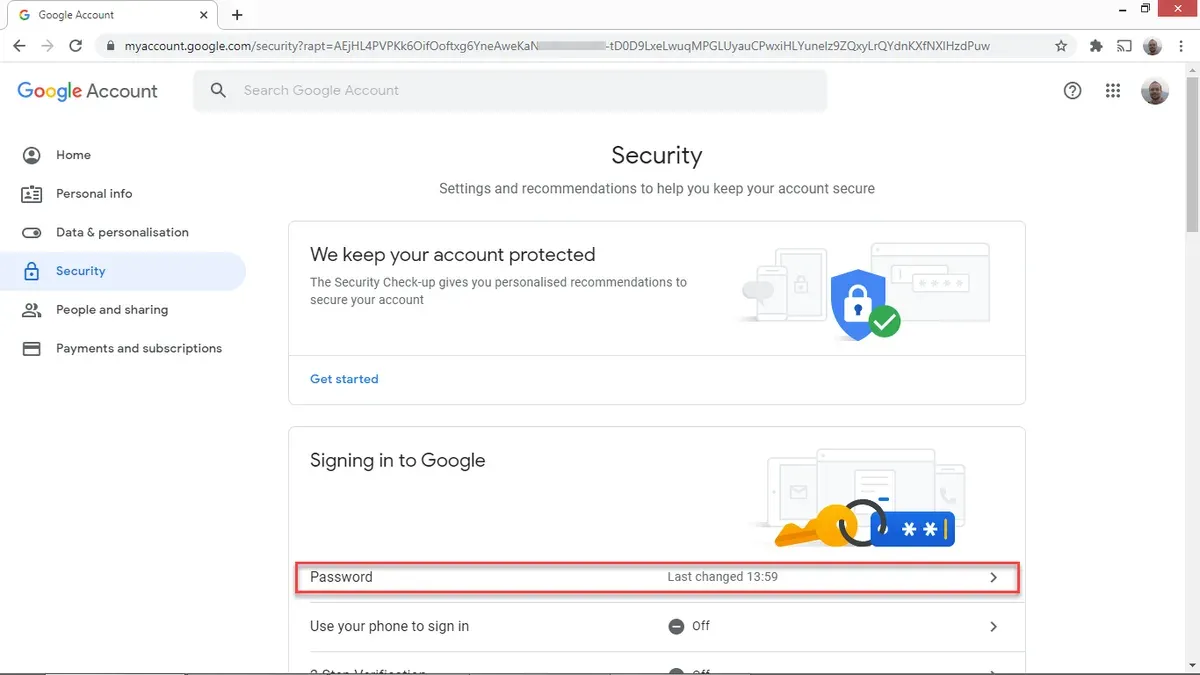
Changing password via Google Chrome
- Open Google Chrome and click the profile icon in the top-right corner; this displays the signed-in Google account information.
- Click Manage your Google Account. A new tab opens the Google Account dashboard.
- Navigate to the Security tab on the left panel.
- Scroll to the Signing in to Google section and click Password. You will be prompted to verify your current password.
- Enter the current password to proceed, then set and confirm the new password.
- Once changed, Chrome will prompt to update saved passwords and sync the new password across devices signed in with the same Google Account.
Tip: Chrome’s prompt to update saved passwords helps maintain seamless access but requires user confirmation to avoid synchronization issues.
Changing password on Samsung devices
- On a Samsung smartphone, open the Settings app and tap Accounts and backup, then Manage accounts.
- Select the Google account from the list.
- Tap Account settings, which opens the Google Account interface within the Samsung environment.
- Go to the Security tab, find the Password section, and follow prompts to verify the current password.
- Set and confirm the new password.
- If using Samsung Internet browser, visit myaccount.google.com and follow similar steps under the Security tab, as Samsung Internet does not integrate Google account management directly.
- After changing the password, Samsung devices will sync the update across apps and services linked to the Google account, though some apps may require manual re-login.
Tip: Samsung’s account integration streamlines password changes but verifying sync status in apps like Gmail or Google Play prevents unexpected access issues.
Including screenshots of the Chrome Google Account settings page and the Samsung account management screens can visually guide users through these steps, clarifying where to tap and what to expect at each stage.
Troubleshooting common issues when changing a Google account password
Changing a Google account password can encounter several common issues that affect users across devices. These problems often relate to recovery information, account security measures, verification delays, and synchronization lags.
Problems with forgotten recovery information
If recovery email addresses or phone numbers are outdated or inaccessible, Google’s verification process may fail. Users should update recovery options regularly through the Google Account Security page to avoid this issue. Without valid recovery data, identity verification becomes difficult, potentially requiring additional steps such as answering security questions or submitting identity proofs.
Account temporarily locked due to suspicious activity
Google may lock an account temporarily if unusual activity is detected during the password change attempt. This measure protects the account but can delay access. Waiting 24 to 48 hours often resolves the lockout, and users should avoid multiple rapid attempts that might worsen the lock.
Verification code not received or delayed
Verification codes sent via SMS or email may be delayed or not received due to network issues, spam filtering, or incorrect contact details. Checking the spam or junk folder, verifying contact information, and ensuring stable connectivity can help. If problems persist, using alternate recovery methods is recommended.
Password not updating across all devices immediately
After changing a password, some devices or apps may still request the old password due to cached credentials or sync delays. Signing out and back in on those devices or clearing saved passwords in browsers often resolves this. Google advises allowing up to a few hours for all devices to synchronize fully.
Step-by-step approach to resolve common issues:
- Verify and update recovery email and phone number in the Google Account Security settings; successful update confirms recovery options are current.
- If the account is locked, wait 24-48 hours before retrying the password change; a successful retry will not trigger a lock message.
- Check spam folders and confirm recovery contacts if verification codes are missing; receiving the code indicates resolution.
- Sign out and back into Google services on all devices after changing the password; seamless access without error messages confirms sync completion.
Further reading
Frequently asked questions
How to change google account password on laptop?
Access the Google Account settings by visiting myaccount.google.com and signing in. Navigate to the "Security" tab, then select "Password" under the "Signing in to Google" section. After verifying the current password, enter a new password that meets Google's criteria and confirm it to complete the change.
How to change google account password on phone?
Open the Google app or any Google service app and tap the profile icon. Select "Manage your Google Account," then go to the "Security" tab. Tap "Password" under "Signing in to Google," verify identity if prompted, and enter a new password to update it.
How to change my google account password without phone number?
On the password change page, choose the option to verify identity using alternative methods such as a recovery email or answering security questions. If these options are set up, follow the prompts to confirm identity and proceed to change the password. Without a phone number or alternative recovery options, account recovery may be limited.
How to change google account password in chrome?
In Chrome, click the profile icon at the top right and select "Manage your Google Account." Navigate to the "Security" tab and click "Password" under "Signing in to Google." Verify identity, then enter and confirm the new password to update it. Note that changing the password here updates it across all Google services.
Limitations of this guidance
This guidance assumes the user has adequate access to their recovery options, such as a linked phone number or secondary email address. Accounts without updated recovery information may require additional identity verification steps, which cannot be completed solely by following these instructions. Users who cannot access their recovery options or face account lockouts due to suspicious activity should consider contacting Google Support directly or using Google's account recovery form for further assistance.
The most useful next step is to review and update account recovery options regularly. Ensuring that a valid phone number and secondary email address are associated with the Google account can significantly simplify password changes and account recovery. This proactive measure reduces barriers when modifying sensitive account settings and helps maintain account security over time.