How to Fix Library Not Opening in Photos App: Step-by-Step Guide
Troubleshoot and fix the Photos app library not opening with practical steps to restore access and protect your valuable photos.
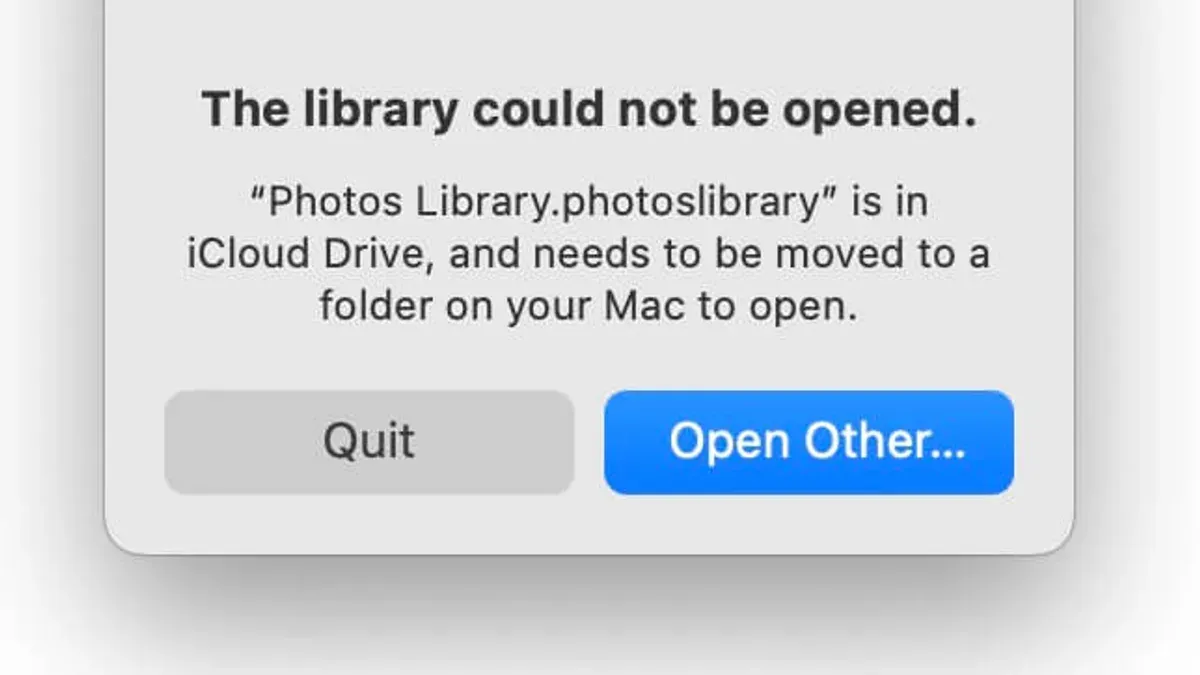
You're trying to open your Photos app library, but it just won’t load. Whether it freezes, crashes, or stays stuck on a blank screen, it can be frustrating when your photos are inaccessible.
This article covers how to fix library not opening in Photos app by guiding you through practical troubleshooting steps. You'll learn how to check your device settings, reset app data safely, repair the photo library, and address common permission or update issues—all without risking your valuable photos.
Key takeaways
- Start by checking your device’s storage and system updates.
- Resetting the Photos app cache can resolve many loading issues.
- Repairing the Photos library database helps fix corruption or errors.
- Verify app permissions and your account settings to ensure access.
- Reinstall the Photos app as a last resort if other steps don’t work.
Before you start: What you need to check
To troubleshoot the Photos app library not opening, begin by confirming your device and operating system meet the app's compatibility requirements. For example, ensure your device runs a supported OS version and that the Photos app is designed for it. Next, check your device's available storage because performance issues often arise when free space falls below 10-15% of total capacity. Low storage can prevent the app from loading libraries correctly.
Battery level is another factor; if your device has less than 20% battery, connect it to power before proceeding to avoid interruptions during troubleshooting. Before making any adjustments, back up your photos and library to protect against potential data loss. You can use cloud services like iCloud Photos or create a local backup via your device's file management tools. Cloud backups require a stable internet connection, so verify that your Wi-Fi or cellular data is active and reliable.
Having these prerequisites in place sets a solid foundation for the following steps. If your device meets these checks, you can proceed confidently to the troubleshooting process knowing your data is secure and your device is prepared.
- Verify your device's operating system version in Settings > General > About > Software Version. You should see a version number that supports the Photos app; if unsure, check the app's official requirements. When successful, you will confirm compatibility.
- Check available storage in Settings > General > iPhone Storage (or equivalent). Look for at least 10-15% free space. If storage is sufficient, the app has room to operate smoothly.
- Ensure battery is above 20% or connect to a charger to prevent interruptions. When connected or sufficiently charged, your device is ready for troubleshooting.
- Create a backup of your photos using iCloud Photos (Settings > Photos > iCloud Photos) or export your library to a computer. A successful backup means your photos are safe before changes.
- Confirm your internet connection is active by opening a web page or running a speed test. A working connection ensures cloud-based library access during troubleshooting.
Check for system updates and restart your device
Many issues with the Photos app not opening stem from temporary glitches within your device’s operating system. Checking for system updates ensures you have the latest fixes and improvements that can resolve such problems. Additionally, restarting your device refreshes system resources, clears temporary caches, and often restores app functionality without any data loss.
Follow these steps to check for updates and restart your device:
- Open the Settings app on your device.
- Scroll down and tap General, then tap Software Update. Your device will check for available updates.
- If an update is available, tap Download and Install. Wait for the process to complete; this ensures your system has the latest patches that might fix app issues.
- Once the update finishes or if no update is available, press and hold the power button until you see the Slide to power off option.
- Slide to power off, wait 30 seconds, then press the power button again to turn your device back on. After restarting, the system resources will be refreshed.
Many users find that simply updating and restarting their device solves app loading problems. After your device restarts, open the Photos app again to see if the library loads properly. If the issue persists, continue with the next troubleshooting steps.
Reset the Photos app cache and data
Corrupted temporary files in the Photos app can prevent your photo library from loading correctly. Clearing the cache removes these temporary files without affecting your photos, while resetting app data restores the app to its default state but may remove app-specific settings. You should clear the cache first, as it is safer and less disruptive. Resetting app data is a more thorough step if clearing the cache alone doesn't help.
Follow these steps to clear the Photos app cache safely:
- Open the Settings app on your device. You should see a list of apps installed.
- Scroll down and select Photos. This opens the app-specific settings.
- Tap on Storage & Cache (or similar option depending on your device). You will see the current cache size and storage used.
- Tap Clear Cache. This removes temporary files but keeps your photos and other data intact.
- Open the Photos app again and check if the library loads faster and without errors.
If problems persist, you can reset the app data by returning to the Storage & Cache menu and selecting Clear Storage or Clear Data. Note that this may erase app settings and require you to sign in again, but your photos will remain safe if they are stored in the cloud or device storage.
For example, after clearing the cache, many users notice a significant improvement in load times, often reducing delays from several minutes to just a few seconds. This step is especially effective when the app has been used intensively without restarts.
Repair the Photos library database
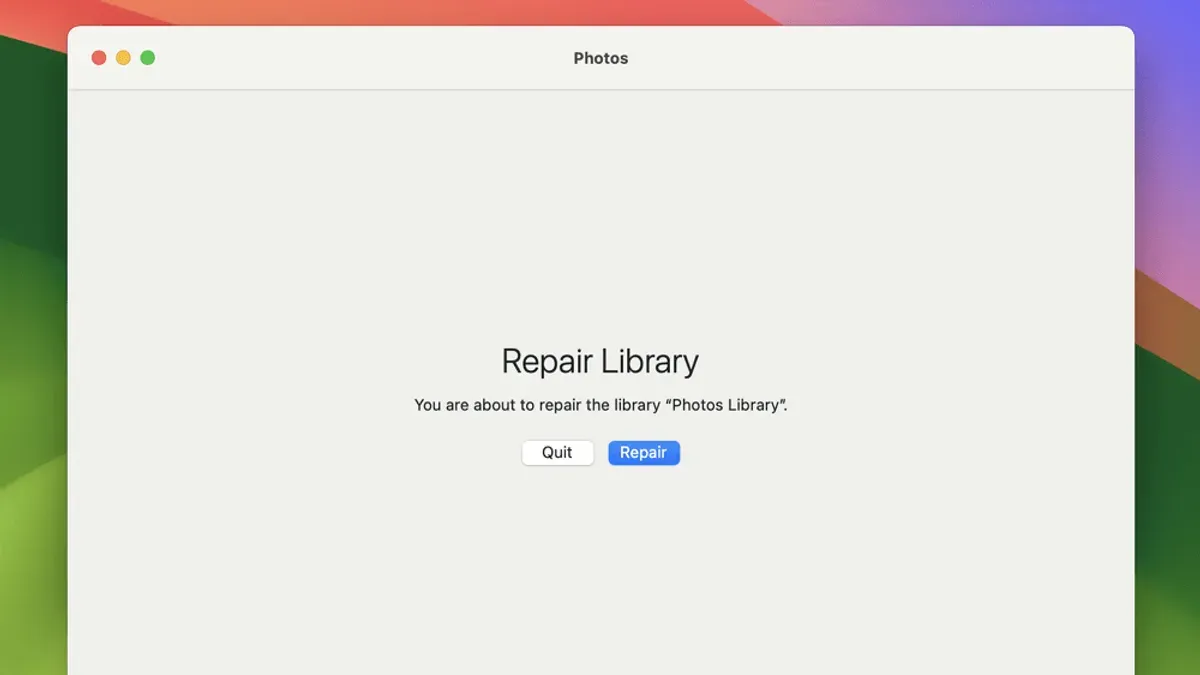
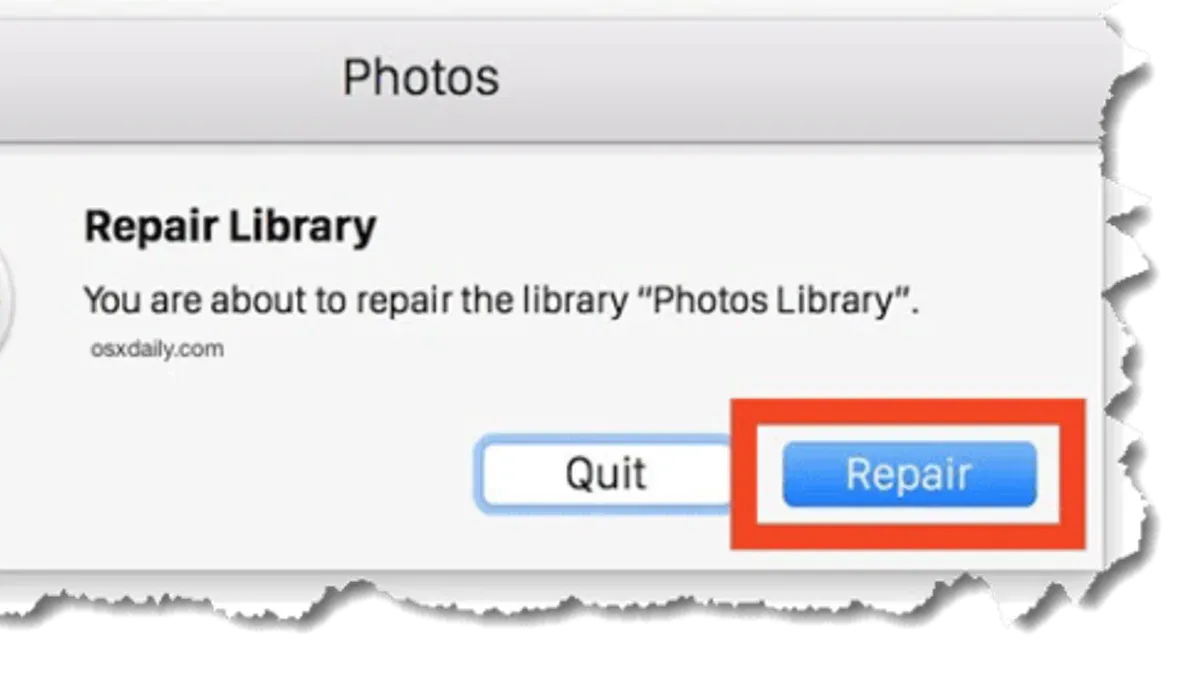
If your Photos app library fails to open and shows errors like "Library cannot be accessed" or frequent crashes, it likely indicates a corrupted or damaged database. Repairing the library database can often restore access without losing any photos. You can use the built-in repair tool provided by the Photos app or opt for reliable third-party software designed for photo library recovery.
To repair using the built-in tool:
- Close the Photos app completely.
- Hold down the Option and Command keys while reopening the Photos app.
- When prompted with the repair dialog, click Repair.
- Wait for the process to complete; you should see a progress bar indicating repair status.
- Once finished, the app will open your library if successful.
Built-in repairs work well for minor corruption but may fail with severe damage. In those cases, third-party tools like PowerPhotos or Photo Repair Utilities can scan and rebuild the database more thoroughly. These tools often have trial versions to assess repair feasibility before purchase.
If repairs do not restore the library, consider restoring your photo library from a recent backup to prevent data loss. Regular backups are critical since some corruption can be irreversible.
Check permissions and account settings
To ensure the Photos app can open your library, it must have the necessary permissions and access to your account. Missing permissions or account sync issues often prevent the app from loading your photos correctly. Start by verifying that the app has permission to access your photos and storage.
- Open your device’s Settings app and navigate to Privacy & Security > Photos. Locate the Photos app in the list and confirm it is allowed to access all photos. You should see options like "Selected Photos" or "All Photos"; choose "All Photos" for full library access.
- Go to Settings > Accounts > Your Apple ID or relevant account section. Check that you are signed in and that syncing is enabled for Photos. Look for toggles labeled "iCloud Photos" or "Sync Photos" and make sure they are on.
- Review additional privacy settings in Settings > Privacy & Security > Files and Folders. Confirm that the Photos app has permission to access storage locations, as restrictions here can block library loading.
- If permissions were adjusted, close and reopen the Photos app to see if the library loads correctly. A successful fix usually results in the app displaying your photo thumbnails and albums without errors.
Common permission issues include the Photos app being limited to "Selected Photos" access or disabled syncing in your account, both of which can stop the library from opening fully. Correcting these settings restores the app’s ability to retrieve your entire photo collection.
Reinstall the Photos app
If previous steps haven’t resolved the issue, reinstalling the Photos app can address deeper problems that simple resets miss. Before you proceed, know that uninstalling the app does not delete your photo library because it’s stored separately on your device or in the cloud. This means your photos remain safe throughout the process.
Reinstalling is appropriate when the app repeatedly crashes, fails to open the library, or shows persistent errors despite other troubleshooting. Many users report improvement after reinstalling, as it resets the app to a fresh state and clears any corrupted components.
- Open the Start menu and type Photos.
- Right-click the Photos app and select Uninstall. You should see the app removed from your list, confirming uninstallation.
- Next, open the Microsoft Store and search for Microsoft Photos.
- Click Get or Install to download and reinstall the app. Once installed, you’ll see the option to Open the app.
- Launch the Photos app and check if your library loads correctly. Your photos should appear as before, confirming the reinstall was successful.
Troubleshoot common failure points
If your Photos app opens but your photos still don’t appear, the issue might lie beyond the app itself. Start by checking your network connection, especially if you rely on cloud libraries. A slow or unstable Wi-Fi can prevent photos from syncing or loading fully.
- Open your device’s Settings and navigate to Network & Internet settings. Ensure you are connected to a reliable Wi-Fi or cellular network. When connected properly, you should see a stable signal icon and no warning messages.
- Run a network speed test using an app or website like Speedtest.net. Speeds above 5 Mbps usually support smooth photo syncing. If speeds are significantly lower, try resetting your router or switching to a different network.
- If your photos are cloud-based, sign out of your cloud account (e.g., iCloud or Google Photos) and sign back in. Upon successful login, your photos should begin to appear or sync.
- Consider hardware issues if network troubleshooting doesn’t help. Signs include frequent app crashes, freezes, or errors when opening other apps. Run a hardware diagnostics test if your device supports it, or visit a service center for professional help.
- Check your device storage and memory usage. Insufficient resources can cause app failures. Free up space by deleting unnecessary files or closing background apps. When resources improve, the Photos app should perform more reliably.
Frequently asked questions
Why isn't my photos app opening?
Your Photos app might not open because of a temporary system glitch, outdated software, or corrupted app data. Checking for system updates and restarting your device can often resolve these issues. If the problem persists, resetting the app cache or repairing the photo library database may be necessary.
Why won't my photos app open?
If the Photos app refuses to open, it could be due to insufficient permissions or conflicts with other apps. Ensure that the app has the necessary permissions in your device's settings, especially access to storage or your photo library. Also, closing background apps or reinstalling the Photos app can help restore functionality.
Photos app not opening, what should I do?
Start by restarting your device and checking for any system updates. Next, try clearing the Photos app cache or resetting its data if the option is available. If these steps fail, repairing the photo library database or reinstalling the app are effective next steps to try.
Photos not showing up in photo library, how to fix?
When photos do not appear in your library, verify that the app has permission to access your photos. Sometimes, syncing issues or corrupted library files cause this problem. Repairing the photo library database or signing out and back into your account can often restore missing photos.
What This Guide Does Not Cover
This guide focuses on software troubleshooting steps to resolve issues with the Photos app library not opening. It does not cover data recovery from severely corrupted or physically damaged storage devices. If you suspect hardware failure, such as a failing hard drive or SSD, it is best to consult professional data recovery services to avoid further data loss. Additionally, complex database repairs beyond basic rebuilding may require specialized tools or expert assistance.
For most users, the single most useful next step after completing these troubleshooting actions is to ensure your photo library is regularly backed up. Using cloud services like iCloud Photos or creating manual backups on external drives helps protect your photos in case future app or device issues arise. A reliable backup strategy minimizes the risk of losing precious memories and provides peace of mind as you continue to manage your photo collection.
See also: How to Safely Merge Two Photos Libraries in the Photos App · How to Move Your Photos Library to an External Drive in Photos App · How to Permanently Delete Recently Deleted Photos in the Photos App · How to Import Photos from Your Camera into the Photos App