Can iMac M4 Run Starcraft 2? A Clear Compatibility Guide
Learn how to run Starcraft 2 on your iMac M4 with tips on compatibility, installation, and performance optimization for smooth gameplay.
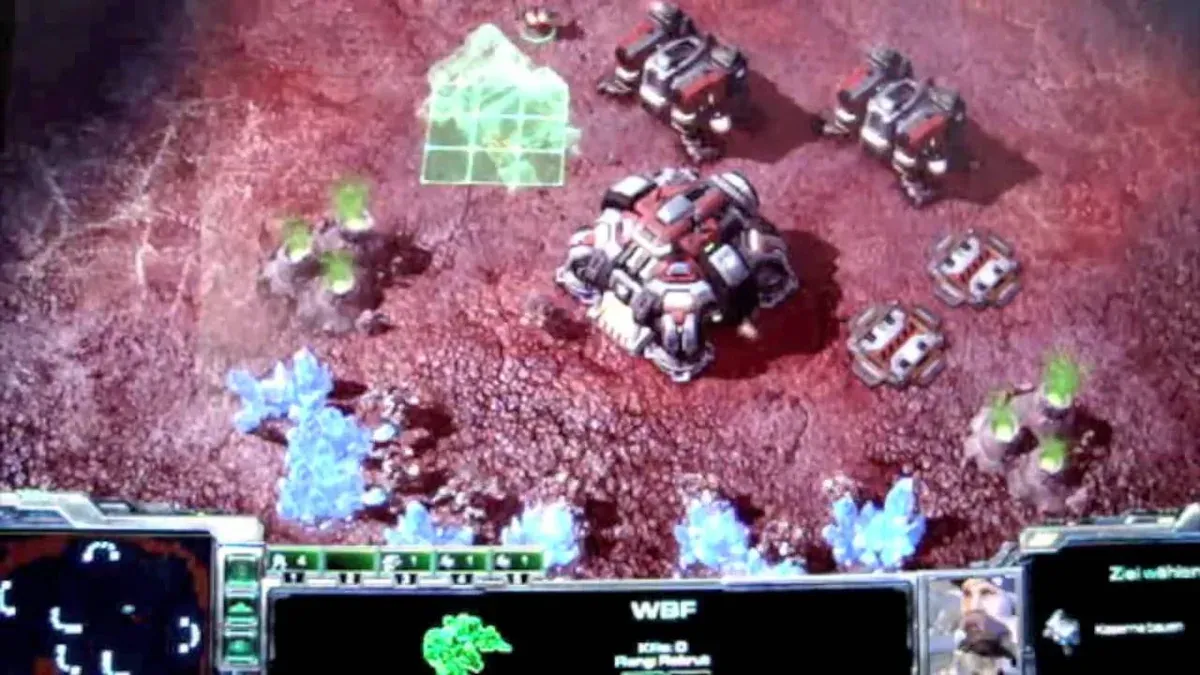
You’ve just got your hands on an iMac with the M4 chip, excited to dive back into Starcraft 2 but unsure if it will run smoothly. Wondering about compatibility and how to get started is natural, especially with the shift from Intel-based Macs to Apple Silicon.
This article answers the question, can iMac M4 run Starcraft 2, and guides you through checking your system’s readiness, installing the game and mods, and understanding performance differences compared to other Macs and PCs. If you’ve been hesitant about switching or upgrading, this clear, step-by-step guide will help you confidently enjoy Starcraft 2 on your iMac M4.
Key takeaways
- The iMac M4 supports Starcraft 2 through Apple's Rosetta 2 translation with good performance.
- Checking your macOS version and available storage helps ensure smooth installation.
- Installing Starcraft 2 and mods requires downloading via Blizzard’s Battle.net app optimized for Apple Silicon.
- Performance on the iMac M4 generally surpasses Intel Macs but may slightly trail high-end gaming PCs.
- Troubleshooting steps include updating software, adjusting graphics settings, and verifying permissions for the game to run properly.
Can I play Starcraft 2 on Mac with an iMac M4?
Yes, you can play Starcraft 2 on a Mac with an iMac M4. Blizzard officially supports macOS, and the game runs smoothly on Apple Silicon chips, including the M4. While Starcraft 2 was originally designed for Intel-based Macs, the M4’s advanced architecture delivers sufficient power to handle the game at recommended settings without noticeable lag or frame drops.
If a fully native Apple Silicon version is not yet available, Starcraft 2 benefits from Rosetta 2 translation. This allows the game to run efficiently by translating Intel instructions to work on the M4 chip, with minimal performance impact. Over time, Blizzard has improved native support, which means you can expect better integration and performance as updates roll out.
Performance benchmarks generally show the iMac M4 matching or exceeding older Intel Macs in Starcraft 2 gameplay, especially in terms of frame rates and loading times. Official Blizzard support pages confirm ongoing compatibility with Apple Silicon Macs, making the iMac M4 a reliable choice for enjoying Starcraft 2 on macOS.
How to check if my computer can run Starcraft 2
You can determine if your iMac M4 or other computer can run Starcraft 2 by comparing your system’s specifications with Blizzard’s official minimum and recommended requirements. For macOS, the minimum CPU is a quad-core Intel or Apple Silicon equivalent, with at least 4GB of RAM and a Metal-capable GPU. Recommended specs include a 6-core or better CPU, 8GB RAM, and a more powerful GPU for smoother gameplay. On Windows PCs, minimum specs generally require a 3.3 GHz Intel Core 2 Duo or AMD Athlon 64 X2, 4GB RAM, and a DirectX 9.0c compatible GPU, while recommended specs are higher, with newer CPUs and GPUs for optimal experience.
To check your iMac M4 hardware details, open the Apple menu, select “About This Mac,” and review the Overview tab for CPU type, memory, and graphics card information. This panel shows the M4 chip model and the number of GPU cores, which helps you understand your graphics capabilities. For other Macs, the same method applies, but Intel Macs will list Intel CPUs and AMD/NVIDIA GPUs if present.
The Apple M4’s integrated GPU architecture differs from typical PC GPUs, focusing on efficiency and Metal API support rather than raw shader counts. While PC GPUs often have higher theoretical power, the M4’s GPU cores are optimized for macOS games like Starcraft 2, delivering competitive performance. Understanding these architectural differences helps set realistic expectations about frame rates and settings compared to PCs.
How to install Starcraft 2 and mods on your iMac M4
Installing Starcraft 2 on your iMac M4 starts with downloading the Blizzard Battle.net app, which is the official launcher for Blizzard games. Visit https://www.blizzard.com/en-us/apps/battle.net/ and download the macOS version. Once downloaded, open the installer and follow the on-screen instructions to complete the installation. After launching Battle.net, sign in or create a Blizzard account, then locate Starcraft 2 in the Games tab and click "Install." The app handles all necessary files and updates automatically.
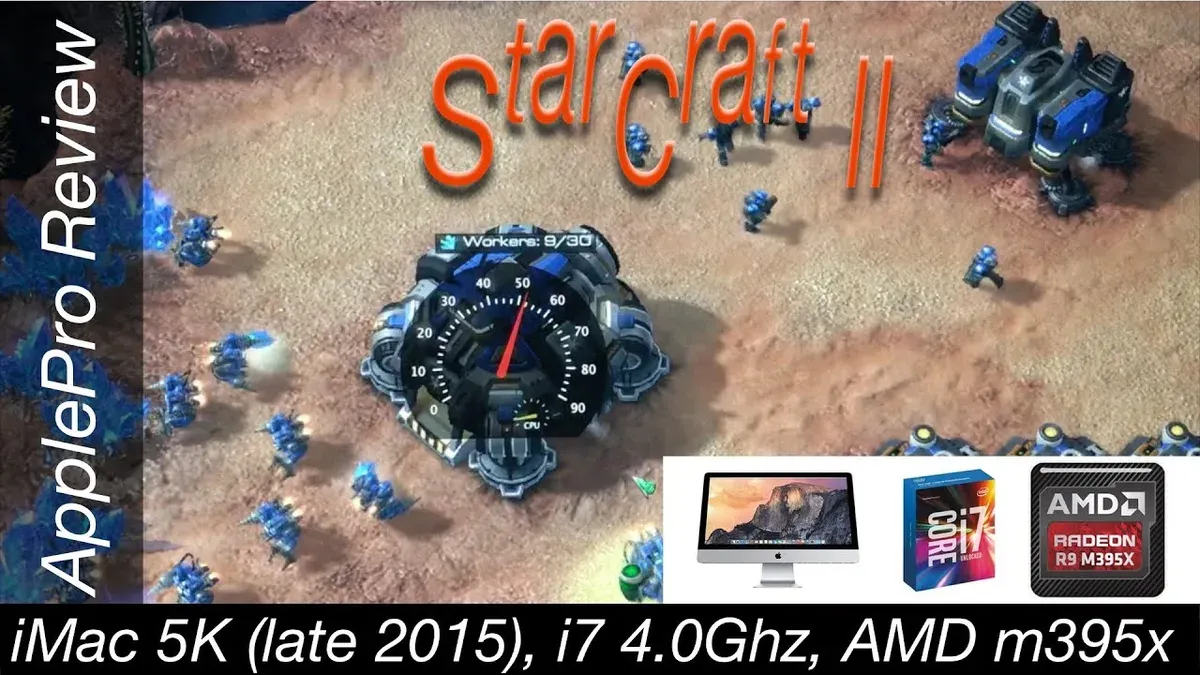
Regarding mods, Starcraft 2 supports custom modifications primarily through the in-game Arcade section and custom maps. To find mods, visit trusted repositories like https://www.sc2mapster.com/, which provides a wide range of user-created maps and mods verified for safety. Download mods compatible with macOS; most come as map files or packages that you can import directly within the game.
To install mods outside the Arcade, copy downloaded custom maps or mods to the folder ~/Documents/StarCraft II/Maps/. Launch Starcraft 2, go to Custom Games, and browse your local maps. Be mindful that some mods may require specific game versions or updates; always check mod descriptions for compatibility notes with Apple Silicon Macs like the iMac M4.
Managing your game files is straightforward via the Battle.net app’s settings, where you can set installation paths and clear cache if needed to resolve mod conflicts. If you encounter issues, restarting the game or reinstalling mods often helps. Following these steps will ensure a smooth installation and modding experience on your iMac M4.
Comparing Starcraft 2 performance: iMac M4 vs Mac Mini M4 vs PC
The iMac M4 generally delivers stronger sustained performance in Starcraft 2 compared to the Mac Mini M4 due to its improved thermal design and larger cooling system. Benchmarks indicate the iMac M4 maintains stable frame rates around 60 FPS on high settings, while the Mac Mini M4 may experience slight thermal throttling under prolonged load, causing frame rates to dip into the mid-50s. The iMac’s built-in display is optimized for smooth gameplay without external monitor lag, giving it a slight edge for fluidity.
When compared to typical gaming PCs running mid-range dedicated GPUs, Apple Silicon Macs like the iMac M4 and Mac Mini M4 usually offer lower peak frame rates but compensate with efficient power consumption and consistent performance. PCs with discrete graphics cards such as an NVIDIA GTX 1660 or AMD RX 580 can push Starcraft 2 beyond 100 FPS at high settings, but this often comes with increased heat and noise.
In real-world use, the iMac M4 supports ultra or high graphics presets comfortably, while the Mac Mini M4 is best kept at high or medium-high to avoid thermal throttling during extended sessions. PCs provide the most headroom for maxed-out settings and highest frame rates but require more setup and power. Overall, if you prioritize silent, stable performance in a compact setup, the iMac M4 is a strong choice that balances smooth Starcraft 2 gameplay with Apple Silicon’s efficiency advantages.
What to do if Starcraft 2 won’t run or has issues on your iMac M4
If Starcraft 2 crashes, runs poorly, or fails to install on your iMac M4, start by updating your macOS to the latest version through System Settings > General > Software Update. Blizzard frequently releases patches to improve compatibility, so ensure the Battle.net app and Starcraft 2 client are up to date as well.
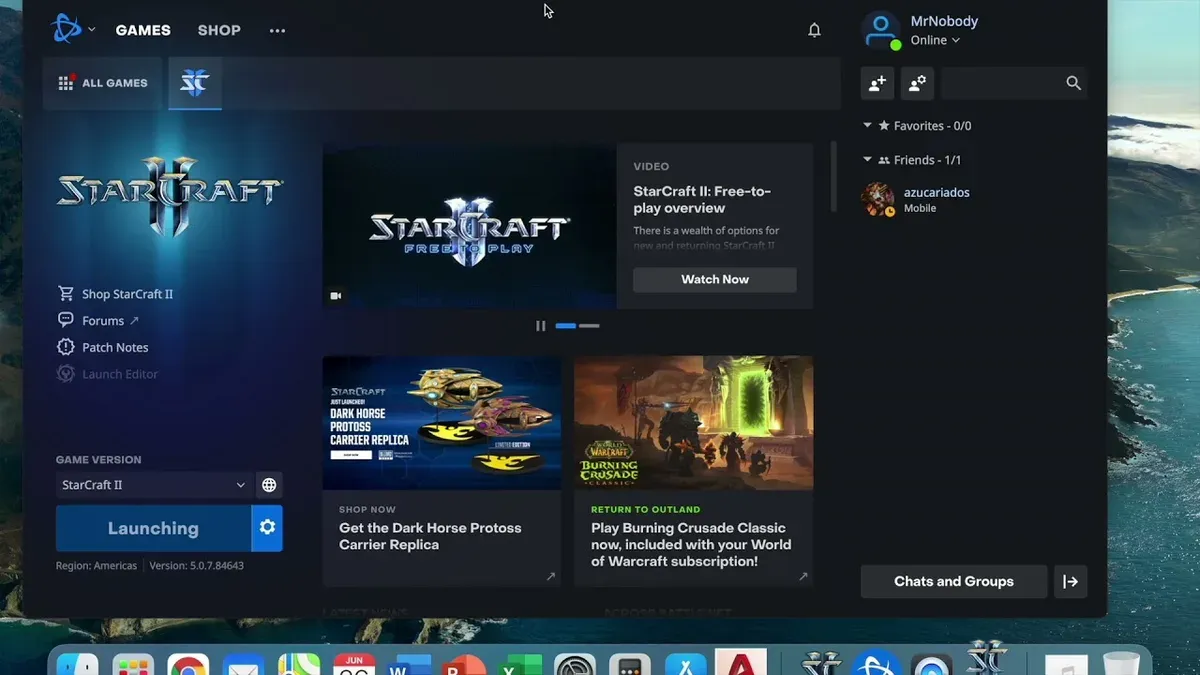
Common error messages like “Game client failed to start” or “Connection lost” often indicate corrupted files or network issues. Use the Battle.net app’s “Scan and Repair” feature to fix damaged game files. For performance drops or crashes, check if Rosetta 2 is installed, which you can verify by running a Terminal command: softwareupdate --install-rosetta. Sometimes running Starcraft 2 under Rosetta 2 rather than native Apple Silicon mode improves stability until Blizzard releases further Apple Silicon optimizations.
If problems persist, consult Blizzard’s official support site, which offers detailed troubleshooting steps tailored to macOS and Apple Silicon. User forums also share fixes for less common bugs, such as adjusting graphics settings to reduce GPU load or disabling third-party mods that may conflict with the game’s updates. Following these steps usually resolves most issues on the iMac M4.
Frequently asked questions
Can you play starcraft 2 on mac?
Yes, you can play Starcraft 2 on a Mac. The game is compatible with macOS and runs natively on Apple Silicon chips like the M4. You just need to ensure your Mac meets the minimum system requirements and that you have the latest version of macOS installed for the best experience.
Can my computer run starcraft 2?
To check if your computer can run Starcraft 2, verify that it has at least 4 GB of RAM, a compatible graphics processor, and sufficient storage space. On a Mac, the iMac M4 chip handles the game well, but you should confirm that your macOS version is supported. It’s also helpful to check Blizzard’s official requirements for any updates.
Can my pc run starcraft 2?
Most modern PCs can run Starcraft 2 if they meet the minimum hardware requirements, including a dual-core processor, 4 GB of RAM, and a DirectX 9.0c compatible graphics card. Performance will vary based on your specific hardware, but the game is optimized to run on a wide range of systems, from entry-level to high-end gaming PCs.
Can i play it starcraft 2?
If you have a Mac or PC that meets the game’s requirements, you can play Starcraft 2. Installation is straightforward via Blizzard’s Battle.net app, which manages downloads and updates. For the best experience, ensure your machine is updated and close unnecessary background applications before launching the game.
Can you play starcraft on mac?
Yes, both Starcraft and Starcraft 2 are playable on Mac systems. Blizzard provides macOS versions for these games, and with Apple Silicon Macs like the iMac M4, compatibility and performance have improved significantly. Just use the Battle.net launcher to install and run the game on your Mac.
What This Advice Does Not Cover
This advice focuses specifically on the iMac M4 and its Apple Silicon architecture. If you are using an older Intel-based Mac or a Windows PC, some steps and performance expectations may differ significantly. Additionally, performance can vary depending on your specific system configuration, such as available RAM, storage speed, and macOS version, as well as updates to Starcraft 2 itself. For users with heavily customized systems or those relying on third-party mods outside the Blizzard ecosystem, additional troubleshooting may be necessary.
For a smooth experience, ensure your macOS is updated to the latest stable release, and keep Blizzard’s Battle.net client current, as these updates often include important compatibility fixes for Apple Silicon Macs.
The single most useful next step is to open the Battle.net app on your iMac M4 and initiate the Starcraft 2 installation process. This will automatically verify system compatibility and download the correct version optimized for your M4 chip. If you encounter any issues during installation, consult Blizzard’s official support resources or look into resetting the Battle.net cache before proceeding.
See also: Can iMac M4 Run Age of Empires 2 or 4? A Clear Guide · Can Your iMac M4 Run Civilization VI? A Clear and Practical Guide · Can iMac M4 Run Cities Skylines 2? A Clear and Practical Answer · Can Your iMac M4 Run Terraria? A Clear and Honest Guide