
How to Install Jupyter Notebook on Mac: A Clear Step-by-Step Guide
This guide provides clear, step-by-step instructions to install Jupyter Notebook on Mac using various methods and offers troubleshooting tips.
You’ve decided to start working with Jupyter Notebook on your Mac, but the variety of installation methods can be confusing. Whether you prefer using pip, Homebrew, Anaconda, or integrating with Visual Studio Code, choosing the right approach depends on your setup and goals.
This guide walks you through how to install Jupyter Notebook on Mac with clear, step-by-step instructions for each method. You’ll also find troubleshooting tips and a comparison of the pros and cons to help you select the best option for your needs.
Key takeaways
- Use pip for a lightweight, straightforward installation if you already have Python set up.
- Anaconda simplifies package management and is ideal if you want an all-in-one data science platform.
- Homebrew provides a convenient way to install Jupyter with system package management.
- Integrating Jupyter with VS Code offers a powerful environment for coding and notebook editing.
- Troubleshooting common errors often involves verifying Python paths and updating packages.
Before you start: what you need to install Jupyter Notebook on Mac
To install Jupyter Notebook on your Mac, ensure your system meets basic requirements. macOS versions from Catalina (10.15) onward generally support the latest Python releases and Jupyter Notebook smoothly. Older macOS versions might require additional package compatibility checks.
First, verify if Python is installed and check its version by opening Terminal and running python3 --version. You should see Python 3.6 or later, as earlier versions may not fully support Jupyter Notebook dependencies. Similarly, confirm pip is available by running pip3 --version. If these commands fail, you will need to install Python before proceeding.
You have multiple options to install Jupyter Notebook, including pip, Homebrew, Anaconda, and integration with Visual Studio Code (VS Code). Pip is a straightforward package manager suitable for users comfortable managing Python packages directly. Homebrew is a popular macOS package manager that can handle dependencies system-wide. Anaconda offers a comprehensive data science environment with a GUI and package management tailored for Jupyter and scientific computing. VS Code integration provides an enhanced coding experience with notebook support inside a familiar editor.
Your choice depends on your workflow: use pip for simplicity, Homebrew if you rely on system-wide package management, Anaconda for a full data science toolkit, or VS Code if you want notebook functionality inside your code editor. Prepare by confirming your Python environment and picking the method aligned with your needs.
- Open Terminal on your Mac.
- Type python3 --version and press Enter. You should see a version number like 'Python 3.8.10'.
- Type pip3 --version and press Enter. You should see a pip version number confirming it’s installed.
- If either command fails, download and install the latest Python 3 from python.org or consider installing Anaconda for an all-in-one solution.
How to install Jupyter Notebook on Mac using pip
Installing Jupyter Notebook with pip provides a direct, command-line approach ideal for users comfortable managing Python packages. Using a virtual environment helps keep your Python setup clean and isolated.
- Open the Terminal app on your Mac.
- Create a virtual environment by running python3 -m venv jupyter_env. This sets up an isolated Python space named jupyter_env.
- Activate the virtual environment:
source jupyter_env/bin/activate. Your prompt should now show the environment name, confirming activation. - Install Jupyter Notebook within this environment:
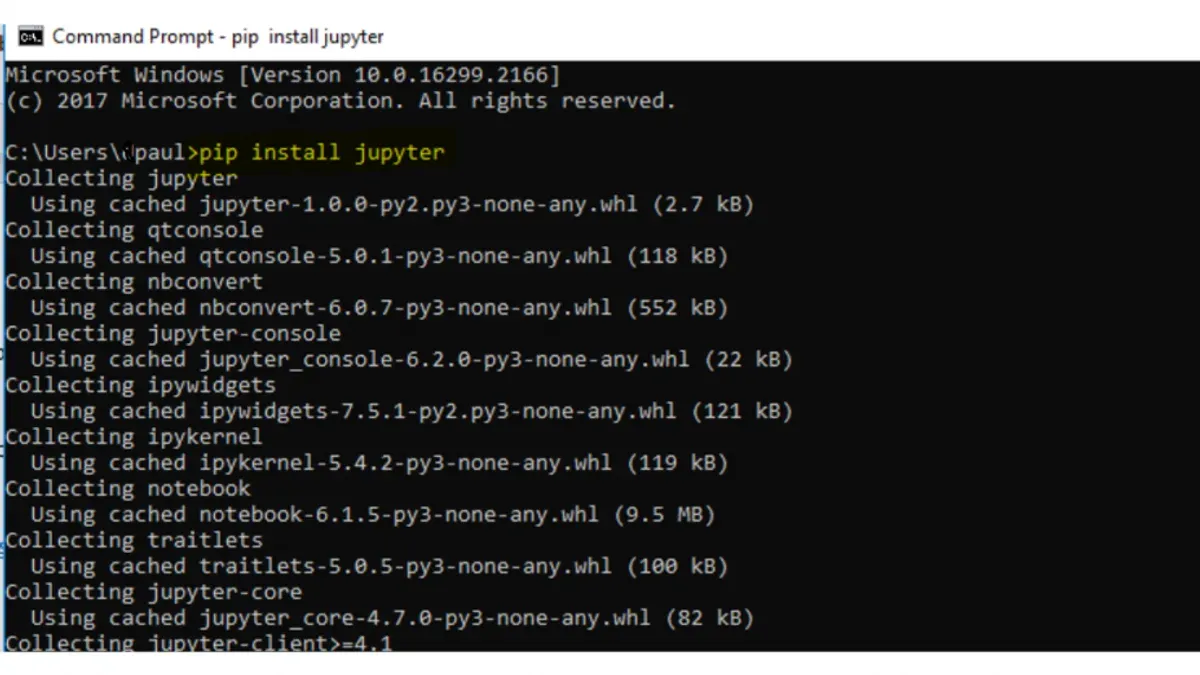
pip install notebook. You should see pip downloading and installing packages without errors. - Verify the installation by checking the version:
jupyter notebook --version. A version number (e.g., 6.4.12) indicates success. - Launch Jupyter Notebook by typing:
jupyter notebook. This opens a browser window or tab with the Jupyter interface, showing the file browser for your current directory.
When finished, deactivate the virtual environment with deactivate to return to your system Python. Using virtual environments prevents package conflicts and keeps your workspace organized.
How to install Jupyter Notebook on Mac with Anaconda
Anaconda offers a comprehensive data science environment that simplifies managing Python packages and environments, making it a popular choice for Jupyter Notebook installation on Mac.

- Download the Anaconda installer for Mac from the official Anaconda website. Choose the Python 3.x graphical installer compatible with your macOS version.
- Open the downloaded.pkg file and follow the installation prompts. Once complete, you should have both Anaconda Navigator and the conda command-line tool installed.
- Launch Anaconda Navigator from your Applications folder. In the Navigator interface, locate and click the Launch button under the Jupyter Notebook tile. This opens Jupyter Notebook in your default web browser, ready for use.
- Alternatively, open the Terminal and run
jupyter notebookafter activating the Anaconda environment withconda activate base. The terminal will display the notebook server URL and token, confirming a successful launch. - Use Anaconda’s environment management to create isolated environments for different projects with
conda create -n myenv python=3.xand activate them viaconda activate myenv. This minimizes dependency conflicts compared to pip installations.
Compared to pip, Anaconda’s setup may take longer initially due to its large installer but provides easier dependency resolution and environment management through conda. Launching Jupyter from Navigator offers a graphical method, while terminal commands provide flexibility for advanced users.
How to install Jupyter Notebook on Mac using Homebrew
Homebrew is a popular package manager for macOS that simplifies installing software like Python and Jupyter Notebook. If you haven't installed Homebrew yet, you'll need to do that first.
- Open the Terminal app on your Mac.
- Check if Homebrew is installed by typing brew --version and pressing Enter. If installed, you will see a version number; if not, proceed to install it.
- To install Homebrew, enter the command /bin/bash -c "$(curl -fsSL https://raw.githubusercontent.com/Homebrew/install/HEAD/install.sh)". Follow the on-screen instructions until the installation completes. Successful installation shows a "Installation successful!" message.
- Install Python using Homebrew by typing brew install python. You will see output showing the download and installation progress, ending with "Pouring python--version.catalina.bottle.tar.gz" and "🍺 /usr/local/Cellar/python/version:..." confirming success.
- Once Python is installed, install Jupyter Notebook by running pip3 install notebook. The Terminal output will list installed packages and finish without errors.
- Verify the installation by typing jupyter notebook. The command should launch Jupyter Notebook, opening a browser window with the notebook dashboard.
Using Homebrew ensures you get a manageable Python installation and an easy way to update packages. However, it requires familiarity with the Terminal and does not include the integrated data science tools that Anaconda provides.
How to install Jupyter Notebook on Mac with VS Code integration
Visual Studio Code (VS Code) provides seamless integration with Jupyter Notebooks, allowing you to create, edit, and run notebooks within the editor. Follow these steps to set up Jupyter Notebook in VS Code on your Mac.
- Download and install VS Code from the official website. After installation, launch VS Code. You should see the welcome screen or the editor interface.
- Open VS Code's Extensions view by clicking the square icon on the sidebar or pressing Shift+Command+X. In the search bar, type "Jupyter" and install the extension named Jupyter by Microsoft. When installed, the extension enables notebook support.
- Ensure that Python is installed and accessible on your Mac. In VS Code, open the Command Palette with Shift+Command+P, type "Python: Select Interpreter", and choose the Python environment where Jupyter is installed. This configures VS Code to use the correct Python runtime.
- Create a new Jupyter Notebook by clicking File > New File and saving it with a
.ipynbextension, or open an existing notebook file. VS Code will display the notebook interface with cells ready for input. - Run notebook cells by clicking the run icon (a triangle) next to each cell or pressing Shift+Return. The output will appear inline below the cell, confirming that the integration works.
When set up correctly, VS Code offers syntax highlighting, variable explorer, and interactive debugging within notebooks. If you see errors related to the Python environment or Jupyter server startup, verify your interpreter selection and that Jupyter is installed in that environment.
How to install Jupyter Notebook on Mac using the Terminal
Using the Terminal on your Mac provides a unified way to install and launch Jupyter Notebook regardless of your preferred package manager. You can execute commands for pip, Homebrew, or Anaconda within the terminal environment and manage your PATH and environment variables effectively.
- Open the Terminal app from Applications > Utilities. You should see a prompt ending with your username and Mac hostname, such as
username@MacBook-Pro ~ %. - To install Jupyter Notebook via pip, run
pip install notebook. Success is indicated by output ending with Successfully installed notebook. - If you prefer Homebrew, first install Python using
brew install pythonif not already installed, then runpip3 install notebook. A successful install shows Successfully installed notebook. - With Anaconda installed, activate its environment using
conda activate baseor your chosen environment, then launch Jupyter withjupyter notebook. The terminal will display a URL likehttp://localhost:8888/?token=...confirming it is running. - To launch Jupyter Notebook directly from the terminal, type
jupyter notebookand press Enter. The output should include a message like Serving notebooks from local directory and open the notebook interface in your default browser. - If you encounter a “command not found” error, check your PATH by running
echo $PATH. Ensure the directory containing Jupyter executables is listed. You may need to add this path to your shell profile file (e.g.,~/.zshrcor~/.bash_profile) usingexport PATH="/path/to/jupyter/bin:$PATH"and then reload the profile withsource ~/.zshrc.
Using the terminal consolidates your installation and launching process, giving you control and visibility into each step with clear command outputs.
Troubleshooting common installation problems on Mac
Python version conflicts often cause installation errors like "ModuleNotFoundError" or "Python version mismatch". Verify your Python version by running python3 --version in Terminal. If multiple Python versions exist, specify the interpreter explicitly when installing packages or launching Jupyter.
PATH or environment variable issues may prevent the system from finding Jupyter commands. Check your PATH with echo $PATH. If Jupyter is installed but not recognized, add its directory to PATH, for example: export PATH="~/Library/Python/3.x/bin:$PATH" (replace 3.x with your version).
Permission errors like "Permission denied" can occur during package installation. Avoid using sudo with pip; instead, install packages within a virtual environment or use user installs with pip install --user. If needed, adjust permissions with chmod on affected directories.
If Jupyter Notebook fails to launch or the kernel does not start, check for missing dependencies or conflicting extensions. Running jupyter notebook --debug reveals detailed error messages. Common fixes include reinstalling ipykernel (pip install --upgrade ipykernel) and ensuring the selected Python interpreter matches the environment where Jupyter is installed.
- Run python3 --version to confirm your Python version; you should see the expected version number.
- Check PATH by running echo $PATH; ensure the Jupyter install directory is listed.
- If permission errors occur, avoid using sudo with pip; create a virtual environment instead.
- Launch Jupyter with jupyter notebook --debug to get detailed error logs.
- If the kernel won't start, update ipykernel with pip install --upgrade ipykernel and restart Jupyter.
Comparing installation methods to choose the best for you
Choosing the right installation method for Jupyter Notebook on Mac depends on your skill level, workflow, and maintenance preferences. Each method has distinct advantages and trade-offs to consider.
| Method | Features | Ease of Setup | Maintenance | Best for |
|---|---|---|---|---|
| pip | Lightweight, flexible, integrates well with Python virtual environments | Moderate; requires command line use and environment management | Manual updates and environment handling | Intermediate users comfortable with Python and terminal |
| Anaconda | All-in-one data science platform with GUI and package management | Easy; graphical installer and environment manager | Automated dependency management, but larger disk usage | Beginners and data scientists focusing on integrated tools |
| Homebrew | System-wide Python and Jupyter install, integrates with Mac package ecosystem | Easy for users familiar with Homebrew | Requires regular brew updates and Python version management | Developers who prefer Mac-native package management |
| VS Code Integration | Notebook editing inside IDE, requires Python and Jupyter installed separately | Easy if VS Code is already in use; setup involves installing extensions | Depends on underlying Python/Jupyter setup | Developers wanting an all-in-one code and notebook environment |
To decide, consider this process:
- Identify your comfort level with command line and environment management; if low, Anaconda offers the simplest start.
- Assess if you want a lightweight setup or an integrated platform; pip is lightweight but requires manual management, Anaconda is integrated but heavier.
- Check if you use Homebrew regularly; it streamlines system-wide installs but needs upkeep.
- Consider if you want notebook editing within an IDE; VS Code integration suits developers who prefer that workflow.
- Match your choice to your role: beginners and data scientists may prefer Anaconda, developers might lean toward Homebrew or VS Code, and intermediate Python users often select pip.
This comparison helps you select the method aligning best with your workflow and maintenance preferences.
- How to Install Miniconda on Mac: A Clear Step-by-Step Guide
- How to Install Anaconda on Mac: A Clear Step-by-Step Guide
- How to Install Node.js with NVM on Mac: A Clear Step-by-Step Guide
Frequently asked questions
How to install jupyter on mac?
You can install Jupyter on a Mac using several methods, including pip, Homebrew, Anaconda, or integrating it with VS Code. The simplest way is usually installing via pip by running pip install notebook in the Terminal, but if you prefer a full data science environment, Anaconda is a solid choice. Homebrew offers a package manager approach, and VS Code integration allows running notebooks within the editor.
How to install Jupyter Notebook on MacBook Air?
Installing Jupyter Notebook on a MacBook Air follows the same steps as on other Macs. Ensure you have Python installed, then choose your preferred installation method: pip for a lightweight setup, Anaconda for an all-in-one solution, or Homebrew if you use it for package management. The MacBook Air’s hardware supports all these options effectively.
How to install Jupyter Notebook on Mac using pip?
First, confirm Python and pip are installed by running python3 --version and pip3 --version in Terminal. Then, execute pip3 install notebook to install Jupyter Notebook. After installation, launch it with jupyter notebook, which opens the interface in your default web browser.
How to install Jupyter Notebook on Mac with Anaconda?
Download the Anaconda installer for macOS from the official website and run the installer package. Anaconda bundles Jupyter Notebook and many scientific packages, so installation includes Jupyter by default. After installation, open Terminal and type jupyter notebook to start it, or launch it via the Anaconda Navigator app.
How to install Jupyter Notebook on Mac using Homebrew?
Make sure Homebrew is installed by running brew --version in Terminal. Then, install Jupyter Notebook by running brew install jupyterlab, which includes the Notebook interface. Launch Jupyter with jupyter notebook. Homebrew simplifies managing dependencies but may install a newer JupyterLab interface by default.
What this guide does not cover and who should look elsewhere
This guide does not cover advanced Jupyter configurations such as JupyterLab or remote server setups, which require additional steps and considerations. If you need multi-user environments, secure remote access, or customized kernels beyond the basic notebook experience, exploring specialized documentation or platform-specific tutorials is advisable.
For users working within enterprise environments or requiring integration with cloud services, dedicated IT support or cloud provider resources might be better suited to guide the installation and configuration process.
To get started, pick the installation method that aligns best with your current setup and preferences. If you use Python regularly and prefer simplicity, the pip method often provides a straightforward path. Alternatively, if you want an all-in-one data science platform, Anaconda offers a robust package management system. Once installed, launch Jupyter Notebook from your Terminal or application launcher and try running a basic notebook to confirm your setup is working properly before moving to more complex projects.



