
How to Install WhatsApp on Your Mac: A Clear Step-by-Step Guide
Discover simple steps to install WhatsApp on your Mac, including options for older devices and users without iPhones.
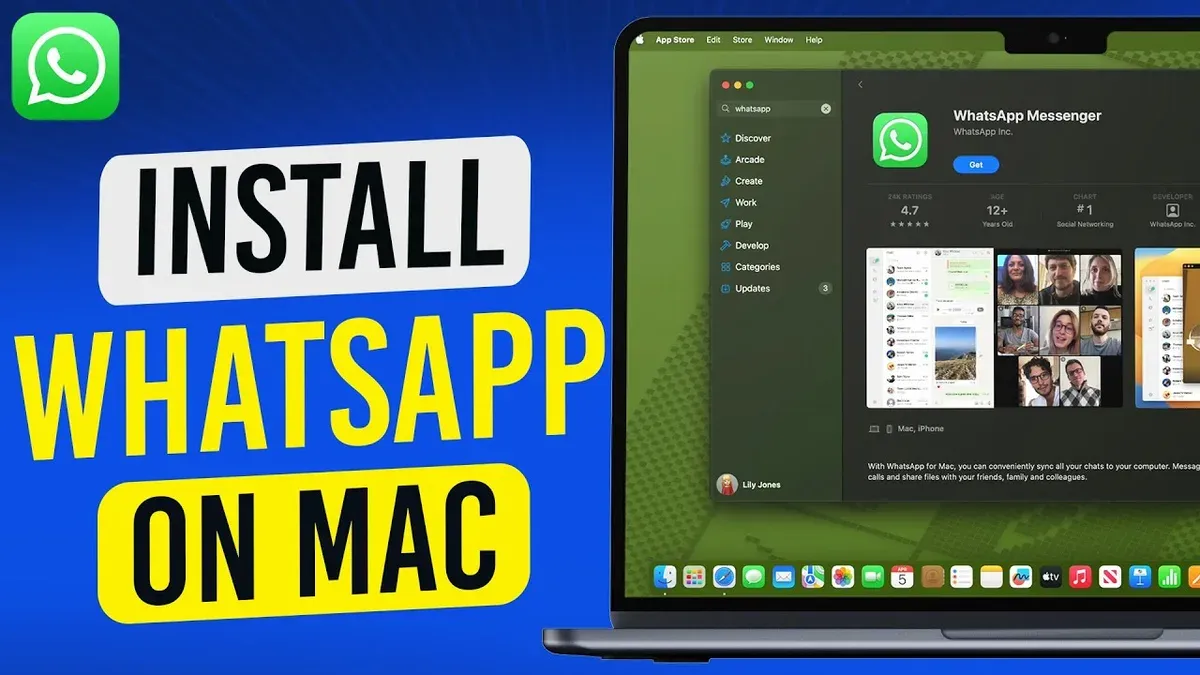
You want to stay connected on WhatsApp while working on your Mac, but figuring out the best way to install it can be confusing, especially if your Mac hardware or macOS version is older. Whether you have a MacBook, Mac Mini, or an older model, and whether or not you own an iPhone, there are practical ways to get WhatsApp running smoothly.
This article covers how to install WhatsApp on Mac across diverse device types and macOS versions, including options for users without iPhones. Clear troubleshooting tips are included to help you resolve common issues and ensure reliable use.
Key takeaways
- You can install the WhatsApp desktop app from the official website, compatible with most recent macOS versions.
- Older Macs and macOS versions may require alternative methods like WhatsApp Web or third-party apps.
- Users without iPhones can still use WhatsApp on Mac by registering with a phone number on the desktop app.
- Common setup issues often involve QR code scanning or network permissions, which can be resolved with simple troubleshooting.
Before you start: What you need to install WhatsApp on Mac
To install WhatsApp on your Mac, ensure you have a compatible device such as a MacBook, MacBook Air, MacBook Pro, or Mac Mini. The WhatsApp desktop app supports macOS Catalina 10.15 and later versions. If you are using an older macOS version, especially on devices like the MacBook Pro 2012, you may encounter compatibility challenges.
A stable internet connection is required for downloading the app and syncing messages. You will also need the WhatsApp mobile app installed on a smartphone for the initial setup to scan the QR code, although alternatives exist if you do not have an iPhone.
Access to the Apple ID and the App Store is necessary to download the official WhatsApp desktop app. Alternatively, you can use WhatsApp Web through a browser if you prefer not to install the app or face device limitations.
- Check your Mac model and macOS version by clicking the Apple menu > About This Mac. Confirm your macOS is 10.15 Catalina or later for full WhatsApp desktop app compatibility.
- Ensure your Mac is connected to a stable internet network. You should be able to browse websites without interruptions.
- Verify that you have the WhatsApp mobile app installed on your smartphone. Open the app and prepare to scan a QR code for linking your Mac.
- Sign in to the Mac App Store with your Apple ID to download the WhatsApp desktop app. If you prefer not to install the app, open a modern web browser to access web.whatsapp.com.
How to install WhatsApp on MacBook, MacBook Air, and MacBook Pro
Installing WhatsApp on your MacBook, MacBook Air, or MacBook Pro involves downloading the official desktop app and linking it to your mobile WhatsApp account. This method offers a more integrated experience than WhatsApp Web, with notifications and file sharing optimized for macOS.
- Open a web browser and go to the official WhatsApp download page at https://www.whatsapp.com/download or open the Mac App Store.
- On the WhatsApp download page, click the green “Download for Mac OS X” button. If using the Mac App Store, search for “WhatsApp” and click “Get” to download the app.
- Once the download completes, open the WhatsApp.app from your Downloads folder or Launchpad. The installation is automatic upon opening the app.
- When WhatsApp launches, a QR code will appear on the screen. Open WhatsApp on your phone, tap the Settings (iPhone) or Menu (Android) icon, then select “Linked Devices.” Tap “Link a Device” and scan the QR code displayed on your Mac screen.
- After scanning, your WhatsApp messages will sync on the desktop app. You can now send messages, create groups, and share files directly from your Mac.
The desktop app supports push notifications and keyboard shortcuts, providing a smoother experience than the browser-based WhatsApp Web. However, WhatsApp on Mac still requires your phone to be connected to the internet to send and receive messages.
Refer to on-screen prompts if the QR code scan fails, such as closing and reopening the app or restarting your phone’s WhatsApp. This installation works seamlessly on MacBooks running macOS 10.15 or later.
How to install WhatsApp on Mac desktop and Mac Mini
Installing WhatsApp on Mac desktop computers and Mac Mini units follows a process similar to laptops but requires attention to macOS compatibility and device specifics.
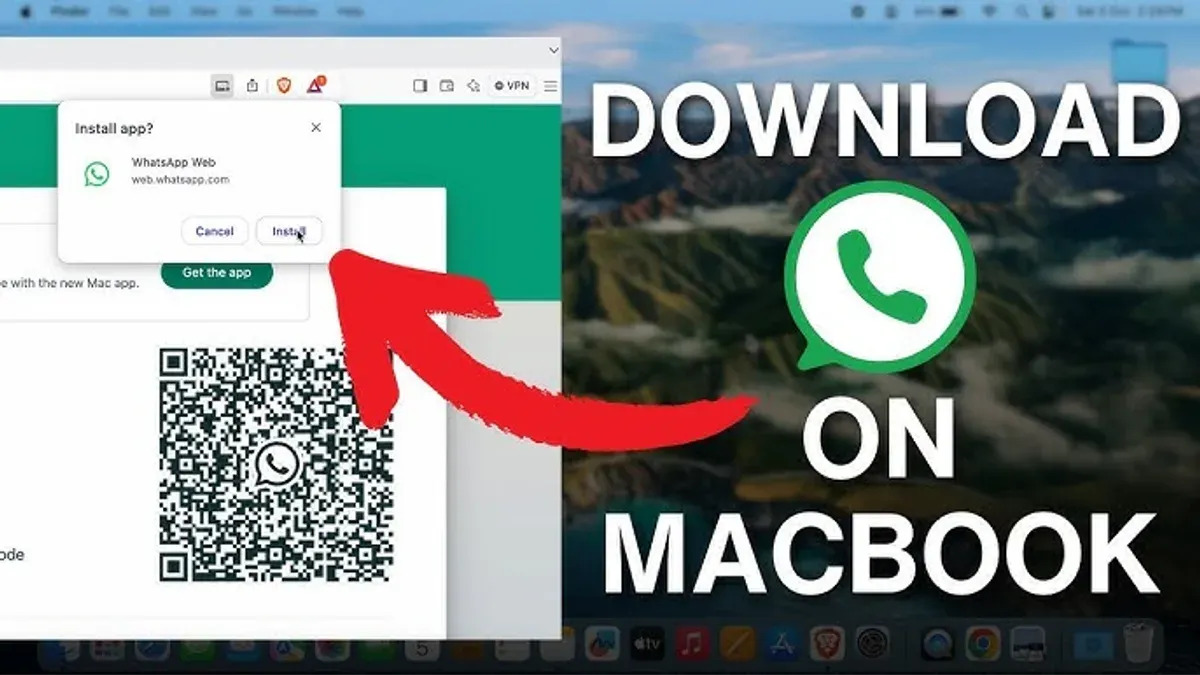
- Open the App Store on your Mac desktop or Mac Mini. You should see your desktop or Mini model name in the About This Mac window under the Apple menu to confirm device type.
- Search for "WhatsApp" in the App Store. If your macOS version is 10.15 Catalina or later, the official WhatsApp desktop app will appear. Select it to download.
- Click "Get" and then "Install App." Once downloaded, the WhatsApp icon will appear in your Applications folder and Launchpad.
- Open the WhatsApp app. You will be prompted with a QR code screen to link your mobile WhatsApp account.
- On your smartphone, open WhatsApp, go to Settings > Linked Devices > Link a Device. Scan the QR code displayed on your Mac screen.
- After scanning, your WhatsApp messages will sync to your Mac desktop or Mini, allowing full use of the app.
- If your desktop Mac runs an older macOS version that does not support the WhatsApp app, open a web browser and navigate to https://web.whatsapp.com. Use the same QR code linking method to access WhatsApp Web as an alternative.
Checking your macOS version is essential: go to Apple menu > About This Mac. Versions before 10.15 will not support the desktop app but can use WhatsApp Web instead. This approach ensures you can use WhatsApp on virtually any Mac desktop or Mini, regardless of age or software.
How to install WhatsApp on macOS Catalina 10.15 and other older macOS versions
The official WhatsApp desktop app requires macOS 11 Big Sur or later, which means macOS Catalina 10.15 and earlier versions are not fully supported. Attempting to install the app on Catalina often leads to compatibility errors or the app failing to launch.
If you are using Catalina or older macOS, the most reliable method to use WhatsApp on your Mac is through WhatsApp Web. It runs in your browser without compatibility restrictions and offers core messaging features.
Alternatively, some third-party apps claim to provide WhatsApp access on older macOS versions by wrapping the web client in a native-like interface. While these can offer convenience, they come with risks such as security vulnerabilities, lack of official support, and potential privacy issues. Use these cautiously and ensure they come from reputable sources.
To keep your Mac secure and ensure the best app compatibility, regularly check System Preferences > Software Update for macOS updates. Upgrading to a newer macOS version when possible improves WhatsApp app support and overall system security.
How to install WhatsApp on MacBook Pro 2012 and other older Mac models
Older Mac models like the MacBook Pro 2012 often run macOS versions earlier than 10.15 or have hardware that limits running the official WhatsApp desktop app. The app requires macOS 10.15 or later and at least 4GB of RAM for smooth performance. On machines with less memory or older processors, the app may run slowly or fail to launch.
For these Macs, WhatsApp Web is the recommended solution. It works through a web browser without installation, making it compatible regardless of your macOS version or hardware. Using a modern browser like Safari, Chrome, or Firefox ensures the best experience.
Performance-wise, WhatsApp Web is lighter on system resources compared to the desktop app on older hardware. However, it depends on a stable internet connection and browser security settings. Keep your browser updated to avoid vulnerabilities and consider using private browsing windows to protect your account from unauthorized access.
- Open your preferred web browser on your MacBook Pro 2012 or older Mac.
You should see the browser’s homepage or your default start page. - Navigate to https://web.whatsapp.com.
A QR code will display on the page. - On your smartphone with WhatsApp installed, open the app, go to Settings > Linked Devices > Link a Device.
The camera will activate to scan the QR code. - Scan the QR code shown in your browser using your phone.
WhatsApp Web will load your chats and contacts on the browser. - Use WhatsApp in the browser as you would in the app, remembering to log out from WhatsApp Web when finished for security.
Your messages will sync, and you can send and receive them from your Mac.
How to install WhatsApp on MacBook without an iPhone
You can use WhatsApp on your MacBook even if you don't have an iPhone. WhatsApp supports Android and other smartphones for account setup and linking with the desktop app.
To install WhatsApp desktop with an Android phone:
- Open WhatsApp on your Android smartphone.
- Tap the three-dot menu in the top-right corner and select Linked devices.
- Tap Link a device and grant camera permission to scan QR codes.
- On your MacBook, open the WhatsApp desktop app or visit web.whatsapp.com if you prefer the browser version.
- Scan the QR code displayed on your Mac with your phone's WhatsApp scanner.
- Once scanned, your WhatsApp account will link, and messages will sync to your MacBook.
This process works similarly with other smartphones that support WhatsApp. However, initial account setup requires a phone number and must be completed on a mobile device first.
Using WhatsApp Web is a universal alternative if you do not want to install the desktop app. It works on all modern browsers across devices.
WhatsApp’s multi-device beta allows you to use WhatsApp on your MacBook without keeping your phone constantly connected. This improves usability but can have security trade-offs, such as slightly increased risks if your MacBook is shared or compromised.
Always ensure you log out from linked devices you no longer use to maintain account security.
Installing WhatsApp Web on Mac: When and how to use it
WhatsApp Web is a convenient alternative to the desktop app, especially for older Macs or environments where app installation is restricted. You access it through any modern browser on your Mac, such as Safari, Chrome, or Firefox.
Unlike the desktop app, WhatsApp Web requires your phone to stay connected to the internet for messaging. It offers core features like sending messages, photos, videos, voice notes, and group chats, but lacks some desktop-specific functions such as native notifications and multi-device management.
| Feature | WhatsApp Web | WhatsApp Desktop App |
|---|---|---|
| Message sending and receiving | Yes | Yes |
| Voice and video calls | No | Yes |
| Native notifications | No, browser notifications only | Yes |
| Multi-device support | Limited | Full |
| File sharing | Yes | Yes |
To use WhatsApp Web on your Mac:
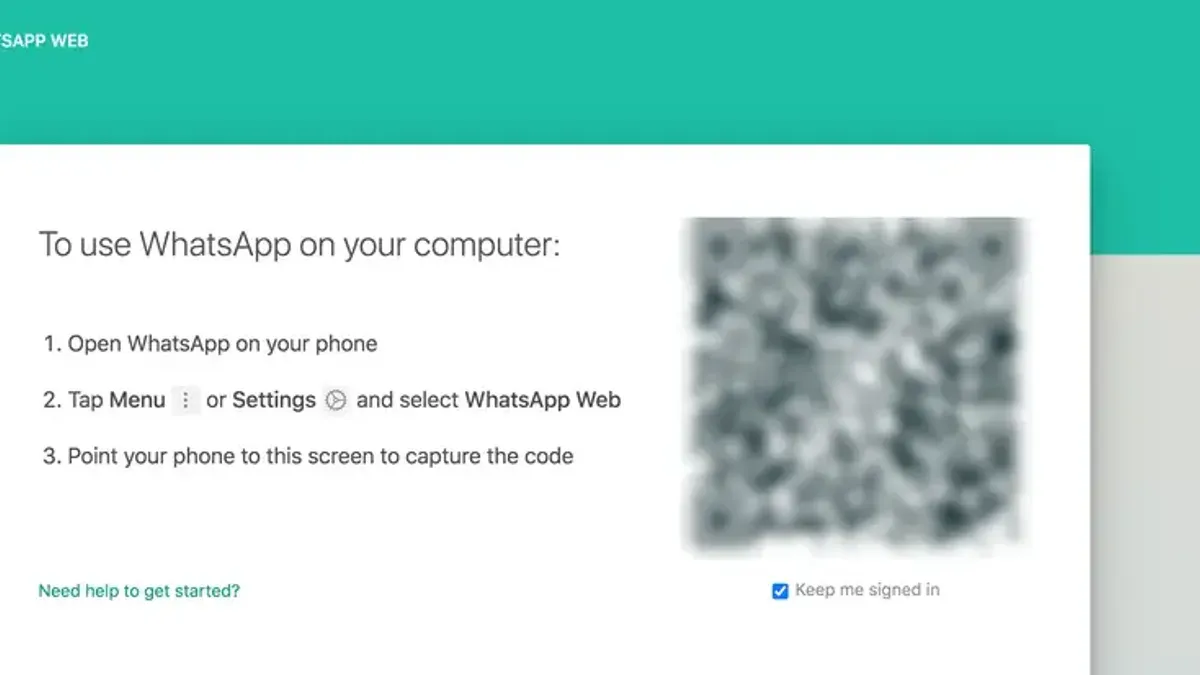
- Open your preferred browser and go to https://web.whatsapp.com. You will see a QR code displayed.
- On your smartphone, open WhatsApp, tap the menu icon (three dots on Android or Settings on iPhone), then select Linked Devices.
- Tap Link a Device and point your phone’s camera at the QR code on your Mac screen.
- Once scanned, your WhatsApp chats will load in the browser, indicating a successful connection.
Security is crucial when using WhatsApp Web. Always log out from the web session when finished, especially on shared or public Macs. You can log out via the web interface or remotely from your phone’s Linked Devices menu. Avoid using WhatsApp Web on unknown or untrusted networks to reduce risks.
Troubleshooting common issues when installing or using WhatsApp on Mac
If the WhatsApp desktop app fails to install or open, first check your macOS version meets the minimum requirement of 10.15 or later. Ensure you have enough disk space and a stable internet connection. Restart your Mac and try reinstalling from the official App Store. If the app still won’t open, delete it completely and remove related cache files found in ~/Library/Application Support/WhatsApp.
Problems scanning the QR code during login are often due to poor camera focus or unstable internet on your phone. Clean your phone’s camera lens, hold the phone steady, and refresh the QR code on your Mac. Also, confirm your phone and Mac are connected to the internet.
Sync issues between your phone and Mac typically happen when the phone disconnects from WhatsApp or the multi-device feature is not enabled. On your phone, open WhatsApp Settings > Linked Devices to check if your Mac is listed and connected. If not, link it again by scanning the QR code.
Performance lags or crashes on older Macs can be reduced by closing other apps to free memory and disabling unnecessary startup programs. Using WhatsApp Web in a modern browser like Safari, Chrome, or Firefox can also improve stability.
Network or firewall restrictions can block WhatsApp connections. Make sure ports 443 and 5222 are open on your network, and check that any firewall or security software isn’t blocking WhatsApp or the browser you use. Temporarily disabling VPNs or proxies may resolve connectivity issues.
- Check macOS version and disk space; reinstall WhatsApp from the App Store; expect the app to launch without errors.
- Clean your phone’s camera; steadily scan the QR code; see the WhatsApp interface loading on your Mac.
- Verify linked devices in WhatsApp on your phone; rescan the QR code if needed; confirm messages sync across devices.
- Close other apps to free RAM; switch to WhatsApp Web if issues persist; notice smoother performance.
- Check network settings to ensure ports 443 and 5222 are open; disable VPN/proxy temporarily; WhatsApp connects and sends messages properly.
- How to Install Wine on Mac: A Step-by-Step Guide for Smooth Setup
- How to Install Rosetta 2 on Your Mac: A Clear Step-by-Step Guide
- How to Install Git on Mac: Step-by-Step Guide for Every Setup
Frequently asked questions
How to install whatsapp on apple iphone?
Open the App Store on your iPhone and search for "WhatsApp." Tap "Get" to download and install the app. After installation, open WhatsApp, agree to the terms, and verify your phone number via the SMS code sent to you to start using the app.
How do I install WhatsApp on my MacBook Neo?
Assuming your MacBook Neo runs macOS, visit the official WhatsApp website to download the Mac version or open the Mac App Store and search for "WhatsApp Desktop." Download and install the app, then link it to your phone by scanning the QR code displayed on your Mac using WhatsApp on your mobile device.
Can I install WhatsApp on my Mac without having an iPhone?
Yes, you can install WhatsApp on a Mac without an iPhone by using WhatsApp Web in a browser or the desktop app. However, you must link it to an active WhatsApp account on a smartphone, which can be an Android device. WhatsApp requires a phone number for account verification.
Is WhatsApp free to install on Mac?
Yes, WhatsApp is free to download and install on a Mac. There are no charges for the app itself or for basic messaging and calls, though standard internet data charges may apply depending on your network.
How do I install WhatsApp on my Apple iPhone to link with Mac?
First, install WhatsApp from the App Store on your iPhone and complete the setup by verifying your phone number. Then, open WhatsApp on your Mac and scan the QR code displayed there using WhatsApp on your iPhone under Settings > Linked Devices > Link a Device. This links your iPhone WhatsApp account to your Mac.
What this guide does not cover
This guide does not cover jailbroken or unofficial WhatsApp versions, which may compromise security and violate WhatsApp’s terms of service. If you require advanced customization or features not supported by the official app, consider carefully the risks before proceeding. Additionally, business-oriented WhatsApp applications, such as WhatsApp Business API, fall outside the scope of this guide and may require separate setup procedures.
The single most useful next step is to ensure your Mac and iPhone (if you have one) are updated to the latest compatible software versions before starting installation. This reduces compatibility issues and streamlines linking your WhatsApp account. If you do not have an iPhone, using WhatsApp Web can provide immediate access without installation, but keep your phone connected to the internet for uninterrupted use. Regularly checking for app updates via the Mac App Store or WhatsApp’s official website also helps maintain optimal performance and security.



