Can MacBook Air M3 Run The Sims 4? Clear, Practical Insights
Learn how the MacBook Air M3 handles The Sims 4 for casual gaming with practical advice on settings and performance.
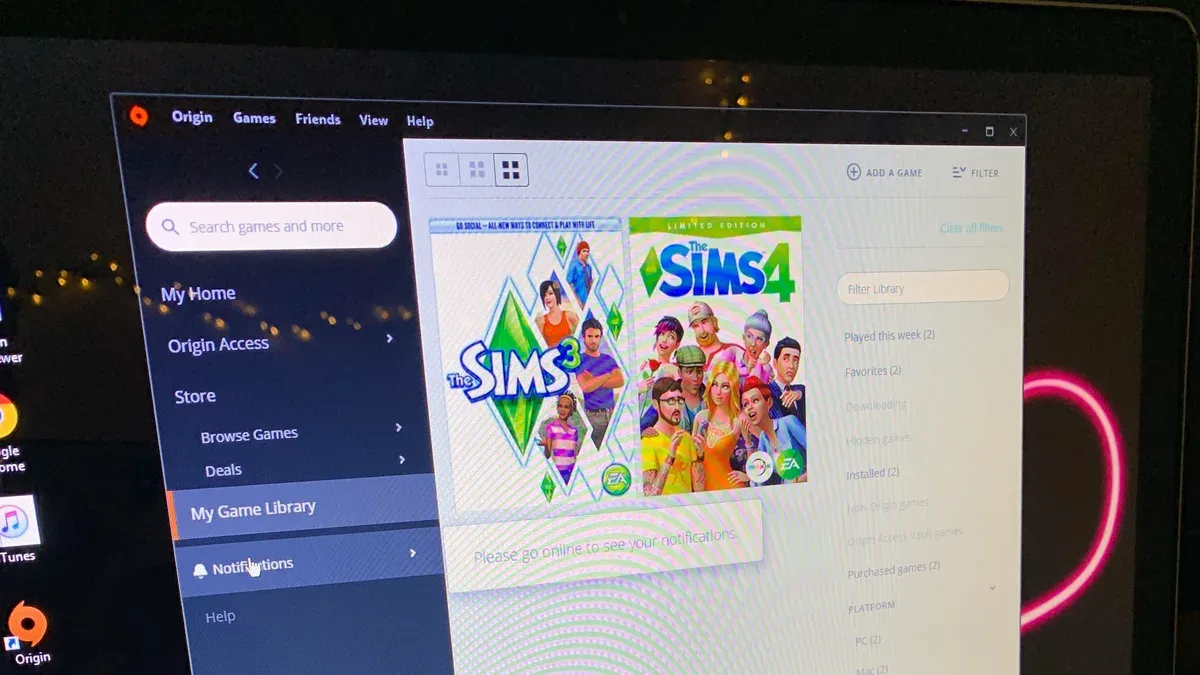
You’ve got a MacBook Air M3, and you’re wondering if it can handle The Sims 4 without hiccups. Or maybe you’re considering buying one and want to know if casual or moderate gameplay is a smooth experience. The question "can MacBook Air M3 run The Sims 4" comes up often because this device blends portability with Apple’s new silicon, but gaming demands can vary.
This article covers what you can realistically expect from The Sims 4 on the MacBook Air M3. It looks beyond specs, focusing on how the game’s software interacts with Apple silicon, practical game settings adjustments, and how expansions or custom content may affect performance. You’ll also get tips to improve your gameplay and understand when this setup might not meet your needs.
Key takeaways
- The Sims 4 runs well on MacBook Air M3 at low to medium settings for casual gaming.
- Adjusting resolution and turning off intensive graphical options improves smoothness significantly.
- Expansions and custom content increase system load and may require further settings tweaks.
- Compared to other devices, the MacBook Air M3 offers good performance but is not designed for heavy gaming.
- Using macOS activity monitor to close background apps can help maintain stable gameplay.
Straightforward Answer: Can You Play The Sims 4 on MacBook Air M3?
Yes, you can play The Sims 4 on the MacBook Air M3 running macOS without major issues. The game is compatible with Apple silicon, and the M3 chip handles it well, especially at medium graphic settings. Users generally report smooth gameplay with frame rates hovering around 40 to 50 frames per second under typical conditions, which translates to a pleasant and responsive experience.
Performance is stable when playing with standard expansions and without excessive custom content, making casual or moderate gaming sessions enjoyable. The MacBook Air’s efficient thermal design helps maintain consistent performance without frequent throttling, so you won’t often face lag or stuttering during regular play. However, very high graphics settings or heavily modded game states may cause some frame drops.
Overall, if your goal is to enjoy The Sims 4 casually or moderately on a portable MacBook Air M3, the device is up to the task, delivering a smooth and playable experience that balances visuals with performance.
How The Sims 4’s Optimization Affects Performance on Apple Silicon
The Sims 4 runs effectively on Apple silicon like the M3 chip due to a combination of partial native support and efficient use of Rosetta 2 translation. While EA and Maxis have gradually improved MacOS compatibility, the game is not yet fully native for Apple’s ARM architecture, meaning it relies partly on Rosetta 2 to translate Intel-based code. This translation layer introduces minimal overhead, which the M3 chip’s advanced CPU cores generally handle without noticeable slowdowns.
The Sims 4’s engine is designed to leverage both CPU and GPU resources, but on MacOS, the CPU workload is typically more significant. The M3’s high-performance cores deliver strong single-thread performance, improving simulation and game logic processing. Meanwhile, the integrated GPU in the M3 is capable enough to render the game smoothly at medium settings, although it may not match dedicated GPUs found in some Intel Mac models equipped with discrete graphics.
Comparatively, Intel Macs often showed higher CPU loads and less energy efficiency running The Sims 4, whereas the M3 chip’s architecture balances performance and power consumption more effectively. This results in a responsive experience with lower heat generation and longer battery life, despite the game not being fully optimized for ARM yet. Overall, the interplay between partial native support and Rosetta 2 on the M3 ensures a solid performance foundation for The Sims 4 on MacBook Air M3 devices.
Adjusting Game Settings for Better Performance on MacBook Air M3
To improve gameplay smoothness on your MacBook Air M3, focus on adjusting key graphics and simulation settings that heavily influence frame rates. In The Sims 4, settings like "Graphics Quality," "Draw Distance," and "Simulation Detail" have the largest impact on performance. Lowering "Graphics Quality" from High to Medium or Low can boost FPS noticeably without making the game visually unpleasant. For example, dropping "Graphics Quality" to Medium can often raise frame rates by a comfortable margin while retaining decent textures and effects.
"Draw Distance" controls how far the game renders objects and Sims, which affects CPU and GPU load. Reducing it from Large to Medium or Small improves smoothness, especially in crowded neighborhoods. Similarly, lowering "Simulation Detail" reduces background Sim activity and calculations, easing the processor's work during gameplay.
Keep in mind, turning off or minimizing shadows and reflections also helps, but these affect visual depth more than overall clarity. A balance between visuals and performance depends on your preference: if you prioritize fluidity, aim for Medium settings combined with reduced draw distance and simulation detail. This approach typically delivers a steady frame rate on the MacBook Air M3 without sacrificing the core visual experience.
Considerations for Expansions and Custom Content Impact
Expansions, DLCs, and custom content can significantly increase the demands The Sims 4 places on your MacBook Air M3, affecting smooth gameplay. Each expansion adds new assets, scripts, and interactions that raise CPU load and RAM usage, which can lead to noticeable frame rate drops or longer load times compared to the base game. For example, loading multiple expansions like Seasons, City Living, and Cats & Dogs together tends to consume more memory and CPU resources, often causing FPS dips during busy scenes.

When using custom content, the complexity and quantity matter. Large collections of high-resolution textures, script mods, or too many custom objects can overwhelm the system’s memory and processing power. Users have reported lag spikes and slower simulation updates when exceeding a few hundred custom items. To maintain smoother performance, it’s advisable to limit custom content to essential or lightweight mods and regularly clear out unused files through the game’s content manager.
Typical performance degradation occurs during large household simulations or community lots with many active Sims and custom content. Monitoring your game’s resource use and adjusting the number of expansions or custom content installed helps balance the rich gameplay experience with the MacBook Air M3’s capabilities.
MacBook Air M3 vs Other Devices: How Does It Compare for The Sims 4?
The MacBook Air M3 offers noticeably better performance for The Sims 4 compared to earlier MacBook Air models, such as those with the M1 chip or Intel processors. Its enhanced GPU and CPU cores enable smoother frame rates and faster load times at medium game settings, which is a clear upgrade from the M1’s more modest graphics capabilities and Intel’s less efficient architecture. While the M3 can handle The Sims 4 well, it still falls behind many mid-range Windows gaming laptops that often feature dedicated GPUs optimized for gaming workloads.
For example, typical mid-range gaming laptops with discrete graphics cards generally maintain higher frame rates above 60 FPS on higher settings, whereas the MacBook Air M3 tends to stabilize around 40–50 FPS when settings are balanced for smooth play. The MacBook Air M3 excels in energy efficiency and quiet operation, making it ideal for casual to moderate play without bulky cooling systems. However, if you aim for ultra settings or heavy modding, dedicated gaming PCs or MacBook Pro models with more powerful GPUs will deliver a more consistent experience.
Ultimately, if you prioritize portability and battery life while enjoying The Sims 4 at good settings, the MacBook Air M3 compares favorably to older Macs and many laptops. Yet, it is not the best choice for maximum graphical fidelity or competitive gaming performance relative to gaming-focused devices.
Improving Gameplay Experience: Practical Tips for MacBook Air M3 Users
To get the best performance out of The Sims 4 on your MacBook Air M3, start by closing unnecessary background apps through the Activity Monitor (found in Applications > Utilities). This frees up CPU and memory resources, often boosting frame rates by a noticeable margin. Additionally, switch your Mac’s Energy Saver settings to "Better Performance" mode in System Settings > Battery > Energy Mode to prioritize power usage for smoother gameplay.
Using an external mouse and keyboard can reduce input lag compared to the built-in trackpad and keyboard, improving responsiveness during gameplay. You might also consider third-party utilities like iStat Menus to monitor CPU and GPU usage and temperatures in real time, helping you identify when your MacBook is approaching thermal limits.
MacBook Air M3 can experience thermal throttling under prolonged load, which lowers performance. To mitigate this, play The Sims 4 in a well-ventilated area and avoid soft surfaces that block airflow. Users who applied these strategies commonly report improved frame stability and smoother input, with frame rates increasing by a few frames per second and fewer stutters during simulation-heavy moments.
When Running The Sims 4 on MacBook Air M3 Might Not Meet Your Needs
You may encounter performance limitations on the MacBook Air M3 if you heavily use mods or maintain very large save files in The Sims 4. These scenarios increase CPU and memory demands beyond what the lightweight hardware is optimized for, often causing noticeable lag or longer load times. User reports on forums commonly mention stuttering and slowdowns when dozens of complex mods or extensive custom content collections are active simultaneously.
Connecting to high-resolution external displays, such as 4K monitors, can also impact performance. The MacBook Air M3 has to render more pixels, which strains the integrated GPU and may reduce frame rates, even if the internal display runs smoothly at medium settings. Users have noted drops in responsiveness and occasional graphical glitches when playing on external 4K screens without lowering resolution or game settings.
Additionally, extensive multitasking while running The Sims 4 can hinder gameplay. Running multiple background apps that consume CPU, GPU, or RAM resources, like video editors or web browsers with many tabs, competes for system power. This can lead to frame dips and longer simulation processing times. Reports from MacBook Air M3 users highlight that closing unnecessary applications improves stability, indicating the device’s limited headroom for simultaneous heavy workloads during gaming.
Frequently asked questions
Is The Sims 4 optimized for the Apple M3 chip architecture?
The Sims 4 benefits from Apple's Rosetta 2 translation layer to run on M3 chips, but it is not natively optimized specifically for the M3 architecture. This means the game runs smoothly but may not fully leverage all efficiency gains of the M3. Expect stable performance, though some advanced Apple silicon optimizations found in newer native apps are missing.
Can I use mods and custom content without hurting performance on my MacBook Air M3?
You can use mods and custom content, but heavy or poorly optimized mods can impact performance, especially with larger households or lots. It's best to limit the number of custom objects and avoid high-resolution textures that demand more GPU resources. Keeping mods updated and removing those that cause glitches helps maintain smooth gameplay.
What’s the best balance of graphics settings for smooth gameplay on this device?
For smooth play on the MacBook Air M3, set the graphics quality to Medium or Low. Turn off anti-aliasing and reduce shadows to Medium or off, which lightens GPU load significantly. Frame rate cap at 30 FPS ensures consistent performance without overheating the device.
Are there any MacOS settings that help improve The Sims 4 performance on M3?
Disabling Low Power Mode in System Settings helps the MacBook Air run The Sims 4 at full performance. Closing background apps via Activity Monitor frees up CPU and RAM. Also, enabling "Prevent automatic sleeping" in Energy Saver settings prevents interruptions during gameplay.
What This Advice Does Not Cover
This advice does not cover Windows emulation or running The Sims 4 via Boot Camp or virtualization on the MacBook Air M3, which may yield different performance results. If you plan to use these methods, expect potential variations in gameplay smoothness and system resource usage that differ from native Apple silicon performance. Additionally, this guide focuses on casual and moderate gaming rather than competitive or high-intensity play that demands maximum frame rates or ultra settings.
For users aiming to run highly modded versions of The Sims 4 or extensive custom content with frequent expansions, a more powerful Mac or a dedicated gaming PC might be necessary to maintain stable performance.
Next Step: Optimize Your Game Settings
To get the best experience on your MacBook Air M3, start by setting The Sims 4’s graphics to Medium or Low in the game’s Graphics Options menu. Disable V-Sync and reduce resolution scale if needed, as these adjustments often improve frame rates without drastically sacrificing visual quality. Also, close background apps to free up RAM and CPU resources. These practical steps usually make the biggest difference, allowing you to enjoy The Sims 4 smoothly on your device.
See also: Can MacBook Air M3 Run eFootball? A Clear and Practical Guide · Can MacBook Air M3 Run Genshin Impact Smoothly? · Can Your MacBook Air M3 Run Stardew Valley Smoothly? · Can MacBook Air M3 Run Terraria Smoothly? A Practical Guide