
Understanding and Managing Mac Studio M4 Max Fan Noise Effectively
Discover what causes Mac Studio M4 Max fan noise and effective ways to manage it for a quieter, more efficient workspace.
You’ve just started a demanding rendering project or opened multiple apps on your Mac Studio M4 Max, and suddenly, the quiet hum of your workspace is interrupted by noticeable fan noise. This can be surprising, especially if you expect the M4 Max chip to run smoothly without much sound.
This article explains what causes Mac Studio M4 Max fan noise and how it differs from other M4 chip devices like the MacBook Pro, MacBook Air, and Mac Mini. You’ll also learn practical steps to reduce fan noise through system settings, monitoring tools, and avoiding common mistakes that can increase fan activity without improving performance.
Key takeaways
- Mac Studio M4 Max fan noise results from hardware design balancing performance and cooling needs.
- The Mac Studio typically has more active fans than MacBook Air or Mini due to its higher power capacity.
- Turning on Low Power Mode in System Settings can help reduce fan noise during less intensive tasks.
- Monitoring fan speeds via macOS Activity Monitor or third-party tools helps identify noise triggers.
- Avoid running unnecessary background processes that increase CPU load and trigger louder fans.
Explain what causes Mac Studio M4 Max fan noise
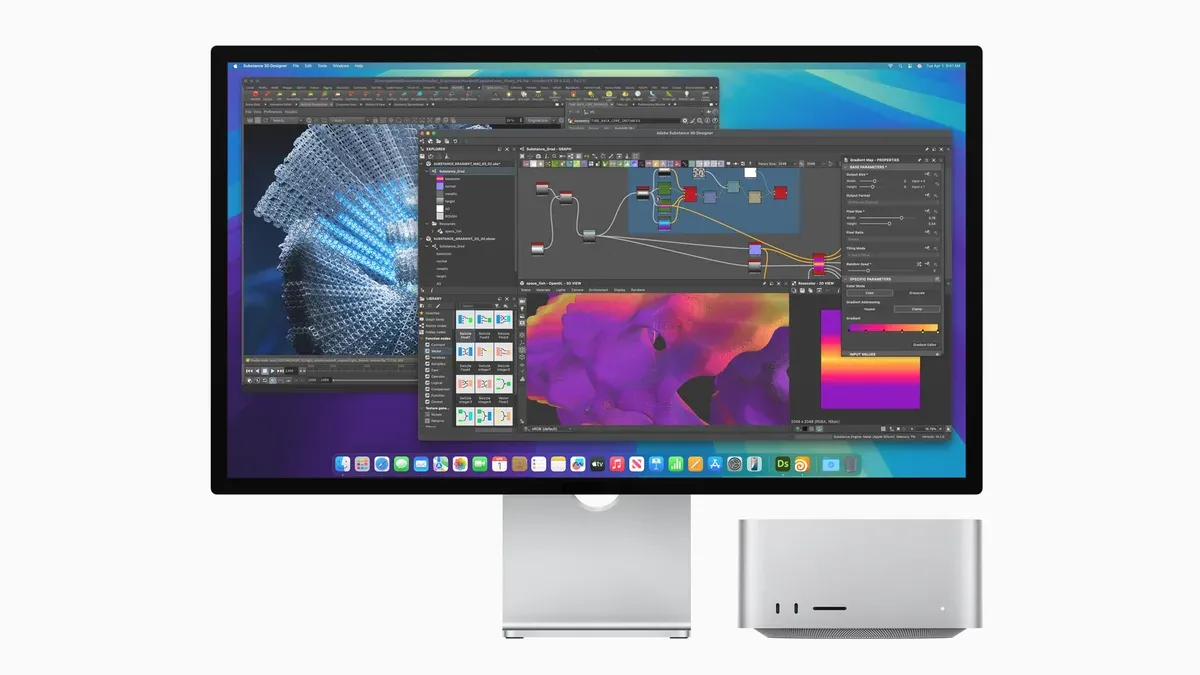
The Mac Studio M4 Max uses an advanced cooling system designed to maintain optimal temperatures during heavy workloads. It features multiple fans that adjust their speed dynamically, ranging from quiet idle speeds around 1000 RPM to higher speeds exceeding 4000 RPM when under intense load. These fans activate primarily to dissipate the heat generated by the M4 Max chip, which has a thermal design power (TDP) significantly higher than smaller Apple chips, reflecting its powerful performance capabilities.
The M4 Max chip demands substantial power for tasks like 3D rendering, video editing, or large-scale data processing. As these tasks push the chip’s performance, heat output increases, prompting the fans to spin faster and produce more audible noise. For example, exporting a 4K video in Final Cut Pro can cause fan speeds to ramp up noticeably compared to light web browsing.
Ambient temperature also influences fan behavior. In warmer environments, the Mac Studio’s fans may activate sooner or run at higher speeds to compensate for reduced passive cooling effectiveness. Understanding these factors helps clarify why fan noise varies and is a natural part of balancing performance and temperature within the Mac Studio M4 Max.
Compare fan presence and noise: MacBook Pro M4 vs. MacBook Air M4 vs. Mac Mini M4
The MacBook Pro M4 and Mac Mini M4 both feature active cooling systems with fans, while the MacBook Air M4 uses passive cooling and has no fans. Apple’s official specifications confirm that the Air relies on its aluminum chassis and internal heat spreaders to dissipate heat silently, which means it never produces fan noise. In contrast, the MacBook Pro M4 and Mac Mini M4 have small, efficient fans that activate under load but generally remain quieter than larger desktop fans.
Portable Macs like the MacBook Pro M4 have fans designed to balance noise and cooling due to limited internal space. They tend to produce softer fan noise that starts only under demanding tasks, often perceived as a gentle whoosh. The Mac Mini M4, being a compact desktop, has a slightly larger fan than the Pro and can generate moderate noise levels when stressed, but this usually remains subtle in typical use.
The Mac Studio M4 Max’s fan behavior differs because it combines higher performance targets with a larger form factor that accommodates bigger, faster-spinning fans. This results in more noticeable fan noise during peak loads compared to the MacBook Pro and Mini. Picture the Mac Studio’s cooling system like a small desktop air conditioner, louder but necessary to maintain optimal performance, whereas the MacBook Air is more like a quiet radiator.
Turn on Low Power Mode and other settings to reduce Mac Studio M4 Max fan noise
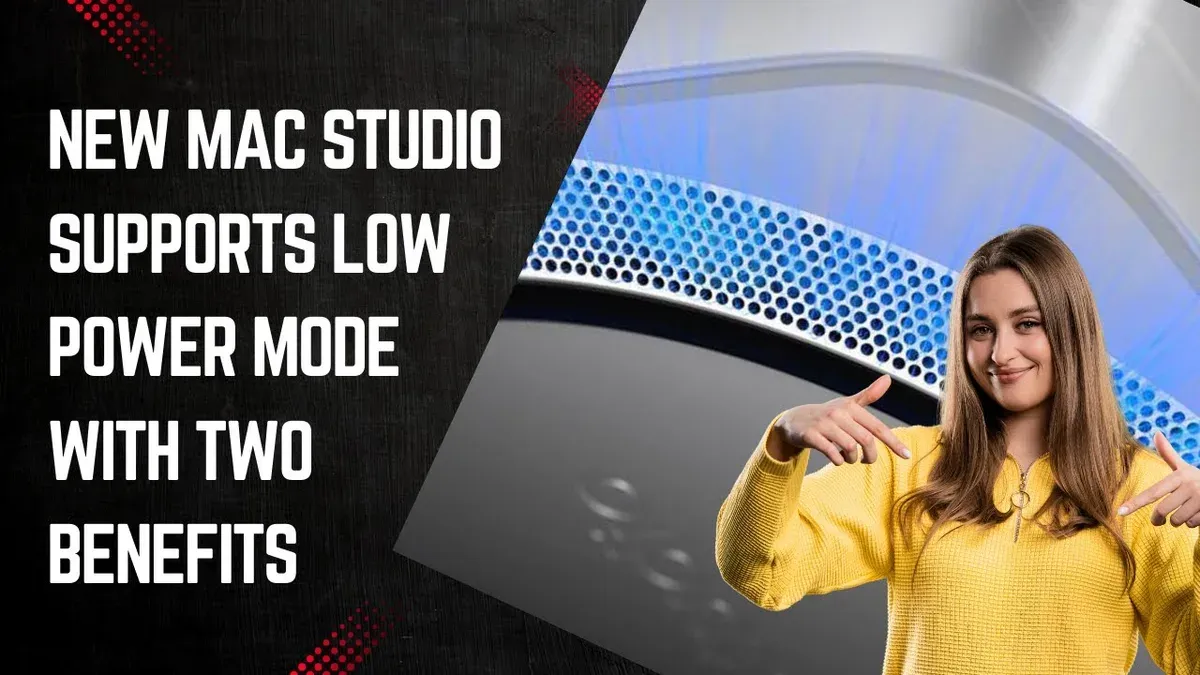
To reduce fan noise on your Mac Studio M4 Max, start by enabling Low Power Mode, which lowers the CPU and GPU workload by optimizing energy use. You can activate this via System Settings > Battery > Low Power Mode. This setting decreases thermal output, resulting in quieter fan operation, especially during tasks like web browsing or document editing.
Next, review your running applications and background processes. Closing unnecessary apps and disabling auto-start items through System Settings > General > Login Items helps reduce CPU demand, further lowering heat production. For example, quitting a video editing app when not in use can noticeably reduce fan activity.
Optimizing your Mac Studio’s physical environment also matters. Place it in a well-ventilated area away from heat sources. Ensure that vents are unobstructed and clean any dust buildup regularly to improve airflow. A clear workspace can make a tangible difference in cooling efficiency and noise levels.
Users often miss the combined effect of software and physical adjustments. Testing before and after enabling Low Power Mode typically shows a drop in fan noise by a perceptible margin, creating a quieter workspace without compromising everyday performance.
Examine Mac Studio M4 Max power consumption and its relation to fan noise
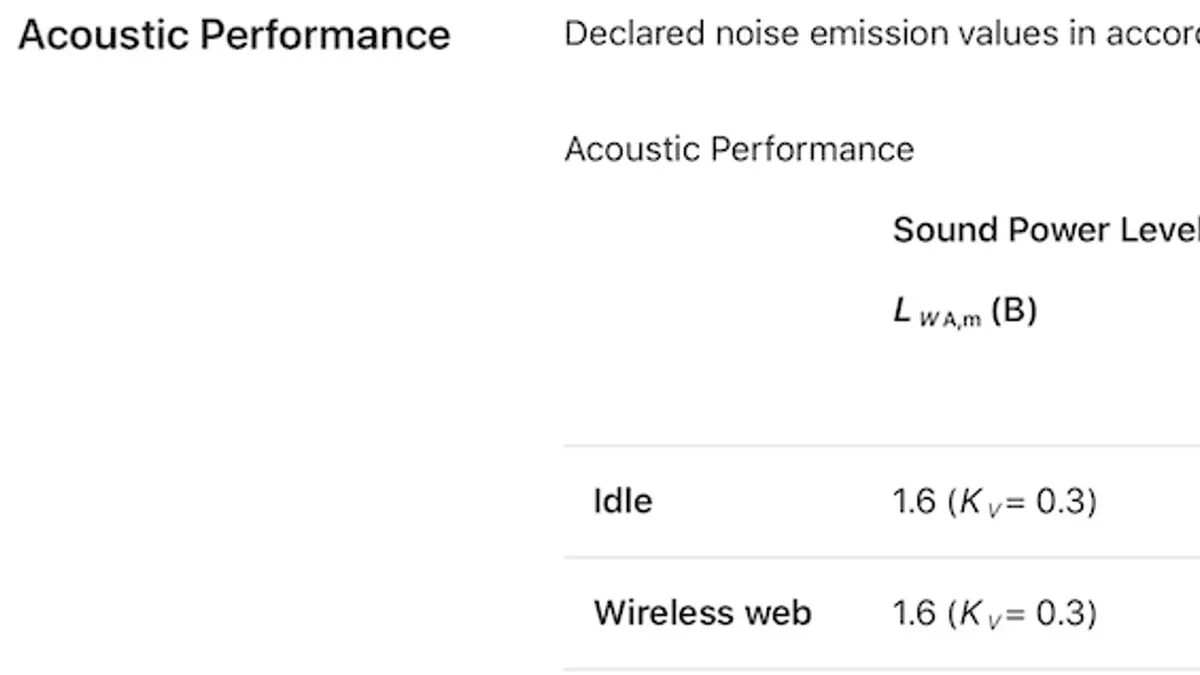
The Mac Studio M4 Max’s fan noise is closely tied to how much power the machine is using at any given moment. When idle or performing light tasks, power draw is relatively low, typically under a few watts, which keeps the fans running quietly or even stopped. As you move to moderate workloads like video streaming or basic editing, power consumption rises, prompting the fans to spin at a moderate speed to maintain optimal temperatures.
Under heavy workloads, such as rendering a 4K video or running Adobe Photoshop with multiple large files, power usage can spike significantly. This increase generates more heat, causing the fans to ramp up quickly and produce noticeable noise. Using Activity Monitor or third-party apps like iStat Menus, you can observe CPU power draw and fan speed rising in tandem during these tasks.
Power management features in macOS help regulate this behavior by adjusting processor performance dynamically. For example, background tasks might be throttled, limiting sudden power spikes and fan noise. However, apps demanding maximum resources will still trigger higher power consumption and louder fans. Picture working on a complex Photoshop project: as you apply filters, the CPU power surges, the system heats up, and the fans respond by increasing speed to cool the hardware efficiently.
Use macOS tools to monitor and control Mac Studio M4 Max fans
To monitor your Mac Studio M4 Max's fan activity and overall system load, start with macOS's built-in utilities. Open Activity Monitor from the Utilities folder, then check the CPU tab to see which processes are consuming the most resources. High CPU or GPU usage often correlates with increased fan speeds. Additionally, open the Console app and search for thermal or fan-related logs to spot any unusual fan behavior or temperature warnings.
For more direct fan control, third-party apps like Macs Fan Control offer real-time fan speed monitoring and manual adjustment options. This app displays interface elements showing current RPMs and temperature sensors, allowing you to set custom fan speed profiles. However, manual fan control carries risks; overriding automatic settings might cause excessive fan wear or inadequate cooling. Apple and experts typically advise trusting the system's dynamic fan management unless you understand the implications.
For example, if your Mac Studio fans are loud during light tasks, you can open Macs Fan Control, observe which temperature sensors trigger fan speed increases, and create a custom curve to reduce fan noise while monitoring temperatures closely. Remember, if temperatures rise too high, immediately revert to automatic control to protect your hardware.
Avoid common mistakes that worsen Mac Studio M4 Max fan noise
One frequent cause of increased fan noise is placing your Mac Studio in a confined space or on soft surfaces like a carpet or padded desk mat. These setups block the vents located at the back and bottom, restricting airflow needed to cool the system. For example, placing the Mac Studio inside a closed cabinet or on a thick cushion can make the fans work harder, leading to louder noise as the device struggles to dissipate heat effectively.
Another issue arises from using unverified third-party fan control utilities. While some apps promise quieter operation by manually adjusting fan speeds, improper settings may cause fans to run too slowly, increasing internal temperatures and potentially stressing hardware components. Users have reported escalated fan noise and overheating symptoms after installing such software without manufacturer guidance.
Neglecting regular dust cleaning can also degrade thermal management. Dust buildup inside vents and fan blades reduces cooling efficiency, forcing fans to spin faster and louder to compensate. Additionally, skipping macOS system updates might mean missing optimizations that improve thermal behavior and fan control. Maintaining a clean environment and ensuring software is current helps keep noise levels manageable and your Mac Studio running smoothly.
Frequently asked questions
Does macbook pro m4 have a fan?
Yes, the MacBook Pro with the M4 chip includes an internal fan. This fan helps regulate temperature during intensive tasks by actively cooling the processor. It typically remains quiet during light use but can become audible when the system handles demanding applications.
Does macbook air m4 have fan?
No, the MacBook Air with the M4 chip does not have a fan. It relies on passive cooling through its chassis design, which keeps the device silent but may result in thermal throttling under heavy workloads to manage heat.
Why is my mac fans so loud?
Your Mac's fans can become loud when the processor or graphics chip is under significant load, causing heat buildup. Running resource-intensive apps, background processes, or poor ventilation can increase fan speed to cool the hardware. Checking Activity Monitor for demanding processes and ensuring proper airflow can help manage fan noise.
Does MacBook Pro M4 have a fan?
Yes, MacBook Pro models with the M4 chip are equipped with fans. They activate based on system temperature to maintain optimal performance and prevent overheating during tasks like video editing or gaming.
Does MacBook Air M4 have a fan?
The MacBook Air with the M4 chip operates without a fan. It uses passive cooling methods, which means it stays silent but may reduce performance temporarily under heavy processing loads to avoid overheating.
Know the Limits of This Guide
This guide focuses on understanding and managing fan noise through software settings and usage habits. It does not cover hardware repair, fan replacement procedures, or internal cleaning. If you notice persistent fan noise that is unusually loud or constant despite following these tips, it is best to contact Apple Support or visit an authorized technician to have your Mac Studio M4 Max professionally inspected.
The most effective next step is to enable Low Power Mode via System Settings > Battery > Low Power Mode. This setting reduces the processor’s power consumption and heat output, often resulting in quieter fan operation without a noticeable drop in everyday performance. Many users overlook this option when trying to minimize fan noise, making it a practical starting point for a quieter Mac Studio experience.
See also: How to Understand and Manage Mac Studio M4 Max Overheating · How to Fix Mac Studio M4 Max Speaker Crackling Sounds · How to Fix Your Mac Studio M4 Max When It Won't Turn On



