How to Fix Your Mac Studio M4 Max When It Won't Turn On
Discover how to troubleshoot and fix your Mac Studio M4 Max when it won't turn on with simple, step-by-step solutions.
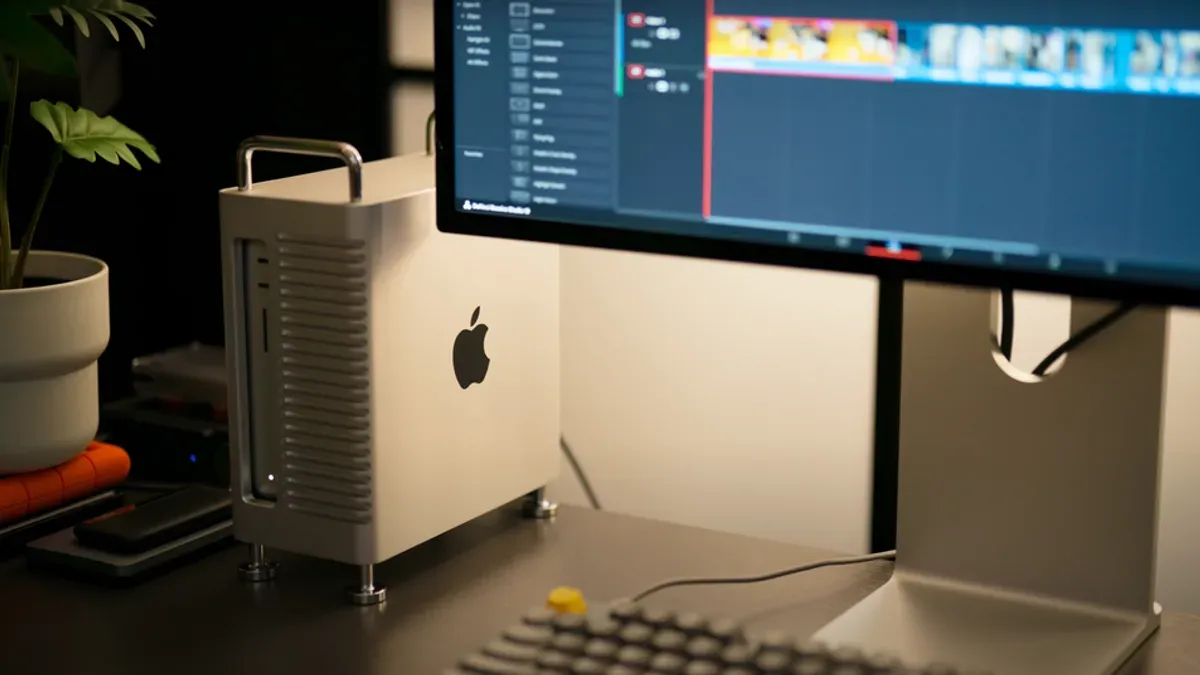
You press the power button on your Mac Studio M4 Max, but nothing happens. The screen stays black, and there’s no sign of life from your powerful desktop machine.
This guide addresses the situation when your Mac Studio M4 Max won't turn on. You’ll learn how to recognize the initial signs of power issues, understand common causes specific to this model, and follow step-by-step troubleshooting methods tailored to the Mac Studio M4 Max’s hardware and power features. By the end, you’ll know which fixes you can safely try yourself and when it’s best to seek professional repair assistance.
Key takeaways
- Check power cable connections and power outlet first to rule out basic issues.
- Reset the SMC (System Management Controller) to resolve many power-related problems.
- Disconnect all peripherals to ensure no device is causing startup conflicts.
- Use safe boot mode to isolate software-related startup issues.
- Seek professional help if the Mac Studio M4 Max still doesn’t respond after advanced troubleshooting.
Recognize the Signs That Your Mac Studio M4 Max Won't Turn On
Before diving into troubleshooting, it’s essential to confirm whether your Mac Studio M4 Max is truly powered off or merely asleep. A Mac in sleep or hibernation mode typically shows subtle signs like a dark screen but may still emit a startup chime or show LED activity. In contrast, a Mac that won’t turn on gives no such signals—no startup chime, no display output, and no fan or LED movement.
Check for the absence of any sound when you press the power button. The Mac Studio M4 Max usually emits a distinctive startup chime or a brief fan spin as it powers up. If you hear nothing at all and the screen remains completely black, your device may be unpowered. Additionally, observe the LED indicators: if the LED on the front or nearby peripherals is off, that suggests no power.
Sometimes external peripherals or connected displays can create confusion. A black or blank external monitor might make you think the Mac isn’t powering on, but the Mac’s internal LEDs or startup sounds can clarify this. To rule out external factors, disconnect all peripherals and external displays and then press the power button again. This step helps confirm whether the Mac itself is responsive or not.
If you want to double-check for a sleeping Mac before concluding it won’t turn on, follow these steps:
- Press the power button once and listen carefully for the startup chime.
- Look closely for any LED activity on the Mac Studio or connected devices.
- If no signs appear, disconnect all peripherals and external displays.
- Press and hold the power button for 10 seconds, then release and press once more.
You will know it worked if the Mac emits the startup chime, the internal fans begin spinning, or the screen lights up. If none of these happen, your Mac Studio M4 Max is likely not powering on and needs further troubleshooting.
Understand Common Causes Behind Power Issues on Mac Studio M4 Max
The Mac Studio M4 Max demands a robust power supply due to its high-performance M4 Max chip, which typically consumes significantly more power than prior Mac Studio generations. Faulty power cables or adapters can interrupt this supply, preventing startup. Since the M4 Max can draw peaks of power that surpass previous models, even minor issues with the power connection can cause the device to fail to turn on.
Although the Mac Studio is a desktop and does not rely on a battery, its internal power management circuitry can still malfunction. Problems in this circuitry can lead to no power reaching critical components, which will stop the Mac from booting. In such cases, resetting the System Management Controller (SMC) might help, but if the hardware is damaged, professional repair is necessary.
Software corruption or firmware glitches can also block normal startup. For example, known firmware bugs have caused some Mac Studio models to freeze during boot. If you suspect this, starting your Mac in Safe Mode or attempting a firmware recovery can clarify if the software is the root cause.
Peripheral conflicts sometimes interfere with power-on sequences. External devices connected via USB or Thunderbolt that draw power or cause hardware conflicts can prevent the Mac Studio from turning on properly. Disconnecting all peripherals and trying to boot can help isolate this problem.
When to check your power cable and adapter:
- Unplug the power cable from the Mac Studio and inspect it for visible damage or fraying.
- Try a different, Apple-certified power cable and adapter compatible with the Mac Studio M4 Max.
- Plug the Mac Studio directly into a known working outlet, avoiding power strips or surge protectors.
- Attempt to power on your Mac Studio.
You will know this worked if your Mac Studio powers on normally and shows the startup screen or Apple logo. If not, move on to checking internal power management or software causes.
Try Quick and Safe Fixes to Turn On Your Mac Studio M4 Max
Start by checking the basics: ensure the power cable is firmly connected to both your Mac Studio M4 Max and a working power outlet. Sometimes, a loose connection or a faulty power strip causes power issues. To verify the outlet, plug in another device that you know works.
If the power connection is solid, try performing a force restart. Press and hold the power button on your Mac Studio M4 Max for about 10 seconds until it powers off completely, then press it again to turn it on. This method applies when your Mac appears unresponsive but is actually stuck during startup.
Next, disconnect all peripherals and external devices such as USB drives, external displays, or hubs. Sometimes these devices cause conflicts that prevent startup. After disconnecting, try powering your Mac Studio M4 Max on again. If it starts, reconnect devices one at a time to identify the culprit.
If your Mac still won’t turn on, reset the System Management Controller (SMC). For Mac Studio M4 Max models, unplug the power cable, wait 15 seconds, then plug it back in and wait an additional 5 seconds before pressing the power button. This reset helps resolve power and thermal management issues.
Finally, reset the NVRAM/PRAM to clear certain system settings that might prevent startup. To do this, turn on your Mac and immediately press and hold Option + Command + P + R keys simultaneously for about 20 seconds, then release. Your Mac may restart during this process. Successful resets often resolve minor boot problems without affecting your data.
Perform Advanced Troubleshooting for Persistent Power Problems
If your Mac Studio M4 Max still does not turn on after quick fixes, advanced troubleshooting can help identify deeper software or hardware issues. However, these steps require caution; avoid opening your device if you are uncomfortable or unfamiliar with hardware to prevent damage or voiding warranties.
Boot into Safe Mode or Recovery Mode
Safe Mode starts your Mac with minimal software, disabling third-party drivers and login items. This can reveal if software conflicts prevent startup. Recovery Mode offers tools to repair disks and reinstall macOS.
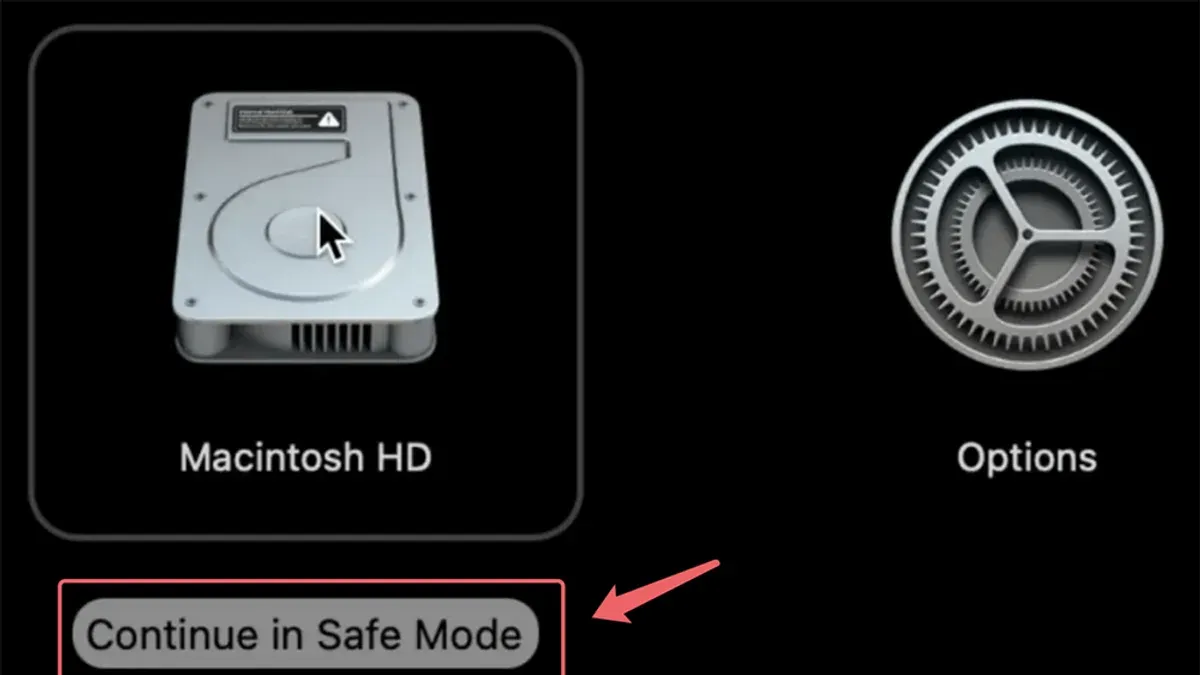
- Ensure your Mac is off, then press and hold the power button until you see the startup options window.
- Select your startup disk, then hold down the Shift key and click Continue in Safe Mode. Release Shift once the login window appears.
- If Safe Mode loads successfully, restart normally. If the Mac boots in Safe Mode but not normally, software conflicts likely cause the problem.
- To enter Recovery Mode, restart and hold Command (⌘) + R immediately after powering on.
- Use Disk Utility to check and repair your drive, or reinstall macOS if needed.
Successful Safe Mode boot usually results in a slower startup but visible desktop. If Recovery Mode tools open, software corruption may be repairable.
Run Apple Diagnostics
Apple Diagnostics helps detect hardware faults. It can identify issues like logic board failures or memory problems that prevent booting.
- Disconnect all external devices except keyboard, mouse, display, and power.
- Shut down your Mac, then press the power button and immediately hold the D key.
- Release D when the diagnostics screen appears and follow on-screen instructions.
If diagnostics report issues such as "No issues found" or specific error codes like PFM003 (power management), note them for support or repair reference.
Inspect Internal Hardware Connections Safely
If you are confident with hardware, check internal cables and components for loose connections or visible damage. Only proceed if you have the proper tools and static precautions.
- Power off and unplug your Mac Studio M4 Max.
- Use a compatible screwdriver to open the enclosure carefully.
- Look for disconnected cables, dust buildup, or signs of corrosion.
- Reconnect any loose cables gently and remove dust with compressed air.
- Reassemble and attempt to power on.
This step applies only if you have experience opening Macs; improper handling risks further damage.
Check for Physical Damage or Overheating
Inspect your Mac Studio M4 Max’s exterior for dents, cracks, or liquid exposure, which could impair power. Overheating symptoms include excessive fan noise or heat buildup, which may trigger automatic shutdowns.
If overheating is suspected, ensure vents are clear and the Mac is in a cool environment. Persistent overheating might indicate internal hardware failure requiring professional service.
Know When to Get Professional Help for Your Mac Studio M4 Max
If your Mac Studio M4 Max still won’t turn on after you’ve completed all recommended troubleshooting steps, it’s time to consider professional repair. Signs that indicate hardware failure beyond user repair include persistent absence of power despite a verified working outlet, unusual noises from the device, or visible physical damage. Issues such as power supply failure or logic board problems require specialized tools and expertise to diagnose and fix safely.
Before seeking repair, check the status of your warranty or AppleCare coverage. AppleCare+ for Mac typically extends hardware repair coverage and technical support, potentially reducing repair costs significantly. If your Mac is covered, contact Apple Support or visit an Apple Store or Apple Authorized Service Provider to schedule a diagnostic appointment.
When preparing for a service visit, back up your data if possible and bring your Mac Studio M4 Max along with proof of purchase and your Apple ID information. Professional diagnostics often take a few hours to several days depending on issue complexity and parts availability. Costs vary widely; logic board repairs or power supply replacements can be among more expensive fixes, especially if out of warranty. AppleCare+ coverage can help mitigate these costs.
Once your Mac is repaired and you power it on successfully, you’ll know the issue is resolved. If problems persist, follow up with the service provider for further assistance or replacement options. Avoid attempting hardware repairs yourself as this can void warranties and cause further damage.
Frequently asked questions
Why is my Mac Studio M4 Max not turning on but the power cable is connected?
Even if the power cable is connected, your Mac Studio M4 Max might not turn on due to issues like a faulty power outlet, a damaged power cable, or internal hardware problems. It’s important to check that the power outlet is working by testing with another device and inspect the power cable for visible damage. Additionally, ensure that the power button is pressed firmly, as sometimes the device may require a longer press to start.
How do I reset the SMC on a Mac Studio M4 Max?
The Mac Studio M4 Max uses Apple silicon, which does not have a traditional System Management Controller (SMC) like Intel Macs. To reset power management features, simply shut down your Mac, wait 30 seconds, then press the power button to turn it back on. If power issues persist, performing a full shutdown and unplugging all peripherals for a few minutes may help.
Can a software update cause my Mac Studio M4 Max to fail to start?
In rare cases, a software update can cause startup problems if the update process is interrupted or corrupted. If your Mac won’t start after an update, try booting into Safe Mode by holding the power button until startup options appear, then select Safe Mode. From there, you can troubleshoot or reinstall macOS if needed.
What ports on the Mac Studio M4 Max should I check if it won’t power on?
While ports themselves don’t usually prevent powering on, it’s worth checking the power port and Thunderbolt ports for any debris or damage that might cause power delivery issues. Also, disconnect any external devices connected to USB-C or HDMI ports, as faulty peripherals can sometimes interfere with startup. Testing the Mac Studio with no peripherals attached can help isolate the problem.
Know the Limits of This Guide
This guide does not cover repair procedures that require opening the Mac Studio M4 Max beyond user-accessible components like cables or external connections. If you are uncomfortable handling hardware or suspect internal damage, it is best to seek professional assistance. Attempting to open the device yourself can void your warranty and potentially cause further damage.
For issues related to internal hardware faults, liquid damage, or persistent power problems that resist all safe troubleshooting steps, contacting Apple Support or an authorized service provider is the safest course of action. They have the tools and expertise to diagnose and repair complex faults without risking your device’s integrity.
The single most useful next step if your Mac Studio M4 Max still won’t turn on after these checks is to connect it to a known working power outlet using the original power cable and adapter. Confirm the power source is active and then press the power button firmly for several seconds. This simple step often reveals whether the issue lies with power supply or deeper hardware problems that require professional evaluation.
See also: Fix USB Accessories Disabled on Mac: Step-by-Step Solutions · Fix No Output Devices Found on Mac: Step-by-Step Audio Solutions · Fix MacBook Pro M1 Pro AirDrop Not Working: A Clear Step-by-Step Guide