
Moving from Google Drive to Microsoft 365: Complete Checklist
This checklist guides IT managers through migrating from Google Drive to Microsoft 365, covering permissions, file checks, tools, and user support.
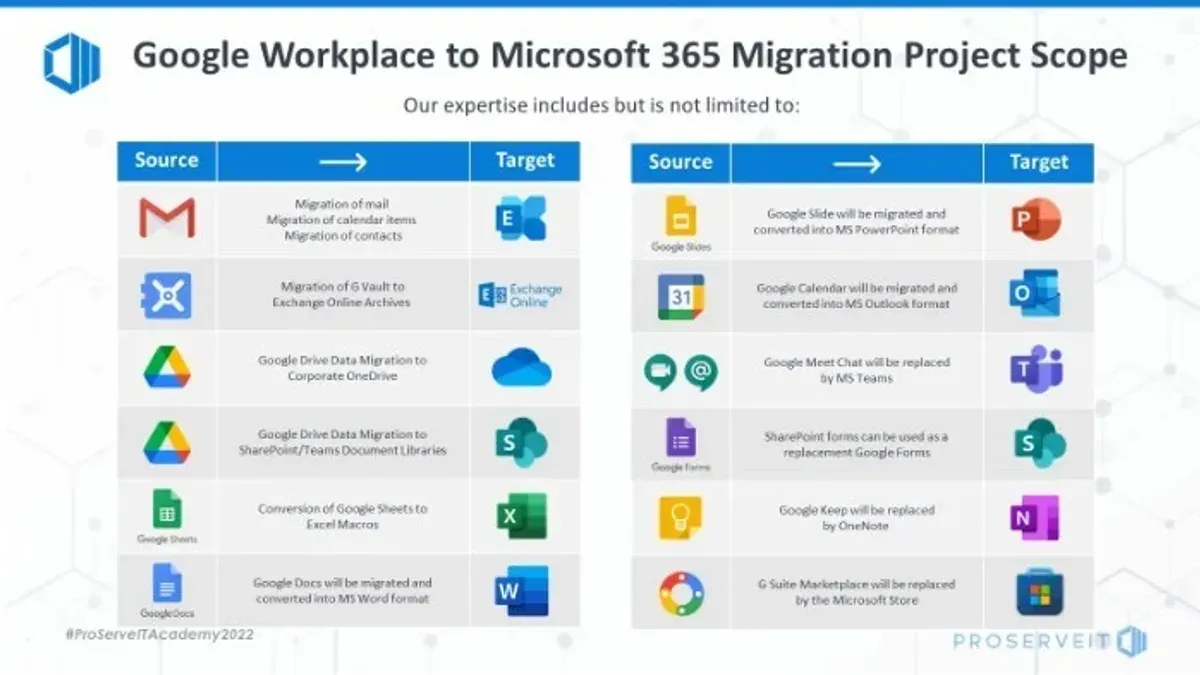
Your organization has decided to transition from Google Drive to Microsoft 365, but the path ahead is complex. Migrating thousands of files while maintaining access permissions and ensuring user adoption can quickly become overwhelming without a clear plan.
This article provides a practical moving from Google Drive to Microsoft 365 checklist designed for IT managers and team leads like you. It covers preparing your organization, executing technical migration steps including permission mapping and file compatibility checks, avoiding common pitfalls, and supporting users after the move.
Key takeaways
- Assess user access levels and map Google Drive permissions to Microsoft 365 before migration.
- Perform file compatibility checks to avoid unsupported formats or corrupted documents.
- Communicate migration timelines and provide training for smooth user adoption.
- Use migration tools that support incremental syncs to minimize downtime.
- Validate permissions and data integrity after migration to catch issues early.
Understanding why moving from Google Drive to Microsoft 365 matters
Choosing to migrate from Google Drive to Microsoft 365 often stems from a mix of business and technical needs. Microsoft 365 integrates tightly with tools like Outlook, Teams, and SharePoint, which many enterprises use for communication and workflow management. This creates a more unified ecosystem compared to Google Drive's standalone file storage approach.
From a collaboration standpoint, Microsoft 365 offers advanced co-authoring capabilities in apps such as Word and Excel, alongside real-time presence indicators in Teams, which some organizations find enhances teamwork. Google Drive excels in simplicity and web-based access, but Microsoft’s desktop app integration may better suit enterprises requiring offline capabilities and complex document management.
Security and compliance are key considerations. Microsoft 365 provides granular permission controls, data loss prevention policies, and compliance certifications that align with many industry standards, which may be more comprehensive than Google Drive’s offerings. However, migrating requires careful mapping of permissions to avoid access gaps.
Cost structures differ as well. Microsoft 365 licensing bundles storage with productivity apps under plans like E3 or Business Standard, potentially reducing the need for separate subscriptions. Google Drive storage is typically licensed separately or bundled with Google Workspace tiers. Organizations should evaluate these models against their user base and usage patterns.
For example, a mid-sized company using Microsoft Teams and Outlook extensively might find migrating files from Google Drive to Microsoft 365 streamlines workflows and centralizes data governance, despite upfront migration effort.
| Feature | Google Drive | Microsoft 365 |
|---|---|---|
| Collaboration tools | Google Docs, Sheets, Slides; web-based; basic offline support | Word, Excel, PowerPoint; desktop & web; advanced co-authoring |
| Integration | Google Workspace apps; limited third-party integrations | Teams, Outlook, SharePoint; extensive enterprise integrations |
| Security & compliance | Basic permission controls; compliance certifications vary | Granular permissions; advanced compliance & DLP policies |
| Licensing & cost | Storage often separate or bundled in Workspace plans | Storage included with productivity app licenses |
Preparing your organization for the migration
Begin by auditing your existing Google Drive data and user permissions through the Admin console by navigating to Users > Google Drive and Docs. Create a checklist that includes identifying large files, shared drives, and folders with complex permission structures. For example, note all files shared externally and flag those for special handling during migration.
Communicate the upcoming changes clearly with your users. Draft a communication plan outlining key messages, channels (such as email and intranet announcements), and a timeline for training sessions. An example plan might schedule an initial announcement four weeks before migration, followed by weekly reminders and hands-on workshops two weeks prior.
Select migration tools that fit your environment, such as Microsoft’s SharePoint Migration Tool or third-party solutions offering granular permission mapping. Set a realistic timeline that accounts for file size, user availability, and potential downtime. For instance, planning migration in phases—starting with less critical departments—helps minimize disruption.
Establish backup strategies by exporting critical Google Drive data to an external storage system before migration. This step mitigates risks from unexpected failures or data loss. Regularly test backups and document recovery procedures to ensure readiness.
Step-by-step checklist for migrating files and permissions
Begin by securely exporting your Google Drive files using Google's native Takeout service or a third-party migration tool like ShareGate or Mover. These tools help maintain file metadata and structure during the transfer. Before migration, map your existing Google Drive folder hierarchy to the destination—SharePoint for team files or OneDrive for individual users—to preserve organizational logic.
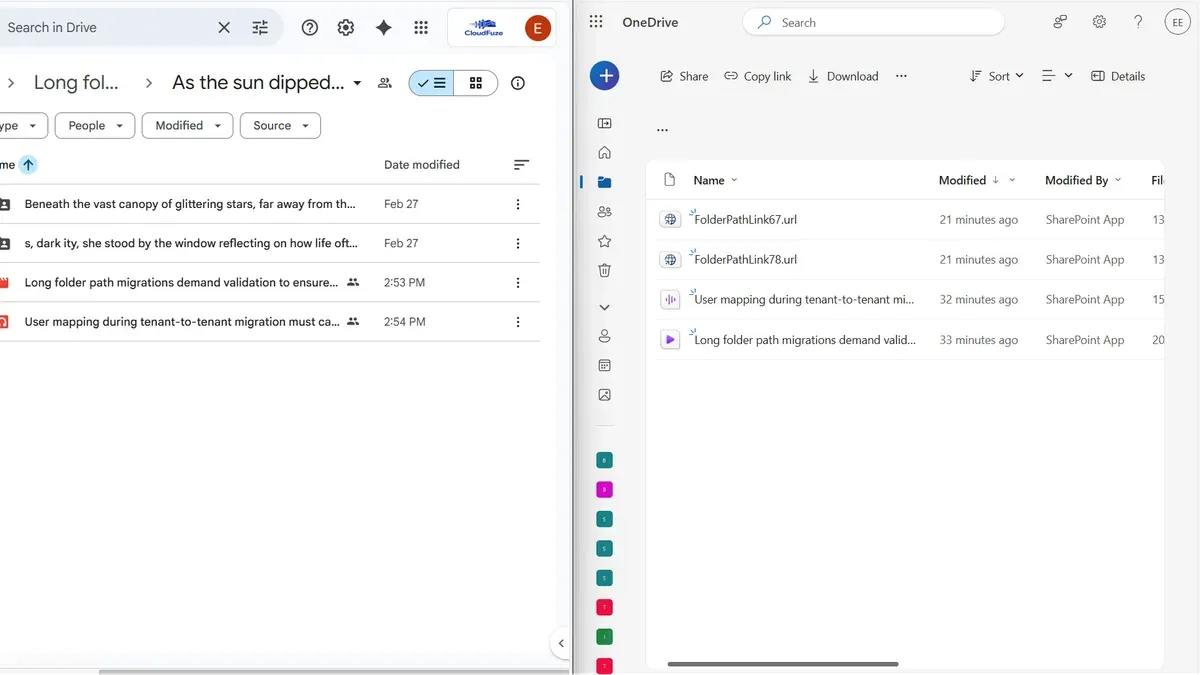
Replicate user access and sharing permissions carefully. For example, if a Google Drive folder is shared with a team of five users with varying edit and view rights, replicate these exact permission levels in SharePoint by assigning corresponding SharePoint groups or individual user permissions. Migration tools often provide permission reports to verify accuracy.
Post-migration, validate file integrity by comparing file sizes and formats between the source and destination. Check version history where supported, as some tools preserve it, while others may require manual export. A common overlooked step is confirming that external sharing settings in Microsoft 365 mirror those in Google Drive to avoid unintended access.
As a concrete example, a mid-sized company used Mover to migrate 10,000 files, mapping Google Drive's nested folders to SharePoint document libraries, and used Mover's permission report to cross-check that 95% of permissions were replicated correctly, with manual adjustments made for the remainder.
Common mistakes to avoid during migration
Ignoring user training and support needs often leads to frustration and productivity loss. For example, a mid-sized company migrated all files overnight without briefing staff on Microsoft 365’s OneDrive interface, resulting in widespread confusion and a spike in helpdesk tickets.
Overlooking file compatibility can cause data issues. Google Drive supports formats like Google Slides that don’t convert cleanly to PowerPoint, leading to formatting errors or missing content when files are migrated without prior conversion checks.
Failing to verify permissions may expose sensitive data or block access. One organization discovered after migration that shared folders were accessible to unintended users because permission mapping from Google Drive’s sharing settings to Microsoft 365’s Azure AD groups was incomplete and untested.
Rushing migration without adequate testing phases increases risk of failure. A reported incident involved migrating several terabytes of data in a single attempt without pilot testing, which led to corrupted files and lengthy downtime while problems were resolved.
Post-migration steps to ensure smooth adoption
After migrating to Microsoft 365, monitoring user activity through the Microsoft 365 admin center is crucial. Check usage reports under "Reports > Usage" to identify adoption patterns and potential bottlenecks. Gathering feedback via surveys or Microsoft Forms helps uncover user challenges and training gaps.
Establishing governance policies is essential for maintaining security and compliance. A practical checklist includes defining data retention rules in the Compliance Center, setting sharing permissions under "SharePoint admin center > Policies > Sharing", and configuring sensitivity labels in the Security & Compliance dashboard. For example, restricting external sharing on sensitive document libraries can prevent unintended data exposure.
Optimize workflows by leveraging Microsoft 365 features like Power Automate for task automation and Teams for integrated communication. Encouraging users to replace email attachments with OneDrive links improves collaboration and version control.
Plan ongoing support through regular training sessions and a dedicated help channel. Many organizations see increased user satisfaction when support includes video tutorials on new features and quick reference guides. Without continuous training, adoption rates often plateau or decline after initial enthusiasm.
- How to Convert Pages Documents to PDF on Mac: Step-by-Step Guide
- How to Convert Excel to PDF on Mac: Step-by-Step Guide
- How to Convert PDF to Word on Mac: Clear Step-by-Step Methods
Frequently asked questions
What are the best tools to migrate from Google Drive to Microsoft 365?
Popular tools include Microsoft's own Migration Manager, which integrates directly with Microsoft 365 and supports bulk file transfers. Third-party solutions like ShareGate and Mover also offer comprehensive features, including permission mapping and reporting. Choose a tool that fits your organization's size and complexity, and verify it supports both data and permission migration to reduce manual work.
How do I preserve file sharing permissions during migration?
Preserving permissions requires careful mapping between Google Drive's sharing settings and Microsoft 365's access controls. Use migration tools that offer permission sync features, and verify that external sharing links and group memberships are correctly translated. A common step often missed is reviewing and adjusting SharePoint and OneDrive permissions post-migration to ensure they accurately reflect the original sharing structure.
Can I migrate Google Docs and Sheets to Microsoft Office formats automatically?
Some migration tools provide automatic conversion from Google Docs and Sheets to Word and Excel formats, but this may not always be flawless, particularly with complex formatting or embedded elements. It is advisable to test the conversion on a sample set of files first. If automatic conversion is not supported or produces errors, consider exporting files as Microsoft-compatible formats manually before migration.
What are the main challenges organizations face when switching from Google Drive to Microsoft 365?
Common challenges include mapping complex permission structures, handling file compatibility issues, and ensuring user adoption of new tools. Overlooking the need for thorough communication and training can slow down transition. Additionally, organizations often underestimate the time required for post-migration cleanup and adjusting workflows to fit Microsoft 365’s environment.
What this checklist does not cover and when to seek specialized help
This checklist focuses on migrating file storage and permissions from Google Drive to Microsoft 365. It does not address migrating email, calendars, or other Google Workspace services such as Google Meet recordings or Google Forms data.
Organizations with highly customized Google Drive setups, extensive third-party integrations, or complex workflow automations should consider engaging migration specialists. Such scenarios often require tailored planning and tools beyond the scope of this guide to ensure data integrity and operational continuity.
To move forward effectively, start by conducting a detailed audit of your current Google Drive environment using the Drive audit tool in the Google Admin console. This step reveals storage usage, sharing settings, and file types, which will inform your migration priorities and help identify potential compatibility issues early on.



