
Moving from Moodle to Google Classroom: A Practical Checklist
A practical checklist to help educators and admins smoothly transition from Moodle to Google Classroom, covering planning, content migration, and user roles.
This article provides a clear, practical moving from Moodle to Google Classroom checklist designed for educators, school administrators, and IT coordinators overseeing LMS migration. Transitioning between these platforms involves more than data export; it requires careful planning around course structure, user roles, and content compatibility. Key operational challenges include aligning Moodle’s flexible modular design with Google Classroom’s streamlined interface and managing permissions within Google Workspace. Addressing these issues upfront reduces downtime and minimizes disruption to teaching and learning activities. This guide focuses on actionable steps and common pitfalls to avoid, ensuring a smooth, efficient switch from Moodle to Google Classroom.
What are the key differences between Moodle and Google Classroom?
Moodle is an open-source learning management system (LMS) that offers extensive customization through plugins, themes, and configurable course formats. Google Classroom, in contrast, is a streamlined LMS integrated tightly with Google Workspace, focusing on simplicity and ease of use rather than deep customization.
Course structures differ notably: Moodle allows multiple course formats (weekly, topics, single activity) with granular control over content layout, while Google Classroom uses a straightforward stream or materials tab with less flexible organization. User roles in Moodle include student, teacher, non-editing teacher, and manager, each with distinct permissions; Google Classroom simplifies roles mainly to teacher and student, limiting granular permission control.
Grading in Moodle supports customizable grade scales, category aggregation, and advanced grading methods like rubrics and outcomes. Google Classroom provides basic grade entry and weighted categories but lacks advanced grading features. Communication tools in Moodle encompass forums, messaging, and announcements with fine-tuned settings; Google Classroom relies on post comments, email notifications, and Google Meet integration.
These differences affect content migration: Moodle's rich, customized activities and complex grade setups may not transfer directly and require manual adjustment. For example, a Moodle course using conditional activities and custom plugins will need redesigning when moved to Google Classroom, which does not support such features. The user experience shifts from a highly tailored environment to a uniform, Google-centric interface.
| Feature | Moodle | Google Classroom |
|---|---|---|
| Platform Type | Open-source, highly customizable | Proprietary, streamlined, Google Workspace integrated |
| Course Structure | Multiple formats, flexible layout | Stream-based, simple materials tab |
| User Roles | Student, Teacher, Non-editing Teacher, Manager | Teacher, Student |
| Grading | Advanced scales, rubrics, aggregation | Basic entry, weighted categories |
| Communication | Forums, messaging, announcements | Post comments, email, Google Meet |
| Customization | Plugins, themes, conditional activities | Limited customization, fixed interface |
Why migrate from Moodle to Google Classroom?
Many institutions switch to Google Classroom to leverage seamless integration with Google Workspace apps such as Drive, Docs, and Meet. This integration streamlines workflow by allowing direct assignment submissions, real-time collaboration, and virtual meetings without leaving the LMS. The simplified user interface reduces training time and lowers the barrier for both educators and students, cutting down support requests and maintenance overhead compared to Moodle’s more complex setup.
Cost and scalability are significant factors driving the migration. Google Classroom, often included in existing Google Workspace for Education licenses, can reduce expenses related to server maintenance and third-party plugins required by Moodle. For example, a mid-sized school district reported saving administrative hours previously spent on Moodle customization and troubleshooting after moving to Google Classroom, reallocating that time to instructional support.
Moodle’s limitations such as frequent updates, dependency on technical staff for customization, and occasional compatibility issues with third-party tools can hinder day-to-day operations. These challenges prompt decision-makers to adopt a platform that offers consistent performance with less technical overhead and more straightforward scalability for growing user bases.
How to prepare for the migration?
Start by auditing all Moodle courses, users, and content to determine what is essential to migrate. This involves reviewing course lists under Site administration > Courses > Manage courses and categories, and assessing user roles via Site administration > Users > Accounts > Browse list. Identify active courses and enrolled users, and mark outdated or unused content for exclusion. A sample audit checklist includes course names, enrollment counts, assignment types, and resource formats.
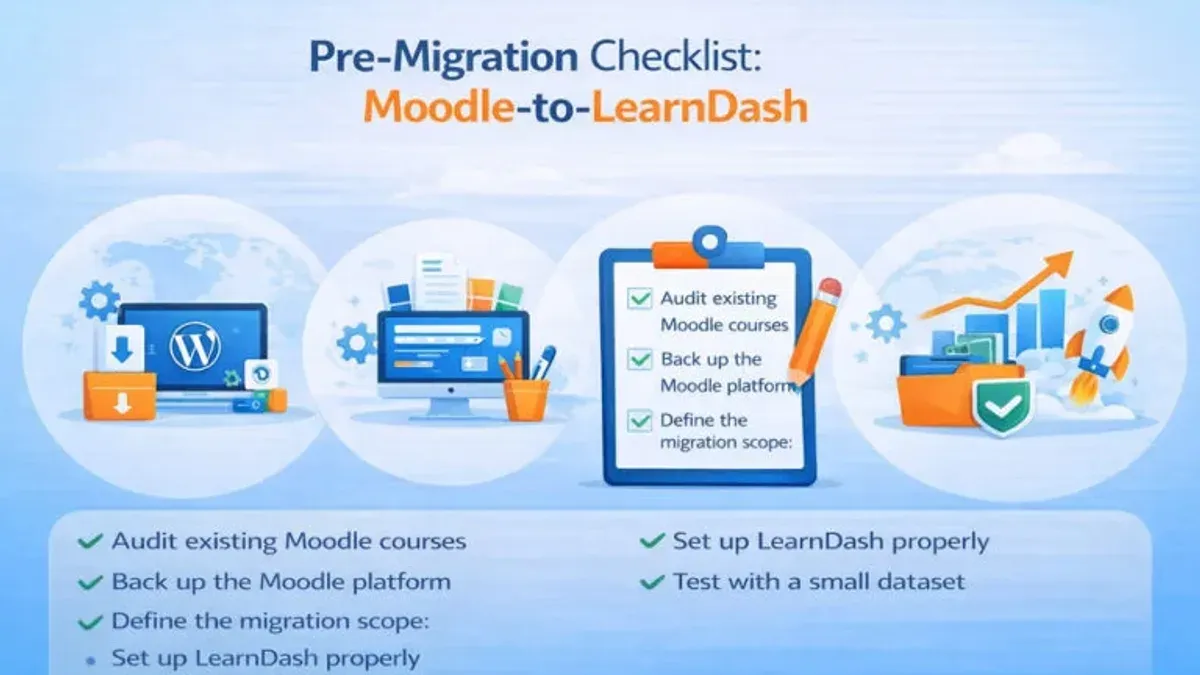
Set clear migration goals with a timeline that aligns with academic schedules to reduce disruption. For example, schedule migration tasks during semester breaks or holidays when user activity is minimal. A timeline might allocate two weeks for data backup and audit, one week for migration testing, and one week for final migration and validation.
Communicate the migration plan clearly to all stakeholders—teachers, students, and IT staff—detailing steps, expected downtime, and support channels. Early and transparent communication prevents confusion and resistance.
Finally, back up all Moodle data using Site administration > Server > Backup > Full site backup, and verify the backup files’ integrity before proceeding. A common oversight is skipping backup verification, which risks data loss if the backup is corrupted.
Tip: Document the audit and timeline in a shared file accessible to all migration team members to ensure transparency and coordination.
What does the migration process involve?
Migration begins with exporting Moodle data via the site administration menu: navigate to Site administration > Courses > Backup to export course content, assignments, and grades. Note that Moodle backup files (.mbz) are not natively compatible with Google Classroom, requiring conversion or manual recreation.
Two main migration options exist: manual and automated. Manual migration involves creating new courses in Google Classroom, then uploading or recreating assignments and content piece by piece. Automated tools like Google Workspace Migration for Education can assist but often require technical setup and may not capture all Moodle-specific data such as complex grading schemes.
Setting up Google Classroom requires creating courses through the Google Classroom dashboard, then enrolling students and assigning teacher roles under Classwork > People. Permissions must be configured to match previous Moodle settings, keeping in mind Google Classroom’s simpler role structure.
Verifying data accuracy post-migration involves spot-checking assignments, grades, and resource links. For example, after exporting a Moodle course "Biology 101" and importing content manually, administrators should confirm that all assignments are visible, grades align with Moodle records, and shared files open correctly.
Tip: Export a single course first as a pilot to identify mismatches and adjust the process before full migration.
How to manage user training and adoption?
Effective user training and adoption require tailored approaches for different groups. For teachers, a structured training agenda might start with an overview of Google Classroom’s interface, followed by hands-on sessions covering assignment creation, grading, and communication tools. Students benefit from simplified tutorials focusing on submitting work, accessing materials, and using the Google Drive integration.
Creating quick-reference guides and comprehensive FAQs helps users find answers independently. For example, a one-page cheat sheet covering steps to create an assignment or join a class reduces repetitive support queries. Encouraging early adoption through pilot courses allows selected teachers and classes to trial the platform, providing real-world feedback and identifying issues before full rollout.
Monitoring feedback via surveys or direct communication channels enables prompt issue resolution. A common case involves a school that ran a three-week pilot with 10 teachers, gathering detailed feedback that led to refining training content and adjusting user permissions. This proactive approach minimizes resistance and smooths transition.
What common mistakes should be avoided during migration?
Failing to back up Moodle data prior to migration remains a critical error. Without verified backups of course materials, user submissions, and grade records, data loss can occur during export or import, causing irreversible damage to academic continuity. A concrete case involved a school that lost two weeks of student assignments after an incomplete Moodle backup.
Underestimating the time required for content adaptation leads to rushed or incomplete course setups. Google Classroom’s simpler structure demands reformatting resources and rethinking activities to fit its workflow. Overlooking this can delay course availability by days or weeks.
Ignoring differences in grading and assignment workflows creates confusion. Moodle’s complex grading algorithms and assignment settings do not directly translate to Google Classroom’s streamlined system. For example, weighted grade categories must be recalculated manually, or gradebooks risk inaccuracies.
Poor communication with faculty and students about migration timelines, new procedures, and support channels often results in frustration and low adoption rates. Clear, frequent updates via email and staff meetings prevent surprises.
Not planning for ongoing technical and pedagogical support after migration leaves users stranded when issues arise. Dedicated help desks or Google Workspace admins should be prepared to respond promptly to post-migration queries.
Checklist of common errors to avoid:
- Skipping full Moodle data backup and verification
- Rushing content adaptation without a buffer period
- Assuming grading systems will transfer without manual adjustment
- Failing to communicate key changes and schedules to all users
- Neglecting post-migration user support planning
Frequently asked questions
Can all Moodle content be transferred to Google Classroom?
Not all Moodle content transfers directly to Google Classroom due to platform differences. Google Classroom lacks native support for some Moodle-specific activities like quizzes with complex question types or forums. Content such as documents, assignments, and basic quizzes can be manually exported and uploaded, but interactive elements often require redesign or alternative tools within Google Workspace.
Is there an automated tool to migrate from Moodle to Google Classroom?
No fully automated, official tool exists for migrating from Moodle to Google Classroom. Some third-party services offer partial migration features, but they typically require manual adjustments and verification. Institutions should plan for manual export-import steps and data validation to ensure accuracy and completeness.
How long does the migration process typically take?
The migration duration varies widely depending on the size and complexity of the Moodle instance and the extent of content being moved. Small course migrations may take a few days, while larger institutions with multiple courses and users can expect several weeks. Time should be allocated for data export, content adaptation, user setup, and training.
What support is available for teachers unfamiliar with Google Classroom?
Google provides comprehensive online resources, including tutorials, help centers, and video guides designed for educators new to Google Classroom. Many institutions supplement these with internal training sessions and step-by-step manuals tailored to their environment. Peer mentoring and ongoing technical support help ease the transition for teachers.
What this guide does not cover and who should look elsewhere
This guide does not cover migrating institutional data compliance policies or handling integrations with third-party Moodle plugins that lack Google Classroom equivalents. Institutions with complex regulatory requirements or custom Moodle setups requiring specialized migration should consult dedicated compliance experts or third-party migration services. Additionally, this checklist focuses on the operational migration steps rather than in-depth pedagogical redesign or advanced Google Workspace administration.
To move forward effectively, the single most useful next step is to conduct a pilot migration with a small group of courses and users. This real-world test surfaces technical issues, identifies missing content or settings, and gauges user readiness. It also allows tailoring training materials and support before a full rollout. Starting with a controlled pilot ensures the transition stays on schedule and minimizes disruptive surprises.
See also: Moving from Moodle to Canvas: A Practical Checklist for Educators · Moving from Brightspace to Google Classroom: A Complete Checklist · Moving from Brightspace to Moodle: A Practical Migration Checklist · Moving from Brightspace to Schoology: A Complete Migration Checklist



