Fix No Output Devices Found on Mac: Step-by-Step Audio Solutions
Learn how to fix no output devices found on Mac with clear steps to restore sound and resolve audio device conflicts efficiently.
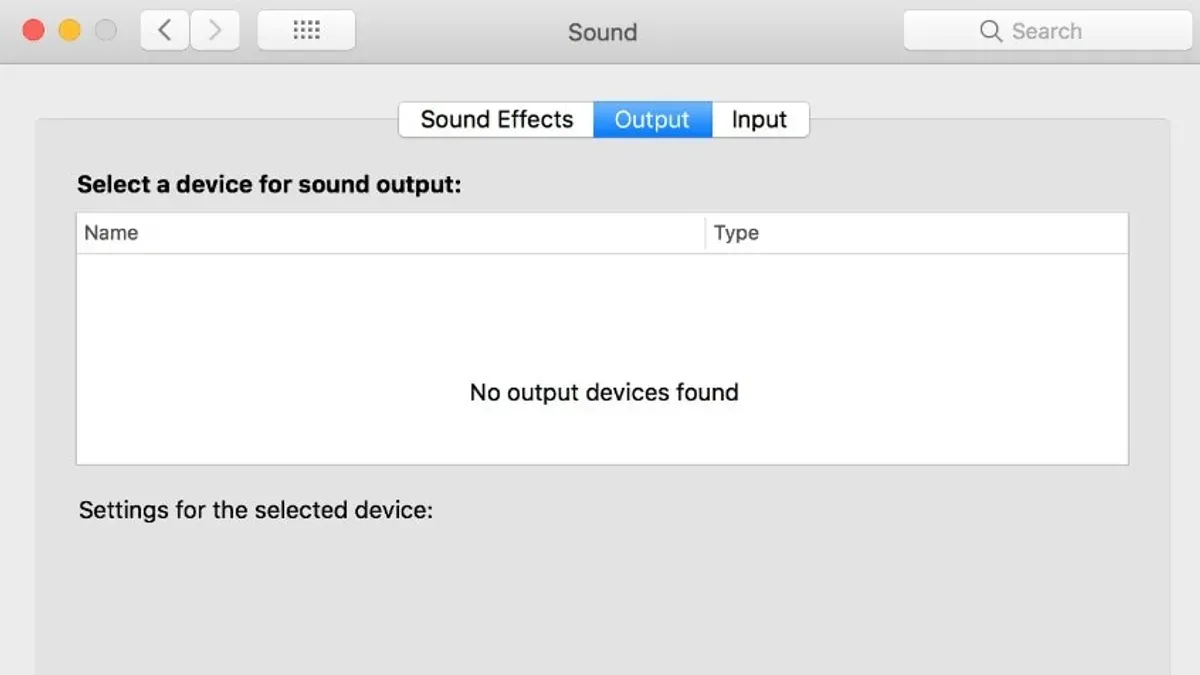
You open your Mac and notice the sound icon in the menu bar shows no output devices available. Clicking into System Preferences > Sound only confirms the frustrating message: “No output devices found.” This issue can appear suddenly, leaving you without audio and unsure where to begin troubleshooting.
This article guides you through a clear, step-by-step approach to the “No output devices found on Mac fix.” It covers both software settings and hardware factors often overlooked, such as Audio MIDI configurations and external device conflicts. You’ll learn how to identify hidden audio devices, reset system audio services, and address hardware settings to restore your Mac’s sound output effectively without unnecessary guesswork or costly repairs.
Key takeaways
- Verify output devices in System Preferences > Sound before proceeding.
- Reset Core Audio via Terminal to resolve common software glitches.
- Check Audio MIDI Setup for muted or hidden devices affecting output.
- Disconnect and reconnect external audio hardware to eliminate conflicts.
- Reset NVRAM and SMC to clear potential hardware-level audio issues.
Before You Start: Gather What You Need
Before diving into troubleshooting, make sure your Mac is running the latest macOS version supported by your device. This ensures compatibility with audio drivers and system updates that can affect sound output. You can check your macOS version by clicking the Apple menu and selecting About This Mac. For example, macOS versions like Ventura, Monterey, and Big Sur support a wide range of current audio drivers.
Have any external audio devices ready, such as headphones, speakers, USB audio adapters, or Bluetooth devices. These can sometimes cause conflicts or interfere with sound output. Keeping them close allows you to test audio output with and without these devices connected.
Make sure you have administrator credentials available. Some troubleshooting steps require changes in System Preferences or using Terminal commands, which need admin access. Also, familiarize yourself with basic Mac navigation, including how to open System Preferences from the Apple menu and launch Terminal through Applications > Utilities.
- Verify your macOS version: Click the Apple menu, select About This Mac, and note the version number. You should see a version like Ventura, Monterey, or Big Sur.
- Gather external audio devices: Collect any headphones, speakers, or adapters you typically use. Ensure they are disconnected but nearby for testing.
- Confirm administrator access: Log in with an admin account or have the credentials ready to enter when prompted.
- Practice opening System Preferences: Click the Apple menu, then System Preferences, and locate the Sound pane.
- Open Terminal: Navigate to Applications > Utilities > Terminal and open it, preparing you for command-line steps.
Check System Preferences Sound Settings
Start by opening System Preferences and selecting Sound. In the Output tab, look for a list of available audio output devices. If no devices appear, this indicates the Mac is not detecting audio outputs, which is the core issue to address.
If you see multiple devices listed, such as Internal Speakers, HDMI, or Bluetooth Headphones, manually select the one you want to use. The built-in output typically refers to your Mac’s internal speakers or headphone jack. HDMI devices route sound through connected monitors or TVs. Bluetooth devices will only show if paired and connected.
To refresh the sound preferences, try toggling between different output devices. Select another device, then switch back to your preferred output. This can reset the audio routing and resolve minor configuration glitches.
- Open System Preferences and click Sound.
- Click the Output tab and check if any output devices are listed. You should see options like Internal Speakers or connected external devices.
- If multiple devices appear, click the one you want to use. Confirm audio plays through that device.
- If no devices appear, try toggling by selecting a different device if available, then back to your preferred output.
- Close System Preferences and check if audio is restored.
When working correctly, the Sound preferences panel will show at least one output device with a volume slider. If the list is empty, further troubleshooting with other system tools is needed.
Reset Core Audio Using Terminal
Restarting the core audio service on your Mac can resolve many common sound detection issues. The service, called coreaudiod, manages audio input and output, so if it becomes unresponsive or glitches, your Mac might fail to recognize output devices. Using Terminal to restart this service is a safe and effective troubleshooting step.
Follow these steps carefully to reset coreaudiod:
- Open Terminal from Applications > Utilities.
- Type the command
sudo killall coreaudiodand press Enter. You will be prompted to enter your administrator password; type it carefully (the characters won’t show) and press Enter again. - This command forcibly stops the core audio daemon, which will automatically restart immediately.
- After executing the command, you should see your Terminal prompt return without error messages. The audio service restarts silently in the background.
- Check your sound settings or try audio playback to confirm the issue is resolved.
For example, after running the command, your Terminal might show:
Password:
user@MacBook ~ %
This indicates the command ran successfully and the core audio service restarted. If you still experience issues, proceed to other troubleshooting steps.
Inspect Audio MIDI Setup for Hidden Devices
Sometimes, audio devices do not appear in your Sound preferences because they are disabled or misconfigured in the Audio MIDI Setup utility. This tool reveals all detected audio devices and allows you to adjust their settings. By checking here, you can identify hidden or conflicting devices that prevent normal output.
- Open Audio MIDI Setup from the Utilities folder within Applications. You should see a list of audio devices on the left panel.
- Look for any devices with a gray icon or that don’t appear in Sound preferences. These may be inactive or misconfigured.
- Click each device and verify the Format and Sample Rate settings in the main panel. Set these to common defaults like 44100.0 Hz and 2ch-16bit to ensure compatibility.
- Check if there are any Aggregate Devices listed. These combine multiple inputs or outputs and can cause conflicts. If you see an aggregate device that you don’t use, select it and click the minus button to delete it.
- After making adjustments, close Audio MIDI Setup and return to Sound preferences. Your Mac should now detect the corrected devices as valid outputs.
For example, a device set to an uncommon sample rate like 96000 Hz might not appear in Sound preferences, causing the "No output devices found" error. Adjusting back to 44100 Hz often resolves this. Similarly, deleting an unnecessary aggregate device can remove conflicts preventing proper audio output.
Disconnect and Reconnect External Audio Devices
External audio hardware can sometimes create conflicts that cause your Mac to fail in recognizing output devices. To identify if this is the issue, start by unplugging all external audio devices, including USB audio interfaces, headphones, docks, and adapters. After disconnecting, restart your Mac to ensure it boots with only the built-in audio devices active. When your Mac restarts, test the audio output using the built-in speakers alone. If sound plays correctly, it indicates an external device may be causing the problem.
Next, reconnect your external audio devices one at a time. After plugging in each device, check the Sound output settings in System Preferences to see if the device is detected and audio output resumes as expected. This step-by-step reconnection helps isolate any problematic hardware or adapter that interferes with normal audio detection. Common issues arise with certain USB-C docks or multiport adapters, which may not pass audio signals correctly or conflict with macOS audio drivers.
- Unplug all external audio devices from your Mac. After disconnecting, restart your Mac. You should hear audio from the built-in speakers when tested.
Result: Audio plays through internal speakers, confirming no external device interference. - Reconnect one external audio device or adapter. Open System Preferences > Sound > Output and check if the device appears.
Result: The device is listed and audio output switches accordingly if it works properly. - If the device is not detected or audio fails, unplug it and try the next device.
Result: Identifies the specific hardware causing the conflict or detection failure.
This process helps you pinpoint external devices or adapters that cause your Mac to show “No output devices found.” Resolving hardware conflicts often clears the issue without needing deeper system resets or repairs.
Reset NVRAM and SMC to Clear Hardware Settings
NVRAM (Non-Volatile Random-Access Memory) stores settings related to sound volume, display resolution, and other hardware preferences that your Mac accesses quickly. The SMC (System Management Controller) manages low-level functions including power, battery, and thermal management, which can indirectly affect audio hardware detection. Resetting these can resolve stubborn audio output issues by clearing corrupted or outdated hardware settings.
Reset NVRAM on Intel Macs
- Shut down your Mac completely.
- Press the power button, then immediately hold down Option + Command + P + R keys simultaneously.
- Keep holding the keys for about 20 seconds. Your Mac may restart during this process; if you hear the startup sound twice, release the keys.
- When your Mac finishes starting up, open System Preferences to check if sound settings have reset to defaults, indicating a successful reset.
Reset SMC on Intel Macs
The steps vary by Mac model:
- For MacBooks with non-removable batteries:
- Shut down your Mac.
- Press and hold Shift + Control + Option on the left side and the power button for 10 seconds.
- Release all keys and power on your Mac normally.
- For desktop Macs (iMac, Mac mini):
- Shut down and unplug the power cord.
- Wait 15 seconds, then plug it back in.
- Wait another 5 seconds, then press the power button to start your Mac.
Reset on Apple Silicon Macs
Apple Silicon Macs do not have an SMC to reset separately, and NVRAM resets automatically during startup if needed. Simply restart your Mac and check the audio output again.
After these resets, you may notice changes such as the clock time or volume level resetting to defaults. This is normal and can be readjusted manually. Resetting NVRAM and SMC often resolves audio detection problems, especially after system updates or hardware changes, but success rates vary depending on the issue's complexity.
Update or Reinstall Audio Drivers and macOS
Keeping your macOS updated ensures you have the latest audio drivers and bug fixes, which can resolve issues like “No output devices found.” Apple periodically releases updates that address audio problems; for example, past updates have restored audio output functionality after issues introduced in earlier versions. To check for updates, open System Preferences, then click Software Update. If an update is available, install it and restart your Mac. After updating, verify if the audio output devices reappear in Sound Preferences.
If updating doesn’t solve the problem, reinstalling macOS without erasing your data can refresh system files and drivers. Before proceeding, back up your data using Time Machine or another backup method to prevent any accidental loss. To reinstall, restart your Mac and hold down Command + R to enter Recovery Mode. From the macOS Utilities window, select Reinstall macOS and follow the onscreen instructions. This process reinstalls the operating system but preserves your files and applications.
After the reinstall, your audio drivers will be refreshed, often resolving detection issues. Users commonly report that audio output devices become available again post-reinstall when previous troubleshooting steps have failed. Always ensure you have a current backup before major system changes.
Troubleshoot Common Failure Points
Sometimes, despite following all software troubleshooting steps, your Mac still shows "No output devices found." This often signals hardware issues that mimic software symptoms. For example, a damaged headphone jack or faulty internal speakers can prevent the Mac from detecting any audio output device, even if settings appear correct.
To identify hardware failure, listen closely for any faint static or crackling noises when plugging in audio devices, or check if the Mac plays sound through Bluetooth headphones but not wired ones. These signs suggest physical damage rather than software misconfiguration.
If you experience these symptoms, professional repair or Apple Support consultation is advisable. Cases exist where users exhausted all software fixes only to discover logic board faults or broken audio ports were the root cause. Repair technicians can run diagnostics unavailable to users and replace damaged components to restore audio functionality.
- Test audio output using both wired and wireless devices. Successful Bluetooth audio but no wired sound indicates a hardware jack issue.
- Run Apple Diagnostics by restarting your Mac and holding the D key; note any audio-related error codes. No errors suggest software remains the likely cause.
- If diagnostics show hardware faults or you continue to have no audio output, schedule a repair with Apple Support or an authorized service provider.
Frequently asked questions
Why does my Mac say 'No output devices found' even after restarting?
This message can appear if the Core Audio process is stuck or if the audio hardware is not being detected properly. Restarting may not resolve underlying software conflicts such as corrupted audio settings or issues with the Audio MIDI Setup. Additionally, external audio devices or cables might be causing the system to fail in recognizing output devices.
Can resetting NVRAM or SMC cause data loss or other issues?
Resetting NVRAM or SMC does not erase your personal data or files. These resets clear system-level settings like sound volume, display resolution, or power management functions. However, you might need to readjust some preferences afterward, such as time zone or startup disk selection.
How do I know if the problem is hardware-related or software-related?
If audio problems persist after resetting software settings, checking Audio MIDI Setup, and disconnecting external devices, hardware issues might be involved. Testing with headphones, external speakers, or running Apple Diagnostics can help identify hardware faults. Software problems often respond to resets or updates, while hardware faults typically require professional repair.
Is it safe to reinstall macOS to fix audio problems?
Reinstalling macOS can be a safe way to restore missing or corrupted system files affecting audio performance. It usually preserves your data, but it's wise to back up important files before proceeding. This step should be considered after simpler troubleshooting because it takes more time and effort.
When to Seek Professional Help
This guide focuses on software settings and common hardware interactions that affect your Mac’s audio output. It does not cover physical repairs or internal hardware replacements such as damaged logic boards, faulty speakers, or broken audio ports. If you have completed all troubleshooting steps here and still see “No output devices found,” it’s best to contact Apple Support or visit an Apple Authorized Service Provider. Certified technicians have the tools to diagnose and fix hardware-level issues safely and effectively.
The most useful next step is to carefully verify your Audio MIDI Setup for hidden or muted devices, as this is often overlooked. Open the Audio MIDI Setup app from Applications > Utilities, confirm that output devices are present and configured with correct sample rates, and ensure no devices are accidentally set to zero volume or disabled. This step can restore your audio output without resetting system settings or reinstalling software.
See also: How to Solve MacBook Pro M1 Pro Sleep Wake Issues Step by Step · How to Fix MacBook Pro M1 Pro Speaker Crackling: A Step-by-Step Guide · Bluetooth Not Available on Mac? Step-by-Step Fixes That Work