How to Share a Calendar in the Calendar App on iPhone and Mac
Discover step-by-step how to share a calendar in Calendar app on iPhone and Mac to coordinate schedules and stay organized in 2026.
You're coordinating a project deadline with colleagues or planning family events, and sharing your calendar becomes essential. Whether you're on your iPhone or Mac, knowing how to share a calendar in Calendar app helps you stay organized and keeps everyone in sync.
This article guides you step by step through sharing calendars within Apple’s ecosystem, including syncing with Google and Outlook calendars. You'll learn how to share calendars on your iPhone and Mac, share individual events, and use popular shared calendar apps that work across iPhone and Android devices. By the end, you'll have a clear, practical strategy for coordinating schedules efficiently in 2026.
Key takeaways
- Share calendars directly on iPhone via the Calendar app’s sharing options under Calendar Lists.
- On Mac, use the Calendar app's Info panel to add invitees and set permissions.
- Link Google and Outlook calendars to Apple Calendar for seamless cross-platform sharing.
- Share individual events by adding invitees from the event details screen on iPhone or Mac.
- Use third-party apps like Fantastical or Microsoft Outlook for enhanced shared calendar features across iPhone and Android.
Before you start: What you need to share a calendar
To share calendars efficiently using the Calendar app in 2026, you need to meet certain device and account requirements. First, ensure your device runs iOS 16 or later if you use an iPhone, or macOS Ventura or later on a Mac. These versions include the latest Calendar app features necessary for smooth sharing and syncing.
You must be signed in to an active iCloud account on your device to share Apple calendars. iCloud is the primary service for sharing within Apple’s ecosystem, enabling you to grant permissions and sync changes in real time. Additionally, understand which calendar you intend to share—whether it’s an iCloud calendar, Google Calendar, or Microsoft Outlook calendar—as the sharing steps and permissions can differ.
An internet connection is essential for syncing and sharing calendar data across devices and platforms. Without it, updates won't reflect for invitees or across your devices. If you plan to share with users outside the Apple ecosystem, such as Android users or those using Google or Outlook calendars, be aware that permissions and access may require configuring sharing settings within those accounts too.
As of 2026, a large majority of Apple users have updated to iOS 16+ and macOS Ventura+, ensuring broad compatibility. The Calendar app supports sharing with iCloud calendars primarily, but also integrates with Google and Outlook calendars, allowing cross-platform coordination.
- Check your device’s operating system version by going to Settings > General > About on iPhone or Apple menu > About This Mac on Mac. You should see iOS 16 or later, or macOS Ventura or later. If not, update your device to access the latest Calendar features.
- Verify you are signed in to iCloud by opening Settings > [your name] on iPhone or System Settings > Apple ID on Mac. You must see your iCloud account active; otherwise, sign in or create an Apple ID.
- Identify which calendar account you want to share by opening the Calendar app and checking the list of calendars under Calendars. Confirm if the calendar is listed under iCloud, Google, or Outlook. This determines your sharing options.
- Ensure you have a stable internet connection. A Wi-Fi or cellular connection is needed for calendar updates to sync and for sharing invitations to be received promptly.
- If sharing with non-Apple users, prepare to adjust permissions within the respective calendar service (Google or Outlook) to allow external access. This can typically be done via the calendar’s web interface under sharing settings.
Share a calendar on your iPhone using the Apple Calendar app
Sharing a calendar directly from your iPhone is straightforward using the Apple Calendar app. You can invite others to view or edit your calendar, which helps coordinate schedules efficiently. Follow these steps carefully to share a calendar with family members or colleagues.
- Open the Calendar app on your iPhone. You will see your list of calendars organized by accounts such as iCloud or Gmail.
- Locate the calendar you want to share in the list, then tap the Info (i) button next to its name. This opens the calendar settings.
- Tap Add Person to invite someone to your calendar. You will be prompted to enter their Apple ID email address. For example, enter your family member’s Apple ID email to share with them.
- After entering the email, tap Add. The person will receive an invitation to join your calendar.
- Choose the permission level for each invitee by tapping their name in the list: select either View Only to let them see events or Allow Editing to let them add and change events.
- Confirm your calendar sharing status by checking if the invitee’s name appears under Shared With and that the invitation status shows Pending or Accepted.
Once the invitation is accepted, the shared calendar will appear on the invitee’s Apple Calendar app, synced automatically via iCloud. This method works seamlessly on iOS 16 and later versions, ensuring your shared schedules stay up to date.
Share a calendar on your Mac using the Calendar app
To share a calendar on your Mac running macOS Ventura or later, start by opening the Calendar app from your Dock or Applications folder. Unlike the iPhone, here you use a control-click to access calendar sharing options directly from the calendar list.
- Locate the calendar you want to share in the sidebar on the left side of the Calendar app window.
- Control-click the calendar name to reveal a context menu, then select Share Calendar. A sharing dialog box will appear.
- In the sharing dialog, add contacts by typing their Apple ID email addresses or any email address they use with iCloud. This allows you to share with users inside or outside the Apple ecosystem.
- Set permission levels for each invitee: either View Only, letting them see your events, or View & Edit, which grants them the ability to add or change events on that calendar.
- Send the invitation by clicking the Share button. Recipients will receive a notification and can accept the calendar invitation on their devices.
- To manage sharing later, control-click the same calendar and choose Share Calendar again. You can adjust permissions or revoke access by removing contacts from the list.
This method differs from the iPhone, where you tap the info icon and add people directly within a more streamlined interface. On Mac, the control-click menu and detailed permissions screen provide a more granular sharing experience, suitable for managing multiple collaborators.
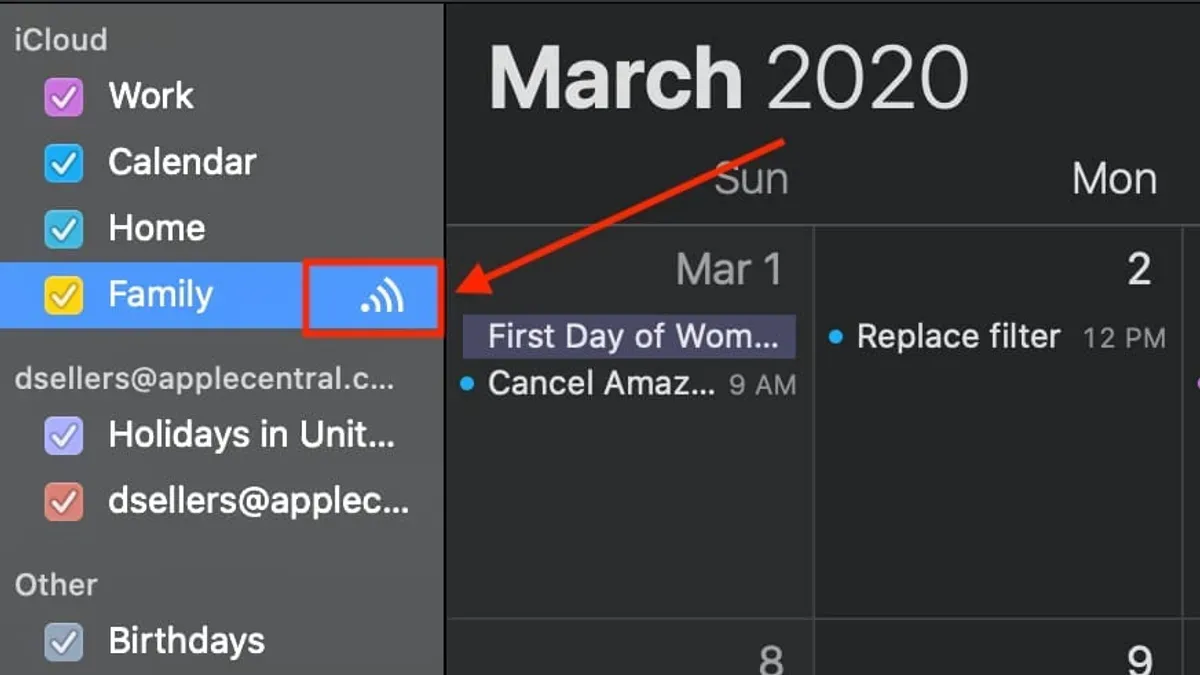
When calendar sharing is successful, you will see the shared icon next to the calendar name in the sidebar, confirming that others have access. This visual cue helps you keep track of which calendars are shared and their access levels.
Share a calendar event in Apple Calendar
Sharing individual events in Apple Calendar is a practical way to coordinate specific meetings or appointments without sharing your entire calendar. You can do this on both your iPhone and Mac by inviting people directly to an event. This ensures that participants receive notifications about the event and any updates you make.
- Open the Calendar app on your iPhone or Mac and locate the event you want to share. When you tap or double-click the event, its details will appear.
- Find and tap or click the Add Invitees button (on iPhone) or the Invitees field (on Mac). This opens a field where you can enter contacts.
- Enter the Apple ID email addresses or other email addresses of the people you want to invite. As you type, suggestions from your contacts will appear for quick selection.
- Send the invitation. The invitees will receive a notification with the event details, and the event will appear on their calendars if they accept.
- When you make changes to the event—such as time or location updates—the Calendar app will prompt you to send updates to all invitees. Confirming this ensures everyone stays informed.
For example, if you are scheduling a project meeting with co-workers, adding them as invitees allows each person to see the event on their calendar and receive reminders. Remember to only invite people necessary for the event to avoid cluttering others’ calendars. When you update event details, always confirm that updates are sent to keep everyone synchronized.
Notifications for event invites and updates depend on recipients’ calendar settings, but generally, they receive alerts through their Apple devices or linked email accounts promptly after you send or modify the event.
Share Google and Outlook calendars with Apple Calendar
To integrate your Google and Outlook calendars into Apple Calendar, you first need to add these accounts to your device. On iPhone or Mac, go to Settings > Mail > Accounts (or System Settings > Internet Accounts on macOS), then add your Google or Outlook account by entering your credentials. Once added, make sure Calendar syncing is enabled. This will import your Google or Outlook calendars into the Apple Calendar app, allowing you to view all events in one place.
However, direct calendar sharing from Google or Outlook within Apple Calendar is limited. Apple Calendar does not support sharing Google or Outlook calendars directly through its interface. Instead, you must use Google Calendar’s web interface or app to share your Google calendar with others. Similarly, Outlook calendars should be shared via Outlook’s web or desktop app, where you can set permissions and send invitations.
Here is a simple comparison of sharing features across the platforms:
| Feature | Apple Calendar | Google Calendar | Outlook Calendar |
|---|---|---|---|
| Share full calendar within app | Yes (Apple IDs only) | Yes (any email) | Yes (any email) |
| Share single event | Yes | Yes | Yes |
| Permission granularity | View/Edit | View/Edit/Manage | View/Edit/Delegate |
| Sync delay | Minimal | Can be several minutes | Can be several minutes |
| Cross-platform sharing | Limited outside Apple ecosystem | Strong | Strong |
Because of occasional syncing delays and permission conflicts, especially when calendars are shared across platforms, it’s best to manage sharing directly in the native Google or Outlook app. When you add these accounts to Apple Calendar, changes made elsewhere typically sync within a few minutes, but you may encounter delays of up to 10 minutes in some cases. Always verify permissions in the original app to ensure your shared calendars are accessible to intended users.
- Open Settings on your iPhone or System Settings on your Mac.
- Navigate to Mail > Accounts (iPhone) or Internet Accounts (Mac).
- Select Add Account and choose Google or Outlook.
- Sign in with your credentials and enable Calendars sync.
- Open Apple Calendar; your Google or Outlook calendars should now appear.
- To share a calendar, open the Google Calendar app or Outlook web interface, locate the calendar settings, and add people with appropriate permissions.
By following these steps, you can view and manage Google and Outlook calendars within Apple Calendar, while using the native apps to handle sharing and permissions effectively.
Use shared calendar apps for iPhone and Android
While Apple’s Calendar app works well within the Apple ecosystem, you might need a calendar solution that supports seamless sharing across both iPhone and Android devices. Popular third-party shared calendar apps provide cross-platform compatibility, real-time syncing, permission controls, and notifications to keep everyone on the same page.
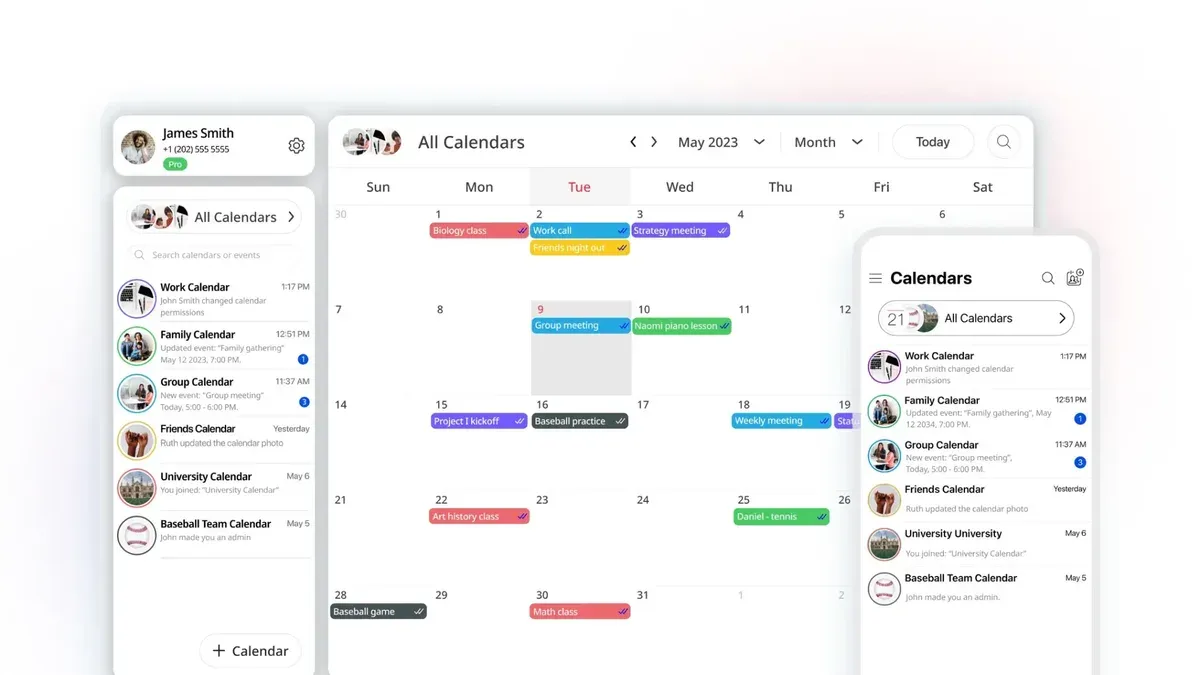
Apps like Google Calendar, Microsoft Outlook, and Cozi Family Organizer are widely used for shared calendars in 2026. Google Calendar integrates well with Android and iPhone and offers real-time sync and customizable notifications. Outlook calendar also supports cross-platform sharing with detailed permission settings suitable for teams. Cozi is a favorite among families because it combines shared calendars with to-do lists and meal planning.
When choosing a third-party app, look for features such as instant sync across devices, granular permission controls (like view-only or edit access), and reliable notifications. These apps can complement Apple Calendar by allowing you to share calendars with Android users or replace Apple Calendar sharing when multi-platform access is critical.
Free versions of these apps typically include basic sharing and notifications. Limitations may appear in advanced features like detailed permission management or ad-free experiences. Consider upgrading if your calendar needs grow.
- Download and install your chosen shared calendar app (for example, Google Calendar) from the App Store or Google Play Store. You should see the app icon on your home screen once installed.
- Create or sign in to your calendar account within the app. After signing in, your existing calendars should sync and appear in the app interface.
- Add or create a shared calendar within the app’s settings or calendar management section. You should see options to share this calendar with contacts.
- Invite people by entering their email addresses, choosing appropriate permission levels (view or edit), and sending invitations. Invited users will receive notifications and be able to access the calendar according to permissions.
- Verify that events added or updated on any device appear in real-time across all shared users’ devices, confirming successful synchronization.
Use these third-party apps when you need flexible, cross-platform calendar sharing that extends beyond Apple’s ecosystem, especially for mixed-device families and teams where Android compatibility is essential.
Troubleshoot common calendar sharing problems
If you notice that shared calendars are not appearing or updating on other devices, the first step is to confirm that all devices are connected to the internet and signed in with the correct Apple ID or account. Shared calendars require active syncing via iCloud or the relevant service, so a poor connection or wrong account can cause missing updates.
Permission and access errors often arise when recipients do not have the correct sharing rights. Check the calendar's sharing settings by opening Calendar, selecting the shared calendar, and reviewing the permission level assigned to each user—common levels are "View Only" or "View & Edit." If someone cannot see changes, ensure they have at least "View" access and that their invitation was accepted.
Syncing Google or Outlook calendars in Apple Calendar can introduce delays or errors. These usually stem from account authentication problems or outdated app versions. To resolve this, verify your Google or Outlook account is properly added in Settings > Calendar > Accounts, and confirm that Calendar syncing is enabled. Updating iOS or macOS to the latest version can also improve compatibility and reduce sync issues.
If invitation emails for calendar sharing are not received, ask recipients to check their spam or junk folders. Resend the invitation if necessary by removing and re-adding the contact in the calendar sharing settings. Also, ensure your email address is correctly entered and that your device’s Mail app or email provider is functioning properly.
- Verify all devices are online and signed into the correct Apple ID or calendar account. You should see the shared calendar listed and up to date on each device.
- Review sharing permissions in the Calendar app by selecting the shared calendar and checking each invitee’s access level. Confirm they have accepted the invitation.
- Check Google or Outlook account settings in your device’s Settings app to ensure calendars are syncing. A successful sync shows events from these accounts appearing in Apple Calendar.
- Ask invitees to check spam folders for invitation emails and resend invitations if missing. Successful receipt is indicated by their acceptance of the invite in the Calendar app.
- Update your device’s operating system to the latest version (iOS 16+ or macOS Ventura+) to fix known bugs affecting calendar sharing and syncing.
Following these steps will help ensure a consistent and reliable calendar sharing experience within Apple’s ecosystem and across compatible services.
Frequently asked questions
How to share calendar on apple phone?
To share a calendar on your Apple phone, open the Calendar app and tap Calendars at the bottom. Select the calendar you want to share, then tap the info (i) button next to it. Under the "Shared With" section, tap "Add Person," enter their Apple ID email, and send the invitation. The recipient must accept to access the shared calendar.
How to share a calendar?
Sharing a calendar involves selecting the calendar within your calendar app and choosing the option to share it. On Apple devices, you add people via their Apple ID. For cross-platform sharing, you can sync calendars with Google or Outlook and share from those services. Make sure your calendar permissions are set properly for the intended level of access.
How to share calendar in apple calendar?
In Apple Calendar, go to the Calendars view and tap the info (i) icon next to the calendar you want to share. Tap "Add Person" to invite someone using their Apple ID email. You can set their permissions to view only or allow editing. The invitee needs to accept the invitation to join the shared calendar.
How to share calendar in apple?
Sharing a calendar in Apple services means using the Calendar app on iPhone or Mac. You open the calendar list, choose the calendar, and select sharing options. You add participants by entering their Apple ID email addresses. After they accept, the calendar appears in their app, syncing updates automatically.
Is there a shared calendar app?
Yes, Apple Calendar itself supports shared calendars within the Apple ecosystem. Additionally, third-party apps like Google Calendar and Microsoft Outlook offer shared calendar features with cross-platform support. For broader sharing across devices, using these apps alongside Apple Calendar can provide flexibility and syncing.
What This Guide Does Not Cover
This guide focuses on sharing calendars within Apple's ecosystem and syncing with Google and Outlook calendars, which are the most common consumer options in 2026. It does not cover enterprise-level calendar sharing setups, such as those managed through Microsoft Exchange servers or specialized business collaboration platforms. Additionally, third-party calendar apps outside of Google and Outlook that might have unique sharing protocols are not included here. If your needs involve complex organizational permissions, advanced security policies, or less common calendar providers, consulting your IT administrator or the specific service's support resources is recommended.
To get started with calendar sharing efficiently, the single most useful step is to ensure your Apple ID and calendar settings are correctly configured on both your iPhone and Mac. Confirm that you are signed in with the same Apple ID, have enabled iCloud Calendar syncing in Settings > Your Name > iCloud, and have granted the necessary permissions for calendar sharing. This setup forms the foundation for smooth sharing across devices and with others, whether using Apple Calendar or integrating Google and Outlook calendars.