How to Add Google Calendar to the Apple Calendar App in 2026
Step-by-step guide to adding Google Calendar in Calendar app on iPhone, iPad, and Mac for unified scheduling in 2026.
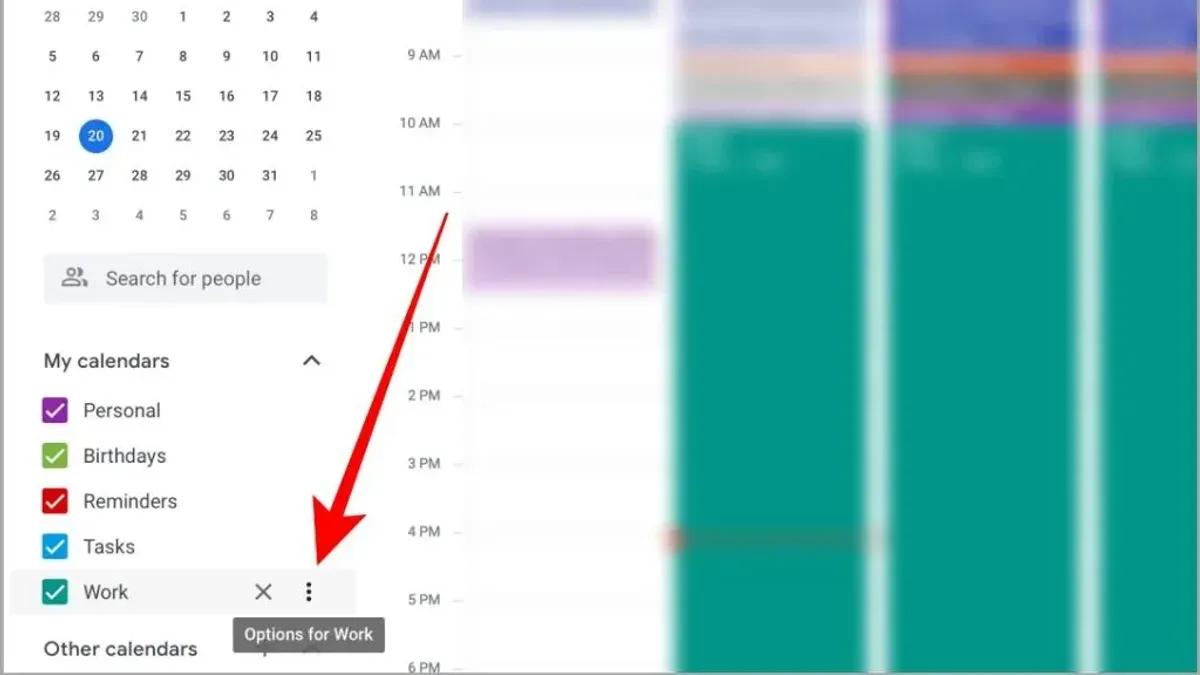
You often juggle multiple calendars, switching between Google Calendar and the Apple Calendar app on your iPhone, iPad, or Mac. This back-and-forth can lead to missed appointments or duplicated entries, especially if you rely on shared Google calendars for work or family events.
This article walks you through how to add Google Calendar in Calendar app on your Apple devices in 2026. You'll get clear, device-specific instructions for iPhone, iPad, and Mac. Plus, you'll learn how to include shared Google calendars, avoid common syncing pitfalls, and troubleshoot issues so your schedules stay unified and reliable.
Key takeaways
- Use the Settings app on iPhone and iPad to add your Google account under Passwords & Accounts.
- On Mac, add Google Calendar via System Settings > Internet Accounts for seamless syncing.
- Ensure shared calendars are enabled in Google Calendar web settings before syncing.
- Refresh calendars manually if events don’t appear promptly in Apple Calendar.
- Check internet connection and account permissions to resolve syncing problems.
Before you start: What you need to add Google Calendar to Apple Calendar
To successfully add your Google Calendar to the Apple Calendar app in 2026, you need to prepare a few essentials. First, ensure you have an active Google account with Google Calendar enabled. Both personal Google accounts (such as @gmail.com) and work or school accounts through Google Workspace typically support calendar syncing, but some organizational policies may restrict access.
Your Apple device—whether iPhone, iPad, or Mac—should be updated to the latest operating system version available in 2026. For example, iPhones and iPads should run iOS or iPadOS 17 or later, and Macs should have macOS Sonoma or later to guarantee compatibility with current calendar features and security improvements.
A stable internet connection is necessary for your calendars to sync smoothly. Also, you must be signed into your Apple ID on your device with iCloud enabled for the Calendar app. This setting is found under Settings > [your name] > iCloud > Calendars. Enabling this allows your calendar data to stay consistent across your Apple devices.
Finally, understand that adding Google Calendar to Apple Calendar does not permanently import past events. Instead, it syncs ongoing and future events, so changes made in Google Calendar will appear in Apple Calendar in real time as long as syncing is active.
- Confirm you have an active Google account with calendar access. Open calendar.google.com in a browser and verify your events appear. Successful check means your account is ready.
- Update your Apple device to the latest OS. Go to Settings > General > Software Update on iPhone/iPad or System Settings > General > Software Update on Mac, then install if an update is available. After updating, your device is ready for the newest calendar features.
- Ensure a stable internet connection. Open a webpage or stream a video to confirm connectivity.
- Verify you are signed into Apple ID with iCloud Calendars enabled. On iPhone/iPad, go to Settings > [your name] > iCloud > toggle on Calendars. On Mac, go to System Settings > [your name] > iCloud > check Calendars. When enabled, your calendars sync across Apple devices.
- Understand syncing limits: past events remain on Google Calendar, but Apple Calendar shows ongoing and future events synced continuously.
How to add Google Calendar to Apple Calendar on iPhone
To add your Google Calendar to the Apple Calendar app on your iPhone, start by opening the Settings app. Scroll down and tap Passwords & Accounts—or simply Mail if your device is running a newer iOS version. Here, you’ll manage the accounts that sync with your apps.
- Tap Add Account and select Google from the list of available account types.
- Enter your Google email address and password, then follow the on-screen prompts to grant calendar access permission to your iPhone.
- Once your Google account is added, you’ll see a list of services to sync. Make sure the Calendars toggle is enabled (green). This allows your Google Calendar events to appear in Apple Calendar.
- Exit Settings and open the Calendar app on your iPhone. Your Google Calendar events should begin to populate alongside any other calendars you have.
- If your Google events don’t show up immediately, tap Calendars at the bottom center, then swipe down on the list to refresh and force syncing.
This process integrates your Google Calendar smoothly into Apple Calendar, letting you view and manage all your events in one place. You can repeat these steps for multiple Google accounts if needed.
How to add Google Calendar to Apple Calendar on iPad
Adding your Google Calendar to the Apple Calendar app on iPad is quite similar to the iPhone process, but the iPad's user interface in Settings offers a wider layout with some differences you should note. To start, open the Settings app on your iPad and scroll down to the "Mail" section, then tap on "Accounts." Here, you will add your Google account if it isn’t already listed.
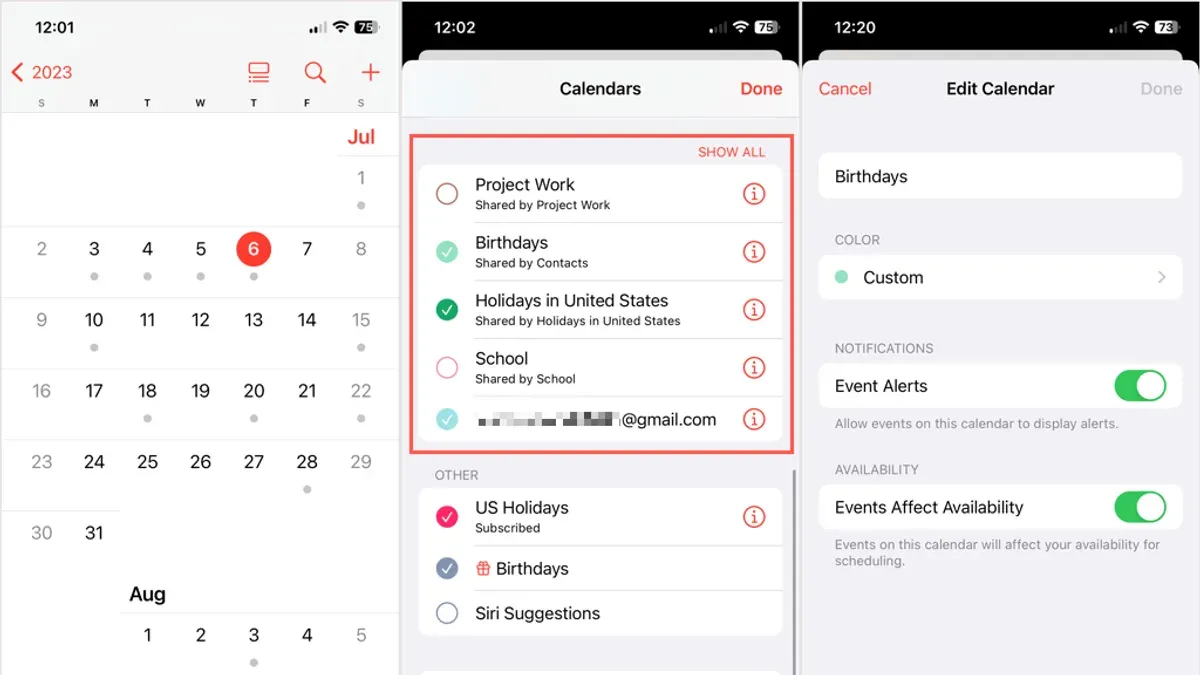
- Tap "Add Account," then choose "Google." Enter your Google account credentials and follow the prompts to sign in.
- Once signed in, you will see toggles for Mail, Contacts, Calendars, and Notes. Make sure the toggle for "Calendars" is enabled. This allows your Google Calendars to sync with the Apple Calendar app.
- Return to the main Settings menu, scroll down, and tap "Calendar." Then select "Accounts" to confirm your Google account is listed and syncing calendars.
- Open the Apple Calendar app. On iPad, the larger screen allows you to view multiple calendars side by side. Tap "Calendars" at the bottom center to see all available calendars, including those from Google.
- Use the checkboxes next to each calendar to select which Google calendars you want visible. This is especially helpful if you have multiple Google calendars and want to customize your view.
- To change calendar views, tap the "Today" button or use the view options (Day, Week, Month, Year) in the upper right. The iPad's larger screen makes toggling between views smooth and lets you compare your Apple and Google calendars effortlessly.
Remember, on iPadOS 2026, the Settings app's layout differs from iPhone by showing a split view on larger screens, making it easier to navigate between sections like Mail and Calendar. If syncing doesn’t seem to work, double-check the "Calendars" toggle in the Google account settings and ensure your iPad is connected to the internet. This approach keeps your Google and Apple calendars integrated and manageable on your iPad.
How to add Google Calendar to Apple Calendar on Mac
To integrate your Google Calendar with the macOS Calendar app, begin by adding your Google account in System Settings. This allows your Mac to fetch and sync calendar data from Google servers. Unlike iPhone and iPad, where account setup happens through Settings, Mac users manage these connections under Internet Accounts.
- Open System Settings from the Apple menu.
- Select Internet Accounts from the sidebar.
- Click Add Account and choose Google from the list.
- Sign in with your Google account credentials and complete any two-factor authentication if prompted.
- Once added, ensure the Calendars toggle is turned on for this Google account in Internet Accounts.
- Close System Settings and open the Calendar app.
- Check the sidebar for your Google account calendars; they should now appear alongside any other calendars.
- To manage visibility, click the Calendars button in the toolbar, then check or uncheck individual Google calendars to show or hide them.
macOS syncs Google Calendars in near real-time similar to iOS/iPadOS, but you may notice syncing happens slightly slower or differently due to background process differences. Also, macOS offers more granular calendar viewing controls within the Calendar app interface, which can be useful when handling multiple shared or subscribed calendars.
Remember, if your Google Calendars do not appear immediately, verify your internet connection and account settings in System Settings. Restarting the Calendar app can also prompt a sync refresh.
How to add a shared Google Calendar in Apple Calendar
To add a shared Google Calendar into your Apple Calendar app, first confirm that you have access to the shared calendar through the Google Calendar web interface or the Google Calendar app. Without this permission, the calendar won't appear in your Apple Calendar. Once you see the shared calendar listed under your Google account's calendars, it means syncing is enabled.
Next, open the Apple Calendar app on your device—whether iPhone, iPad, or Mac—and ensure your Google account is added and calendar syncing is active. Shared calendars typically appear alongside your personal Google calendars. To display a shared calendar's events, check the box or toggle beside its name in the calendar list.
Keep in mind that shared calendars sync with the Apple Calendar app based on the permissions granted by the calendar owner. If you have read-only access, you can view events but cannot edit or add new ones. If editing rights are granted, your changes will sync back to Google Calendar. For example, if a team project calendar is shared with you and you have edit access, adding a meeting on your Mac’s Apple Calendar will reflect on the Google Calendar for all members.
Manage notifications for shared calendars within Apple Calendar’s settings to avoid overlapping alerts. Also, remember that any changes in sharing permissions on Google Calendar’s side require resyncing or reopening the Apple Calendar app to update access.
How to add a calendar to Google Calendar app
Adding external or shared calendars directly into the Google Calendar app on your iPhone, iPad, or Android device helps you view all your schedules in one place. You can add calendars either by accepting invitations or by subscribing to a calendar URL, such as a public holiday calendar or a sports schedule.
- Open the Google Calendar app on your device and tap the menu icon (three horizontal lines) in the top-left corner. You should see the side menu open.
- Scroll down and tap Settings. This opens the calendar settings screen.
- Tap Add calendar or Add by URL (depending on your device and app version). If you have a calendar invitation, it will appear in your email or within Google Calendar's Invitations section to accept.
- To add a calendar by URL, paste the public calendar's iCal URL (for example, a public holiday calendar URL like https://www.calendarlabs.com/ical-calendar/ics/76/US_Holidays.ics) into the URL field, then tap Add calendar.
- Once added, the calendar will appear in your list under Other calendars. You can toggle its visibility by checking or unchecking it, and adjust notifications within each calendar’s settings.
Unlike adding Google Calendars to Apple Calendar, this process adds the calendar directly within Google's ecosystem, which means changes and invitations sync immediately with your Google account. This method is ideal if you rely heavily on Google Calendar app features or want to keep external calendars separate from your Apple Calendar app.
How to add someone’s calendar to my Google Calendar
To view another person’s calendar in your Google Calendar, you first need to receive an invitation or a share link from them. Invitations typically arrive as emails with a subject like “Someone shared a calendar with you.” You can also get a calendar’s shareable URL if they provide it directly.
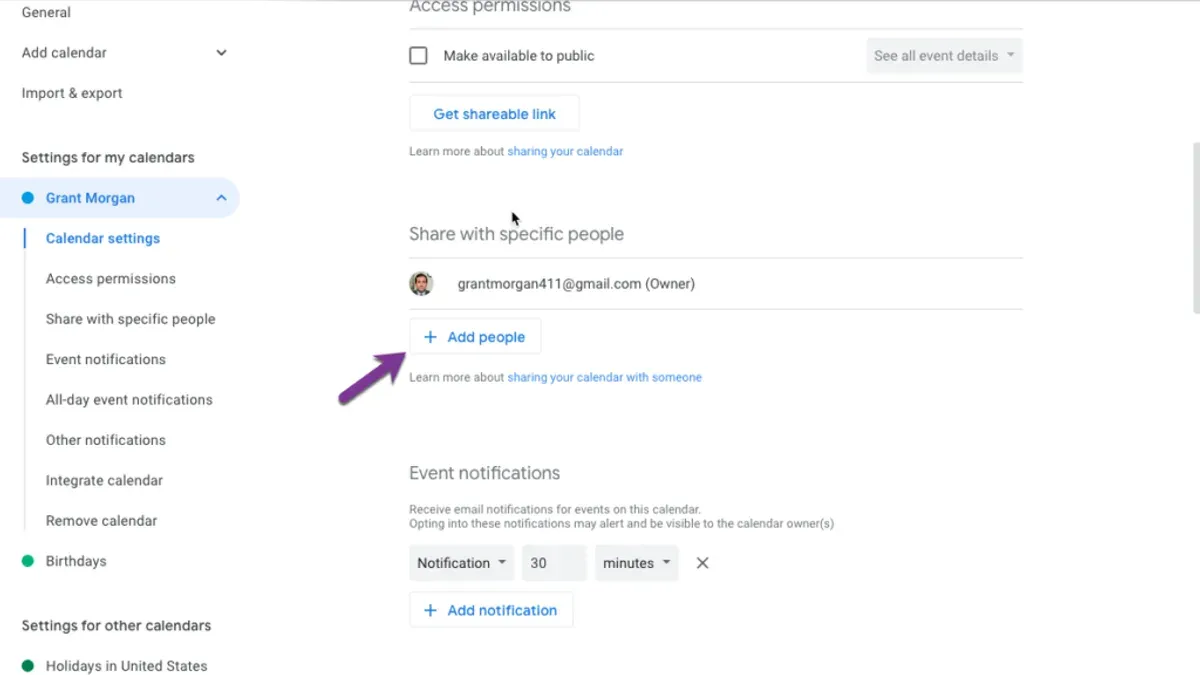
- Open the invitation email and click “Add this calendar”. This action automatically adds the shared calendar to your Google Calendar account. When successful, you’ll see the calendar listed under “Other calendars” on the left sidebar of Google Calendar’s web interface.
- If you have a shareable calendar URL instead, go to your Google Calendar on the web, click the “+” next to “Other calendars,” then select “From URL”. Paste the URL and click “Add calendar”. The calendar will then appear under “Other calendars.”
- Open the Google Calendar app or web version to confirm the new calendar is visible. You can toggle its visibility on or off by clicking its name. A successfully added shared calendar will sync automatically to Apple Calendar if you have your Google account connected there.
Note that shared calendars can be either view-only or editable, depending on the permissions the owner set. View-only calendars allow you to see events but not make changes, while editable calendars let you add, modify, or delete events, and those changes sync back to the owner’s calendar.
For example, an invitation email might look like this: “John Doe has shared his calendar with you. Click ‘Add this calendar’ to view it in your Google Calendar.” After adding, your Google Calendar sidebar will show “John Doe’s Calendar” under “Other calendars,” confirming it’s linked to your account.
Troubleshoot syncing issues between Google Calendar and Apple Calendar
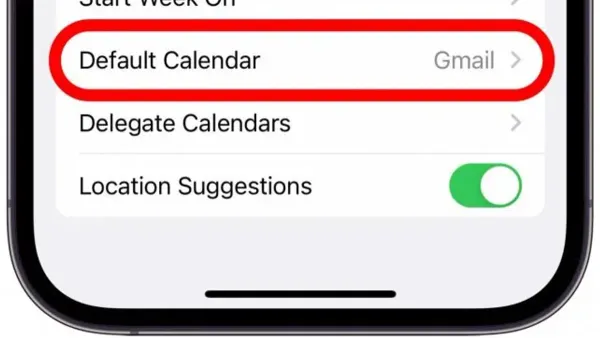
If your Google Calendar events aren’t showing or updating correctly in the Apple Calendar app, start by confirming your Google account is properly added and calendar sync is enabled. Go to Settings > Calendar > Accounts, select your Google account, and ensure Calendars is toggled on. A missing toggle or disabled sync often causes events not to appear.
Next, check that your device has a stable internet connection and is running the latest version of iOS, iPadOS, or macOS. Updates often fix bugs related to syncing. Without internet, calendar data won’t refresh.
To force a refresh, toggle calendar syncing off and on again. For example, in Settings > Calendar > Accounts > Google account, turn off Calendars, wait a few seconds, then turn it back on. When successful, your Google events should reappear or update in the Apple Calendar app.
Verify calendar visibility within the Apple Calendar app by tapping Calendars at the bottom. Ensure your Google calendars are checked. Sometimes calendars are hidden accidentally, causing missing events without a sync issue.
Google account permission problems can block syncing. If you see error messages like “Cannot verify account” or “Permission denied,” open Settings > Passwords & Accounts, select Google, and reauthorize by signing out and back in. This resets permissions and often resolves authorization errors.
If issues persist after these steps, remove the Google account entirely from your device (Settings > Calendar > Accounts > Delete Account) and add it again. This reset clears corrupted sync data and solves stubborn syncing problems.
- Check Google account is added and Calendars sync is enabled. You should see your Google calendars listed and enabled.
- Confirm stable internet and latest OS version. Device should be updated and online for syncing.
- Toggle Calendars off and on in account settings. Google events should reappear or update.
- Open Apple Calendar app, tap Calendars, and confirm Google calendars are checked. All expected calendars should be visible.
- Reauthorize Google account if you see permission errors. Errors like “Cannot verify account” disappear.
- If problems continue, remove and re-add Google account. Syncing issues should be resolved.
Frequently asked questions
How to add google calendar in apple calendar?
To add your Google Calendar in the Apple Calendar app, start by going to Settings on your iPhone, iPad, or Mac. Choose Passwords & Accounts (or Mail, Contacts, Calendars on some devices), then tap Add Account and select Google. Sign in with your Google account and make sure Calendars is toggled on. Your Google Calendar events will then sync and appear in the Apple Calendar app.
How to add google calendar in iphone calendar app?
On your iPhone, open Settings and tap Passwords & Accounts, then Add Account. Select Google and enter your Google credentials. After signing in, ensure the Calendars option is enabled. Open the Calendar app to view your Google Calendar events merged with your iPhone’s calendar.
How to use google calendar in apple calendar?
Once your Google Calendar is added to the Apple Calendar app, you can view, create, and edit events across both calendars seamlessly. Events you add in Apple Calendar will sync to Google Calendar if you choose your Google account when creating the event. To manage which calendars are visible, tap Calendars in the app and check or uncheck your Google calendars.
How to add shared google calendar in apple calendar?
First, ensure the shared Google Calendar is visible in your Google account by checking calendar.google.com. Then, after adding your Google account to Apple Calendar, the shared calendar should appear automatically. If it doesn’t, refresh your accounts or check that you have permission to access the shared calendar in Google Calendar settings.
How to add calendar google calendar app?
In the Google Calendar app, tap the plus (+) icon and select Add calendar. You can add calendars by subscribing to public calendars, importing events, or joining calendars shared with you by others. Follow the prompts to complete adding the calendar, and it will appear alongside your existing Google calendars.
What This Guide Does Not Cover
This article does not cover syncing Google Calendar with third-party calendar apps outside Apple’s ecosystem, such as Outlook or Fantastical. Some Google Calendar features, including advanced event colors, custom reminders, or notification settings, may not fully sync or be editable within the Apple Calendar app. The instructions here assume you are using the default Apple Calendar app and standard Google account settings. If your Google account is managed by an organization or enterprise, additional restrictions or security policies might affect syncing capabilities.
The single most useful next step is to verify that your Google account’s calendar sync is enabled in your device’s Settings under Passwords & Accounts (or Mail > Accounts on iOS/iPadOS) and Internet Accounts on Mac. Ensuring the toggle for Calendars is turned on and performing a manual refresh in the Apple Calendar app can often resolve most syncing issues immediately. This small check helps maintain a seamless connection between Google Calendar and Apple Calendar across your devices.
See also: How to Stop Messages Syncing to Your Mac in Messages App · How to Schedule a Message in Messages on Mac: Step-by-Step Guide 2026