How to Stop Messages Syncing to Your Mac in Messages App
Discover simple steps to stop messages syncing to your Mac in the Messages app and control your message privacy and notifications.
You might notice that messages from your iPhone or other Apple devices appear automatically on your Mac, which can be convenient but sometimes intrusive. Perhaps you want to keep certain conversations private or simply avoid message notifications on your computer. If you’re wondering how to stop messages syncing to Mac in Messages on Mac, this guide will walk you through the settings to control or stop syncing selectively without disabling messaging entirely.
This article covers the key actions you can take, from turning off Messages in iCloud to disabling Text Message Forwarding and signing out of iMessage on your Mac. You’ll also learn how to manage notifications and storage to reduce the impact of syncing, plus troubleshoot common issues if messages keep syncing unexpectedly.
Key takeaways
- Turn off Messages in iCloud via Messages > Preferences > iMessage to stop syncing your entire message history.
- Disable Text Message Forwarding in your iPhone’s Settings > Messages to prevent SMS from appearing on your Mac.
- Sign out of iMessage on your Mac in Messages > Preferences > iMessage to stop all message syncing without affecting your phone.
- Manage notification settings in System Settings > Notifications to reduce distractions from message alerts.
- Clear stored messages or archives to free space and limit synced message data on your Mac.
Before You Start: What You Need to Know About Message Syncing
Message syncing on your Mac happens primarily through your Apple ID and iCloud. When you use the Messages app, your iMessages can sync across your iPhone, iPad, other Macs, and iCloud, keeping conversations up to date on all devices. This syncing allows you to start a conversation on one device and continue it seamlessly on another.
It's important to distinguish between iMessage syncing and SMS forwarding. iMessage syncing involves your Apple ID and iCloud, syncing messages sent via Apple's encrypted iMessage service. SMS forwarding, on the other hand, lets your Mac receive regular text messages (SMS) sent to your iPhone, but this feature depends on the iPhone being nearby and connected.
People often want to stop syncing for several reasons: protecting privacy by limiting message exposure on multiple devices, reducing clutter on devices that don't need all conversations, or troubleshooting syncing issues that cause duplicate or missing messages. Understanding how syncing works helps you decide which settings to adjust.
Here is a simple flowchart to illustrate message syncing:
| Device | Sync Method | Messages Type |
|---|---|---|
| iPhone, iPad, Mac | iCloud (Apple ID) | iMessage |
| iPhone to Mac | Text Message Forwarding | SMS |
Before changing settings, consider which messages you want on your Mac and the privacy implications of syncing. This understanding will guide you through controlling or stopping message syncing effectively.
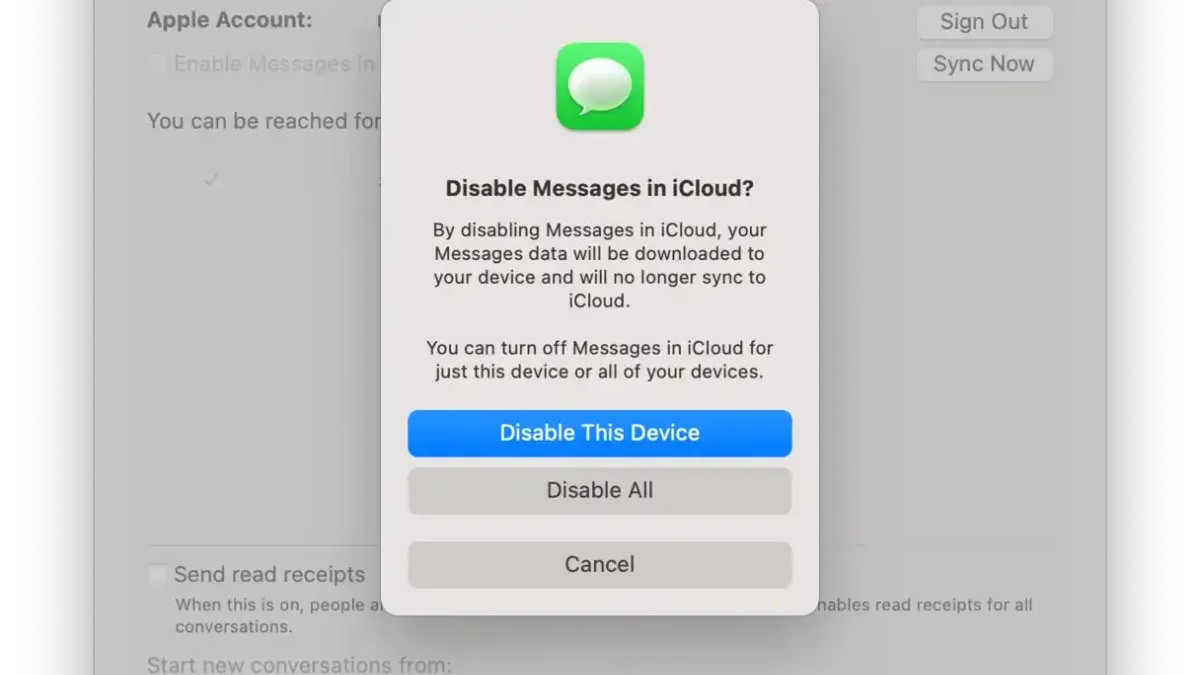
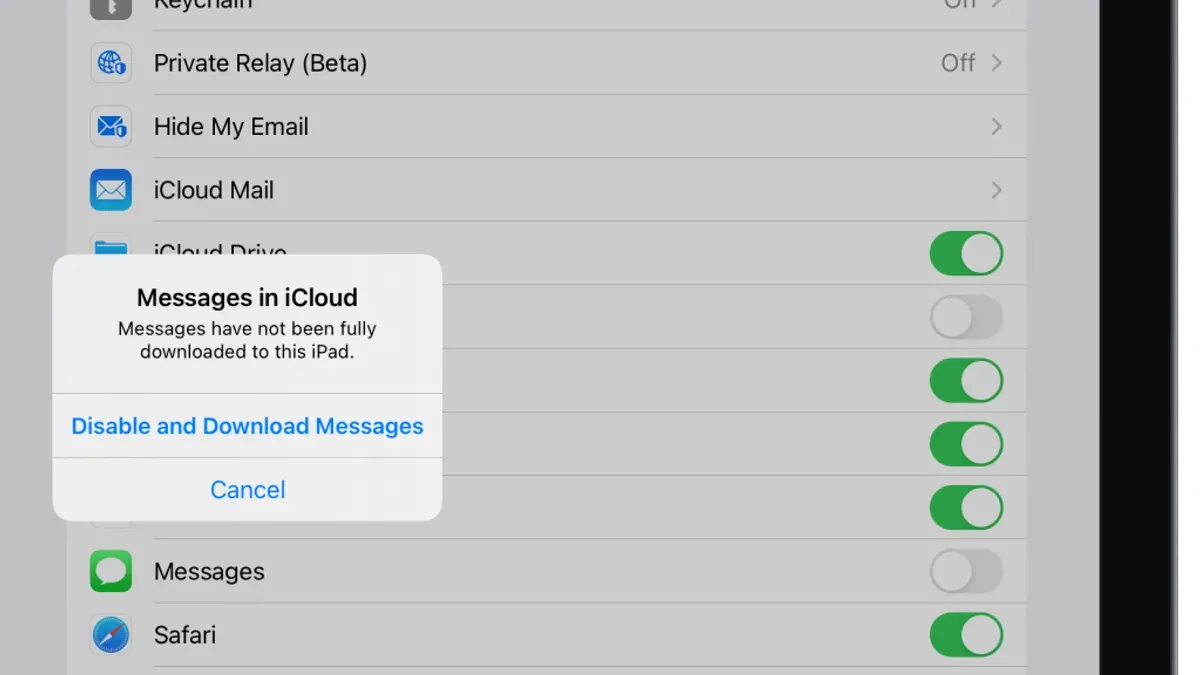
Turn Off Messages in iCloud to Stop Syncing Entirely
Disabling Messages in iCloud on your Mac will stop all your messages from syncing and backing up across your Apple devices. When you turn off this setting, new messages won’t appear on your other devices, and changes like deletions won’t sync either. This can help if you want to keep your message history separate on each device.
- Open System Settings by clicking the Apple menu and selecting it.
- Click your name at the top to open Apple ID settings.
- Select iCloud from the sidebar.
- Locate the Messages toggle and switch it off.
- Confirm you want to disable Messages syncing when prompted.
After turning off Messages in iCloud, your existing messages will stay on your Mac but will no longer update with new messages from other devices. Similarly, messages you delete on your Mac won’t be removed from your iPhone or iPad. Remember, turning off syncing means your messages won’t be backed up to iCloud, so if you lose data on one device, it won’t be recoverable from another.
Check the Messages app after these steps to ensure no new incoming messages appear from other devices. If you want to resume syncing later, simply return to the same settings and toggle Messages back on.
Disable Text Message Forwarding to Stop SMS Syncing to Mac
SMS messages, which appear as green bubbles, sync to your Mac through a feature called Text Message Forwarding on your iPhone. Unlike iMessage syncing that works via iCloud, SMS forwarding uses your iPhone as a relay to send and receive these messages on other devices. If you want to stop SMS messages from appearing on your Mac but keep iMessage syncing active, disabling Text Message Forwarding is the key.
- Open Settings on your iPhone and tap Messages.
- Tap Text Message Forwarding. Here, you'll see a list of devices linked to your Apple ID.
- Find your Mac in the list and toggle it off. The toggle will no longer be green, indicating forwarding is disabled for that device.
- You might be asked to enter a verification code shown on your Mac to confirm the change. Enter the code if prompted.
Once disabled, SMS messages will no longer sync to your Mac, but iMessages (blue bubbles) will continue syncing as usual. This way, you maintain access to your iMessages on Mac while keeping SMS strictly on your iPhone.
Sign Out of iMessage on Mac to Stop All Message Syncing
If you want to completely stop your Mac from syncing any messages without affecting your other Apple devices, signing out of iMessage on your Mac is an effective option. This action disconnects your Mac from your Apple ID within the Messages app, halting all message delivery and syncing to this device.
When you sign out, your existing message history remains on your Mac but will no longer update with new messages. Any new iMessages or SMS messages sent to your Apple ID will not appear on this Mac until you sign back in. This method is preferable if you want to maintain message syncing on your other devices but exclude your Mac from receiving messages.
- Open the Messages app on your Mac.
- From the menu bar, select Messages > Preferences.
- Click the iMessage tab at the top of the preferences window.
- Click the Sign Out button next to your Apple ID email address.
- Confirm that you want to sign out when prompted.
- After signing out, the Messages app will show a sign-in screen, indicating you are no longer connected to iMessage.
Before signing out, you’ll see your full message history and ongoing conversations. After signing out, new messages will stop arriving, but your old conversations remain accessible locally on your Mac. To resume syncing, you’ll need to sign back in with your Apple ID.
This sign-out approach is useful when you want to keep your Mac’s messages private or reduce distractions without altering settings on your iPhone or iPad.
Manage Notifications and Message Storage to Reduce Sync Impact
If you prefer not to stop syncing entirely, adjusting notifications and managing message storage can help reduce interruptions and free up space on your Mac. Customizing notifications lets you control when and how messages alert you, while deleting or archiving messages locally keeps your message app clutter-free without affecting syncing settings.
Customize Notifications for Messages
- Open System Settings on your Mac and select Notifications.
- Find and click Messages in the app list.
- Toggle off Allow Notifications to disable all alerts, or customize alert styles, sounds, and badge icons to reduce distractions.
- Close System Settings; your changes take effect immediately, and you should notice fewer message pop-ups or sounds.
Manage Message Storage Locally
- Open the Messages app and select conversations with large attachments or old messages.
- Right-click a message or attachment and choose Delete to remove it from your Mac.
- To archive, you can copy important messages to a document or export chat transcripts.
- Check storage usage by clicking the Apple menu > About This Mac > Storage, then Manage to see how Messages data impacts disk space.
For example, clearing a few large attachments can reduce Messages storage usage by several hundred megabytes without affecting syncing on other devices. This approach is useful if you want to keep syncing active but limit notifications and storage demands.
Troubleshoot Common Problems When Messages Keep Syncing
If messages continue syncing to your Mac despite following the recommended steps, it’s often due to account or device settings that need review. One common cause is using multiple Apple IDs or device accounts, which can cause unintended syncing. Check that all your devices use the same Apple ID for Messages by opening Messages > Preferences > iMessage on your Mac and verifying the Apple ID shown. On your iPhone, go to Settings > Messages > Send & Receive to confirm consistency.
Also, ensure iCloud settings are correctly configured across all devices. Go to System Preferences > Apple ID > iCloud on your Mac and confirm Messages is toggled off if you want to stop syncing. On iOS devices, check Settings > [your name] > iCloud and manage Messages accordingly.
Restarting your Mac and iPhone can resolve lingering syncing issues. After restarting, check for software updates by visiting System Preferences > Software Update on Mac and Settings > General > Software Update on iPhone. Installing updates often fixes bugs affecting message syncing.
If problems persist, resetting Messages preferences on your Mac may help. Quit Messages, then in Finder press Command+Shift+G and enter ~/Library/Preferences/. Locate the file named com.apple.iChat.plist and move it to the desktop. Relaunch Messages to generate a fresh preferences file. This can resolve corrupted settings that cause continuous syncing.
Frequently asked questions
Will turning off Messages in iCloud delete my messages on Mac?
Turning off Messages in iCloud on your Mac will stop syncing new messages through iCloud, but it will not automatically delete existing messages stored locally on your Mac. You can choose whether to keep or delete the existing messages when you disable this setting. If you select to keep them, your current messages remain accessible only on that device.
How can I stop only SMS messages from syncing but keep iMessages?
To stop only SMS messages from syncing to your Mac while keeping iMessages synced, you need to disable Text Message Forwarding specifically. On your iPhone, go to Settings > Messages > Text Message Forwarding, then turn off forwarding for your Mac. This blocks SMS texts from appearing on your Mac but allows iMessages to continue syncing.
Can I selectively sync messages from some contacts but not others?
Apple’s Messages app and system settings do not offer an option to selectively sync messages from specific contacts. Syncing is managed at the account or device level, so all messages sent or received through your Apple ID or phone number are treated equally. To control syncing by contact, you would need to manage conversations individually, such as by deleting messages or using separate accounts.
What happens if I sign out of iMessage on Mac but stay signed in on iPhone?
If you sign out of iMessage on your Mac but remain signed in on your iPhone, your Mac will stop receiving new messages and syncing existing conversations, while your iPhone continues to send and receive as usual. This allows you to keep using Messages on your iPhone without syncing activity on your Mac. However, messages sent from your Mac will no longer be delivered until you sign back in.
What This Advice Does Not Cover
This guide focuses specifically on controlling message syncing within Apple's Messages app and system settings on your Mac. It does not address third-party messaging apps like WhatsApp, Signal, or Facebook Messenger, nor does it cover non-Apple messaging services such as SMS apps from mobile carriers. Additionally, if you rely heavily on having a continuous, synced message history across all your Apple devices, disabling syncing might cause gaps or loss of message continuity. Before making changes, consider backing up your messages using Time Machine or exporting important conversations to avoid unintended data loss.
To maintain control over your message syncing, the most effective next step is to review and adjust your Messages settings in the Mac's System Settings under Apple ID > iCloud > Messages. Turning off "Messages in iCloud" here stops full message syncing without signing out of iMessage entirely. This balances privacy and convenience, allowing you to keep using the Messages app on your Mac without unwanted message duplication.
See also: How to Schedule a Message in Messages on Mac: Step-by-Step Guide 2026 · How to Edit a Sent Message in Messages on Mac: A Step-by-Step Guide