How to Delete All Messages in Messages on Mac: Step-by-Step Guide
Clear clutter in your Messages app by deleting all messages on your Mac with this step-by-step guide.
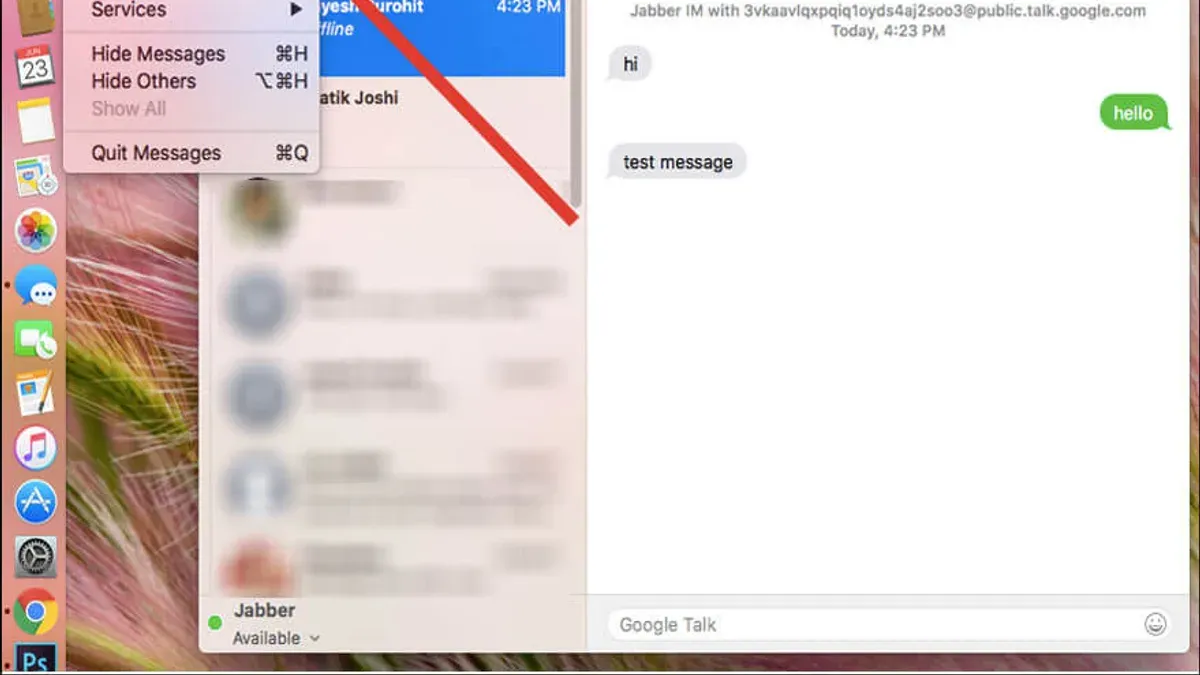
You’ve noticed your Messages app on Mac is cluttered with old conversations, and you want to clear them out quickly. Perhaps you want to free up storage space or simply start fresh without losing track of important threads on your other Apple devices. This article covers how to delete all messages in Messages on Mac efficiently and the choices you need to make about deleting messages locally versus across your synced devices.
We’ll guide you step-by-step through deleting all messages at once, selecting specific conversations, and managing storage. You’ll also learn how to keep messages on your iPhone while clearing them from your Mac, helping you maintain control over your message privacy and storage.
Key takeaways
- Deleting messages in Messages on Mac can be done all at once or selectively.
- Deleting locally on Mac doesn’t always remove messages from your other Apple devices.
- Turning off Messages in iCloud sync allows you to delete messages on Mac without affecting iPhone.
- Managing storage includes reviewing large attachments and old conversations.
- Troubleshooting steps help resolve common message deletion issues.
Before you start: What you need to know
Before deleting messages in the Messages app on your Mac, first confirm that you are signed in with your Apple ID. Open the Messages app and check under Messages > Preferences > iMessage to verify your Apple ID is active. This step is crucial because message syncing depends on your Apple ID and iCloud settings.
Understand how message syncing works with iCloud Messages enabled versus disabled. When iCloud Messages is on, deleting a message on your Mac removes it from all devices signed in with the same Apple ID. Without iCloud Messages, deleting messages on your Mac only removes them locally, leaving copies on your other Apple devices. This difference impacts how you manage your message history and storage across devices.
If your messages contain important information, consider backing them up before deleting. You can archive messages by exporting conversations or using Time Machine to back up your Mac. Once deleted—especially with iCloud Messages enabled—messages are permanently removed from all synced devices.
Check your macOS version to ensure compatibility with the provided steps. Most recent macOS versions support these message management features, but older releases may have different menu layouts or lack iCloud Messages syncing. Keeping your system updated helps avoid unexpected behavior when deleting messages.
Deleting large message histories can free significant storage space on your Mac, particularly if conversations include many photos, videos, or attachments. For example, removing a few extensive group chats could recover hundreds of megabytes or more, contributing to smoother performance.
How to delete all messages in iMessage on Macbook at once
To quickly remove all conversations or messages in the Messages app on your Macbook, follow these precise steps. This method will clear entire chat threads, helping you free up space and reduce clutter efficiently.
- Open the Messages app on your Macbook. You should see a list of all your conversations in the sidebar.
- Click on a conversation in the sidebar, then press Command + A to select all conversations at once. All conversations should become highlighted.
- Right-click (or Control-click) on any of the selected conversations to open the context menu. From this menu, choose Delete Conversations. A confirmation dialog will appear.
- Read the warning carefully. It will inform you that deleting conversations will remove all messages in those threads from your Mac. Confirm by clicking Delete. This action cannot be undone.
- After confirming, the sidebar will clear of conversations, showing an empty list. Your Messages app storage usage should decrease accordingly, though exact storage change might take a moment to reflect.
- Optionally, you can verify the space freed by checking About This Mac > Storage before and after deletion to see the impact on message storage.
Note that if your Messages app is synced with iCloud, deleting conversations here may also delete them from your other Apple devices depending on your sync settings. Always confirm your iCloud Messages status if you want to keep messages on other devices.
How to delete multiple messages in Messages on Mac
Deleting multiple individual messages within a single conversation lets you clear specific content without removing the entire chat. To start, open the Messages app and select the conversation containing the messages you want to delete.
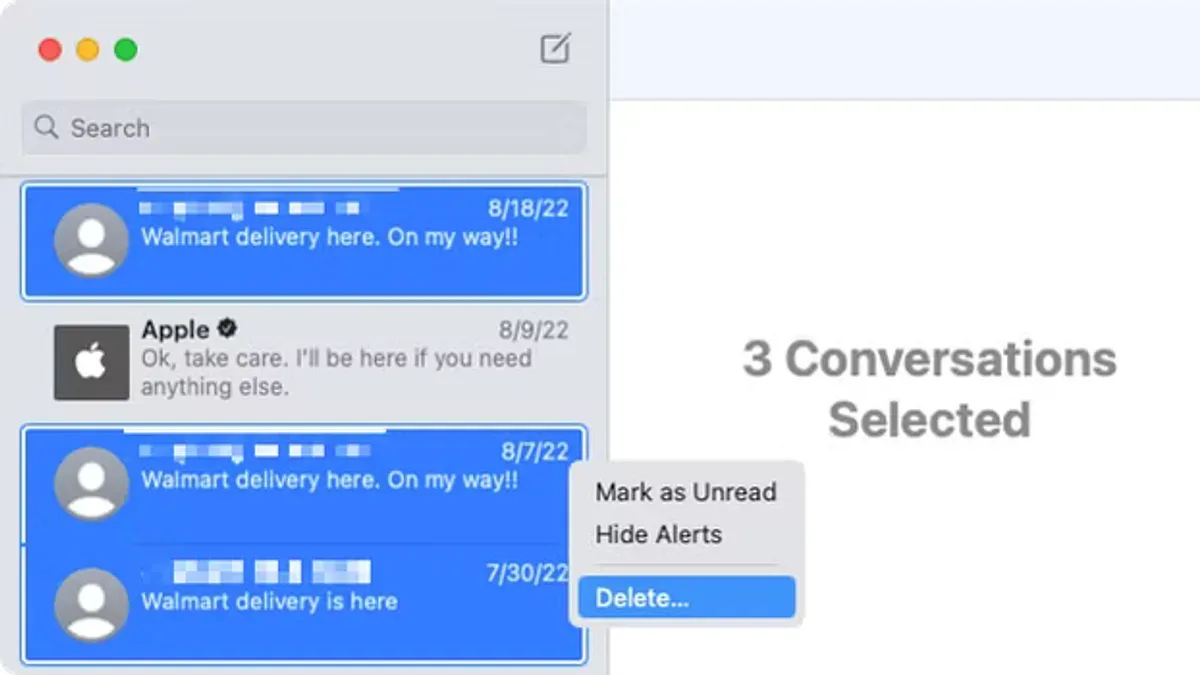
Next, click on the first message you wish to remove. To select several messages in a row, hold the Shift key and click the last message in the range. To select multiple messages that are not adjacent, hold the Command (⌘) key and click each message you want to delete. This lets you pick and choose messages selectively.
Once you have selected the messages, right-click on any of the highlighted ones to open the context menu. Choose Delete from the options. A confirmation prompt will appear; click Delete again to confirm. The selected messages will instantly be removed from the conversation on your Mac.
For example, if you want to delete 10 specific messages scattered throughout a conversation, use the Command key to select all 10 messages individually. Then delete them as described. This method helps you keep important parts of the conversation intact while clearing clutter.
Keep in mind that Messages on Mac does not support deleting multiple messages across different conversations at once—you must delete messages within each conversation separately. Also, deleting messages within a conversation on your Mac may sync the deletion across devices if Messages in iCloud is enabled, so be aware of this if you want to keep messages on other devices.
How to delete messages on Mac but not iPhone
If you want to delete messages on your Mac without removing them from your iPhone, you need to disable Messages in iCloud on your Mac first. This prevents deletions from syncing across your devices, allowing you to manage your Mac’s message storage independently. Keep in mind, turning off Messages in iCloud means your messages won’t stay synchronized, so new messages or deletions won’t reflect on other devices.
- Open the Messages app on your Mac.
- Click Messages in the menu bar and select Settings (or Preferences depending on macOS version).
- Go to the iMessage tab.
- Uncheck the box labeled Enable Messages in iCloud. You should see a message indicating your messages will no longer sync with iCloud.
- Close the settings window.
- Now, select the messages or conversations you want to delete on your Mac.
- Right-click and choose Delete, then confirm when prompted.
- After deletion, check your iPhone’s Messages app; the messages you deleted on your Mac will still be there because syncing is off.
While this method keeps your iPhone messages intact, it creates a separate local message database on your Mac. Any new messages received on your iPhone won’t automatically appear on your Mac, and vice versa, until you re-enable Messages in iCloud. This desynchronization can lead to confusion if you frequently switch between devices and expect all messages to be identical.
How to delete messages in Messages on Macbook selectively
You can remove specific conversations or individual messages without erasing your entire message history. This approach gives you precise control over what stays and what goes, helping you manage clutter efficiently.
To delete a particular conversation, locate it in the sidebar, then right-click or Control-click on that conversation. Choose Delete Conversation from the menu, and confirm when prompted. The conversation will be removed from your Messages app on Mac, but other conversations remain intact.
If you want to delete messages from a specific contact or within a certain date range, you can use the search bar at the top left of the Messages window. Enter a keyword, contact name, or date to filter messages. For example, typing a contact’s name will show all messages associated with that person.
Once you have the filtered messages, you can delete them manually. Click on a message to select it, then press the Delete key or right-click and select Delete. To delete multiple messages, hold the Command key while clicking each message, then delete them together. This method is useful if you want to remove all messages from a contact or those exchanged during a specific period.
Keep in mind that selective deletion requires you to manually identify messages; there is no built-in feature to delete all messages automatically by date or keyword. However, using search and manual selection provides a practical way to clean up your message history without wiping everything.
How to manage storage by deleting messages on iMac or Macbook
Messages and their attachments can occupy a significant portion of your Mac's disk space, especially if you frequently send photos, videos, or other large files. Knowing where Messages data is stored and how to manage it helps you reclaim valuable storage efficiently. The Messages app stores its data in the ~/Library/Messages folder, which contains chat databases, attachments, and other related files.
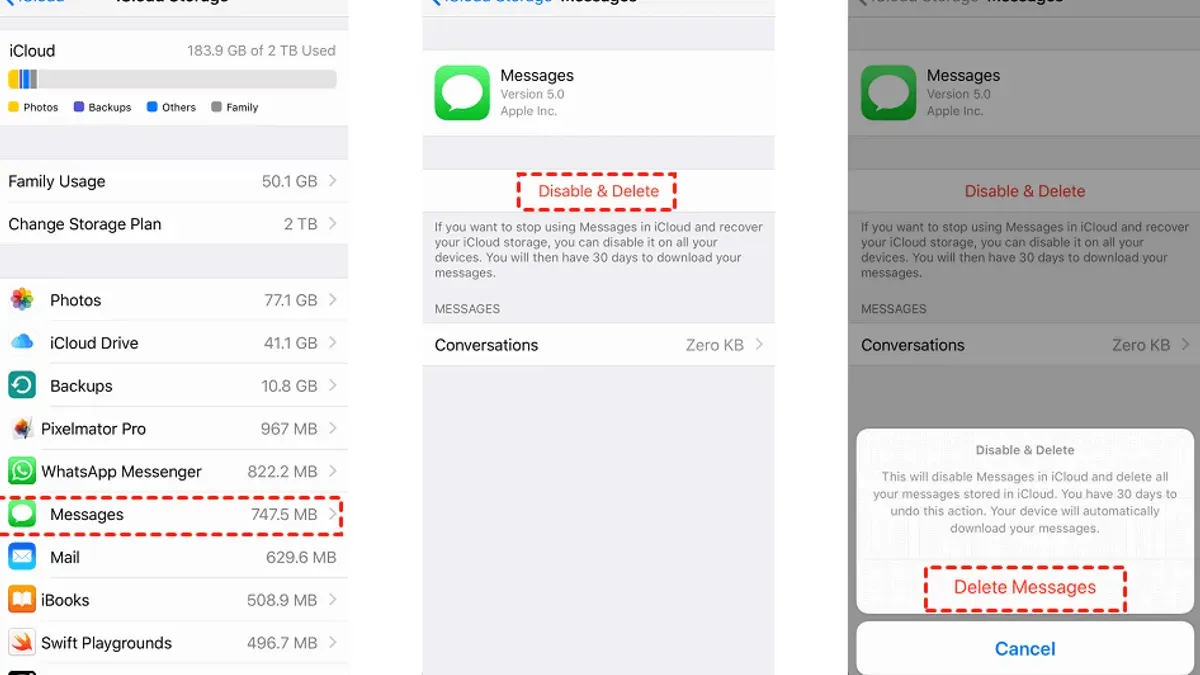
To get a clear picture of how much space Messages is using, open About This Mac from the Apple menu, then select the Storage tab and click Manage. Here, the Storage Management window breaks down storage by categories, including Messages. This section often shows space taken up by attachments such as images and videos, which can range from a few hundred megabytes to several gigabytes depending on your usage.
Deleting entire conversations frees some space, but the most significant savings usually come from removing large attachments. To do this, you can manually clear attachments inside the Messages app by selecting a conversation, clicking the Details button, and reviewing the Photos and Documents sections to delete unwanted files. Alternatively, you can navigate to ~/Library/Messages/Attachments and delete files directly, but be cautious to avoid corrupting message history.
- Open the Apple menu and select About This Mac. You should see a storage overview that includes the Messages category, indicating used space.
- Click Manage to open the Storage Management window. Confirm that Messages appears with a storage size reflecting your message data.
- Launch the Messages app and open a conversation. Click Details in the upper-right corner to view attachments.
- Select and delete large or unnecessary attachments, such as videos or images. After deletion, check the Storage Management window again to confirm space has been freed.
- Optionally, access
~/Library/Messages/Attachmentsin Finder to remove any remaining large files, ensuring you do not delete message database files.
By deleting attachments and conversations, users often recover tens or hundreds of megabytes, sometimes more, depending on the volume of media stored. Regularly reviewing and clearing message attachments is an effective way to maintain ample storage on your iMac or Macbook.
Troubleshooting message deletion issues on Mac
Sometimes, messages you delete on your Mac may reappear due to iCloud syncing. This happens because Messages in iCloud keeps your conversations consistent across devices. If you delete a message on your Mac but it remains on another device, iCloud will sync it back. To prevent this, you can temporarily disable Messages in iCloud in Messages > Preferences > iMessage, but be aware this stops syncing and may cause message discrepancies.
If you find yourself unable to delete messages or entire conversations, it could be due to a temporary app glitch or permissions issue. The Messages app might display error messages such as "Unable to delete conversation" or simply not respond to deletion commands. In these cases, force quitting and restarting Messages often resolves the problem.
How to force quit and restart Messages safely
- Click the Apple menu at the top-left corner of your screen and select "Force Quit...".
- In the Force Quit Applications window, select "Messages" and click "Force Quit".
- Confirm that Messages has closed by checking the dock; the app icon should no longer have a dot beneath it.
- Reopen Messages from the Applications folder or Launchpad.
- Try deleting the messages or conversations again; the app should respond without freezing or crashing.
If Messages keeps freezing or crashing during deletion, ensure your macOS is up to date and consider rebooting your Mac to clear system memory. Persistent issues may require checking disk permissions or consulting Apple Support.
Frequently asked questions
How do i delete all messages on macbook?
To delete all messages on your MacBook, open the Messages app, select a conversation, then press Command + A to highlight all conversations. Right-click and choose "Delete Conversations," then confirm the deletion. This removes all messages from your MacBook but may not delete them from other synced devices if Messages in iCloud is enabled.
How to delete all messages at once in imessage on mac?
In the iMessage app on your Mac, you can delete all messages at once by selecting all conversations with Command + A in the sidebar, right-clicking, and choosing "Delete Conversations." Confirm the prompt to remove all messages locally. Remember, if iCloud Messages is on, this deletion will sync and remove messages across your Apple devices.
How do I delete all messages on Macbook?
Deleting all messages on your MacBook involves selecting all conversations in the Messages app sidebar (Command + A), right-clicking, and clicking "Delete Conversations." Confirm the action to clear your message history locally. Note that disabling Messages in iCloud before deleting can prevent removal on other devices.
How to delete multiple messages in iMessage on Mac?
To delete multiple individual messages within a conversation, open the conversation in Messages, click and drag to select the messages you want, or hold Command while clicking individual messages. Then right-click any selected message and choose "Delete." This only removes selected messages, not the entire conversation.
How to delete all messages at once in iMessage on Mac?
Deleting all messages at once in iMessage on Mac means selecting all conversations in the sidebar with Command + A, right-clicking, and choosing "Delete Conversations." Confirm the deletion to erase all message threads locally. Be aware that if Messages in iCloud is active, this action deletes messages on all synced devices.
What This Guide Does Not Cover
This guide focuses on deleting messages within the Messages app on your Mac and managing how this affects your devices. It does not cover recovering messages once deleted, so be sure to back up any important conversations before proceeding. If you have Messages in iCloud enabled, deleting messages on your Mac will remove them from all devices synced with your Apple ID, which may not be what you want. Additionally, depending on your macOS version, the interface or menu names may differ slightly, so some steps could vary.
The most useful next step is to review your Messages preferences to check whether Messages in iCloud is enabled. You can find this by opening Messages, going to Messages > Preferences > iMessage tab, and looking for the "Enable Messages in iCloud" option. Understanding this setting helps you decide whether deleting messages on your Mac will affect other devices, giving you better control over your message storage and privacy.
See also: How to Send SMS from Mac Using Messages: Step-by-Step Guide