How to Check Energy Impact of Apps in Activity Monitor: Step-by-Step Guide
Discover how to check energy impact of apps in Activity Monitor to identify and manage power-hungry apps on your Mac for better battery life.
Your Mac's battery seems to drain faster than usual, and you're not sure which apps are the main culprits. You want to manage your battery life better but don't know where to find reliable information on app energy consumption.
This article shows you how to check energy impact of apps in Activity Monitor, guiding you step-by-step through accessing and understanding the Energy tab. You'll learn what the Energy Impact and 12 hr Power columns mean, how to spot energy-heavy apps and background processes, and practical ways to reduce their drain to keep your Mac running longer on battery power.
Key takeaways
- Open Activity Monitor from Applications > Utilities and select the Energy tab to view app energy use.
- Energy Impact reflects real-time power consumption, while 12 hr Power estimates average energy use over the last 12 hours.
- Identify apps with high Energy Impact or significant 12 hr Power to prioritize for quitting or managing.
- Background processes can also affect battery life even if you don't actively use them.
- Use Activity Monitor insights to decide when to quit, update, or limit apps to optimize battery performance.
Before You Start: What You Need to Use Energy Impact in Activity Monitor
To check the energy impact of apps on your Mac, first make sure you can access Activity Monitor. You can find it in the Utilities folder inside your Applications folder, or quickly open it by typing "Activity Monitor" in Spotlight search (Command + Space). This tool is built into macOS and provides various performance metrics, including energy usage.
The Energy Impact feature has been available since OS X Mavericks (10.9), so any Mac running this version or later will support it. Keep in mind that for Energy Impact to show relevant data, the apps or processes must be actively running or at least operating in the background. If an app is closed or completely inactive, it won’t register an energy impact.
Energy Impact is a relative measure rather than an exact power consumption value. It indicates how much energy an app is using compared to others at that moment, helping you identify which apps consume more power.
- Open Finder and navigate to Applications > Utilities > Activity Monitor. You should see a window with multiple tabs.
- Confirm your macOS version is OS X Mavericks (10.9) or later by clicking the Apple menu > About This Mac. Your version will be displayed there.
- Launch Activity Monitor and prepare to switch to the Energy tab once you start monitoring apps.
Open Activity Monitor and Navigate to the Energy Tab
- Open Finder on your Mac and go to the Applications folder. In Applications, locate and open the Utilities folder.
- Inside Utilities, double-click Activity Monitor. The Activity Monitor window will appear, showing real-time data on your system’s processes.
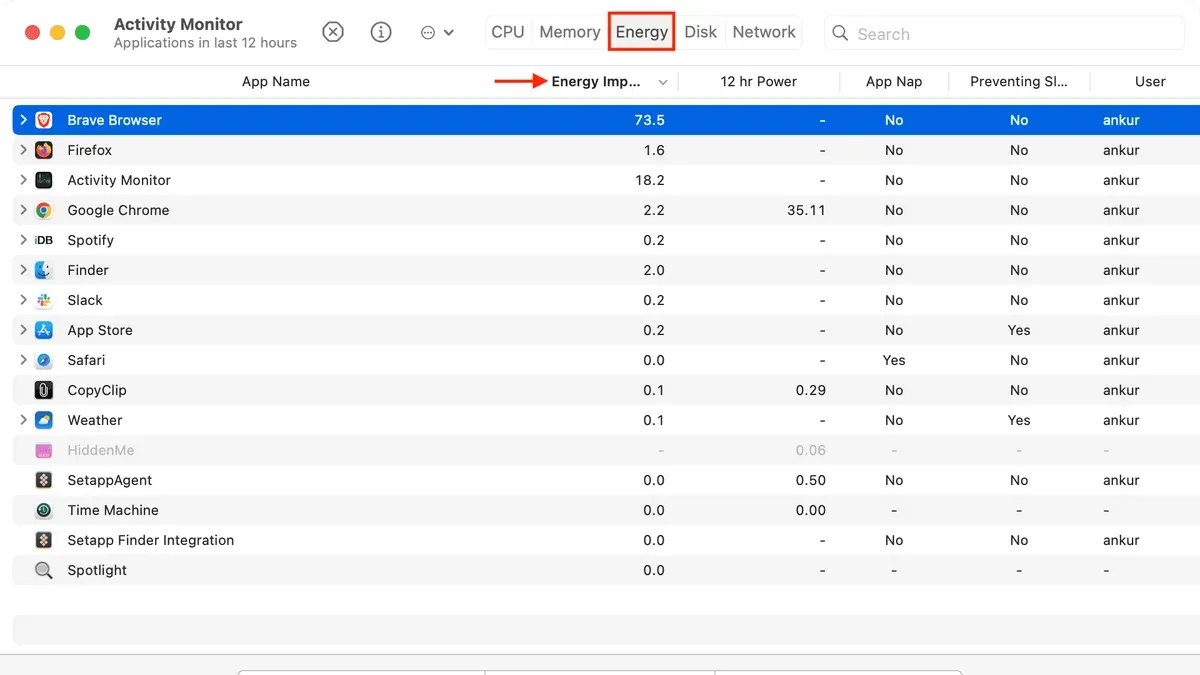
- At the top of the Activity Monitor window, you'll see several tabs: CPU, Memory, Energy, Disk, and Network. Click on the Energy tab to switch views.
- Once in the Energy tab, you will see a table with columns such as Energy Impact, 12 hr Power, and App Nap status. Energy Impact represents the current power consumption of each app relative to others; for example, a value of 5 indicates moderate use, while 20 or more suggests heavy consumption.
- The 12 hr Power column shows the average energy used by the app over the past 12 hours, helping you identify apps that consistently draw power. The App Nap column indicates whether macOS is limiting an app’s background activity to save energy; “Yes” means App Nap is active.
This layout provides a clear snapshot of which apps are consuming energy right now and over time, giving you the data you need to make informed decisions about managing battery life.
Interpret Energy Impact and 12 hr Power: What These Numbers Mean for Battery Life
- Understand Energy Impact as an Instantaneous Score: Look at the Energy Impact column to see a relative number representing how much energy an app consumes at the moment. For example, an app showing an Energy Impact of 20 is using significantly more power right now than one showing 5. This helps you spot apps currently draining your battery.
- Check the 12 hr Power Column for Cumulative Usage: This column sums up an app’s energy use over the past 12 hours. An app with a low Energy Impact but high 12 hr Power means it has used a lot of energy overall, possibly running in the background for long periods. For instance, a video editing app might have an Energy Impact of 10 but a 12 hr Power of 50, indicating steady consumption.
- Recognize Fluctuating Energy Impact Patterns: Some apps show spikes and drops in Energy Impact, such as browsers or mail clients, because their activity depends on tasks like loading pages or syncing. This means short bursts of high power use but not necessarily continuous drain.
- Identify Consistent Battery Drainers vs. Transient Users: Focus on apps with both high Energy Impact and high 12 hr Power to find consistent energy drains worth quitting or limiting. Apps with high Energy Impact but low 12 hr Power might be safe to leave open if they only temporarily spike energy use.
By interpreting these two metrics together, you can make informed choices about which apps to manage to extend your Mac’s battery life effectively.
Use Activity Monitor to Identify Energy-Heavy Apps and Background Processes
To pinpoint which apps and background processes are draining your Mac’s battery, start by sorting the list in the Energy tab. Click the Energy Impact column header to arrange apps from highest to lowest energy use. This immediately highlights the most demanding apps currently running. Next, sort by 12 hr Power to see which apps have cumulatively consumed the most energy over time, revealing less obvious but persistent culprits.
Check the App Nap status for each app. Apps with App Nap enabled reduce their energy use when idle, lowering impact. If an app has App Nap disabled but still shows high energy use, it may be actively consuming power even when it appears idle.
Background processes, such as Spotlight indexing or cloud sync services, can also significantly impact energy usage. Common high-energy processes include kernel_task, mds (Spotlight), and cloud syncing apps like Dropbox or Google Drive. Quitting or pausing these can lower Energy Impact noticeably.
- Sort by Energy Impact: The highest numbers indicate apps currently using the most power.
- Sort by 12 hr Power: Find apps with sustained high energy use over time.
- Look at App Nap status: Confirm if energy-saving mode is active.
- Identify background processes with notable energy use, such as mds or cloud sync apps.
- Quit a high-energy app and watch the Energy Impact drop in real time, confirming its effect.
Take Action: How to Reduce Energy Impact Based on Your Findings
Once you have identified apps with high energy impact, you can take several practical steps to reduce their power consumption. First, quit or force quit any apps that you don’t need running. This immediately lowers their energy impact, and you can verify the drop in Activity Monitor’s Energy Impact column.
Next, enable App Nap for apps that support it. App Nap reduces background energy use by pausing apps when they are not actively in use. To check this, right-click the app in Finder, select "Get Info," and ensure "Prevent App Nap" is unchecked. This can significantly reduce energy use for apps running in the background.
Adjust app-specific settings that contribute to high energy drain. For example, disable auto-refresh features, background syncing, or location services within the app’s preferences. These changes lower CPU and network activity, reflected in a lower energy impact.
Manage startup items and background services by going to System Settings > General > Login Items. Remove unnecessary apps that launch automatically, as they consume power even when idle.
Finally, use Low Power Mode on macOS to reduce overall system energy use. Turn it on via System Settings > Battery > Low Power Mode. When enabled, you’ll see a noticeable drop in Activity Monitor’s Energy Impact values across many apps, confirming its effect.
- Quit or force quit high-energy apps: open Activity Monitor, select the app, click the “X” button, and confirm. You should see the Energy Impact drop immediately.
- Enable App Nap: right-click the app in Finder, choose “Get Info,” and make sure “Prevent App Nap” is unchecked. Background energy use should decrease over time.
- Adjust app settings: open the app’s preferences and disable features like auto-refresh or background syncing. Check Activity Monitor to confirm a reduced Energy Impact.
- Manage startup items: go to System Settings > General > Login Items, remove unneeded apps from the list. This prevents unnecessary background energy drain after startup.
- Turn on Low Power Mode: go to System Settings > Battery, enable Low Power Mode. Notice an overall reduction in Energy Impact for most apps, visible in Activity Monitor.
Troubleshooting: What to Do if Energy Impact Seems Inaccurate or Unexpected
Sometimes Energy Impact readings in Activity Monitor may not align with your experience of battery drain. Certain apps might show a zero or very low Energy Impact despite noticeable battery usage because they run background activities or use system resources not fully captured by Activity Monitor’s current metrics. This discrepancy can happen with processes like Spotlight indexing or network syncing.
To ensure you are seeing accurate data, consider these troubleshooting steps:
- Restart Activity Monitor: Quit Activity Monitor and reopen it. This refreshes the data and can clear glitches. You should see updated Energy Impact values reflecting current usage.
- Restart your Mac: A full reboot can resolve temporary system or Activity Monitor bugs affecting energy data. After restarting, open Activity Monitor again and verify if values appear more consistent with your battery experience.
- Check for macOS updates: Occasionally, system updates fix bugs impacting Activity Monitor’s reporting. Go to System Preferences > Software Update and install any available updates, then recheck Energy Impact.
- Use third-party apps: If Activity Monitor isn’t giving a clear picture, apps like iStat Menus or coconutBattery provide more detailed views of energy consumption and battery health. Compare their readings with Activity Monitor to identify hidden energy drains.
- Seek professional support: If discrepancies persist and impact your battery life significantly, consider contacting Apple Support or visiting an Apple Store for diagnostics. There might be hardware issues or deeper software conflicts causing inaccurate energy reporting.
By following these steps, you can better trust the energy usage data and make informed decisions to optimize your Mac’s battery life.
Frequently asked questions
What exactly does Energy Impact measure in Activity Monitor?
Energy Impact is a relative measure of the current energy consumption of an app or process. It reflects how much power the app is using at that moment, considering CPU usage, disk activity, and network traffic. This number helps you identify which apps are currently draining your battery more than others.
Can I rely solely on Energy Impact to manage my Mac’s battery life?
No, Energy Impact gives a snapshot of power usage but doesn’t tell the full story. You should also consider the 12 hr Power metric, background processes, and your typical usage patterns. Some apps may have low Energy Impact but run constantly in the background, which can still affect battery life over time.
Why do some apps have high Energy Impact only occasionally?
Apps may spike in Energy Impact during tasks like video rendering, file syncing, or updates. Once the task finishes, their energy usage drops back down. These occasional peaks are normal and often tied to specific functions rather than continuous battery drain.
How does App Nap affect the energy consumption of apps?
App Nap automatically reduces energy use by slowing down or pausing apps that are open but not actively used or visible. This helps save battery by limiting background activity. However, some apps may prevent App Nap if they need to keep running, so their energy impact might remain higher.
Understanding the Limits of Energy Impact Metrics
Energy Impact in Activity Monitor offers a quick snapshot of how much energy each app is using relative to others at that moment. However, it is not an exact measurement of power consumption in watts or milliwatts. This means it can fluctuate rapidly and may not fully reflect long-term battery usage patterns. If you require precise and detailed power usage data—such as for professional diagnostics or hardware testing—specialized tools like power meters or developer instruments will provide more accurate results.
Also, keep in mind that some background system processes or macOS optimizations might not be fully visible or may behave differently depending on your Mac model and macOS version. For extensive battery management beyond individual app energy impact, consider using macOS’s built-in Battery preferences to see overall usage and battery health insights.
To move forward effectively, the single most useful next step is to regularly monitor the Energy tab while performing your typical tasks. This helps you spot recurring high-energy apps or processes you can adjust or quit, directly improving your Mac’s battery life over time.
See also: How to Check CPU Temperature and Usage in Activity Monitor