
Does the MacBook Air 15 inch M5 Have Thunderbolt? A Complete Guide
Learn if the MacBook Air 15 inch M5 includes Thunderbolt ports and how it affects your external device connections and performance.
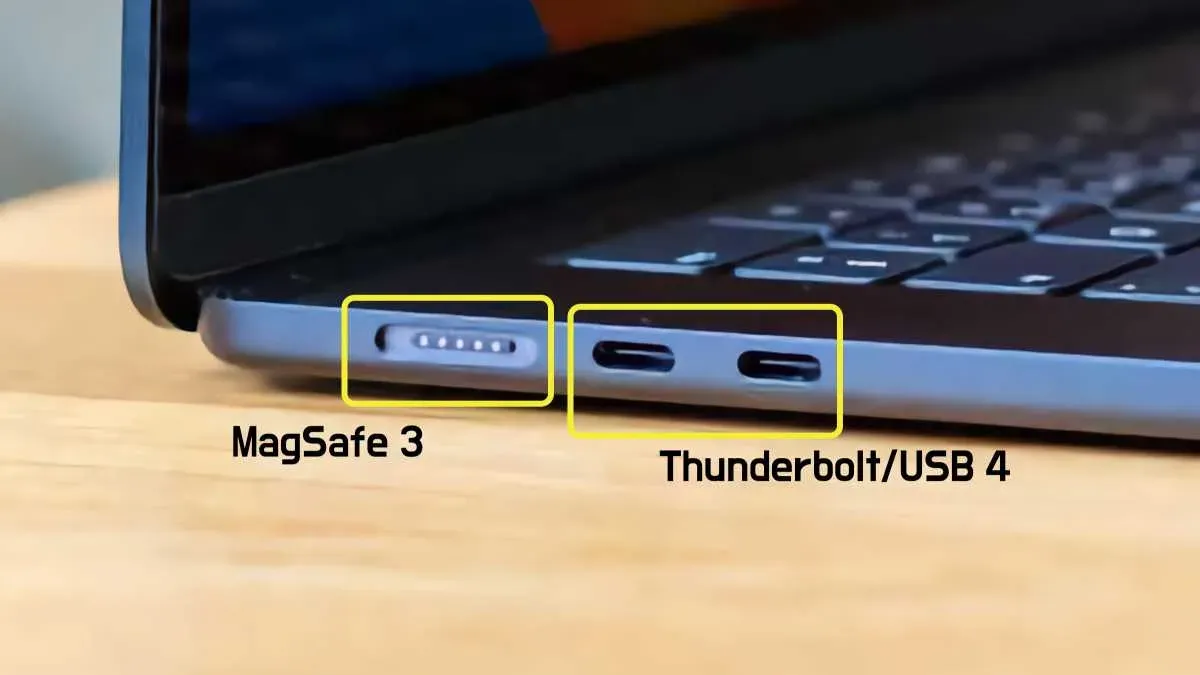
You’ve just unboxed your new MacBook Air 15 inch M5 and want to connect your external hard drive or monitor. Naturally, you wonder, MacBook Air 15 inch M5 does it have Thunderbolt? Understanding if and how this laptop supports Thunderbolt can influence what peripherals you buy and how smoothly your setup works.
This guide walks you through what Thunderbolt technology is, confirms its presence on the MacBook Air 15 inch M5, and explains practical uses like data transfer, display connections, and charging. You’ll also learn common pitfalls to avoid when connecting devices and the limitations of the MacBook Air’s Thunderbolt implementation. By the end, you’ll feel confident choosing compatible accessories and making the most of your laptop’s ports.
Key takeaways
- The MacBook Air 15 inch M5 includes Thunderbolt 4 ports, supporting high-speed data and video output.
- Thunderbolt compatibility affects which external displays and docks you can use effectively.
- Using the correct Thunderbolt cables is critical to avoid slow connections or no video signal.
- Not all USB-C cables support Thunderbolt features, so check specs before purchasing.
- Thunderbolt on this MacBook Air does not support external GPU setups or charging other devices at high wattage.
Understand What Thunderbolt Is and Why It Matters
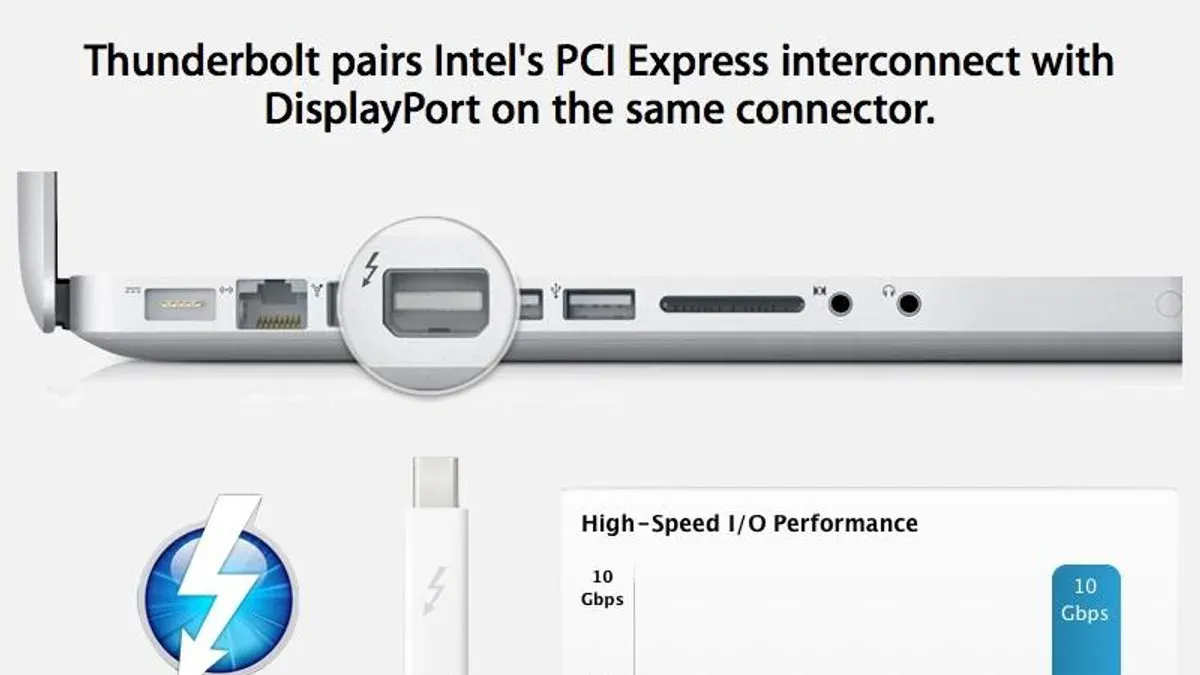
Thunderbolt is a technology that combines high-speed data transfer and video output into a single connection. It allows you to connect multiple devices like external drives, monitors, and docks with one cable, reducing clutter while maximizing performance. Thunderbolt 3 and 4 ports can reach data transfer speeds up to 40 Gbps, which is significantly faster than typical USB-C connections.
While Thunderbolt and USB-C ports may look identical, they are not the same. USB-C refers to the physical connector type, whereas Thunderbolt is a protocol that runs over USB-C ports, offering enhanced capabilities. For example, a USB-C port without Thunderbolt might support data transfer up to 10 Gbps and fewer video output options, while Thunderbolt ports support daisy-chaining multiple devices and driving multiple high-resolution displays.
Having Thunderbolt support on your MacBook Air 15 inch M5 means you can connect demanding peripherals such as 4K external monitors, fast external SSDs, and professional docking stations without sacrificing speed or quality. Picture transferring a large video file from an external drive in seconds or connecting a high-resolution display with a single cable—these are practical benefits that Thunderbolt brings to your everyday use.
Check If and How the MacBook Air 15 inch M5 Supports Thunderbolt
The MacBook Air 15 inch M5 comes equipped with two USB-C ports that also support Thunderbolt 4. This means you have access to the latest version of Thunderbolt technology, which offers improved data transfer speeds, enhanced video output capabilities, and greater power delivery compared to earlier versions.
Thunderbolt 4 on this model is fully integrated into the USB-C ports, so the same port serves multiple functions. For example, you can connect a Thunderbolt-compatible external display, a high-speed external storage device, or a docking station using a single USB-C cable. This integration simplifies connecting peripherals without needing separate ports for each function.
To picture this, imagine plugging in a single cable from your MacBook Air 15 inch M5 to a Thunderbolt dock that powers your laptop, connects to multiple monitors, and links to external drives all at once. This capability hinges on Thunderbolt 4 support, which ensures that your device can handle high bandwidth and versatile connections seamlessly.
Apple’s official technical specifications confirm these details, making it clear that the MacBook Air 15 inch M5 supports Thunderbolt 4 through its USB-C ports. This design choice aligns with Apple’s focus on compactness and multifunctionality, providing you with powerful connectivity options in a slim laptop form factor.
Use Thunderbolt on Your MacBook Air 15 inch M5: Practical Applications
With Thunderbolt 4 ports, your MacBook Air 15 inch M5 can connect to a variety of high-performance peripherals. For external displays, it supports up to one 6K monitor at 60Hz or two 4K monitors at 60Hz through compatible Thunderbolt docks or adapters. This means you can enjoy crisp, smooth visuals whether you're working on detailed graphic design or multitasking across multiple screens.
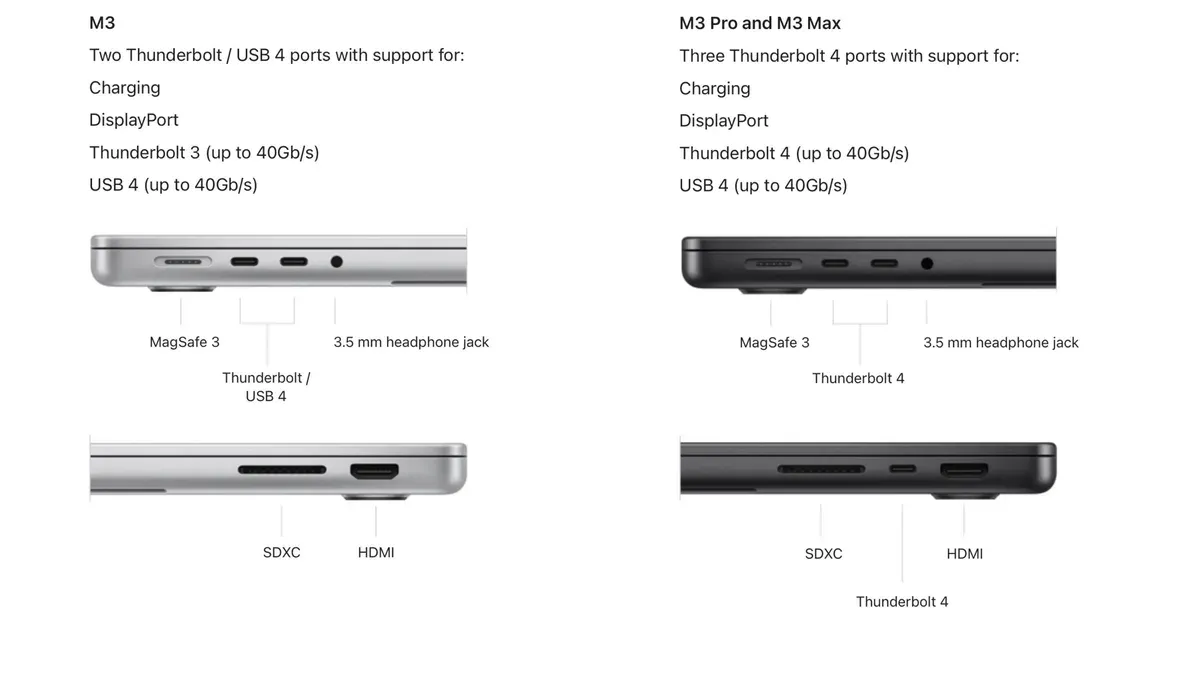
Thunderbolt also enables extremely fast data transfers with external storage devices. For example, connecting a Thunderbolt 4 SSD can deliver transfer speeds of up to 40Gbps, allowing you to move large video files or extensive photo libraries in seconds rather than minutes. This speed is a significant advantage if you regularly handle large media files or backups.
Your MacBook Air 15 inch M5 works seamlessly with popular Thunderbolt docking stations and multi-port adapters. These accessories expand your connectivity options by providing additional USB-A ports, Ethernet, SD card readers, and more, all through a single Thunderbolt connection. When choosing a dock, verify it supports Thunderbolt 4 to ensure full bandwidth and compatibility.
Creative professionals and power users benefit from Thunderbolt’s bandwidth for tasks like video editing, 3D rendering, and running external GPUs. For instance, plugging in a Thunderbolt docking station with an eGPU can boost graphics performance for demanding software. This flexibility makes the MacBook Air 15 inch M5 a capable machine for both everyday use and intensive workflows.
Avoid Common Mistakes When Using Thunderbolt on the MacBook Air 15 inch M5
One common misunderstanding is treating USB-C and Thunderbolt as interchangeable. While the MacBook Air 15 inch M5’s USB-C ports support Thunderbolt 4, not all USB-C cables or accessories do. For example, using a basic USB-C cable that lacks Thunderbolt certification may charge your device but fail to support high-speed data transfer or video output, leading to frustration when connecting external displays or fast storage.
Another frequent issue is relying on low-quality or incompatible cables and adapters. Thunderbolt requires cables that meet specific standards to maintain full bandwidth and functionality. Cheap or uncertified cables can cause intermittent disconnections or prevent certain peripherals from working properly. Always check for cables labeled "Thunderbolt 4" or "Thunderbolt 3" with active electronics if you need full performance, especially for longer cable runs.
Older Thunderbolt devices or peripherals may not fully support the latest Thunderbolt 4 features on your MacBook Air 15 inch M5. For instance, a Thunderbolt 2 dock might need an adapter, and even then, some functionalities like charging or dual 4K displays could be limited. Consult compatibility charts from Apple or peripheral manufacturers to understand what works best.
If you encounter connection problems, start troubleshooting by verifying your cable type and condition, restarting your MacBook Air, and testing the peripheral on another device if possible. For example, if an external drive doesn’t appear, try another Thunderbolt cable or port before assuming the drive is faulty.
Know the Limits: What Thunderbolt on the MacBook Air 15 inch M5 Does Not Cover
While Thunderbolt support on the MacBook Air 15 inch M5 offers powerful connectivity options, it does not guarantee compatibility with all external hardware features. For example, some advanced docking stations advertise support for Ethernet ports, SD card readers, or high-wattage charging that may not fully function or provide the same performance when connected through your MacBook Air's Thunderbolt ports. This is because the MacBook Air's hardware and power delivery specifications set practical limits on what can be supported.
Additionally, certain professional-grade accessories that rely on specialized drivers or firmware may not be fully compatible despite using Thunderbolt connections. A concrete example is some eGPU (external graphics processing unit) enclosures, which, despite Thunderbolt 4 compatibility, are not supported by the MacBook Air’s M5 chip architecture and macOS system.
This guide focuses on everyday use and does not cover detailed troubleshooting related to hardware repairs or modifications. When encountering hardware issues beyond basic connectivity, consult official Apple support or authorized service providers rather than attempting repairs yourself, as unauthorized modifications can void warranties and cause further damage.
Understanding these boundaries helps you set realistic expectations and avoid frustration when selecting peripherals or accessories for your MacBook Air 15 inch M5.
Frequently asked questions
Can I use any USB-C cable for Thunderbolt on the MacBook Air 15 inch M5?
Not all USB-C cables support Thunderbolt speeds and features. To fully utilize Thunderbolt on your MacBook Air 15 inch M5, you need a Thunderbolt-certified cable, which can handle higher data transfer rates and video output. Standard USB-C cables may work for charging or basic data transfer but won’t deliver the full Thunderbolt performance.
How many Thunderbolt devices can I connect simultaneously?
You can connect up to six Thunderbolt devices in a daisy-chain configuration to your MacBook Air 15 inch M5. This allows you to link multiple peripherals—like external drives, displays, and docks—through a single Thunderbolt port, simplifying your setup while maintaining high-speed connections.
Does Thunderbolt support charging on the MacBook Air 15 inch M5?
Yes, Thunderbolt ports on the MacBook Air 15 inch M5 support charging. You can use a Thunderbolt or USB-C charger to power your laptop or charge other devices connected through a Thunderbolt dock, making it a versatile port for both data and power delivery.
Will Thunderbolt improve my external display performance compared to USB-C alone?
Thunderbolt on the MacBook Air 15 inch M5 offers higher bandwidth than standard USB-C, which means it can support better external display performance. This includes driving higher-resolution monitors or multiple displays with smoother video playback and faster refresh rates compared to basic USB-C connections.
Know the Limits: What Thunderbolt on the MacBook Air 15 inch M5 Does Not Cover
This article does not cover detailed troubleshooting for hardware defects or software issues beyond common user-level fixes. If you encounter persistent problems such as devices not being recognized despite proper connection, or if your MacBook Air exhibits unusual behavior when using Thunderbolt peripherals, contacting Apple Support or visiting an authorized service provider is recommended. Additionally, this guide does not address advanced configuration scenarios like Thunderbolt networking or daisy-chaining multiple high-bandwidth devices, which might require specialized knowledge or additional hardware.
Understanding the basics of Thunderbolt support on your MacBook Air 15 inch M5 is a strong foundation, but for complex setups or critical professional workflows, consulting official resources or expert advice can ensure you get the best performance and compatibility.
To take the next practical step, check the System Information app on your MacBook Air by clicking the Apple menu > About This Mac > System Report > Thunderbolt. This will confirm your device’s Thunderbolt capabilities and connected peripherals, helping you make informed decisions about which accessories to use and how to optimize your setup.
See also: Does MacBook Air 15 Inch M5 Have an HDMI Port and Ethernet Port? · Discover the MacBook Air 15 Inch M5 Specs: What You Need to Know · MacBook Air 15 Inch M5 Review 2026: Performance, Value, and Comparison



