
How to Fix Mac Studio M4 Max USB-C Port Not Working: A Clear Troubleshooting Guide
Learn how to troubleshoot and fix the Mac Studio M4 Max USB-C port not working issue with easy, effective steps to restore your device connections.
You're connecting a device to your Mac Studio M4 Max, but the USB-C port isn't responding as expected. This can interrupt your workflow, especially when you rely on these ports for critical peripherals.
This article addresses the Mac Studio M4 Max USB-C port not working issue by guiding you through clear, step-by-step troubleshooting. You'll learn how to identify common causes, perform safe quick fixes, adjust relevant power and system settings, and understand when professional repair is necessary.
Key takeaways
- Check for debris or damage in USB-C ports before deeper troubleshooting.
- Reset the System Management Controller (SMC) to resolve power-related USB issues.
- Adjust Energy Saver settings to prevent port power interruptions.
- Update macOS to ensure compatibility with connected devices.
- Seek professional help if hardware faults persist after software fixes.
Recognize the Mac Studio M4 Max USB-C Port Issue
When your Mac Studio M4 Max USB-C port malfunctions, you may notice devices connected via USB-C are not recognized, connections drop intermittently, or there is no power delivery to peripherals. These symptoms can manifest as external drives not mounting, displays failing to receive signal, or charging cables not powering devices. It’s essential to distinguish whether the issue lies with the USB-C port itself rather than the connected device or cable.
To differentiate port problems from peripheral faults, try connecting the device to another known working port or Mac. If the device works elsewhere but not on your Mac Studio, the port may be at fault. Conversely, if multiple USB-C devices fail across ports, the problem might be with the Mac’s hardware or software configuration.
You can use the System Information app to verify USB device status and port recognition. Follow these steps:
- Click the Apple menu and select About This Mac.
- Click System Report… to open the System Information window.
- In the sidebar, under Hardware, select USB.
- Examine the USB Device Tree for the connected device. A properly working port will show the device name and details under the appropriate USB controller.
- If the device does not appear, or the port shows no activity, the USB-C port may be unresponsive.
For example, a working USB-C port might list a “SanDisk Extreme Pro” external drive with details like speed and power, while a non-working port will show no device listed when the same drive is connected. Confirming detection here helps focus troubleshooting on the Mac Studio port rather than the accessory.
Understand Likely Causes of USB-C Port Problems on Mac Studio M4 Max
Several hardware and software factors can lead to USB-C port issues on your Mac Studio M4 Max. Physical damage or debris inside the USB-C port often disrupts the connection. Even small particles can prevent proper contact between the port and the cable, causing intermittent or complete failure.
Software glitches or driver conflicts within macOS can interfere with the USB controller’s operation. Updates or corrupted system files may cause the ports to stop responding or behave unpredictably. Power management settings also play a critical role; if the system limits power delivery to reduce consumption, certain peripherals may not function correctly or fail to charge.
Apple silicon, including the M4 Max architecture, introduces specific firmware and hardware designs that occasionally experience unique faults affecting connectivity. Apple support advisories note that some USB-C hardware faults require diagnostic checks to rule out component-level issues. Compatibility problems with certain USB-C peripherals, especially those demanding higher power or unusual data protocols, may also cause failures.
If you suspect debris or physical port damage, carefully inspect and clean the port using compressed air or a soft brush. For software or power-related causes, try resetting the System Management Controller (SMC) and check the “Energy Saver” settings in System Preferences, ensuring options like “Put hard disks to sleep when possible” are disabled to maintain port activity.
- Turn off your Mac Studio M4 Max and disconnect all peripherals.
- Inspect the USB-C port for debris and clean gently if needed.
- Reset the SMC by shutting down, unplugging power for 15 seconds, then reconnecting and powering on.
- Open System Preferences > Energy Saver, and uncheck “Put hard disks to sleep when possible.”
- Reconnect your USB-C device and verify if it now functions properly.
You’ll know the issue is resolved when the connected device is recognized immediately, functions without disconnecting, and charges if applicable. If problems persist after these steps, firmware or hardware faults may require professional diagnostics.
Quick Checks and Safe Fixes to Try First
If your Mac Studio M4 Max USB-C port is not working, start with straightforward steps that are safe and often effective. First, restart your Mac Studio to clear temporary software glitches. For Apple silicon Macs, resetting the System Management Controller (SMC) equivalent means simply shutting down your Mac and waiting about 30 seconds before turning it back on. This process refreshes power management and can resolve USB port issues without risk.
Next, carefully inspect the USB-C port for dust or debris. Use a soft, dry brush or compressed air, avoiding metal objects that could damage the port. A clean port ensures proper connection and power delivery.
Try different USB-C cables and peripherals to determine if the issue is with the port or the device. Sometimes, faulty cables or incompatible accessories cause connection failures. Testing with known-good cables and devices helps isolate the problem.
Check for macOS updates by going to System Preferences > Software Update. Apple often releases fixes that address driver and firmware issues affecting USB-C functionality. Installing updates can restore port operation.
Resetting NVRAM/PRAM can also help. To do this, shut down your Mac, then press and hold the power button for about 10 seconds before releasing. After the Mac restarts, test the USB-C ports again. Successful resets typically lead to restored port recognition, confirmed when your device connects normally.
Community and Apple support forums frequently report that these steps resolve most USB-C port problems. If after trying these you still face issues, more advanced troubleshooting might be required.
Adjust Power and System Settings Affecting USB-C Ports
If your Mac Studio M4 Max USB-C ports seem unresponsive or deliver insufficient power, system power settings could be the cause. One common setting to check is Low Power Mode, which reduces power consumption but can limit the power available to USB-C ports and attached devices. Disabling Low Power Mode often restores full port functionality.
For example, a Mac Studio M4 Max running with Low Power Mode enabled showed noticeably reduced power delivery to external drives, causing connection drops. After turning off Low Power Mode, power consumption increased moderately, and the USB-C ports maintained stable connections without interruptions.
- Open System Settings and go to Battery.
- Select Battery from the sidebar, then click Options.
- Locate Low Power Mode and toggle it off.
- Reconnect your USB-C devices and observe if their performance improves.
You’ll know the fix worked if previously unresponsive devices now maintain stable connections and function without power-related interruptions.
Next, review Energy Saver preferences for USB selective suspend features. While macOS does not expose all USB suspend settings directly, ensuring that sleep settings do not aggressively power down USB ports helps. Navigate to System Settings > Battery > Power Adapter and disable any options that allow the computer to sleep automatically or put hard disks to sleep, as these can interfere with USB power delivery.
Also, consider the power demands of devices connected simultaneously. Overloading USB-C ports with high-power peripherals can cause erratic behavior. Disconnect nonessential devices to test if port stability improves.
Use Activity Monitor to identify any background processes that may interfere with USB controllers. High CPU or kernel task usage can affect USB performance. Close or restart any suspicious processes if necessary, but avoid terminating critical system processes.
Advanced Troubleshooting and When to Seek Professional Help
If USB-C port issues persist after basic fixes, you can use Safe Mode to check for software conflicts. To enter Safe Mode, shut down your Mac Studio M4 Max, then press and hold the power button until the startup options appear. Select your startup disk while holding the Shift key, then log in. Safe Mode disables third-party extensions and can reveal if an app or driver is causing the problem. If ports work in Safe Mode but not normally, uninstall recently added software or updates.
Running Apple Diagnostics helps detect hardware faults affecting the USB-C ports. Disconnect all external devices except keyboard, mouse, and display. Shut down and restart while holding the D key. Follow on-screen instructions. If diagnostics report issues like “USB controller failure” or “logic board problem,” this indicates hardware repair is needed.
If software conflicts are ruled out, reinstalling macOS can resolve deep system corruption that affects ports. Back up your data, then restart into macOS Recovery by pressing Command + R at startup. Choose “Reinstall macOS” and follow prompts. Success is indicated by restored port function after reinstall without data loss. This step is a last resort before hardware repair.
Physical damage signs include visible port deformation, debris lodged inside, or intermittent connection failures even after software fixes. Logic board problems may cause multiple ports to fail simultaneously and can show up in diagnostics. Repairing physical or logic board faults requires Apple service or an authorized provider. Repair costs vary depending on warranty status and extent of damage; battery or logic board repairs can be expensive.
To arrange professional service, contact Apple Support via their website or phone. You can also visit an Apple Store or authorized repair center. Provide diagnostic results and describe troubleshooting steps taken to expedite evaluation. Professional assessment ensures safe, effective repair when self-fixes are insufficient.
Frequently asked questions
What ports does Mac Studio M4 Max have and how do they differ?
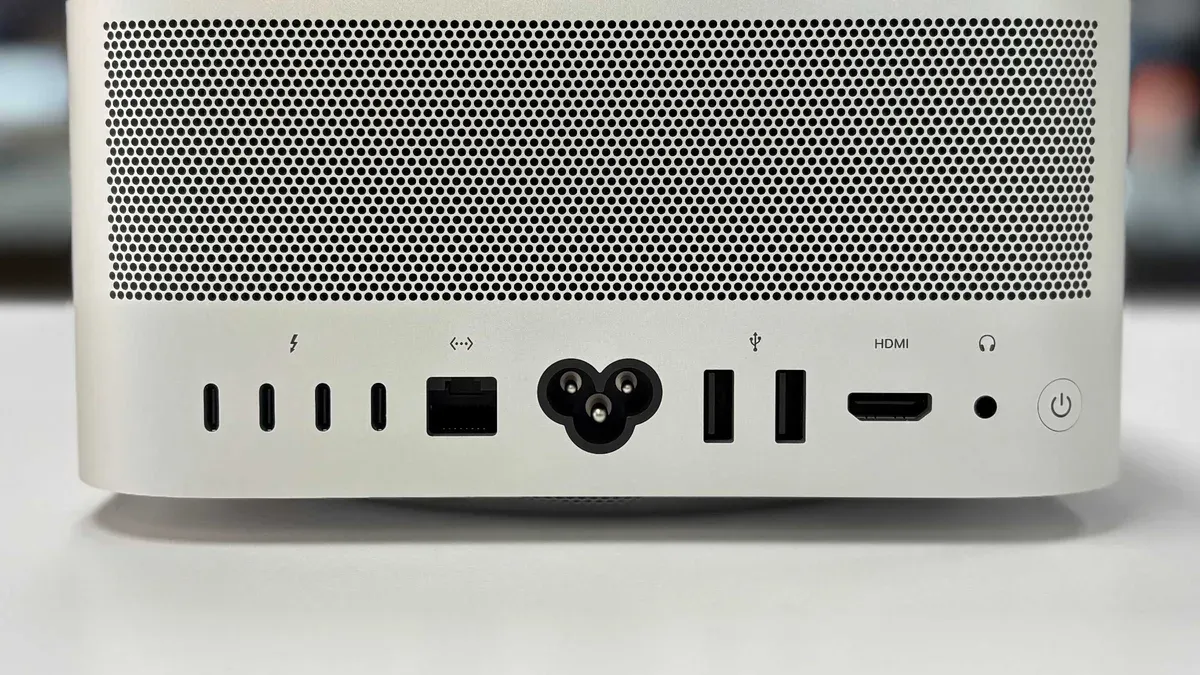
The Mac Studio M4 Max includes four Thunderbolt 4 (USB-C) ports on the back, two USB-A ports, a 10Gb Ethernet port, an HDMI port, and a headphone jack. The Thunderbolt 4 ports support high-speed data transfer, video output, and charging, while the USB-A ports provide compatibility with older peripherals. Thunderbolt ports offer more versatility and higher power delivery compared to USB-A.
Can Mac Studio M4 Max USB-C ports power external devices reliably?
Yes, the Mac Studio M4 Max’s USB-C (Thunderbolt 4) ports can reliably power many external devices such as SSDs, displays, and some USB-C hubs. However, power delivery depends on the connected device’s requirements; very high-power devices may need their own power source. The ports typically provide up to 15 watts for bus-powered accessories, which is sufficient for most common peripherals.
How does Mac Studio M4 Max power consumption relate to USB-C port issues?
High overall system power consumption can affect the USB-C ports if multiple high-draw devices are connected simultaneously, potentially triggering power management restrictions. The Mac Studio dynamically adjusts power delivery to protect hardware and maintain stability, which may cause some USB-C devices to disconnect or fail to charge properly. Monitoring energy usage in Activity Monitor can help identify if power demands are impacting port performance.
Is the Mac Mini M4 USB port setup similar to Mac Studio M4 Max?
The Mac Mini M4 and Mac Studio M4 Max share similarities in USB port types, including Thunderbolt 4/USB-C and USB-A ports, but the Mac Studio typically has more ports and higher power delivery capabilities. The Mac Studio’s design supports more intensive workflows and connected devices, so while the port types are similar, the Mac Studio offers greater expansion and power flexibility.
Understanding the Limits of This Guide
This article does not cover issues related to Thunderbolt accessories that require firmware updates or third-party driver installations, which may need specialized support. If your Mac Studio M4 Max has suffered liquid damage or severe physical trauma, these steps may not resolve USB-C port problems and professional repair is strongly recommended. Additionally, certain hardware faults may only be diagnosable and fixable by Apple-certified technicians with access to proprietary tools.
For most users experiencing typical connection or power issues, the steps outlined will address common causes. However, if you continue to face persistent problems despite trying these solutions, contacting Apple Support or visiting an authorized service provider is the safest and most reliable next step.
Start by running the Apple Diagnostics tool: shut down your Mac Studio M4 Max, then power it on while holding the D key. This can help identify hardware issues affecting your USB-C ports before you decide on further action.
See also: Fix Mac Studio M4 Max External Monitor Not Working: Step-by-Step Guide · Stop Mac Studio M4 Max Random Restarts: A Clear Fix Guide · How to Fix Mac Studio M4 Max Stuck on Apple Logo: A Step-by-Step Guide · How to Diagnose and Fix Mac Studio M4 Max Kernel Panic Issues



