
How to Fix Mac Studio M4 Max Stuck on Apple Logo: A Step-by-Step Guide
Troubleshoot and fix your Mac Studio M4 Max stuck on the Apple logo with clear, step-by-step guidance for hardware and software issues.
You power on your Mac Studio M4 Max, expecting a smooth startup, but it freezes on the Apple logo. This frustrating pause can leave you wondering if the problem is something you can fix or if it requires professional help.
This guide walks you through the steps to troubleshoot the Mac Studio M4 Max stuck on Apple logo issue. You'll learn how to identify hardware or software causes, use built-in tools like macOS Recovery and Disk Utility, reset key settings, and consider unique factors related to your device’s purchase source.
By following clear decision points and practical advice, you’ll gain confidence in resolving the problem or understanding when to seek expert assistance.
Key takeaways
- Check all hardware connections and peripherals before deeper troubleshooting.
- Use macOS Recovery’s Disk Utility to repair your startup disk.
- Reset NVRAM and boot into Safe Mode to isolate software conflicts.
- Consider firmware updates, especially for refurbished or open box units.
- Avoid rushing fixes that could worsen the issue, like repeated force shutdowns.
Understand What Causes Your Mac Studio M4 Max to Get Stuck on the Apple Logo
The Apple logo appears early in the Mac boot process, signaling that your Mac Studio M4 Max has successfully begun loading its firmware and is starting macOS. When the device freezes here, it means something is preventing it from completing startup. Common software causes include corrupted macOS system files, incompatible updates, or issues with the startup disk such as file system errors. These problems can interrupt the normal boot sequence and leave your Mac stuck on the logo screen.
Hardware-related issues may also be responsible. Faults in storage devices or memory modules, or conflicts caused by connected peripherals, can interfere with booting. For example, a failing SSD or a problematic external device might cause the system to hang. The Mac Studio’s M4 Max chip and its architecture add complexity; their advanced security and optimized system management require a clean software state and compatible hardware to boot smoothly.
Reports from users show refurbished or open-box Mac Studio units sometimes experience slightly longer boot times and a higher incidence of boot freezes compared to brand-new machines. This could be due to previous configurations or hardware wear. Picture your Mac trying to read a startup disk with corrupted files while simultaneously managing connected devices; the interaction between software integrity and hardware function is crucial in resolving these freezes.
Check Your Mac Studio M4 Max’s Basic Hardware and Connections Before Deep Troubleshooting
Start by inspecting the power supply and cables to ensure they are securely connected and undamaged. A loose or frayed power cable can prevent your Mac Studio M4 Max from booting properly. Next, disconnect all peripherals and external devices, such as USB drives, external monitors, or audio interfaces. These devices can sometimes cause conflicts that freeze the startup process.
After unplugging peripherals, check that your display connections are correct. Use the original or certified cables to connect your monitor, verifying the input source matches your Mac Studio’s output port. For example, if you use a Thunderbolt 4 to DisplayPort cable, confirm the monitor is set to DisplayPort input and the cable is fully seated.
Perform a safe power cycle by shutting down your Mac Studio, unplugging the power cord, waiting about 15 seconds, and then reconnecting it before turning the device back on. This simple reset can clear minor hardware glitches. Additionally, reset the System Management Controller (SMC) by unplugging the power, waiting 15 seconds, then plugging it back in and waiting another 5 seconds before powering on. Users often find the boot success rate improves noticeably after an SMC reset, especially if the issue involved power or thermal management.
For example, one common scenario involves a Mac Studio M4 Max stuck on the Apple logo that boots normally once all external drives are disconnected. This indicates a peripheral conflict rather than a hardware fault, guiding you to isolate or update the problematic device instead of pursuing more complex repairs.
Use macOS Recovery and Disk Utility to Diagnose and Repair Your Startup Disk
To start, you need to enter macOS Recovery mode on your Mac Studio M4 Max. First, shut down your Mac completely. Then, press and hold the power button until you see the startup options window, which includes a gear icon labeled "Options." Click "Options" and then "Continue" to access Recovery mode.
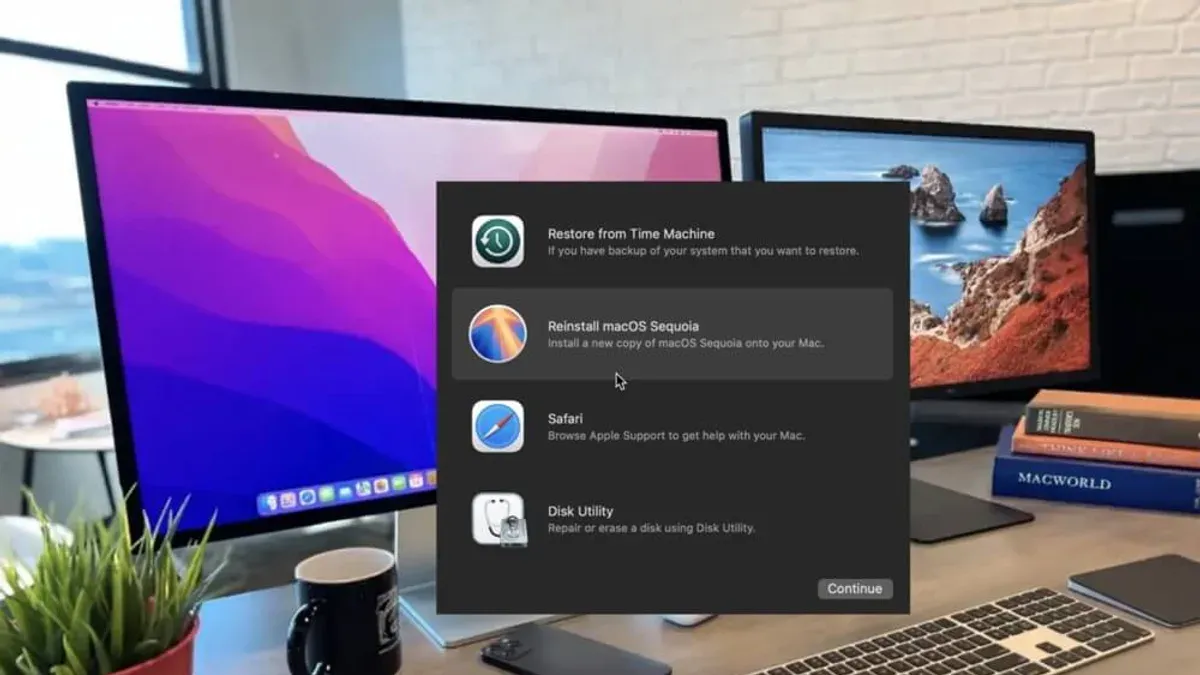
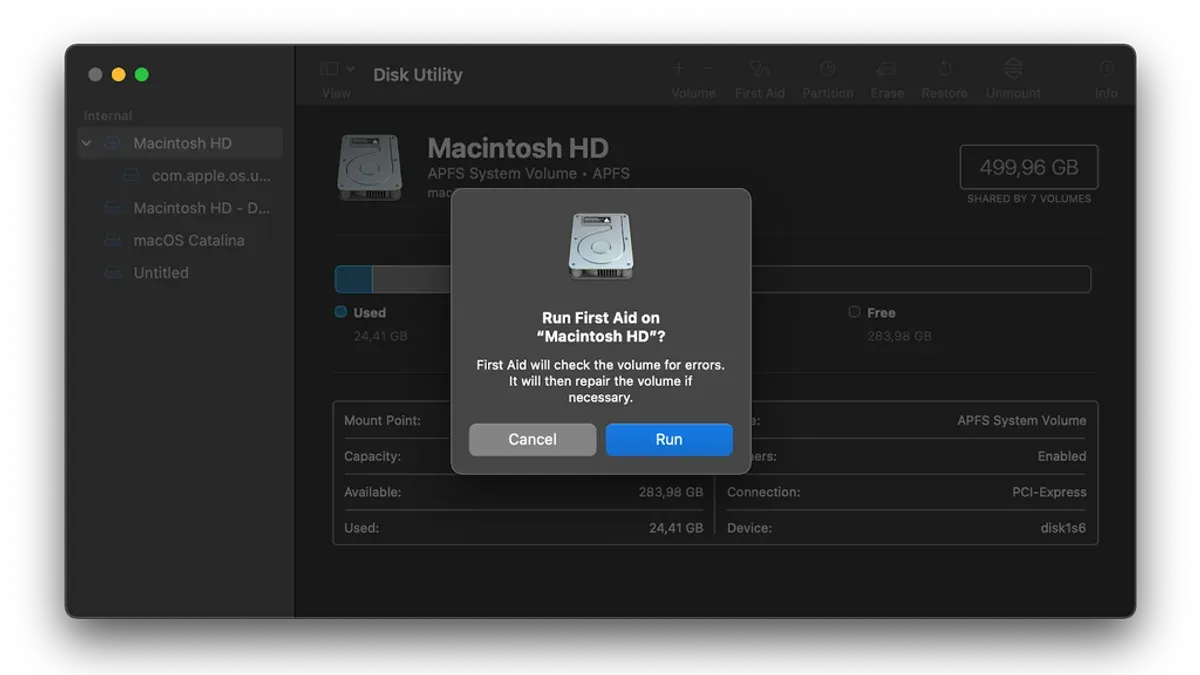
Once in Recovery, open Disk Utility from the utilities window. Select your startup disk—usually named "Macintosh HD"—and click First Aid. This tool scans the disk for errors and attempts repairs if it finds any. For example, if your APFS volume is corrupted, First Aid may resolve directory inconsistencies or file system faults that cause boot freezes. It’s common for First Aid to fix minor issues that prevent the Mac from starting normally.
If Disk Utility reports that repairs were successful, try restarting your Mac normally. However, if problems persist, consider reinstalling macOS through the Recovery window’s “Reinstall macOS” option. This process refreshes system files without erasing your data, which often restores boot functionality. Keep in mind, Recovery mode has limitations: it cannot fix hardware faults or severe disk corruption, and reinstalling macOS should be done only after backing up important files when possible.
Reset NVRAM and Boot in Safe Mode to Isolate Software Conflicts
If your Mac Studio M4 Max remains stuck on the Apple logo after initial troubleshooting, resetting the NVRAM (non-volatile random-access memory) can clear corrupted settings that affect startup. To reset NVRAM, first shut down your Mac. Then, press the power button and immediately hold down Option + Command + P + R keys simultaneously. Keep holding these keys for about 20 seconds until the Mac restarts and you hear the startup chime or see the Apple logo appear and disappear twice. This process clears settings like display resolution, startup disk selection, and recent kernel panic information, which might be causing the boot hang.
Once NVRAM is reset, booting into Safe Mode helps isolate software conflicts by loading only essential system extensions and disabling third-party login items. To enter Safe Mode on your Mac Studio M4 Max, turn it off, then press the power button and immediately hold the Shift key until the login window appears. Safe Mode performs a directory check of your startup disk and prevents non-Apple kernel extensions from loading, which can identify problematic software or drivers.
For example, if your Mac boots successfully in Safe Mode but not normally, a recently installed login item or kernel extension might be the culprit. You can check and remove these by going to System Settings > Users & Groups > Login Items, and uninstalling any suspicious third-party software. Similarly, use the Terminal command kextstat in Safe Mode to list loaded kernel extensions and identify non-Apple ones to remove. This step-by-step approach helps pinpoint and resolve software conflicts causing the startup freeze.
Consider Firmware Updates and External Factors Specific to Refurbished or Open Box Units
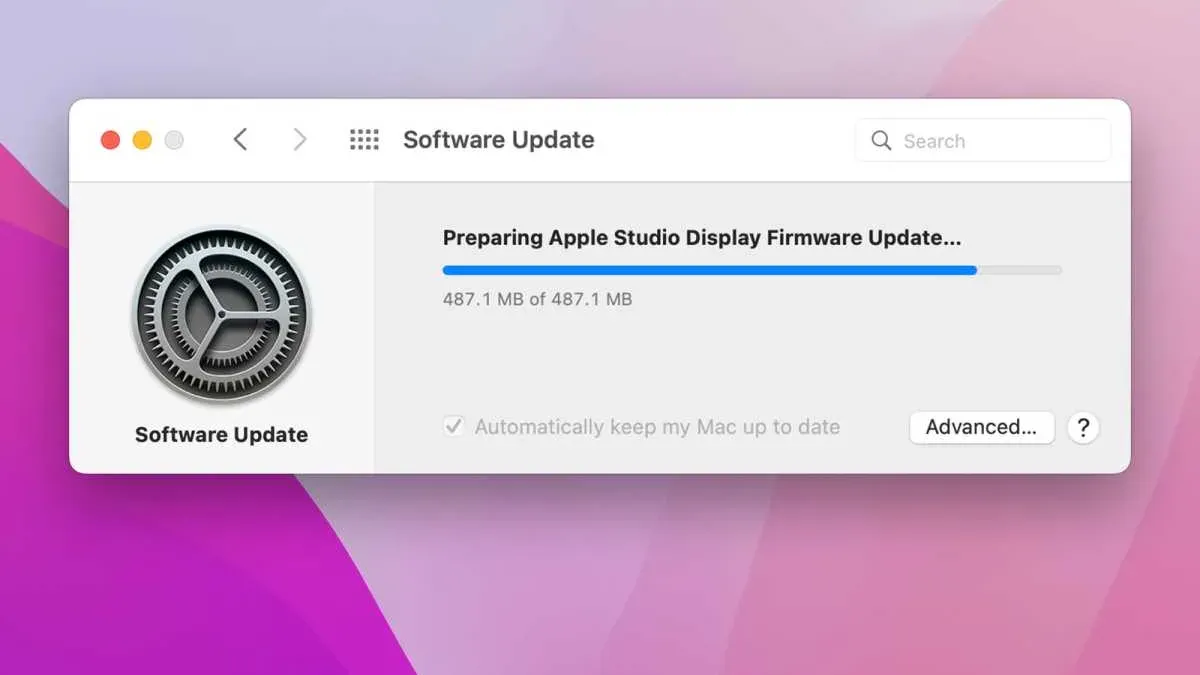
Refurbished or open box Mac Studio M4 Max models can face unique challenges, especially related to firmware versions and hardware authenticity. A common issue is a firmware version mismatch, which happens if the unit was restored or updated incorrectly, causing the device to freeze during startup. For example, if the firmware on the Mac Studio is outdated or inconsistent with the installed macOS version, it may fail to complete the boot process, resulting in the Apple logo hang.
Verifying that your Mac Studio contains genuine Apple hardware and software is critical. Non-authentic parts or unauthorized firmware changes can disrupt normal boot behavior. This is especially relevant with refurbished units, where third-party repairs might have introduced incompatible components or software modifications that Apple’s diagnostics detect and reject.
Studies and user reports indicate that boot problems occur more frequently in refurbished or open box Macs compared to factory-new units. Firmware version checks can be done via the System Information app under “Hardware > Boot ROM Version.” Ensuring your firmware is current typically requires connecting to the internet during macOS updates, as these often include firmware patches. If you notice persistent boot issues despite following earlier troubleshooting steps, it’s wise to seek Apple support or professional repair to verify hardware integrity and perform necessary firmware restoration.
Avoid Common Mistakes When Trying to Fix Your Mac Studio M4 Max Stuck on the Apple Logo
One major mistake is rushing to erase your startup disk without having a complete backup. For example, if you use Disk Utility’s “Erase” option in macOS Recovery before backing up, you risk losing vital data that might still be recoverable through less destructive means. Many users face permanent data loss because they skip this precaution, especially when they assume erasing is the only solution.
Avoid unverified third-party repair tools or software claiming to fix boot issues. Such tools often fail to address the root problem and can introduce malware or corrupt system files further. Reports show a significant number of unsuccessful fixes result from using unofficial software, which can complicate recovery efforts.
Be cautious with hardware tinkering if you are not familiar with Mac internals. Opening your Mac Studio M4 Max or disconnecting components without proper knowledge can void warranties and cause more damage, especially given the device’s compact and advanced design.
Regularly back up your data using Time Machine or another reliable method. This routine step minimizes the risk of data loss and gives you peace of mind before attempting any troubleshooting or repairs.
Frequently asked questions
What is the price range for an Apple Mac Studio M4 Max and does cost affect repair options?
The Apple Mac Studio M4 Max typically falls into a premium price range, reflecting its high-performance components and advanced features. Because of its cost, repair options often lean toward authorized service providers to ensure quality and maintain warranty coverage. While third-party repairs may be less expensive, they can risk compatibility or warranty issues, so weighing cost against repair reliability is important.
Can I use an Apple Mac Studio M4 Max refurbished or open box safely without increased risk of boot issues?
Refurbished or open box Mac Studio M4 Max units sold directly by Apple or reputable resellers generally meet strict quality standards, making them safe to use without significantly increased risk of boot problems. However, units from less reliable sources may have undetected hardware or firmware issues. Checking the warranty status and ensuring the device has undergone proper refurbishment processes helps reduce risks related to startup stability.
How does the Mac Studio M4 Max compare with earlier models like Mac Studio M1 Max in handling boot problems?
The Mac Studio M4 Max benefits from newer hardware and software optimizations that can improve overall stability, including boot sequences. However, both models share similar troubleshooting steps for boot issues, such as disk repairs and NVRAM resets. Boot problems specific to the M4 Max might arise from updates or configurations unique to its architecture, so following model-specific advice is advisable.
Is the rumored Apple M5 Max Mac Studio expected to improve boot stability and fix issues like freezing on the Apple logo?
While the rumored Apple M5 Max Mac Studio aims to introduce performance and efficiency enhancements, concrete details about boot stability improvements remain speculative. Historically, newer Apple silicon generations include firmware and system refinements that can reduce freezing and startup errors. Until official specifications and user feedback are available, it’s best to address boot issues with current troubleshooting methods.
Understand the Limits of This Guide
This guide does not cover hardware repairs beyond basic checks such as verifying cable connections and peripheral status. If your Mac Studio M4 Max continues to show signs of hardware failure like unusual noises, persistent overheating, or no power, you should consult Apple-certified technicians for professional diagnostics and repair. Performing software reinstallation or using macOS Recovery tools carries a risk of data loss, so always ensure you have a recent backup before proceeding with these steps. Some boot problems may stem from complex or rare hardware faults that cannot be resolved through user-level troubleshooting alone.
The most useful next step you can take is to back up your data immediately if you haven’t already. Having a current backup via Time Machine or other reliable methods ensures that you protect your important files while you continue troubleshooting or seek professional assistance. This preparation gives you peace of mind and the flexibility to try further solutions without risking permanent data loss.
See also: How to Fix Your Mac Studio M4 Max When It Won't Turn On · How to Understand and Manage Mac Studio M4 Max Overheating



