
Stop Mac Studio M4 Max Random Restarts: A Clear Fix Guide
Learn clear, practical steps to stop Mac Studio M4 Max random restarts and keep your device running smoothly during critical tasks.
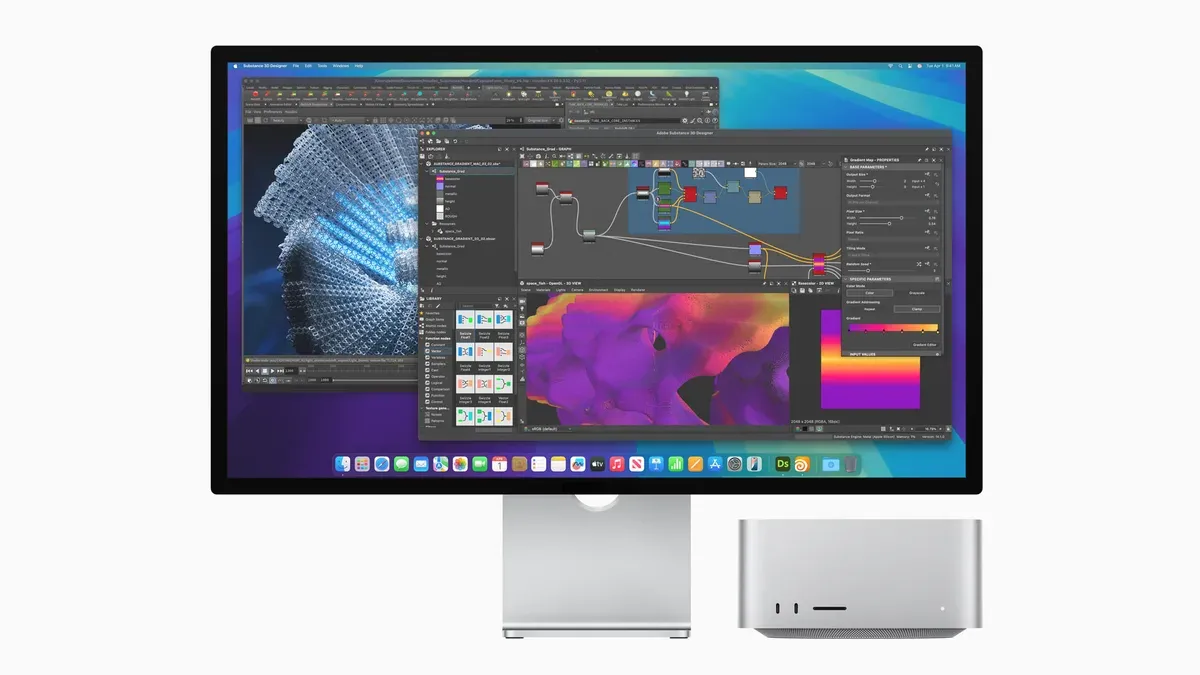
Your Mac Studio M4 Max unexpectedly restarts while working on important projects or during creative sessions. This disruption can be frustrating and confusing, especially when you rely on your Mac Studio for smooth performance.
This article addresses Mac Studio M4 Max random restarts by guiding you through practical, user-friendly steps. You'll learn to identify common causes, check your Mac’s power and thermal status, test hardware components, and apply software fixes tailored specifically to your Mac Studio M4 Max. The goal is to help you resolve these restarts effectively without needing advanced technical skills.
Key takeaways
- Monitor your Mac Studio’s temperature and power usage using Activity Monitor and System Information.
- Run Apple Diagnostics to identify potential hardware problems.
- Keep macOS updated and review recently installed apps that may cause instability.
- Reset the System Management Controller (SMC) to resolve power-related issues.
- Avoid heavy workloads without adequate cooling to prevent thermal shutdowns.
Understand What Causes Mac Studio M4 Max Random Restarts
Random restarts on the Mac Studio M4 Max often stem from a combination of hardware and software factors unique to this model. At the hardware level, power management and thermal regulation play a crucial role. The M4 Max chip dynamically adjusts its power consumption and clock speeds to balance performance and heat. If the system detects abnormal thermal spikes or inconsistent power delivery, it may trigger an automatic restart to protect the hardware. For example, when running intensive workloads without sufficient cooling, system logs might show entries like "thermal emergency detected" or "CPU power limit exceeded" right before a restart.
On the software side, incompatible apps, outdated drivers, or specific macOS bugs can also cause instability. These software conflicts often manifest as kernel panics or system crashes, which result in restarts. System logs may include messages such as "panic(cpu 0 caller): watchdog timeout" indicating software watchdog triggers. Additionally, connected peripherals can contribute to the issue. Devices plugged into Thunderbolt or USB-C ports sometimes cause power draw fluctuations or driver conflicts, increasing restart frequency.
To illustrate, Mac Studio users have observed fewer restarts when disconnecting non-essential external drives and accessories. Comparing system behavior with and without peripherals connected often reveals a drop in restart events, highlighting the impact of external devices. Identifying whether restarts occur during specific tasks, with certain apps, or when particular peripherals are attached helps pinpoint the root cause more effectively.
Check Your Mac Studio M4 Max Power Consumption and Thermal Status
To catch issues that might cause random restarts, start by monitoring your Mac Studio M4 Max’s power usage and temperature. Open Activity Monitor from the Utilities folder, then go to the Energy tab. Here, you can see which apps and processes consume the most power. Look for unusually high energy impact values, especially sustained spikes above 50, which may indicate processes stressing your system.
For temperature monitoring, macOS does not provide built-in tools, so you’ll need a third-party app like iStat Menus or Intel Power Gadget. These apps display real-time CPU and GPU temperatures. When temperatures consistently exceed 90°C, your Mac Studio is likely overheating, a common cause of unexpected restarts.
Use the Console app to check system logs right after a restart. Look for entries mentioning thermal warnings or power surges. For example, if you see logs indicating CPU temperature hitting 95°C just before a restart, that confirms overheating as the trigger.
Imagine you notice in iStat Menus that the CPU temperature rises to 92°C during heavy video editing, and Activity Monitor shows a process with high energy impact running simultaneously. Shortly after, your Mac restarts unexpectedly. This correlation suggests managing that process or improving cooling can prevent restarts.
Test Mac Studio M4 Max Hardware to Rule Out Defects
To identify hardware issues causing random restarts on your Mac Studio M4 Max, start by running Apple Diagnostics. Shut down your Mac, then press and hold the D key while turning it back on. This initiates the diagnostics test, which checks critical components like memory and logic board. When complete, you’ll see a report; for example, an error code like "PPT004" indicates a power-related hardware issue that needs attention.
Next, test your RAM and internal storage health. Although Apple Diagnostics covers memory, you can use Disk Utility to verify your SSD’s condition by selecting your drive and choosing "First Aid." If disk errors appear, repairs may help reduce unexpected restarts. Keep in mind that faulty RAM or storage can cause frequent crashes and restarts even if no error codes appear during diagnostics.
Don’t overlook power supply and cable checks. Ensure the power cable is firmly connected and free from damage. Using a different wall outlet or power strip can rule out external power issues. Some users find that replacing a worn or non-Apple-certified cable significantly decreases restart frequency.
For example, one user noticed restarts occurring daily. After running Apple Diagnostics and seeing a power-related error code, they replaced the power cable and tested the SSD with Disk Utility. Restarts dropped to once a week, showing hardware tests can pinpoint and reduce the problem effectively.
Apply Software Fixes and macOS Updates Carefully
Keeping your Mac Studio M4 Max updated with the latest macOS version is a crucial step to improve stability and reduce random restarts. To check for updates, open System Settings, navigate to General > Software Update, and install any available updates. These updates often include important bug fixes and performance enhancements tailored to your hardware. After updating, you may notice a significant drop in restart frequency, which indicates improved system reliability.
If you suspect a specific app or background process causes instability, review your installed applications in the Applications folder and consider uninstalling any that were installed shortly before restarts began. Additionally, open Activity Monitor and look for processes consuming excessive CPU or memory, then quit or uninstall the associated apps.
Use Safe Mode and Reset NVRAM/PRAM
Safe Mode helps isolate software conflicts by loading only essential system components. To enter Safe Mode, restart your Mac and hold the Shift key immediately after the startup chime until the login window appears. If random restarts stop in Safe Mode, the issue likely relates to third-party software.
Resetting NVRAM/PRAM can clear corrupted settings that affect startup and power management. To do this, shut down your Mac, then power it on and immediately press and hold Option + Command + P + R keys together. Hold them for about 20 seconds until the Mac restarts. The system will display messages like “Resetting NVRAM” or “Performing diagnostics,” confirming the reset. This often resolves subtle configuration issues causing instability.
By carefully applying updates, managing software, and using these troubleshooting tools, you can effectively reduce or eliminate random restarts without advanced technical steps.
Avoid Common Mistakes That Can Worsen Random Restart Issues
One common pitfall is installing unverified third-party kernel extensions. These low-level software components interact deeply with macOS and can cause conflicts leading to random restarts. For example, some users in macOS forums have reported that poorly coded audio drivers or system utility extensions caused repeated crashes until they were removed. Always check the developer’s reputation and user reviews before installing such extensions, and prefer those notarized by Apple.
Another mistake is overlooking peripheral compatibility. Faulty or incompatible accessories like USB hubs, external drives, or monitors often trigger power surges or communication errors that can force your Mac Studio M4 Max to restart. Users who switched to verified Apple or certified third-party peripherals noticed a significant reduction in unexpected restarts compared to when using generic or unbranded devices.
Finally, skipping regular backups before troubleshooting can put you at risk of data loss if restarts worsen or require system restores. Back up your data using Time Machine or other reliable methods before adjusting settings or removing software components. Imagine spending hours fixing restarts only to lose important files because a backup was never made — taking this precaution saves time and stress.
Frequently asked questions
What are the Mac Studio M4 Max specs that affect power stability?
The Mac Studio M4 Max features a highly integrated system-on-a-chip design with multiple high-performance CPU and GPU cores, which demand consistent power delivery. Its power management system balances performance and energy efficiency dynamically, but fluctuations in power supply or thermal throttling can impact stability. Understanding its maximum power draw and thermal limits, available in Activity Monitor under the Energy tab, helps you monitor if the system is under stress that might cause restarts.
Can refurbished Mac Studio M4 Max units have more restart problems?
Refurbished Mac Studio M4 Max units may have a slightly higher risk of unexpected restarts if any hardware components were not fully restored to original factory conditions. However, Apple-certified refurbished devices undergo rigorous testing and come with warranties. If restarts occur, checking for hardware issues through Apple Diagnostics is advisable, regardless of whether the unit is new or refurbished.
Does running multiple external monitors cause random restarts?
Using multiple external monitors can increase the Mac Studio M4 Max’s power consumption and thermal output, potentially triggering restarts if the system overheats or power delivery becomes unstable. Ensuring all connected monitors and cables are compatible and that macOS is updated helps mitigate these issues. Reducing resolution or refresh rates on external displays can also lessen the strain on the GPU and power system.
How does the Mac Studio M4 Max power consumption relate to restarts?
Excessive power consumption, especially under heavy workloads, can cause the Mac Studio M4 Max to restart if the power management system detects instability or overheating. Monitoring power usage via Activity Monitor and keeping vents clear to maintain proper cooling are key preventive steps. Addressing any background processes or apps that spike power demand unexpectedly can improve overall system stability.
Know the Limits of This Guide
This advice focuses on user-accessible diagnostics and software-based solutions tailored for the Mac Studio M4 Max. It does not cover hardware repairs or internal component replacements that require professional tools or expertise. If you suspect your Mac Studio has a hardware defect beyond what diagnostics reveal, or if it continues to restart randomly despite following all steps here, you should consult an Apple-certified technician or visit an authorized service provider.
For many users, the single most useful next step is to ensure your macOS is fully updated by opening System Settings, selecting General, then Software Update, and installing any available updates. These updates often include important stability improvements and bug fixes that can directly address underlying causes of random restarts without complex troubleshooting.
See also: How to Fix Your Mac Studio M4 Max When It Won't Turn On · How to Understand and Manage Mac Studio M4 Max Overheating · How to Fix Mac Studio M4 Max Stuck on Apple Logo: A Step-by-Step Guide



