How to Add a Dropdown Menu in Numbers: A Clear Step-by-Step Guide
This guide shows you how to add a dropdown menu in Numbers to simplify data entry and maintain consistency across your spreadsheets.
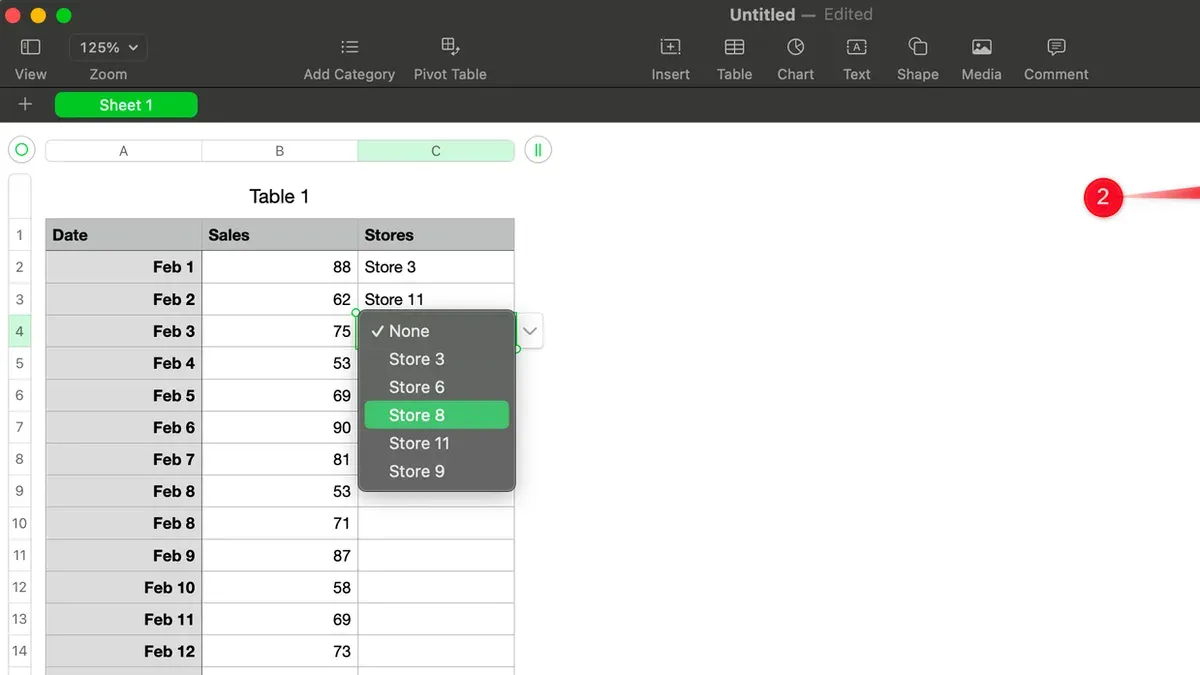
Imagine you have a spreadsheet in Numbers where you need to enter repeated information like status updates or categories. Typing these entries manually can lead to inconsistencies and errors. To solve this, you can streamline your workflow by adding dropdown menus that limit input choices and maintain uniformity.
This article guides you through how to add a dropdown menu in Numbers, focusing specifically on the steps within Apple's app. You will learn how to turn cells into dropdown menus using the Pop-up Menu format, how to efficiently replicate these menus, customize options without losing existing data, and how dropdowns help reduce input mistakes. Additionally, we cover the differences between Numbers dropdown menus and those in Excel, along with practical troubleshooting tips to handle common challenges.
Key takeaways
- Use the Pop-up Menu cell format to create dropdown menus in Numbers.
- Copy and paste dropdown cells to add multiple menus quickly.
- Modify dropdown options later without deleting existing cell data.
- Dropdown menus help control data entry and minimize errors.
- Numbers dropdowns have limitations compared to Excel’s data validation features.
Before you start: What you need to add a dropdown menu in Numbers
To create a dropdown menu in Numbers, you must have a Mac, iPad, or iPhone with the Numbers app installed and updated to the latest version. This ensures access to all current features, including the Pop-up Menu cell format used for dropdowns. Without the latest update, you might miss important functionality or face interface differences.
In Numbers, dropdown menus are created by setting a cell's format to Pop-up Menu. This differs from Excel, where dropdowns often come from data validation rules. Understanding this distinction helps you find the correct settings quickly. Numbers uses Pop-up Menu terminology, while Excel refers to dropdowns as Data Validation Lists or simply dropdown lists.
Another key difference is that Numbers' Pop-up Menus are configured directly within the cell formatting pane, whereas Excel’s dropdown lists require defining a source range or list in the data validation dialog. Planning your list of options before you start will save time, as you will input those items into the Pop-up Menu configuration directly.
| Feature | Numbers | Excel |
|---|---|---|
| Dropdown Setup | Pop-up Menu cell format | Data Validation with List source |
| Terminology | Pop-up Menu | Dropdown List / Data Validation List |
| Option Input | Entered directly in Format sidebar | Referenced from a cell range or typed list |
| Platform | Mac, iPad, iPhone | Windows, Mac |
- Ensure your device (Mac, iPad, or iPhone) has the latest Numbers app installed and updated; open Numbers to verify.
- Prepare the list of choices you want in your dropdown menu; write them down or have them ready.
- Understand that in Numbers, you will be using the Pop-up Menu cell format, not data validation, to create dropdowns.
- Familiarize yourself with the Format sidebar where you will enter your dropdown options.
- Note the differences from Excel’s approach to avoid confusion when switching between the apps.
Turn your cell into a dropdown menu using Pop-up Menu format
To create a dropdown menu in Numbers, you first need to select the cell or range of cells where you want the menu to appear. This selection is the foundation for applying the dropdown format. Once selected, you will change the cell's data format to display a list of options users can pick from.
- Select the cell or cells where the dropdown menu should be applied. You can click a single cell or drag to select multiple cells. When selected, the cells will be highlighted.
- Open the Cell Format pane by clicking the Format button on the top right corner of the Numbers window. This pane controls how your cell data appears and behaves.
- In the Cell tab of the Format pane, find the Data Format dropdown menu. Click it and choose Pop-up Menu from the list of options. The cell format will now prepare to accept a dropdown list.
- Add your dropdown options by clicking the Add Item button inside the Pop-up Menu editor that appears below. Enter each option one by one—for example, “High,” “Medium,” and “Low.” You can add as many options as needed.
- Save your dropdown menu by clicking outside the editor or simply clicking on another cell. Your dropdown menu is now active.
- Test the dropdown menu by clicking the cell you formatted. A small arrow will appear indicating a dropdown. Click it to see your list of options and select one. The cell will display the selected value.
This step-by-step process converts standard cells into dropdown menus, streamlining data entry and reducing errors. The Pop-up Menu format in Numbers is key to this functionality, differing from Excel’s approach but equally effective for managing selectable options.
Add multiple dropdown menus efficiently using copy and paste
After creating a dropdown menu in one cell using the Pop-up Menu format, you can quickly replicate it across many cells without manually recreating the options each time. This saves time and ensures consistency in your spreadsheet. The key is to copy the cell containing the dropdown menu and paste it into other cells where you want the same menu to appear.

- Select the cell that already has the dropdown menu set up. You should see your list of options accessible via the dropdown arrow.
- Press Command + C (or right-click and choose Copy) to copy the cell.
- Select the range of cells where you want to add the same dropdown menu. You can select multiple cells in a column or row.
- Press Command + V (or right-click and choose Paste) to paste the dropdown menu into the selected cells.
- Check a few of the newly pasted cells by clicking the dropdown arrow to confirm that the same options are available.
This method preserves the Pop-up Menu format and all its options exactly as you created them. Unlike Excel’s data validation lists, which sometimes adjust or lose settings when copying across cells, Numbers maintains the dropdown menus intact. This means you don’t need to redefine or re-enter options for each cell, making bulk dropdown creation both reliable and straightforward.
For example, if you create a dropdown menu listing "Low," "Medium," and "High" priorities in one cell, copying and pasting it into a column will replicate that exact set of options in every cell you paste to. You can then select different priority levels per row without needing to set up each dropdown again.
Customize your dropdown menu options later without losing data
After creating a dropdown menu in Numbers, you can return to the Pop-up Menu editor to modify your options at any time. This flexibility allows you to add new choices, rename existing ones, or remove options you no longer need. To access the editor, select a cell with the dropdown menu, open the Format sidebar, and click the Data Format dropdown to choose Pop-up Menu again. The list of current options will appear, ready for your edits.
- Select a cell that has the dropdown menu you want to edit. You should see the current selected option in the cell.
- Open the Format sidebar by clicking the paintbrush icon on the top right of the Numbers window.
- Under the Cell tab, locate the Data Format dropdown and confirm it is set to Pop-up Menu.
- Click the Edit button next to the list of menu options. The Pop-up Menu editor will open, showing all current choices.
- Make your changes: add new options by typing them into the list, rename existing options by editing their names, or remove options by selecting them and pressing the Delete key.
- Click Done to save your changes and close the editor. The dropdown menu in the selected cell now reflects your updates.
Be aware that if you remove an option that some cells currently use, those cells will retain the old value but display it as an invalid selection. For example, if your dropdown originally included options "Red," "Green," and "Blue," and you delete "Green," any cell that had "Green" selected will keep showing "Green" but with a warning icon indicating it’s no longer a valid choice.
To maintain data consistency, consider reviewing your spreadsheet after editing options. You might filter or sort the column to find invalid selections, then update or clear them as needed. This cleanup step prevents confusion or errors when you rely on dropdown menus to control data input.
Editing dropdown options is straightforward, but keep in mind that removing options can introduce inconsistencies. Adding or renaming options is safer because existing cell values remain valid unless you explicitly remove their corresponding option.
Use dropdown menus to control data input and reduce errors
Dropdown menus in Numbers help control data input by restricting choices to a predefined set of options. This limitation reduces the chance of incorrect or inconsistent entries, which are common when users type freely. For example, when tracking project status, you can offer options like "Not Started," "In Progress," and "Completed." Similarly, dropdowns can standardize category selection or priority levels, preventing typos or variations like "High," "high," or "Hgh."
Without dropdown menus, free text input often leads to discrepancies that complicate sorting, filtering, and analysis. Inconsistent data can cause errors in calculations or reports, requiring time-consuming manual corrections. Using dropdown menus ensures uniform entries, improving data quality and reliability.
To enhance data validation further, combine dropdown menus with conditional highlighting. For instance, highlight cells that are left blank or contain unexpected values outside the dropdown options. This visual feedback quickly draws attention to issues, helping you maintain clean, accurate spreadsheets.
- Select the cells with dropdown menus you want to monitor. You should see consistent values limited to your predefined list.
- Set up conditional highlighting by choosing "Add a Conditional Highlight" from the Format sidebar under the Cell tab.
- Create a rule such as "Text is not in the dropdown list" or "Cell is blank," depending on your validation needs. Cells failing the rule will be highlighted.
- Use the highlights to identify and correct data entry errors promptly, ensuring ongoing accuracy.
By controlling data input with dropdown menus and leveraging conditional highlighting, you reduce errors and maintain high-quality data within your Numbers spreadsheets.
Understand the limits of Numbers dropdown menus compared to Excel
Numbers offers a straightforward way to create dropdown menus using the Pop-up Menu format, but it has several limitations when compared to Excel’s data validation lists. Unlike Excel, Numbers does not support dynamic dropdown lists that update based on other cells or tables. This means you cannot link your dropdown options directly to a range of cells that change automatically; all options must be manually entered or edited.
Another notable difference is the absence of formula-based dropdown options in Numbers. Excel allows you to use formulas to generate or filter dropdown list items dynamically, but Numbers requires static lists with fixed options. Additionally, Numbers provides limited styling capabilities for dropdown menus. You cannot customize fonts, colors, or add icons within the dropdown itself, and it does not support multi-level cascading dropdown menus where one selection controls the options in another dropdown.
Despite these restrictions, Numbers dropdowns are easier and quicker to set up for basic needs. They offer a simple interface for defining and editing options without complex configurations. The trade-off is a lack of advanced features found in Excel, which might be important for users seeking more interactive or data-driven dropdown behavior.
| Feature | Numbers | Excel |
|---|---|---|
| Dynamic dropdown linked to cells/tables | No | Yes |
| Formula-based dropdown options | No | Yes |
| Multi-level cascading dropdowns | No | Yes |
| Dropdown styling customization | Limited | Extensive |
| Ease of setup for basic dropdowns | Simple and fast | More complex |
Troubleshoot common issues when adding dropdown menus in Numbers
When your dropdown menu doesn’t appear, first confirm that the cell’s data format is set to Pop-up Menu. If it’s set to anything else, the dropdown won’t show. To check, select the cell, open the Format sidebar, click the Cell tab, and ensure Pop-up Menu is selected under Data Format.
If dropdown options are not saving or suddenly disappear, make sure your Numbers app is updated to the latest version. Also, verify that you are saving your file properly after making changes. Unexpected closures or syncing issues with cloud storage can cause options to vanish.
Sometimes existing cell data doesn’t match any dropdown option, leading to confusion or invalid selections. When you edit dropdown options later, removed choices stay in cells as invalid data. To fix this, review cells showing unexpected values and either update or clear them to match current dropdown options.
Dropdown menus may not copy correctly across sheets or tables, especially if you copy cells and paste them into a different table environment. The Pop-up Menu format and its options might not transfer as expected. To avoid this, copy and paste entire rows or columns within the same table or use the Format Painter tool to replicate dropdown settings accurately.
- Select the cell with the dropdown menu; open the Format sidebar and confirm Pop-up Menu is chosen. You should see the dropdown arrow appear in the cell.
- Update Numbers to the latest version via the App Store and save your document by clicking File > Save. Your changes should persist after closing and reopening the file.
- Scan cells with invalid dropdown choices (highlighted or flagged) and clear or correct their contents to align with the current dropdown options list.
- When copying dropdown menus, copy entire rows or columns within the same table or use Format Painter. Pasted cells should retain dropdown options and functionality.
Common error symptoms include missing dropdown arrows, disappearing option lists, invalid selections displaying in cells, and dropdown menus not functioning after pasting. Following these steps resolves most issues related to dropdown menus in Numbers.
Frequently asked questions
How to add a dropdown menu?
To add a dropdown menu, select the cell where you want it, then format the cell as a Pop-up Menu in Numbers. You can do this by opening the Cell tab in the Format sidebar and choosing "Pop-up Menu" from the Data Format dropdown. After that, add your desired options to the menu list, and the cell will display a dropdown for those choices.
How to add dropdown menu in excel?
In Excel, select the cell or range, go to the Data tab, and click on "Data Validation." Under the Settings tab, choose "List" from the Allow dropdown. Then input your list items separated by commas or select a range containing the list values. This creates a dropdown menu in the selected cells.
How to insert dropdown menu?
In Numbers, inserting a dropdown menu means formatting a cell as a Pop-up Menu. Select the cell, open the Format sidebar, and under the Cell tab, pick "Pop-up Menu" from the Data Format options. Then enter the choices you want to appear in the dropdown. This method differs from Excel but achieves similar results.
How to add drop down in numbers?
To add a dropdown in Numbers, select the target cell and open the Format sidebar. Under Cell, change the Data Format to "Pop-up Menu." Add the list of options you want users to choose from. This creates a dropdown that simplifies data entry and limits input to predefined values.
How to add drop down menus excel?
In Excel, you add dropdown menus through the Data Validation feature. Highlight the cells, click Data > Data Validation, select "List" under Allow, and specify your options by typing them separated by commas or choosing a range. This setup creates dropdown menus that help control data input.
Know the Limits of Numbers Dropdown Menus
This guide does not cover creating dynamic or formula-driven dropdown menus since Numbers does not support these features like Excel does. If you require dropdowns that automatically update based on other data, or cascading dropdown menus where one selection affects another, Numbers may not meet your needs. Users needing complex data validation rules or multi-level dropdowns should consider using Excel or other spreadsheet software designed with these advanced features.
The single most useful next step is to practice setting up a dropdown menu in a test spreadsheet to become familiar with the Pop-up Menu cell format. Experiment with adding and editing options and observe how dropdown menus help control data entry. This hands-on experience will build your confidence before applying dropdown menus to your important spreadsheets, minimizing input errors and streamlining your workflow effectively.
See also: How to Merge Cells in Numbers: A Clear Step-by-Step Guide · How to Create a Pivot Table in Numbers: A Clear Step-by-Step Guide · How to Import a CSV File into Numbers: A Step-by-Step Guide