How to Zoom a Website Permanently in Safari on Mac and iPhone
This guide explains how to zoom a website permanently in Safari on Mac and iPhone using accessibility settings, custom CSS, and Reader Mode.
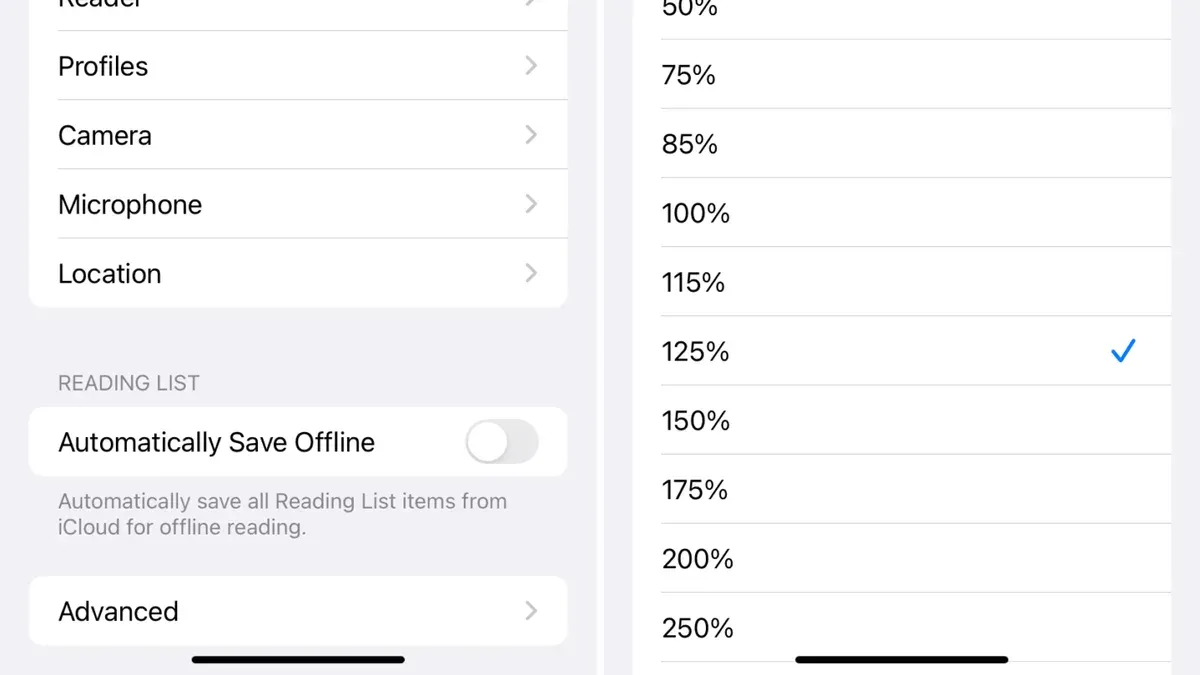
Users often want to set a permanent zoom on websites in Safari to improve readability and browsing comfort. This guide explains how to zoom a website permanently in Safari by exploring Safari’s default behavior, accessibility options, custom CSS via extensions, and Reader Mode, with practical trade-offs for each approach.
Understanding Safari’s Default Zoom Behavior
Safari on both Mac and iPhone offers zooming capabilities, but this zoom is generally temporary and resets with new sessions or tabs. Safari differentiates between two types of zoom:
- Page zoom: enlarges the content on a specific webpage temporarily, usually until you close the tab or reload the page.
- Interface zoom: scales Safari’s menus and controls system-wide, affecting all apps.
Safari does not provide built-in per-site persistent zoom settings. Zoom preferences reset per session and custom zoom levels are not saved on a per-website basis. This design prioritizes consistent rendering and performance but limits lasting zoom adjustments per site.
Using Safari’s Accessibility Settings to Achieve Permanent Zoom
macOS and iOS include accessibility options that can serve as a workaround for permanent zoom by enlarging text and interface elements system-wide.
How to enable system-wide zoom or font scaling:
- On macOS:
- Open System Settings > Accessibility > Zoom.
- Enable either Use keyboard shortcuts to zoom or Use scroll gesture with modifier keys to zoom. Note that this zoom magnifies the entire screen, not just Safari content.
- Alternatively, increase Display & Text Size settings under Accessibility to scale fonts system-wide. For example, adjusting the “Larger Text” slider affects font sizes in Safari and other apps.
- On iPhone:
- Go to Settings > Accessibility > Zoom and toggle Zoom on.
- Adjust Zoom Region (Full Screen Zoom or Window Zoom) and Maximum Zoom Level as needed.
- Alternatively, use Display & Text Size to increase font size and bold text, which affects Safari and other apps.
Pros and cons: These methods affect all apps and system interfaces, not just Safari. They provide consistent zoom but may alter layouts and performance across applications. The screen zoom option can sometimes cause usability issues if not configured carefully.
Applying Custom CSS with Safari Extensions for Site-Specific Zoom
For users seeking site-specific permanent zoom, Safari extensions that inject custom CSS can enlarge fonts or page elements on chosen websites.
Recommended extensions and usage:
- Extensions such as “User CSS” or “Stylebot” allow custom CSS rules per domain.
- After installing, create CSS rules targeting body or main content elements, for example:body {
zoom: 1.2!important;
font-size: 120%!important;
} - Activate these styles only on sites you want to zoom permanently.
Limitations and risks: Extensions can introduce performance overhead and may conflict with some websites’ scripts or layouts. The zoom CSS property can affect element positioning or responsiveness, especially on complex or responsive sites. Also, these styles only apply while the extension is active and enabled.
Comparison: Without extensions, zoom resets per session; with custom CSS, zoom persists but only while the extension is active and configured.
Using Safari’s Reader Mode for Consistent Text Zoom
Reader Mode offers a reliable alternative to zoom on text-heavy sites by simplifying layouts and allowing customized text size and style.
How Reader Mode works:
- Extracts main article text, removing ads and menus.
- Lets users adjust text size, font, and background color.
- Settings persist per site as long as Reader Mode is used.
Setting default Reader Mode preferences:
- Open a website in Safari.
- Click or tap the Reader Mode icon in the address bar.
- Use the Text Size button to increase font size.
- Safari remembers these settings for that site so that Reader Mode displays with your preferences next time.
Best suited for: Blogs, news sites, and other text-heavy pages where layout simplification improves readability.
Example: Increasing Reader Mode font size by two steps provides larger, consistent text across visits without affecting images or complex layouts.
Why Some Zoom Needs Cannot Be Fully Automated in Safari
Safari’s rendering engine and design impose constraints that prevent fully automated, per-site persistent zooming in all cases.

- Technical constraints: Safari resets zoom on new sessions and does not store per-site zoom levels internally.
- Complex websites: Sites with dynamic layouts or heavy JavaScript may override zoom or CSS changes, causing inconsistent results.
- Limitations of accessibility and extensions: System-wide zoom affects all apps, and extensions can break site behavior or cause inconsistent zoom.
For some sites, manual zooming or use of Reader Mode remains necessary despite workarounds.
Important Caveats
This article focuses on Safari on Mac and iPhone running the latest 2026 versions of macOS and iOS. Solutions may not apply to Safari on Windows or earlier OS versions, where zoom functionality and settings differ significantly.
Frequently Asked Questions
Can I permanently zoom all websites in Safari without affecting other apps?
Not directly. System-wide accessibility zoom affects all apps. Site-specific zoom generally requires extensions or Reader Mode.
Does Safari remember my zoom settings per website automatically?
No. Safari resets zoom per session and does not save per-site zoom preferences.
Are there any trusted Safari extensions for permanent zoom customization?
Yes. Extensions like “User CSS” or “Stylebot” allow custom styling, including zoom adjustments, but should be used cautiously to avoid site conflicts and performance issues.
Will using accessibility zoom affect my battery life or system performance?
Accessibility zoom may slightly increase resource use but generally has minimal impact on battery life or performance.