How to Set a Homepage in Safari on Mac and iPhone
Discover how to set a homepage in Safari on Mac and iPhone by customizing start pages for a tailored browsing experience.
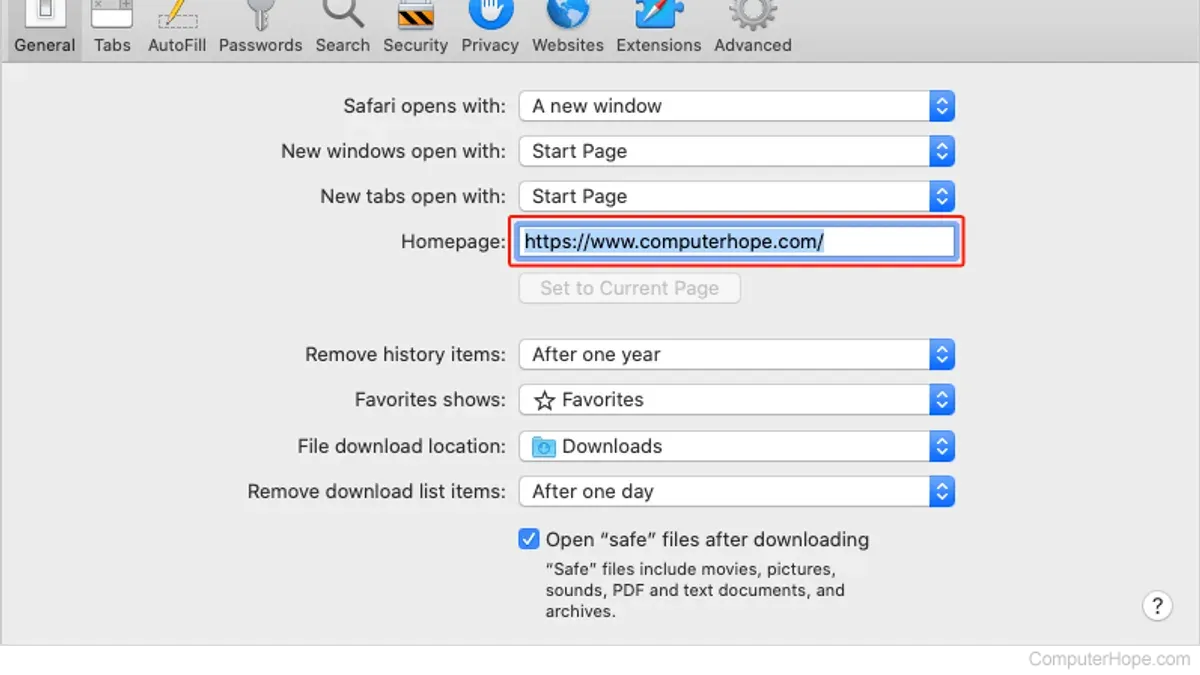
Setting a homepage in Safari differs from traditional browsers due to Apple’s shift toward customizable start pages and tabs. This guide clarifies what a homepage means in Safari today and provides detailed steps to tailor your browsing experience on Mac and iPhone.
Understanding Safari’s Homepage Concept
Safari no longer supports a fixed homepage URL that loads automatically on launch. Instead, Apple offers a flexible start page shown when opening new tabs or windows. This design promotes a dynamic browsing experience rather than a static homepage.
On Mac, the start page includes sections like Favorites, Frequently Visited, and Siri Suggestions. It appears by default on new tabs or windows but not necessarily at launch unless Safari is set to open new tabs on startup.
On iPhone, the start page appears when opening a new tab, with similar customizable content. However, Safari on iOS does not support loading a fixed homepage URL on app launch.
Key distinctions to understand:
- Homepage: Traditionally, a static URL loaded at browser launch.
- Start page: A customizable collection of favorites, background images, and suggestions shown on new tabs.
- New tab behavior: Determines what displays when opening a new tab, typically the start page.
How to Customize Safari’s Start Page on Mac and iPhone
Although you cannot set a static homepage URL, you can customize the start page to suit your preferences. Follow these precise steps:
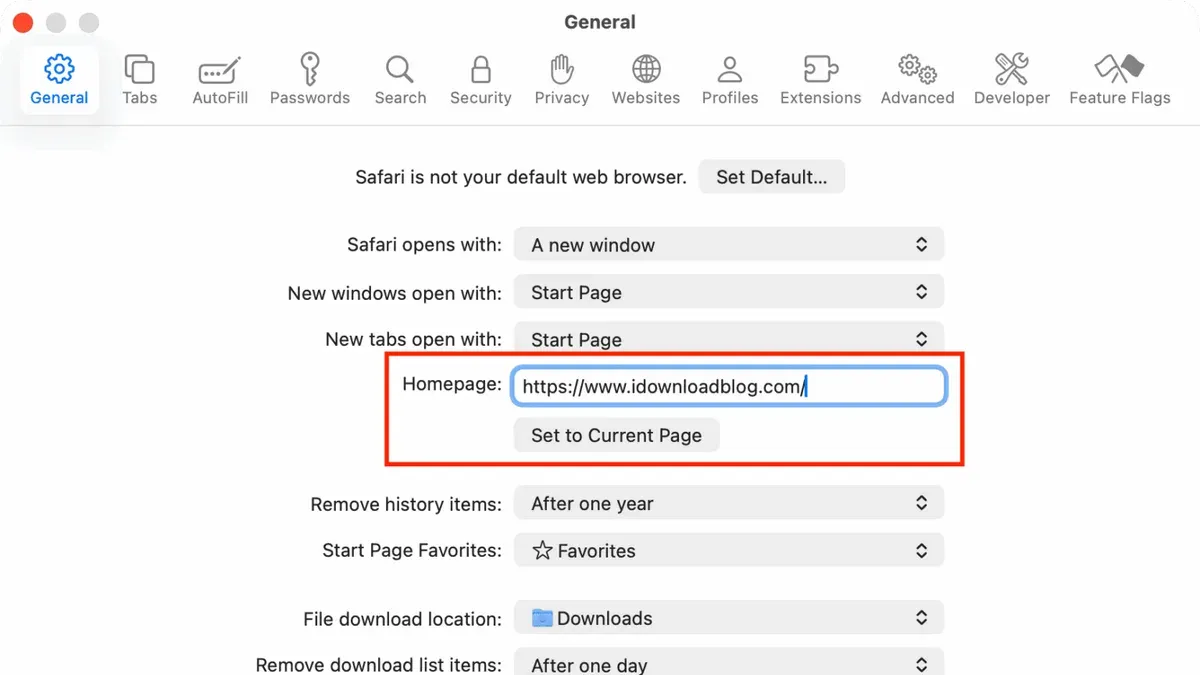
On Mac
- Open Safari and select Safari > Settings from the menu bar.
- Click the Start Page tab.
- Toggle content options like Favorites, Frequently Visited, Siri Suggestions, and Privacy Report. Note that enabling too many sections can clutter the start page and slow loading.
- Click the camera icon at the bottom right of the start page to choose a background image or upload your own.
- To add favorites, open the desired website, then drag its URL to the Favorites bar or use Bookmarks > Add Bookmark. Pinning favorites here ensures quick access from the start page.
On iPhone
- Open Safari and tap the new tab icon (two overlapping squares).
- Scroll down and tap Edit at the bottom of the start page.
- Toggle sections such as Favorites, Frequently Visited, Siri Suggestions, and Privacy Report. Keep in mind that enabling many sections may slow page load.
- Tap the background image icon to select a default or custom image.
- Add favorites by opening a website, tapping the share icon, then selecting Add to Favorites. Favorites sync across devices if iCloud is enabled.
Mac offers more granular start page controls and flexible favorite organization. The iPhone version is streamlined for mobile but lacks some customization options.
Using Safari Extensions and Shortcuts to Simulate a Homepage
For users seeking a homepage-like experience, Safari extensions and Apple Shortcuts offer practical workarounds, though with limitations.
Safari Extensions
Certain reputable extensions can modify new tab behavior to load a specific URL. However, these only affect new tabs, not the initial browser launch page. Also, installing third-party extensions involves trade-offs in privacy and security, so choose trusted sources carefully.
| Extension | Feature | Notes |
|---|---|---|
| StartPage Customizer | Set custom new tab URL | Simple setup; limited to new tabs only |
| TabHome | Custom start page with widgets | Includes weather and notes; may share data with extension provider |
| QuickLaunch | Quick access buttons on new tabs | Enhances productivity; no effect on browser launch |
Apple Shortcuts
You can create a shortcut to open a preferred website and add it as a widget or app icon for quick access, though it requires manual activation:
- Open the Shortcuts app.
- Create a new shortcut using the Open URL action with your chosen homepage URL.
- Save the shortcut with a clear name like "Open Homepage."
- Add the shortcut as a widget to your Home Screen or Today View, or launch it from the app.
This method does not replace Safari’s launch behavior but provides a convenient alternative for quick homepage access.
Both methods have pros and cons: extensions offer deeper integration but depend on third-party code and only affect new tabs, while shortcuts provide user control but require manual launch.
Why Setting a Fixed Homepage in Safari Is Limited and Who Should Consider Alternatives
Apple prioritizes privacy, simplicity, and a dynamic browsing experience. A fixed homepage URL on launch is less flexible and can conflict with these principles.
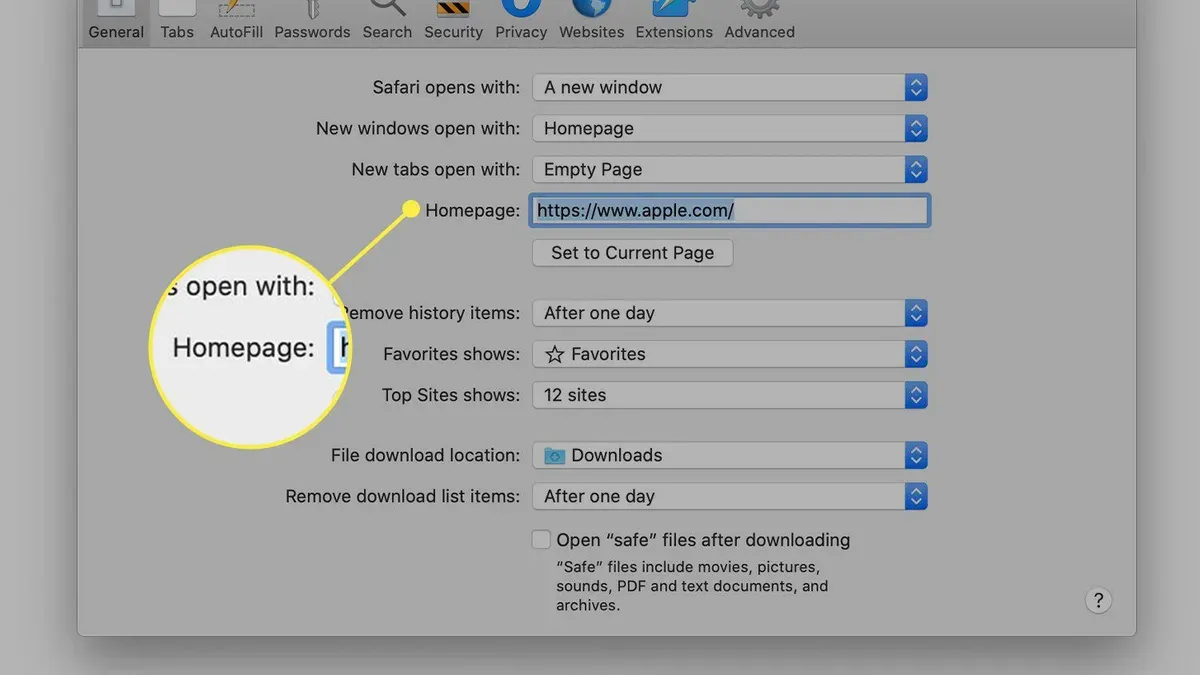
Users needing immediate access to specific sites—such as intranet portals or dashboards—may find Safari’s options insufficient. In these cases, browsers like Firefox, Chrome, or Microsoft Edge provide traditional fixed homepage settings.
Alternatively, third-party macOS or iOS automation apps can open specific URLs at login or launch, but these require additional setup and permissions.
Choosing the right browser or method depends on balancing privacy, convenience, and required functionality.
Frequently asked questions
Can I set a homepage URL that opens automatically every time I launch Safari?
No, Safari does not support a fixed homepage URL on launch. You can customize the start page shown on new tabs but not the initial launch page.
How do I add my favorite website to Safari’s start page on iPhone?
Open the website, tap the share icon, then select "Add to Favorites." The site will appear under Favorites on your start page.
Are there Safari extensions that let me set a custom homepage?
Yes, some extensions allow customizing the new tab page with a specific URL, approximating a homepage. These affect new tabs only, not browser launch.
What should I do if I want a fixed homepage but Safari doesn’t support it?
Consider using a different browser that supports fixed homepages or create an Apple Shortcut to quickly open your preferred page.
Caveats
This article covers only supported, secure methods recommended by Apple and trusted third parties. It does not include jailbreaking or unofficial hacks that may compromise security or stability.