How to Highlight Text in a PDF in Preview: Step-by-Step Guide
This guide shows how to highlight text in a PDF in Preview, including tips for unselectable text and annotation tools on Mac.
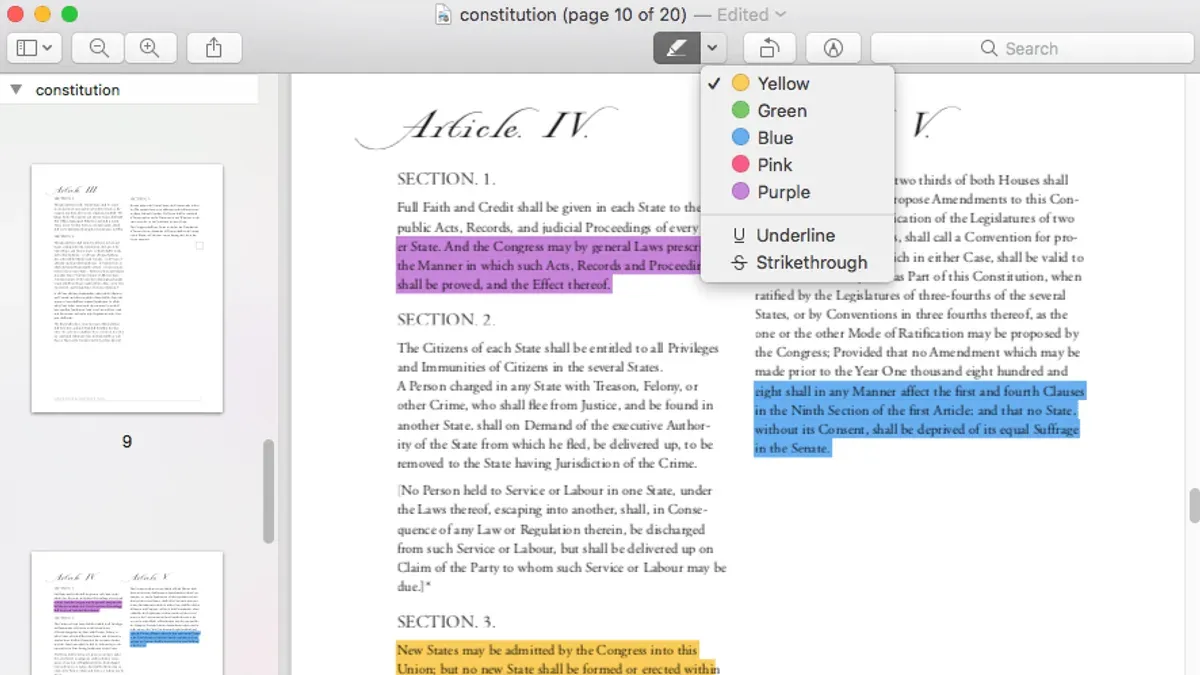
You're working on a PDF document using Preview on your Mac and want to highlight important sections of text. However, you find that sometimes selecting text for highlighting is tricky or doesn't work as expected.
This article explains how to highlight text in a PDF in Preview, guiding you through the process step by step. You'll learn how to handle common issues like unselectable text and discover tips to make the highlighting process smoother. By the end, you'll know whether Preview meets your annotation needs or if you might want to explore other tools.
Key takeaways
- Use the Text Selection tool in Preview to highlight selectable text efficiently.
- If text can’t be selected, try the Rectangular Selection or markup tools as workarounds.
- Check the PDF’s security settings if highlighting fails, as some PDFs restrict annotations.
- Preview allows easy color changes and removal of highlights after adding them.
- For extensive annotation needs, consider dedicated PDF editors beyond Preview.
Before You Start: What You Need to Highlight Text in a PDF Using Preview
Preview is the built-in PDF viewer on Mac, offering basic annotation tools including text highlighting. To highlight text effectively, the PDF must contain selectable text rather than just scanned images. For example, a PDF created by exporting a Word document will usually have selectable text, whereas a scanned document saved as a PDF without OCR will not allow text selection or highlighting.
Make sure your Mac is running macOS Mojave (10.14) or later to access the most up-to-date Preview features, as earlier versions may lack certain annotation tools. While Preview supports highlighting for most PDFs, some files come with security restrictions that prevent editing or annotating. If highlighting is disabled, check the PDF’s permissions by opening the File menu and selecting Get Info or viewing the PDF’s properties in Preview.
Understanding these requirements before you start will save time and help you decide if Preview meets your needs or if another tool might be necessary for working with more complex or restricted PDFs.
- Open the PDF in Preview by double-clicking it or right-clicking and selecting Open With > Preview. You should see the PDF content displayed clearly.
- Try selecting text by clicking and dragging over a few words. If the text highlights normally, your PDF supports text selection.
- If text cannot be selected, the PDF likely contains scanned images or has restrictions. Consider running OCR software or using a different PDF reader with advanced features.
How to Highlight Text in a PDF Document Using Preview
To highlight text in a PDF using Preview, start by opening your PDF file. You can do this by double-clicking the file if Preview is your default PDF viewer, or by right-clicking the file, selecting Open With, and then choosing Preview. Once the document opens, make sure the sidebar is visible for easier navigation; if it’s not, click the Sidebar button in the toolbar.
- Select the Text Selection Tool: Click the Text Selection button in the toolbar, which looks like a cursor icon. This tool lets you highlight text by selecting it.
- Highlight the Desired Text: Click and drag your cursor over the text you want to highlight. When done correctly, the selected text will appear with a blue background indicating it’s selected.
- Apply the Highlight: With the text selected, click the Highlight button in the toolbar—it looks like a marker pen. Alternatively, right-click the selected text and choose Highlight from the context menu. The selected text will then change to a yellow highlight by default.
- Adjust the Highlight Color (Optional): To change the highlight color, click the arrow next to the Highlight button or right-click the highlighted text and select Highlight Color. Choose from available colors like green, pink, or blue to customize your highlights.
- Save Your Changes: After applying highlights, save the PDF by clicking File > Save or pressing Command + S. This ensures your highlights are preserved for later viewing or sharing.
Following these steps will help you efficiently highlight text in Preview without confusion. If the text does not highlight after selection, it may be due to PDF restrictions or the text being part of an image, which requires different handling covered later in this guide.
How to Highlight Specific Text in a PDF When You Can’t Select It Directly
Sometimes, you cannot highlight text in Preview because the PDF contains scanned images or has security restrictions that disable text selection. In these cases, the text is not recognized as editable or selectable, so the usual highlighting method won’t work. To work around this, you can use Preview’s markup tools to manually draw attention to specific areas or add notes instead.
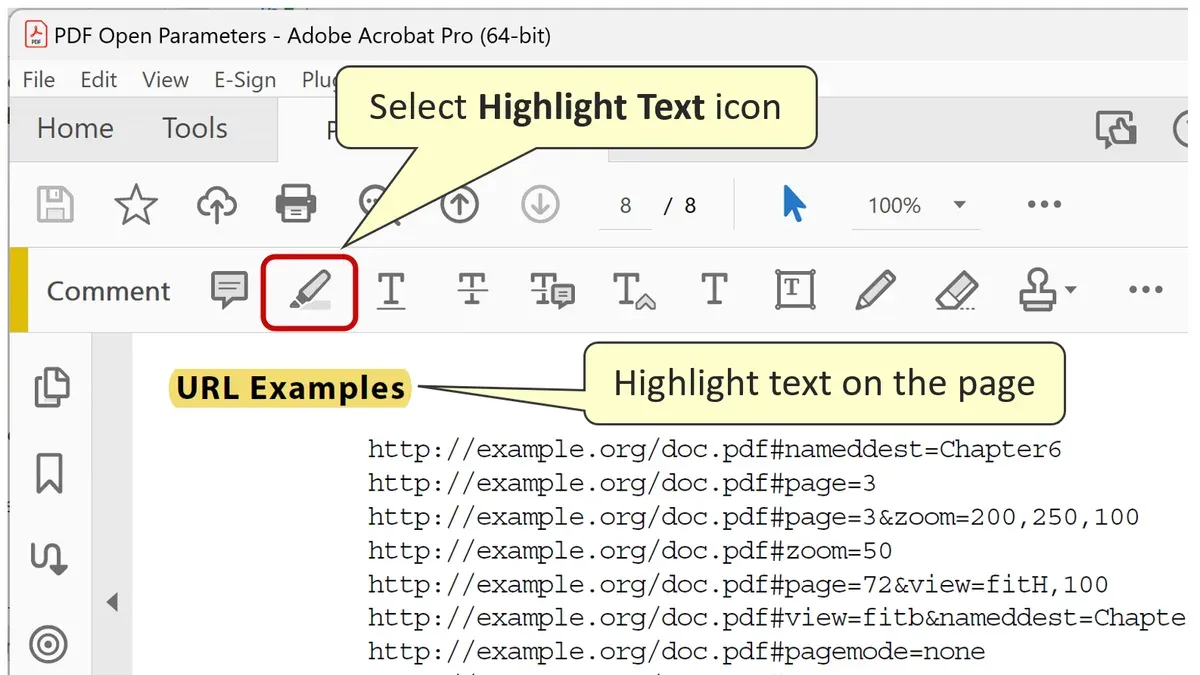
Here is how you can highlight text in a scanned PDF using markup shapes:
- Open the PDF in Preview and navigate to the page with the text you want to emphasize.
- Click on the Markup Toolbar button (it looks like a pencil tip) or select View > Show Markup Toolbar from the menu.
- Choose the Rectangle or Highlight shape tool from the toolbar. Draw a box over the area of text you want to highlight.
- Adjust the shape’s fill color and opacity by clicking the color picker and moving the opacity slider to mimic a highlight effect.
- Optionally, add a note by selecting the Note tool (speech bubble icon) and clicking near the highlighted area to type comments or reminders.
- Save the PDF to preserve these annotations.
This method visually marks the text but does not make it searchable or selectable. For scanned documents without selectable text, Optical Character Recognition (OCR) software can convert images into searchable, selectable text. After running OCR, you can open the newly created PDF in Preview and highlight text normally.
For example, using OCR software such as Adobe Acrobat or free tools like OCRmyPDF, you convert a scanned page into text. Before OCR, Preview shows only an image with no selectable text. After OCR, you can click and drag to highlight text as usual, making annotation easier and more precise.
How to Select Text in PDF in Preview for Highlighting
To highlight text in Preview, you first need to select it accurately. Start by activating the text selection tool, which is the default cursor when you open a PDF in Preview. If your cursor appears as a hand or another tool, click the Text Selection button in the toolbar, represented by a cursor icon, or select Text Selection from the Edit menu.
Once the text selection tool is active, use your mouse or trackpad to click and drag over the text you want to highlight. This action highlights the text in blue (or gray on some Macs), indicating it is selected. For quicker selection, double-click any word to select it individually, or triple-click a paragraph or line to select the entire line. Be mindful that dragging too fast can cause imprecise selection, so move steadily for accuracy.
If you need to select text spanning multiple pages, click and hold at the start of your selection, then drag down to the bottom of the page and continue dragging onto the next page. Preview supports continuous selection across pages, allowing you to highlight longer sections without stopping.
To deselect text, simply click anywhere outside the selected area or press Command + Shift + A. You can then reselect different text by repeating the selection steps. Avoid clicking and dragging while using other tools like the hand tool, as this can pan the document instead of selecting text.
- Open your PDF in Preview and ensure the text selection tool is active; your cursor should look like an I-beam.
- Click at the beginning of the text you want to highlight.
- Drag your cursor across the desired text; the selected text will be highlighted in blue.
- For quick selection, double-click a word or triple-click a line to select it fully.
- To select text across pages, click and drag beyond the bottom edge of the current page and continue onto the next.
- To deselect, click outside the selection or press Command + Shift + A.
Common mistakes include trying to select text when the hand tool is active, which moves the document instead of selecting text, or dragging too quickly and missing some words. Ensuring the correct tool and a steady drag will help you select precisely what you want to highlight.
How to Highlight a PDF in Preview on Mac: Additional Tips
Enhance your PDF highlighting experience by customizing colors and managing multiple highlights effectively. Preview offers several highlight colors beyond the default yellow, allowing you to color-code your annotations for better organization. To change the highlight color, select the highlighted text, then click the color icon in the markup toolbar and choose from colors like green, blue, pink, or orange. For example, you might use green for important definitions and pink for questions to review later.
Using keyboard shortcuts can speed up your workflow significantly. To highlight selected text quickly, press Command + Shift + H. To cycle through highlight colors without using the mouse, press Command + Control + C after selecting the text to open the color palette, then use arrow keys and Enter to pick a color. These shortcuts help maintain your focus on reading rather than navigating menus.
Combining highlighting with other annotation tools can improve how you interact with your PDF. You can add notes, underline, or strike through text in conjunction with highlights. For instance, after highlighting a passage, click the Note button in the markup toolbar to attach a comment explaining why it’s important. This layered approach supports deeper review and collaboration.
Finally, remember to save your work regularly. After adding highlights and annotations, use File > Export as PDF to save a copy that preserves all markups. This ensures your color-coded highlights and notes remain intact when sharing or reopening the document on any device.
Why Can’t I Highlight My PDF in Preview? Common Issues and Fixes
Sometimes, highlighting text in Preview doesn’t work because the PDF is actually a scanned document or an image-only file. These types of PDFs lack selectable text, so when you try to highlight, you won’t be able to select any characters. To check this, try clicking and dragging over the text. If nothing highlights, the PDF is likely image-based. You can fix this by using an OCR (Optical Character Recognition) tool to convert the image into selectable text.
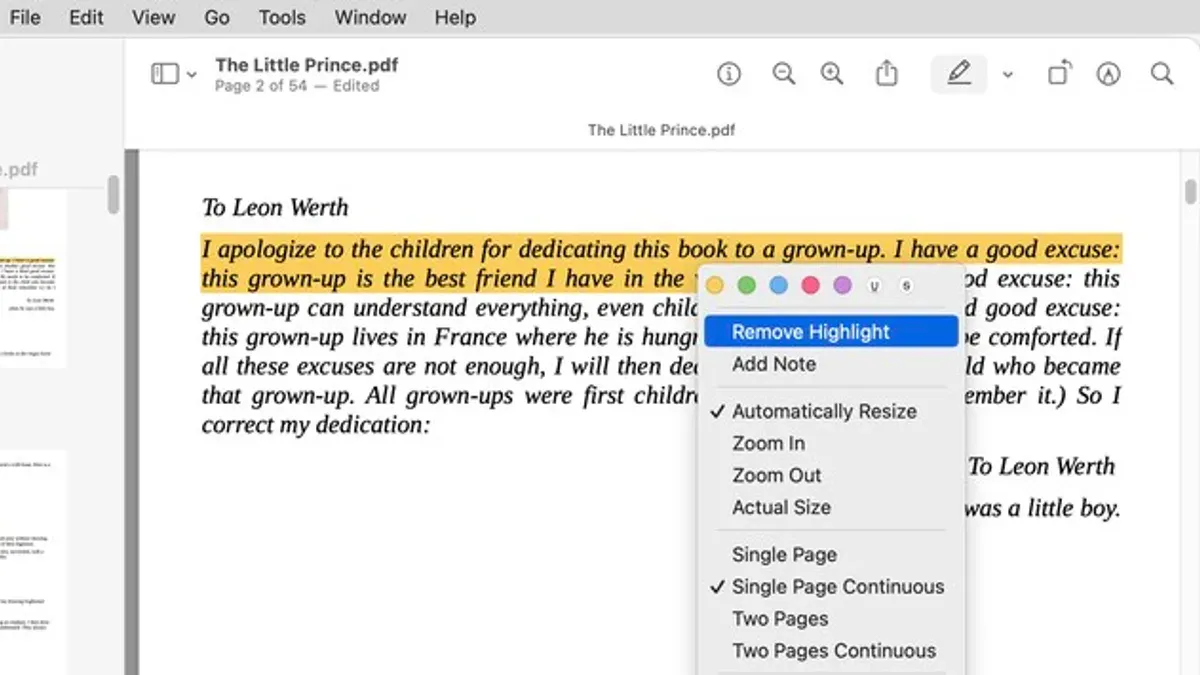
Another frequent issue is PDF security or permission restrictions. Some PDFs have settings that prevent editing or annotating, including highlighting. To identify this, open the PDF in Preview and check under the “Tools” menu for any disabled annotation options. If highlighting is grayed out, the file probably has restricted permissions. You’ll need to remove these restrictions using specialized software or request an unrestricted version of the document.
Preview itself can sometimes glitch or behave unexpectedly. If highlighting suddenly stops working on a PDF that previously allowed it, try quitting Preview completely and reopening the file. Restarting your Mac can also clear temporary bugs. Additionally, make sure your macOS and Preview app are up to date, as updates often fix compatibility issues.
Lastly, file corruption or unusual PDF formatting can block highlighting functionality. If the PDF has been generated by uncommon software or is partially corrupted, Preview might not interpret the text layers correctly. Testing the file in another PDF viewer like Adobe Acrobat Reader can help confirm this. If the PDF opens normally elsewhere but not in Preview, consider converting the file to a different PDF version or re-downloading it.
- Try selecting text by clicking and dragging; if no text highlights, verify if the PDF is image-only.
When successful, text will highlight as you drag. - Check if annotation options, especially highlight, are disabled under the “Tools” menu.
If options are disabled, the PDF has security restrictions. - Quit Preview and reopen the PDF, or restart your Mac.
After reopening, the highlighting tool should work if it was a temporary glitch. - Test the PDF in a different reader to identify file corruption or formatting issues.
If highlighting works elsewhere, consider converting the PDF or getting a new copy.
Can You Add Text to a PDF in Preview While Highlighting?
Preview allows you to add text annotations to a PDF alongside highlights, but these features operate independently. Highlighting changes the background color behind existing text, while adding text involves inserting new text boxes or notes that float over the document. Understanding how to combine these tools helps you annotate PDFs more effectively.
To add a text annotation while keeping your highlights visible, use the Markup toolbar. Here’s how:
- Open your PDF in Preview and click the Markup button (a pen tip icon) in the toolbar. The markup tools will appear.
- Click the Text tool (represented by a “T” icon). A text box will appear on the page.
- Drag the text box to the desired location, typically near your highlighted text, and type your note or comment. The text box background is usually semi-transparent so your highlights remain visible underneath.
- To resize the text box, drag its edges or corners. You can also change the font style, size, or color using the Text Style button (an “A” icon) in the Markup toolbar.
- After adding your text annotation, you can continue highlighting text elsewhere on the page without affecting the annotation. Both annotations will be saved together when you save the PDF.
Use text addition when you want to insert comments, explanations, or extra information that doesn’t exist in the original text. Highlighting is best for emphasizing existing text. Keep in mind that Preview’s text editing tools do not let you modify the original PDF text content; you can only overlay annotations.
Frequently asked questions
How to highlight text in pdf document?
Open the PDF in Preview, then click the Highlight button in the toolbar or use the shortcut Command + Shift + H. Select the text you want to highlight by clicking and dragging your cursor over it. The text will be highlighted in yellow or your chosen color immediately.
How to highlight text in pdf file?
Launch Preview and open your PDF file. Use the mouse or trackpad to select the text you want to emphasize. Then click the Highlight button, which looks like a pen tip icon, or right-click the selected text and choose Highlight from the context menu.
How to highlight in pdf preview mac?
In Preview on Mac, first ensure the Markup toolbar is visible by clicking the Show Markup Toolbar button (a pencil icon). Select the text you want to highlight, then click the Highlight button within that toolbar. If you do not see the highlight option, check that your PDF is not locked or scanned as an image.
Why can't i highlight my pdf in preview?
You might not be able to highlight because the PDF is a scanned document or image, which means the text is not selectable. Another reason is that the PDF may have permissions or security settings preventing annotations. In such cases, try using OCR software or a different PDF editor that supports image-based text recognition.
How to highlight a text in pdf?
Open the PDF in Preview and locate the text you want to highlight. Click and drag to select the text, then click the Highlight button in the toolbar, or right-click and select Highlight. If the text is unselectable, it may be part of an image, requiring OCR or alternate tools for highlighting.
What This Guide Does Not Cover
This guide does not cover advanced PDF editing or OCR scanning features. If you need to extensively edit text within a PDF, add complex annotations, or convert scanned images into selectable text, Preview’s highlighting and basic markup tools may fall short. In such cases, dedicated PDF editing software like Adobe Acrobat Pro or specialized OCR applications provide more powerful options that Preview cannot offer.
For users who frequently work with scanned documents or require precise control over PDF content beyond simple highlighting, exploring these advanced tools will save time and improve results.
To move forward with enhancing your PDF workflow using Preview, focus next on mastering the text selection techniques outlined earlier. Practicing careful click-and-drag selection or using the Edit menu’s selection commands often resolves common issues and allows you to highlight text efficiently within most PDFs you encounter.
See also: How to Redact Text in a PDF Using Preview on Mac · How to Annotate a PDF in Preview: A Clear Step-by-Step Guide · How to Sign a PDF in Preview: Step-by-Step Guide for Mac Users · How to Fill a PDF Form in Preview on Mac: Step-by-Step Guide