How to Delete a Blank Page in Pages: Step-by-Step Guide
Discover easy steps to delete a blank page in Pages on Mac, iPad, or iPhone and keep your documents clean and professional.
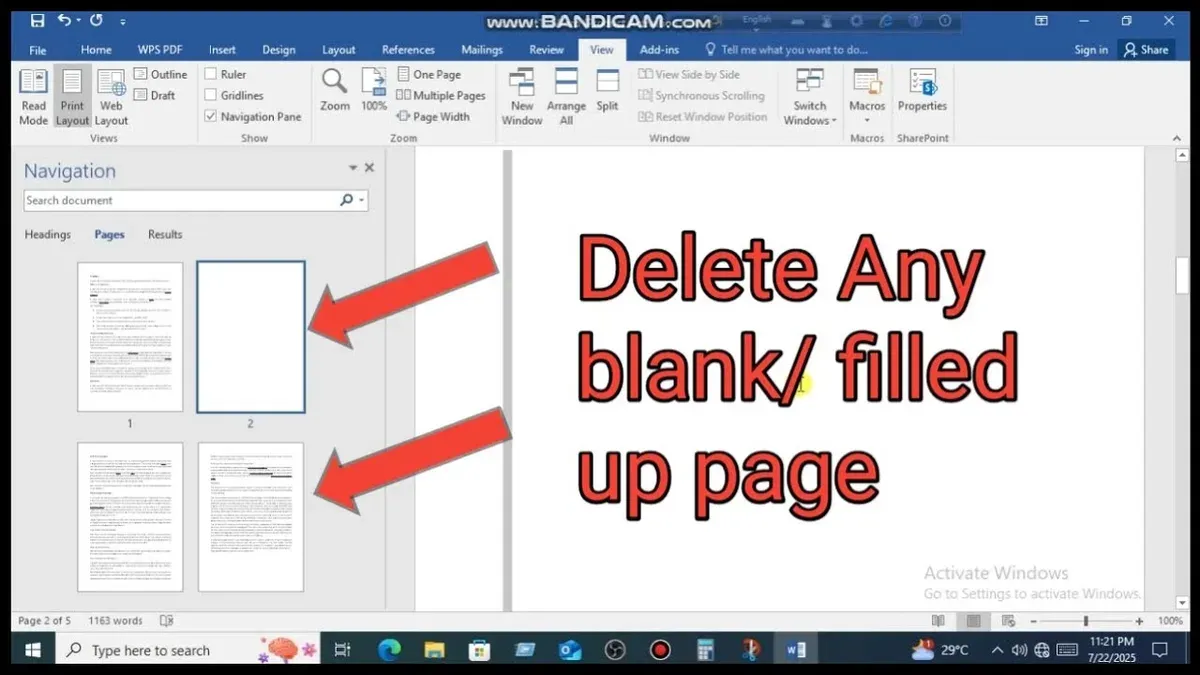
You've just finished a document in Pages, but when you scroll through, there's an unexpected blank page that disrupts the flow. Whether you're working on a MacBook, iPad, or iPhone, these blank pages can be frustrating, especially when you're ready to share or print your work.
This article explains how to delete a blank page in Pages with clear, device-specific steps. You'll also learn why blank pages appear, including common causes like section breaks and tables, and how to fix them permanently. By the end, you'll have the confidence to remove unwanted pages and keep your documents clean and professional.
Key takeaways
- Use the sidebar or page thumbnails on Mac to locate and delete blank pages easily.
- On iPad and iPhone, tap and hold to select and delete blank content causing the page.
- Check for hidden section breaks or extra paragraphs that create blank pages.
- If a blank page won’t delete, adjust table placement or section break settings.
- Prevent blank pages by managing page breaks and avoiding extra empty paragraphs.
Before you start: What you need to know
Blank pages in Pages documents often occur not because of a single obvious page break, but due to hidden elements like extra paragraph breaks, section breaks, or invisible objects such as tables or images with no content. These elements can push content onto a new page or create space that results in an unwanted blank page. Recognizing these causes helps you target the right content to remove or adjust.
Before you begin deleting pages, it’s essential to identify which device you are using—MacBook, iPad, or iPhone—since the interface and steps to delete blank pages vary. Knowing your device ensures you follow the correct method and avoid confusion.
Backing up your document before making any changes is highly recommended. This protects your work from accidental deletions or formatting errors that can happen during editing. You can duplicate your document in Pages or save a copy to iCloud or another location.
Keep in mind that Pages does not offer a direct “delete page” button. Deleting a blank page involves removing the content, such as extra paragraph marks or section breaks, or adjusting the layout to close the gap causing the blank page. Understanding this will prepare you for the process ahead.
- Open your Pages document and scroll to the blank page.
What you should see: a page with no visible text but possibly some empty space. - Enable the view of invisible characters:
On Mac, click View > Show Invisibles; on iPad or iPhone, tap the Format brush, then find and turn on Show Invisibles.
What you should see: paragraph marks (¶), section breaks, or other symbols indicating hidden elements. - Look closely for extra paragraph marks (¶), section breaks, or objects that may be pushing content onto a new page.
What you should see: these marks or breaks appearing at the end of the previous page or on the blank page itself. - Confirm your device to follow device-specific instructions for removal.
What you should see: your device type noted so you can apply the right steps in the next sections. - Create a backup by duplicating the file or saving a copy.
What you should see: a saved duplicate ready for editing without risk to your original document.
How to delete a blank page in Pages on MacBook or Mac
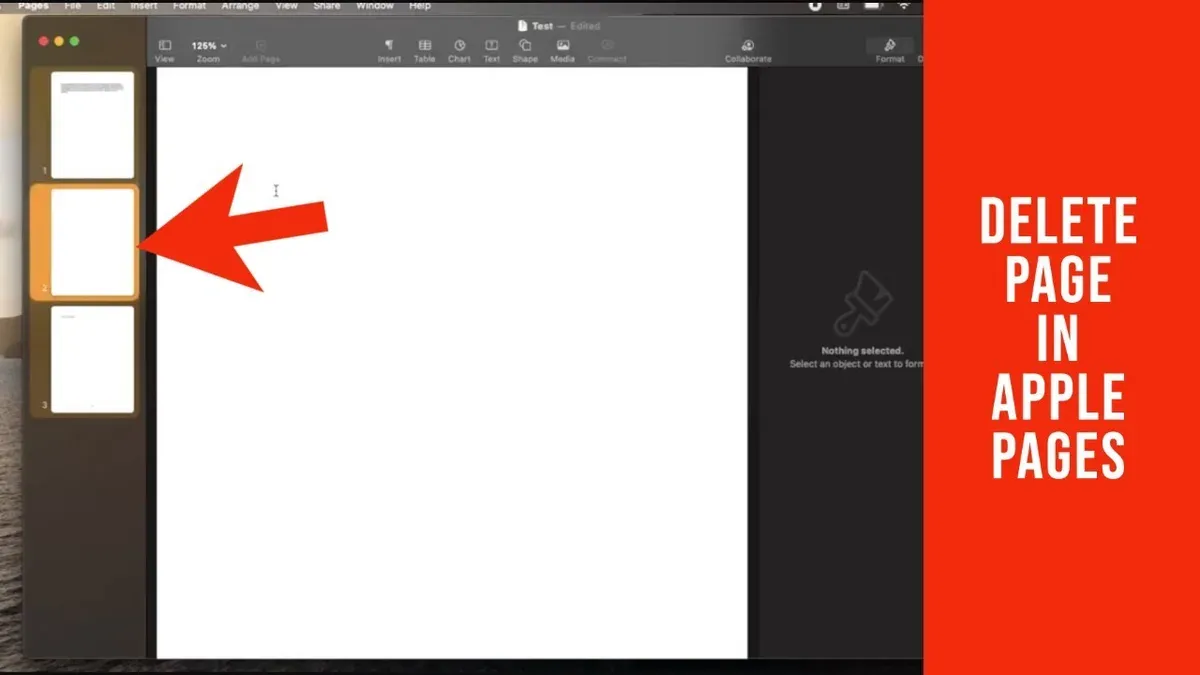
To remove a blank page in Pages on your MacBook or Mac, start by revealing invisible characters. This will help you identify extra paragraph marks or manual page breaks that create unwanted blank pages. Go to the View menu and select Show Invisibles. You will now see symbols for paragraph returns (¶) and page breaks.
- Click at the start of the blank page and press the Delete key to remove any extra paragraph marks or manual page breaks. When done correctly, the blank page should disappear immediately.
- If the blank page remains, check for section breaks. Go to the Document sidebar, select the Section tab, and look for any unusual section breaks that might force a blank page. Remove or adjust these breaks by selecting and deleting them in the document.
- Inspect page layout settings by clicking the Document button in the toolbar. Under Section, check if “Start Section on” is set to “Next Page,” which can insert blank pages. Change it to “Continuous” to prevent this.
- Sometimes oversized text boxes or images can push content onto a new blank page. Click on any text box or image near the blank page and resize or move it to see if this removes the extra page.
Following these steps should help you locate and delete blank pages effectively. Revealing invisible characters is the key first step, allowing you to spot hidden elements that cause blank pages.
How to delete a blank page in Pages on iPad
On your iPad, removing a blank page in Pages involves using touch gestures and menus designed for iPadOS. Start by navigating to the blank page either by swiping left or right or by tapping the Page Thumbnails button in the toolbar to view all pages. This helps you confirm the location of the unwanted blank page.
- Open the Page Thumbnails view by tapping the icon with four squares in the upper-left corner. Scroll through and tap the blank page to select it. You should see a light gray highlight indicating the page is active.
- Tap and hold on any visible or invisible content area on the blank page. If no visible text appears, try tapping near the top or bottom edges to reveal hidden paragraph markers or empty lines. A cursor should appear allowing you to select text or empty paragraphs.
- Drag the selection handles to include any blank paragraph marks or empty line breaks. When these are selected, tap the Delete key on the on-screen keyboard. The blank page should shrink or disappear if these extra breaks were the cause.
- If the blank page persists, check for objects such as images or tables that extend onto the next page. Tap and hold the object, then drag it upward or resize it to fit on the previous page, removing the blank page below.
- Additionally, select the blank page, then tap the Format icon (paintbrush), go to Section settings, and adjust any section or page breaks that might be forcing a new page. Removing or changing these breaks can eliminate stubborn blank pages.
These steps use the iPad’s touch interface and Pages app menus to help you identify and remove blank pages effectively. If you follow each action carefully, you should be able to clean up your document with ease.
How to delete a blank page in Pages on iPhone
Removing a blank page in Pages on iPhone can be tricky due to the smaller screen and limited interface compared to iPad or Mac. To start, scroll through your document or use the page thumbnails to find the blank page. Tap the View Options icon (looks like a page stack) at the top right to open thumbnails, then tap the blank page to jump directly to it.
Once on the blank page, tap and hold near the top or bottom to select any invisible paragraph marks or page breaks. Drag the selection handles to highlight these blank paragraphs or breaks. Then tap Delete on the keyboard. You should see the blank page disappear or merge with adjacent content.
Keep in mind that the iPhone interface does not show invisible characters, so be cautious when deleting. Avoid accidentally removing important text by selecting only empty space or the start/end of a page. If the blank page persists, go to the Format menu, tap Document, and check layout settings like margins or spacing that may create extra pages.
Invisible objects such as empty text boxes or images can also cause blank pages. Tap around the blank page area to see if any objects become selected, then delete them if they are unnecessary. This combined approach helps you efficiently remove blank pages on iPhone despite the smaller screen.
- Open your Pages document and tap the View Options icon to access page thumbnails. Tap the blank page thumbnail to navigate there; this confirms you are on the right page.
- Tap and hold near the top or bottom of the blank page to begin selecting. Drag the selection handles to highlight any blank paragraphs or page breaks. When selected, tap Delete on the keyboard. The blank page should vanish or merge with the previous page.
- If the blank page remains, tap the Format button (paintbrush icon), then select Document. Review margin and spacing settings to ensure they are not forcing a new page.
- Tap around the blank page area to detect any invisible objects like empty text boxes or shapes. If found, tap them to select and press Delete.
- After each deletion, scroll through your document to confirm the blank page is gone and no important content was removed.
By carefully selecting and deleting blank paragraphs, adjusting layout settings, and removing hidden objects, you can clear stubborn blank pages on your iPhone’s Pages app effectively.
How to remove a blank page in a Pages document caused by section breaks or tables
Section breaks are formatting elements that divide your document into separate parts, each with its own layout settings. When a section break is placed, it often forces the following content onto a new page, which can create an unwanted blank page if the break is positioned incorrectly. Identifying and adjusting or deleting these breaks can remove stubborn blank pages.
- Open your Pages document and click the View menu, then select Show Invisibles. You should now see section breaks represented by dotted lines labeled "Section Break." Confirm that a blank page follows a section break.
- Click directly on the section break line to select it. Press the Delete key. When successful, the blank page will disappear, and the content following the break will move up, reducing your total page count by one.
- If deleting the section break disrupts your document layout, click on the section break and choose Format > Section, then change the section type from Next Page to Continuous. This adjustment removes forced page breaks while preserving formatting.
Large tables or images that extend beyond the page margin can also push content onto a new blank page. To fix this, click on the table or image, then drag the handles to resize it so it fits entirely within the page boundaries. You can also reposition the element by dragging it up or sideways. After resizing or repositioning, the blank page should disappear.
For example, a document with a section break causing a blank page might have five pages initially. After deleting or converting the section break and resizing large tables that overflow, the document reduces to four pages with no blank pages interrupting the flow. This comparison clearly shows how controlling section breaks and object sizes keeps your document clean and professional.
How to delete a blank page in the Pages app when blank page won’t delete
Sometimes, blank pages remain even after deleting all visible content. This usually happens because of hidden elements like empty text boxes, footnotes, or anchored objects that still occupy space. To fix this, you need to locate and remove these invisible blocks using Pages’ selection and formatting tools.
- Tap anywhere on the blank page, then use the Select tool to see if any hidden text boxes or objects appear. When selected, a bounding box should appear around these elements.
- If you find a hidden text box or anchored object, tap it and choose Delete. After deletion, the blank page should disappear or shrink.
- Check for footnotes or comments by tapping the Document icon, then opening Document Setup and reviewing footnote settings. Remove any unnecessary footnotes that may push content onto a blank page.
- Inspect paragraph spacing by selecting text near the blank page and opening the Format sidebar. Reduce extra space before or after paragraphs that might create blank space.
- Review page layout settings under Document Setup for unusual margins or section breaks forcing extra pages. Adjust these to standard values.
- If the blank page persists, export your document to Word or PDF via the Share menu. Open the exported file to see if the blank page remains. If it does, delete it using the Word or PDF editor’s tools as a last resort.
For example, a blank page caused by an empty anchored image was removed by selecting and deleting that invisible object, restoring the document to its intended length. Another case involved reducing paragraph spacing that had unintentionally added a blank page after a section.
How to delete a blank page in Pages when exporting to Word or PDF
Sometimes, blank pages appear in Word or PDF files after exporting from Pages because these formats handle page breaks differently. A blank page that looks gone in Pages might still be triggered by hidden breaks or objects when opened in another app. To avoid this, it's best to check and clean up your document in Pages before exporting.
- Open your document in Pages and reveal invisible characters by selecting View > Show Invisibles. You should see paragraph marks, page breaks, and section breaks. This helps identify any hidden elements that could cause extra pages.
- Delete any extra paragraph marks or page breaks at the end of your document. When done, the last page should contain visible content or end cleanly without blank lines.
- Adjust any section breaks by selecting the break and choosing Delete or modifying the layout to avoid forced page breaks. The goal is to prevent Pages from inserting a new page after a break.
- Save your document and export again by clicking File > Export To > Word or PDF. Check the exported file for unwanted blank pages.
- If blank pages remain in the exported Word file, open it in Microsoft Word and use its Navigation Pane to locate and delete blank pages or remove extra page breaks. In PDFs, use a PDF editor’s page management tools to delete unwanted pages directly.
- If you often encounter blank pages after export, try adjusting your Pages document layout—for example, reducing margins or resizing large objects—to create cleaner exports.
By thoroughly cleaning up your Pages document before exporting and knowing how to fix blank pages afterward in Word or PDF editors, you can ensure your final files are polished and free of unwanted blank pages.
How to prevent blank pages in Pages documents
Preventing blank pages in your Pages documents saves you time and keeps your files polished. Start by using paragraph styles consistently rather than inserting manual line breaks or extra returns. This ensures spacing is uniform and reduces hidden empty paragraphs that cause blank pages.
Regularly check your document’s layout settings by opening the Document sidebar and reviewing margins, page size, and section breaks. Adjusting these settings early helps avoid unexpected page breaks. Use section breaks sparingly and only when you need to change headers, footers, or page orientation; excessive or misplaced section breaks often create blank pages.
Preview your document often in both Layout and Page Thumbnails views. This lets you catch blank pages before they accumulate, making it easier to address issues promptly. Users who adopt these practices typically find fewer unwanted blank pages, streamlining their editing process and improving final document quality.
- Apply paragraph styles consistently throughout your document. When done correctly, your document will have uniform spacing without unexpected gaps.
- Open the Document sidebar and review layout settings such as margins and page size. Correct settings here prevent accidental page breaks.
- Use section breaks only where necessary for layout changes. Avoid inserting section breaks just to create space, which can leave blank pages behind.
- Regularly switch to Page Thumbnails view to visually scan for blank pages. This early detection helps you fix issues before they affect your final document.
Frequently asked questions
How to remove blank page in document?
To remove a blank page in a Pages document, first click at the end of the text just before the blank page. Press the Delete key repeatedly to pull up any hidden paragraph marks or page breaks causing the blank page. If the blank page is caused by a section break or table extending beyond the last page, adjust or delete those elements accordingly.
How to delete blank pages in docs?
In Pages documents, blank pages often result from extra paragraph returns or page breaks. Click near the blank page and use the Delete or Backspace key to remove hidden formatting marks. Checking for section breaks or oversized objects can also help, as these often force a blank page to appear.
How to remove blank page in document
Removing a blank page involves locating invisible characters or formatting that cause the extra page. Use the Show Invisibles feature in Pages to reveal paragraph marks and page breaks, then delete them. If the blank page persists, look for tables or section breaks that extend the document length.
How to delete blank pages in docs
Blank pages in Pages documents can be deleted by placing the cursor at the start of the blank page and pressing the Delete key. Sometimes, adjusting the margins or resizing tables that spill onto a new page eliminates blank pages. Also, ensure no section or page breaks are forcing extra pages.
How to delete a blank page in Pages on iPad
On iPad, tap to place the cursor at the end of the text before the blank page. Use the onscreen keyboard’s Delete key to remove any extra paragraph returns or page breaks. If the blank page remains, tap the paintbrush icon, check for section breaks in the Document Setup, and remove them.
What This Guide Does Not Cover
This guide does not cover deleting blank pages caused by corrupted documents or bugs in older versions of the Pages app. If you continue to experience persistent issues after following these steps, it may be necessary to update Pages to the latest version available on the App Store. In cases where updating does not resolve the problem, contacting Apple Support can provide specialized assistance tailored to your specific situation.
The single most useful next step is to keep your Pages app up to date. Updates often include fixes for bugs that cause unusual behavior like stubborn blank pages. Regularly checking for and installing updates helps ensure you have the latest tools and improvements, reducing the chance of encountering issues that resist standard deletion methods.
See also: How to Add Page Numbers in Pages: Step-by-Step for Mac, iPad, and iPhone · How to Add Headers and Footers in Pages: A Step-by-Step Guide